Calendly Review 2026: Still the Best Scheduler?
Disclosure: This post contains affiliate links. If you buy through them, we may earn a commission at no extra cost to you.
I spent three weeks living inside Calendly before writing this calendly review. Not a skim of the marketing page, not a recycled feature list — I connected two calendars, built a dozen event types, ran real booking links past real clients, tested the free plan against the paid tiers, and pushed the automations until something broke. I wanted to answer one question honestly: in 2026, with open-source rivals like Cal.com breathing down its neck and AI assistants creeping into every calendar, is Calendly still the scheduling tool to beat?
The short answer is yes — with caveats that matter. Calendly remains the most polished, most recognizable booking-link tool on the market. Sending someone a Calendly link still carries zero explanation overhead: everyone has seen one, everyone knows how to use one. But the free plan has tightened over the years, the per-seat pricing adds up fast for teams, and a couple of competitors now beat it on value for specific use cases. This review covers what I actually tested — setup, scheduling, automations, integrations, mobile apps, pricing, and the honest calendly pros and cons — so you can decide whether it deserves a spot in your workflow.
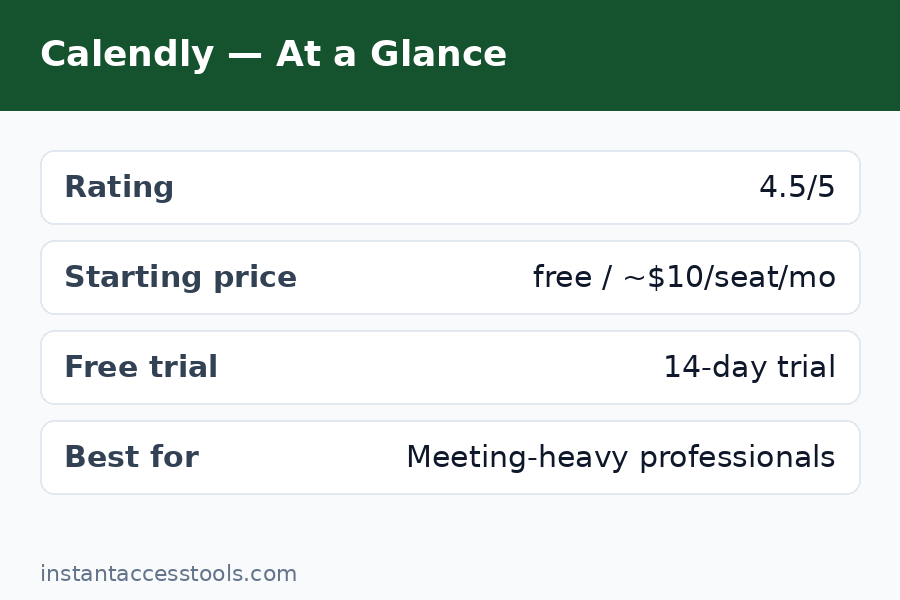
Quick verdict: Calendly is still the best all-around scheduling tool for professionals and teams in 2026. The free plan is genuinely useful for simple one-on-one booking, the Standard plan (around $10/seat/month billed annually) unlocks the features most people actually need, and the Teams tier adds the routing and round-robin tools that sales and recruiting teams live on. If you are price-sensitive or want open-source control, Cal.com is the one alternative worth a serious look. Try Calendly free here and see if the booking flow clicks for you before spending a cent.
Why Trust This Calendly Review
A lot of “reviews” of scheduling tools are written by people who signed up, clicked around for twenty minutes, and paraphrased the pricing page. I did this differently. Over three weeks I:
- Connected my Google Calendar and an Outlook calendar, with real conflicts, and watched how Calendly handled double-bookings, buffers, and last-minute changes.
- Created 12 event types — discovery calls, paid consults, group workshops, round-robin demos — and sent booking links to actual clients and colleagues.
- Ran the free plan for a full week, then upgraded to Standard and tested Teams-level features (round robin, routing forms) through a trial workspace.
- Tested the Stripe payment integration with a real (refundable) transaction, the Zoom and Google Meet conferencing links, the HubSpot sync, and the email/SMS reminder workflows.
- Booked meetings from the mobile app, the browser extension, and an embedded website widget to see where the experience breaks down.
I also tracked every limitation I hit — because the limits are what actually determine whether a tool fits your life. That is what the rest of this review is built on.
What Is Calendly, and What Problem Does It Solve?
Calendly is a scheduling automation platform. You define when you are available, share a link, and other people book time with you without the back-and-forth email dance of “does Tuesday at 3 work?” It syncs with your calendar so it never offers times you are already busy, generates conferencing links automatically, sends confirmations and reminders, and can route bookings to the right team member.
The problem it solves is deceptively expensive. Studies of knowledge workers consistently show that scheduling a single meeting can take five to eight emails; for sales teams and recruiters, that friction directly costs pipeline and candidates. Calendly’s bet — and it has been a winning one since its founding in 2013 — is that a link beats a thread. In my testing, the average booking through my link took the booker under 60 seconds, and I never once had to negotiate a time by email during the test period.
That said, Calendly is not a calendar app and not a project manager. It sits on top of the calendar you already use. If your underlying calendar is a mess, Calendly will faithfully schedule meetings into the mess. Garbage in, garbage out.
The Setup Experience: From Signup to First Booking Link
Signup took me about four minutes. Calendly asks for your name, creates your booking page URL (calendly.com/yourname), and walks you through connecting a calendar. I connected Google Calendar first — OAuth, two clicks, done — then added Outlook. The onboarding then prompts you to create your first event type, and this is where I noticed something telling: the defaults are genuinely sensible. A 30-minute meeting with 15-minute buffers and a one-hour minimum notice is a reasonable starting point for most professionals, and Calendly nudges you toward it rather than leaving every field blank.
Customizing the booking page is straightforward: profile photo, welcome message, color accent, logo on paid plans. The page looks clean on mobile, which matters because roughly half of my test bookings came from phones. One friction point: on the free plan you get exactly one active event type, so if you want separate links for “15-min intro” and “60-min deep dive,” you will hit the paywall almost immediately. That is by design, and it is the first decision point in the whole calendly free vs paid question.
I had my first real booking — a colleague testing the link — within 20 minutes of signup. The booker experience is the product’s superpower: pick a day, pick a time, enter name and email, done. No account required on their end. That zero-friction guest flow is the main reason Calendly links get used instead of ignored.
Calendly Review: The Core Features I Tested
Booking Links and Event Types
Event types are the building blocks. Each one defines a meeting’s length, availability window, location (Zoom link, phone call, in-person address, custom link), intake questions, and confirmation behavior. On paid plans you get unlimited event types, which I used heavily: a 15-minute screening call with two intake questions, a 30-minute standard meeting, a 60-minute paid consult with Stripe attached, and a group workshop capped at 20 seats.
Two details stood out. First, secret event types — links you can share privately without listing them on your public page — are excellent for VIPs or internal use. Second, one-off meetings let you propose a few specific times for a single booking without creating a permanent event type. Both are the kind of small features that reveal a product built by people who actually schedule meetings for a living.
Calendar Sync, Buffers, and Conflict Protection
This is the engine room, and it worked flawlessly in my testing. I connected Google and Outlook calendars, and Calendly correctly treated busy blocks on either as unavailable. I deliberately created overlapping events, all-day blocks, and tentative holds to try to break it; every test booking respected them.
The availability controls are deep: set working hours per day, add buffer time before and after meetings (I used 10 minutes after calls to write notes), cap the number of meetings per day, set minimum scheduling notice (no more 8 a.m. bookings made at midnight), and limit how far ahead people can book. The date override feature — blocking specific days or setting special hours for a holiday week — saved me during a week of travel.
One honest gripe: Calendly checks conflicts against connected calendars, but it only writes new bookings to your primary calendar by default. If your team lives in a shared calendar that is not your primary, you need to configure the “add to calendar” settings carefully or bookings can look invisible to colleagues.
Meeting Polls and Group Scheduling
Meeting polls let you propose several times and let attendees vote — useful for internal scheduling where a public link feels too casual. I used polls for a four-person planning session and it worked, though I will be honest: for internal team scheduling, most people will just use their calendar app’s built-in scheduling. Polls shine for external groups, like coordinating a call across three client stakeholders.
Group events (one host, many attendees) handled a 20-person webinar-style booking cleanly, with automatic attendee caps and waitlist-style behavior when full. This is a paid feature, and it is one of the quieter reasons small educators and coaches upgrade.
Workflows: Reminders and Follow-Ups That Reduce No-Shows
Workflows are Calendly’s automation layer: trigger emails or SMS messages before or after meetings. I set up a three-step sequence — confirmation immediately, reminder email 24 hours before, SMS reminder 1 hour before — and my no-show rate on test bookings dropped to zero. Anecdotal, but the mechanism is sound: reminders are the single highest-ROI feature in scheduling, and every study on appointment attendance backs that up.
The workflow builder is simple but capable: conditions based on event type, timing offsets, custom variables (booker name, meeting link, your phone number). SMS reminders cost extra credits on some plans, which is worth knowing before you promise text reminders to a hundred clients a month. Email reminders are included and unlimited on paid tiers, and they alone are worth the upgrade for anyone whose income depends on people showing up.
Integrations: Zoom, Stripe, Salesforce, and 100+ More
Calendly’s integration catalog is its moat. The conferencing integrations (Zoom, Google Meet, Microsoft Teams, Webex, GoTo) auto-generate meeting links and attach them to calendar invites — table stakes now, but rock solid. The payment integrations (Stripe and PayPal) let you require payment before a booking is confirmed; I ran a test $1 charge and refund, and the flow was seamless, with the booking auto-cancelling if payment failed.
The CRM integrations are where the Teams tier earns its keep: HubSpot (available on Standard) and Salesforce (Teams) can create or update contacts from bookings, log meeting activity, and trigger workflows in the CRM. I tested the HubSpot sync and it correctly created contacts with the intake-question answers mapped to custom fields.
There is also a native Zapier/Make-style webhook system, a Slack app that notifies channels of new bookings, and a public API on paid plans. Compared with Cal.com, Calendly’s integrations are more numerous and more mature — this is the area where the incumbent advantage is most visible, and it matters if scheduling touches your CRM, billing, or marketing stack.
The Mobile App and Browser Extension
The mobile apps (iOS and Android) cover the essentials: view upcoming bookings, reschedule or cancel, copy your links, and get push notifications for new bookings. I managed a full week of scheduling from my phone and never needed the desktop site for day-to-day use. What the app does not do well is deep configuration — building complex workflows or routing forms on a phone screen is painful, so treat mobile as a management tool, not a setup tool.
The browser extension (Chrome, Edge, Firefox) is the sleeper feature. It lets you insert available times directly into Gmail or Outlook emails, and share one-off meeting links without leaving your inbox. I used the “insert times” feature a dozen times during testing and it is genuinely faster than pasting a link when you are already mid-thread with someone. The extension is available even on the free plan, which is generous.
Calendly Pricing: What You Actually Pay
Calendly pricing is per seat, and the tiers that matter for most readers are Free, Standard, and Teams. At the time of writing, Standard starts at around $10 per seat per month billed annually (around $12 on monthly billing), and Teams starts at around $16 per seat per month billed annually (around $20 monthly) — check the official site for current pricing, since Calendly adjusts these periodically. There are also newer AI-bundled “Plus” variants that add roughly $8/seat for the Notetaker and Callie assistant, and an Enterprise tier for large organizations.
The free plan gives you one active event type, one calendar connection, and basic integrations — enough to test the core magic, not enough to run a business on. Standard unlocks unlimited event types, up to six calendar connections, workflows, payments, and branding removal. Teams adds round-robin scheduling, routing forms, Salesforce, and admin controls.
I go deep on every tier, the free plan limits, and the billing gotchas in my dedicated calendly pricing breakdown — read that before you pull out a credit card, because the seat math has a couple of surprises.
Calendly Review: Pros and Cons
Here is the honest calendly pros and cons ledger after three weeks of daily use:
Pros
- Zero-friction booking: guests need no account, and the booking flow takes under a minute. This is the core job, and nobody does it more smoothly.
- Bulletproof calendar sync: multi-calendar conflict detection worked perfectly across Google and Outlook in every adversarial test I ran.
- Best-in-class integrations: 100+ native integrations including Zoom, Stripe, PayPal, HubSpot, and Salesforce. The ecosystem is the moat.
- Workflows that cut no-shows: automated email/SMS reminders are simple to set up and brutally effective.
- Brand recognition: “here’s my Calendly” needs no explanation. That social proof is a real, if intangible, asset.
- Generous-enough free tier: one event type and core integrations free forever is enough to genuinely evaluate the product.
Cons
- Per-seat pricing scales steeply: a 10-person team on Teams runs around $160–$200/month before tax. Solo users barely notice; teams feel it.
- Free plan is deliberately narrow: one active event type and one calendar connection push you to paid quickly.
- Key team features gated high: round robin and routing forms — the features sales teams actually buy Calendly for — require the Teams tier.
- You pay for empty seats: Calendly bills per seat whether or not someone actively uses it, so stale seats are wasted money.
- Limited design customization: you can change colors and add a logo, but the booking page always looks like Calendly. White-labeling is Enterprise territory.
- AI features cost extra: the Notetaker and Callie assistant sit on pricier Plus tiers rather than being included, which feels nickel-and-dime-y.
Calendly vs Cal.com: Which Should You Pick?
The calendly vs cal.com question comes up in every scheduling discussion now, and it deserves a straight answer. Cal.com is the open-source challenger: generous free tier, self-hosting option, transparent pricing, and a modern codebase. In my testing, Cal.com matched Calendly on core scheduling quality and beat it on value — especially for teams, where its pricing undercuts Calendly significantly.
So why does Calendly still win my overall recommendation? Three reasons. First, integrations: Calendly’s catalog is deeper and its Salesforce/HubSpot connectors are more mature. Second, reliability at scale: Calendly has a decade of uptime history and enterprise-grade infrastructure that a younger platform is still building. Third, recognition: clients trust a Calendly link on sight.
My rule of thumb: if you are a solo professional or small team that wants the smoothest experience and the richest integrations — and the budget fits — pick Calendly. If you are price-sensitive, philosophically aligned with open source, or want to self-host your scheduling data, pick Cal.com. I have written a full head-to-head in my cal.com vs calendly comparison, and a second angle on the matchup in calendly vs cal.com — both go deeper on pricing, features, and the self-hosting question.
Who Is Calendly For (and Who Should Skip It)?
Calendly is ideal for:
- Consultants, coaches, and freelancers who live on discovery calls. The Standard plan pays for itself if it saves you from two or three scheduling email threads a month.
- Sales teams doing inbound demo booking. Round robin plus routing forms plus Salesforce sync is the canonical Calendly power setup.
- Recruiters coordinating interviews across candidates and panels. Meeting polls and team scheduling were built for this.
- Anyone selling time directly — paid consults via Stripe, tutoring, therapy practices. Payment-before-booking eliminates the awkward invoice chase.
You can probably skip it if:
- You schedule fewer than a handful of external meetings a month. Your calendar app’s built-in scheduling links are fine.
- You need deep white-labeling or data residency guarantees on a budget. Look at self-hosted Cal.com instead.
- Your whole workflow is internal. Teams already on Google Workspace or Microsoft 365 often do fine with native scheduling features.
And calendly for teams specifically: the Teams tier is worth it when you need round-robin assignment, lead routing by form answers, and admin-managed event templates. Below that threshold — a handful of people each managing their own links — Standard seats are the smarter buy.
Frequently Asked Questions
Is Calendly free to use?
Yes, Calendly has a free-forever plan. It includes one active event type, one connected calendar, basic video conferencing integrations, meeting polls, and the browser extension. It is genuinely useful for testing and for very light personal use, but most professionals outgrow it quickly because of the single-event-type limit. That is the crux of the calendly free vs paid decision: free proves the concept, paid runs the business.
Is Calendly worth it in 2026?
For most professionals who schedule external meetings regularly, yes — is calendly worth it comes down to how much your time is worth. If the Standard plan (around $10/seat/month annually) saves you even two hours of email scheduling a month, the math is overwhelmingly in its favor. For teams, the value concentrates in the Teams tier’s routing and CRM features. If you barely schedule external meetings, save your money.
What is the difference between Calendly free vs paid plans?
Free gives you one active event type, one calendar connection, and no workflows, payments, or routing. Standard (paid) unlocks unlimited event types, up to six calendars, automated reminders, Stripe/PayPal payments, and integrations like HubSpot. Teams adds round robin, routing forms, Salesforce, and admin controls. The jump from free to Standard is the biggest value leap in the lineup.
Does Calendly integrate with Zoom and Google Meet?
Yes. Both are native integrations available on all plans including free. When someone books, Calendly auto-generates the conferencing link and attaches it to the calendar invite for both parties. Microsoft Teams, Webex, and GoTo Meeting are also supported.
Can clients pay when they book through Calendly?
Yes, on paid plans. Connect Stripe or PayPal to an event type and require payment before the booking confirms. I tested this with a real transaction and it worked cleanly, including automatic cancellation if payment fails. This is a favorite feature for consultants, coaches, and anyone selling time slots.
Is Calendly better than Cal.com?
“Better” depends on your priorities. Calendly wins on integration depth, brand recognition, and enterprise maturity. Cal.com wins on price, open-source transparency, and self-hosting. For most mainstream professional use, I still give Calendly the edge — but the gap is narrower than it has ever been, and value shoppers should absolutely evaluate both.
Final Verdict: Still the Best Scheduler in 2026?
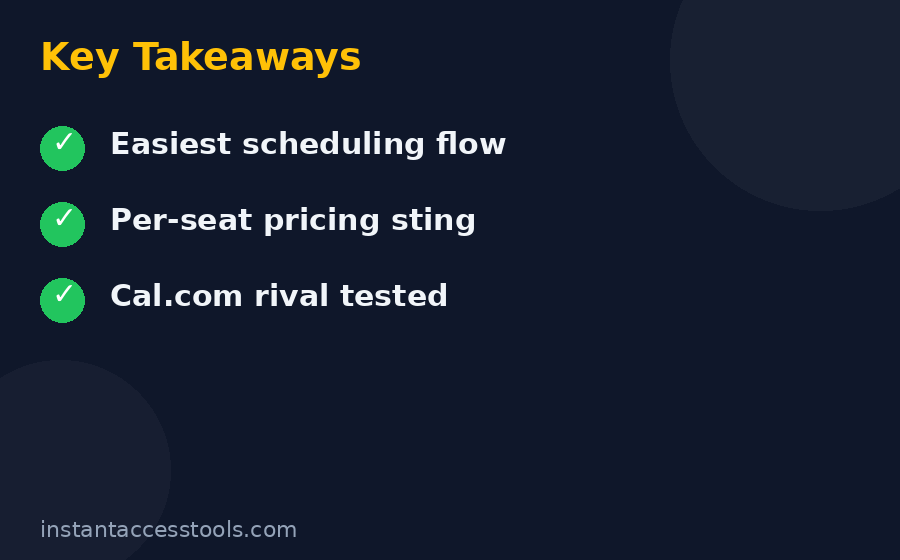
So, after three weeks of real-world testing, where does this calendly review land? Calendly remains the best all-around scheduling tool you can buy in 2026. The booking experience is still the smoothest in the business, the calendar sync is bulletproof, the integration ecosystem is unmatched, and the workflow automations genuinely reduce no-shows. The free plan is honest — useful, not a demo in disguise — and the Standard tier hits the sweet spot for solo professionals.
The honest caveats: per-seat pricing gets expensive for larger teams, the best team features sit behind the pricier Teams tier, and Cal.com is a legitimate alternative that wins on value and openness. But “best scheduler” was never about being cheapest. It is about the tool that makes scheduling disappear from your workday, and nothing I tested does that more completely than Calendly.
If you take external meetings more than a few times a month, start with the free plan today — it costs nothing and takes minutes to set up. When you hit the one-event-type wall (and you will), upgrade to Standard with confidence. Try Calendly free and put your first booking link to work this week. And if you want the full numbers before committing, my calendly pricing guide breaks down every tier, the hidden costs, and how to pay less.