Harvest Review 2026: Time Tracking for Teams Tested
Disclosure: This post contains affiliate links. If you buy through them, we may earn a commission at no extra cost to you.
This harvest review comes from a full month of actually running my client work through Harvest: tracking hours on real projects, sending real invoices, and pulling the reports I use to decide what to charge. I have tested most of the big time trackers over the years, and Harvest occupies an interesting spot. It is not the cheapest, it is not the most feature-packed, but it nails one specific job better than anything else I have tried: turning tracked time into paid invoices with almost no friction.
In this review I will walk through the timers, invoicing, expense tracking, and team reports, break down harvest pricing honestly (including how limited the free plan is), compare it with Toggl, and give you a straight answer on whether it is worth it for freelancers and small teams.
Quick verdict: Harvest is the best time tracker for freelancers and small teams who bill by the hour. The timers are dead simple, and the invoicing built from tracked time is genuinely excellent. The free plan is too limited for real use (1 seat, 2 projects), so budget for the Pro plan. If you only need time tracking without invoicing, cheaper options exist.
Start your free Harvest trial — 30 days of Pro, no credit card
What Is Harvest?
Harvest is a time tracking, invoicing, and expense tool built for people who bill for their hours. It has been around since 2006, which makes it one of the oldest products in this space, and that longevity shows in the polish. The core loop is simple: you track time against projects and tasks, then convert that time into professional invoices and get paid through Stripe or PayPal.
Unlike trackers that try to become full project management suites, Harvest stays deliberately focused. There are no kanban boards, no chat, no sprawling feature menu. That restraint is either its biggest strength or its biggest weakness depending on what you need, and I will be specific about which it is for different users below.
The harvest features that matter most are the timers, the invoicing, expense tracking, and team reporting. I tested all four with real data, so let us go through them one by one.
Harvest Review: Timers and Time Tracking
The timer is the heart of Harvest, and it is refreshingly uncomplicated. You pick a project and task, hit start, and it runs. You can track from the web app, the Mac and Windows desktop apps, the iOS and Android apps, or browser extensions for Chrome, Edge, and Firefox. I mostly used the desktop app and the browser extension, and both stayed out of my way.
A few details I appreciated during testing:
- One-click start from anywhere. The browser extension detects what you are working on and lets you start a timer without opening Harvest itself.
- Idle detection. Step away for lunch and Harvest asks whether to keep or discard the idle time when you return. Small thing, big accuracy win.
- Timesheet view. If you forget to run the timer (I did, twice), the weekly timesheet makes it easy to fill gaps manually.
- Reminders. Harvest can nudge you if you have not tracked time by a set hour, which saved my invoicing accuracy more than once.
What is missing: there is no automatic time capture or screenshot monitoring, which some managers want. Harvest trusts your team to track honestly rather than surveilling them. I consider that a plus, but if you need proof-of-work screenshots, look elsewhere.
If you are torn between the two most popular options here, my detailed harvest vs toggl track comparison goes deeper, and my toggl track review covers the other side of that matchup.
Harvest Review: Invoicing and Getting Paid
This is where Harvest earns its price. Every hour you track flows directly into invoicing: select a project, choose the unbilled time, and Harvest generates a clean, professional invoice. You can invoice from tracked hours, from expenses, or from fixed fees and retainers.
During my test month I sent three real invoices through Harvest, and the workflow was the smoothest I have used:
- Invoices build themselves from your tracked time, with line items grouped by task or person.
- Online payments via Stripe and PayPal let clients pay from the invoice itself.
- Automatic reminders chase late payments politely, which I found genuinely useful as someone who hates awkward money conversations.
- Recurring invoices handle retainers without monthly busywork.
The honest caveat: Harvest’s invoicing is built for service businesses billing time and expenses. If you sell products, need complex tax handling, or run payroll, you will still need accounting software alongside it. For freelancers and agencies billing hours, though, it replaces a separate invoicing tool entirely, which changes the value math on the subscription.
Harvest Review: Expense Tracking
Expenses in Harvest are simple on purpose. You log an expense against a project, attach a photo of the receipt from the mobile app, mark it billable or not, and it flows into the project’s costs and, when you are ready, onto the client’s invoice.
I tested this with a month of real receipts: software subscriptions, a coworking day pass, and client travel. The mobile receipt capture worked well, and having billable expenses appear automatically on invoices meant nothing slipped through the cracks. That “nothing slips” quality is the whole point.
Limitations worth knowing: there is no receipt auto-scanning with OCR, so you enter amounts manually, and there is no corporate card reconciliation. For a freelancer or small team, that is fine. For a finance department processing hundreds of expenses, it is not enough.
Harvest Review: Team Reports and Insights
If you run a small team, this section matters more than the timers. Harvest’s reports answer the questions that decide whether a project made money: How many hours went to each project? Are we over budget? Who has capacity, and who is overloaded?
The reports I used most:
- Time reports broken down by project, task, client, or team member, exportable to CSV and PDF.
- Budget tracking that shows at a glance whether a fixed-fee project is still profitable as hours accumulate.
- Capacity reports showing who is booked and who has room, which made resourcing decisions noticeably easier.
- Uninvoiced time reports that surface billable hours you forgot to invoice. This one report probably paid for the subscription by itself.
The reporting is strong for its size but not infinite. You cannot build fully custom report templates, and the analytics will not replace a dedicated BI tool. For teams under fifty people billing client work, though, it covers the decisions that actually matter.
Harvest Review: Pricing, Plans, and the Free Trial
Let us talk about harvest pricing plainly, because the free plan is the first thing most people ask about.
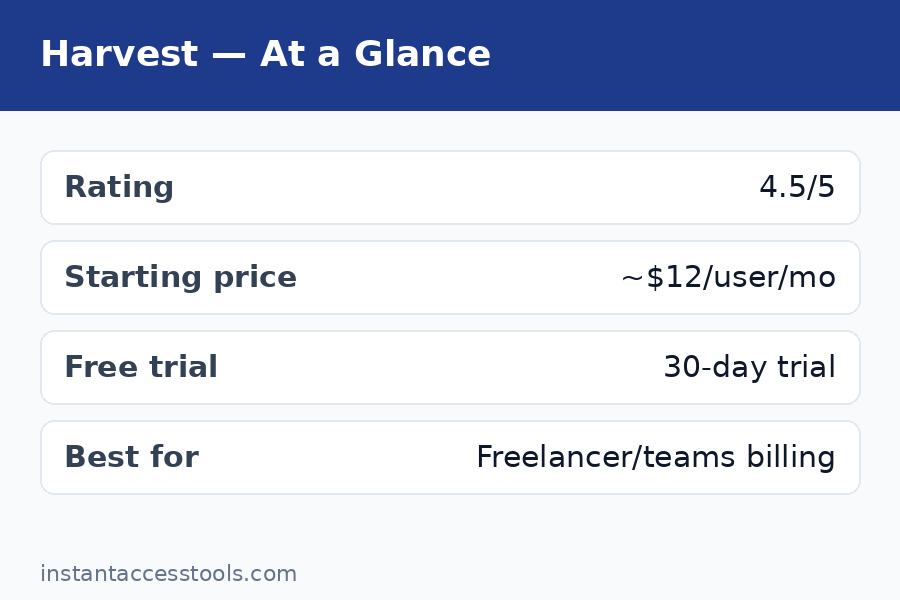
The free plan is very limited. You get 1 seat and 2 projects. That is enough to kick the tires on the interface, but no freelancer with more than two active clients and no team of any size can run on it. Treat it as an extended demo, not a usable free tier.
Pro is the real product. It starts at around $12 per person per month at the time of writing — check the official site for current pricing. Every seat gets unlimited projects, invoicing, expenses, and all reports. There are no feature-gated tiers above it, which I find refreshingly honest: one paid plan, everything included.
The free trial is generous where it counts: 30 days of the full Pro plan with no credit card required. That is enough time to track a real billing cycle and send at least one invoice, which is exactly the test that matters.
For the full plan-by-plan breakdown with worked cost examples, see my harvest pricing page.
Is it expensive? Per seat, yes, compared to trackers that charge less or offer bigger free tiers. But remember that Harvest replaces both a time tracker and an invoicing tool. If you are currently paying for both, Harvest often costs less in total while removing the double-entry work between them.
Harvest Review: Pros and Cons
After a month of daily use, here is my honest harvest pros and cons list.
Pros:
- Timers are frictionless across web, desktop, mobile, and browser extensions
- Invoicing built directly from tracked time is best-in-class for service businesses
- Expense tracking flows into invoices so billable costs never slip
- Team reports surface budgets, capacity, and uninvoiced hours clearly
- One paid plan with everything included; no upsell maze
- 30-day free trial of Pro with no credit card required
Cons:
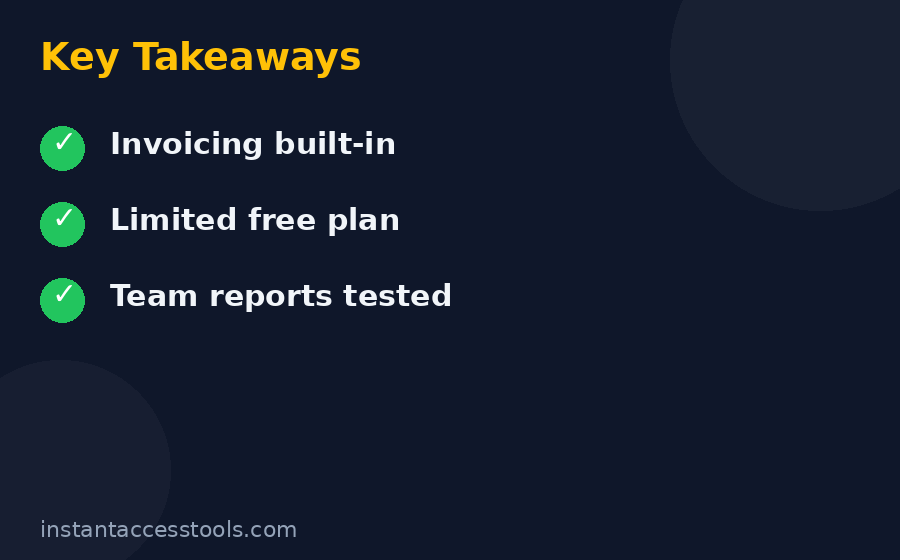
- Free plan is extremely limited (1 seat, 2 projects)
- Starts at around $12 per person per month, which is pricier than basic trackers
- No automatic time capture or screenshot monitoring
- Expense entry is manual; no OCR receipt scanning
- Not suited to product sales, complex accounting, or large enterprises
Who Is Harvest Best For?
Harvest for freelancers is the clearest yes in this review. If you bill clients by the hour, Harvest’s loop of track, invoice, and get paid will save you real administrative time every month, and the automatic payment reminders alone justify the cost for anyone who dislikes chasing invoices.
It is also a strong fit for:
- Small agencies and studios (roughly 2 to 50 people) that need project budgets, capacity planning, and team timesheets without enterprise software weight.
- Consultants on retainer who want recurring invoices tied to tracked work.
It is a weaker fit for:
- Teams that only need time tracking with no invoicing. Simpler, cheaper trackers cover that job.
- Enterprises needing custom roles, advanced approvals, or deep ERP integration.
- Anyone wanting a usable free-forever plan. The free tier is a trial in disguise.
Frequently Asked Questions
Is Harvest worth it in 2026?
For freelancers and small teams who bill by the hour, yes. The combination of simple time tracking and invoicing built from tracked time saves enough administrative work to justify the subscription, and it replaces a separate invoicing tool. If you only need basic time tracking without invoicing, cheaper options will serve you better.
Harvest vs Toggl: which time tracker should I choose?
Choose Harvest if invoicing matters to you, because Toggl’s invoicing is far less developed and Harvest turns tracked time into invoices in a few clicks. Choose Toggl if you want a generous free tier or only need time tracking without billing. I have used both extensively, and the deciding question is simple: do you send invoices? If yes, Harvest. If no, Toggl.
Is Harvest good for freelancers?
It is one of the best tools available for freelancers who bill hourly. The timers are simple, expenses flow into invoices automatically, online payments let clients pay from the invoice, and automatic reminders handle late payments. The main downside is that the free plan only allows 1 seat and 2 projects, so most freelancers will need the paid Pro plan.
Does Harvest offer a free trial?
Yes. The Harvest free trial gives you 30 days of the full Pro plan, and no credit card is required to start it. Thirty days is enough to track a real billing cycle and send at least one invoice, which is the test I recommend before committing. There is also a limited free plan (1 seat, 2 projects), but it is too restricted for ongoing real work.
What are the main Harvest features?
The core harvest features are one-click timers across web, desktop, mobile, and browser extensions; invoicing generated directly from tracked time with Stripe and PayPal payments; expense tracking with mobile receipt capture; and team reports covering budgets, capacity, and uninvoiced hours. Everything is wrapped in a single paid plan with no feature gating.
What are the pros and cons of Harvest?
The pros: effortless timers, best-in-class time-to-invoice workflow, billable expense tracking, clear team reports, one all-inclusive paid plan, and a 30-day no-card trial. The cons: a very limited free plan, higher per-seat pricing than basic trackers, no automatic time capture or screenshot monitoring, manual expense entry, and no fit for product sales or complex accounting.
Harvest Review: Final Verdict
After a month of tracking real client work, sending real invoices, and pulling the reports I use to run my business, my verdict is this: Harvest is the best time tracker for anyone whose hours turn into invoices. The timers are simple enough that you will actually use them, and the invoicing built from tracked time is the smoothest I have tested. Nothing else I tried closed the loop from “start timer” to “money in the bank” with so little friction.
The honest trade-offs: the free plan is too limited for real use, and the per-seat price is higher than bare-bones trackers. But if you currently pay for a separate invoicing tool, Harvest likely costs less in total while eliminating the double-entry between systems. For freelancers, consultants, and small agencies billing by the hour, it is worth it.