Rescuetime Review: Complete Guide
RescueTime review 2026: I tested the automatic time tracker for weeks. See Premium features, pricing, pros and cons — and whether RescueTime is worth it.
RescueTime Review 2026: Beat Distraction?
Disclosure: This post contains affiliate links. If you buy through them, we may earn a commission at no extra cost to you.
I installed RescueTime on a Monday morning and forgot about it by Monday afternoon. That is the whole point of this rescuetime review: unlike nearly every other time tracker I have tested, RescueTime does not ask you to start a timer, pick a project, or remember to log anything. It just watches which apps and websites you use, sorts them into productive and distracting buckets, and hands you a report card at the end of the day.
That design is either liberating or slightly unnerving, depending on your personality. I tracked myself for three full weeks — including a 14-day Premium trial — to answer the question that actually matters: does automatic tracking change your behavior, or is it just a very detailed mirror?
Short answer: RescueTime is the best passive time-awareness tool I have used, but it is not a full time-tracking suite. It will not bill your clients, it does not run team timesheets the way managers expect, and at around $12/month it costs more than many manual trackers that are free. If your problem is “where did my day go,” this is the tool. If your problem is “I need to invoice clients,” keep reading — because that distinction decides everything.
Quick Verdict
Best for: Knowledge workers, freelancers, and students who want automatic time tracking with zero manual effort — and who want distraction blocking plus a daily productivity score.
Not for: Anyone who needs billable-hour invoicing, client timesheets, or detailed team oversight. A manual tracker like Clockify is a better fit there.
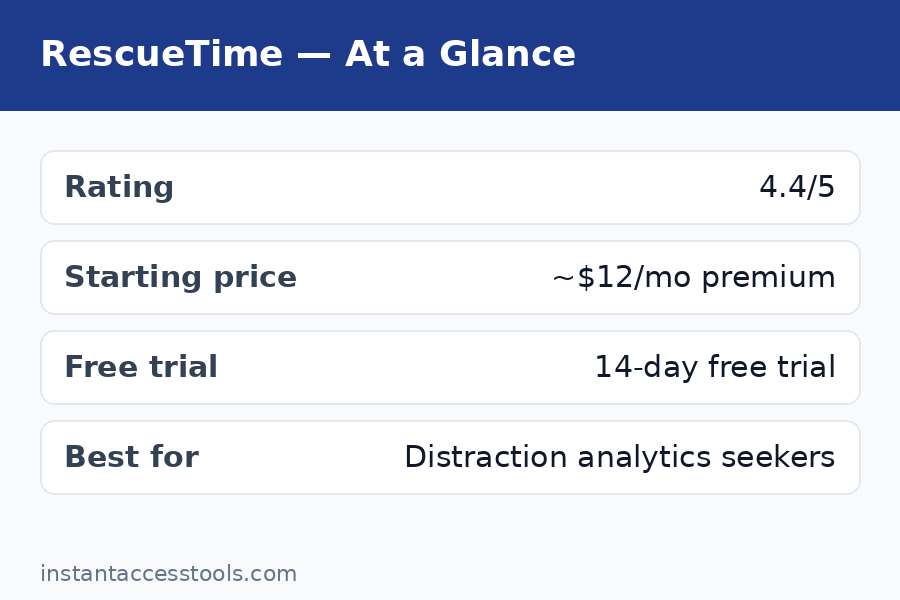
Rating: 4.2 / 5 — The automatic tracking and Focus Sessions are genuinely excellent. The price is the weak point: RescueTime Premium starts at around $12/month at the time of writing (or less with annual billing) — check the official site for current pricing — while capable manual trackers cost nothing.
Bottom line: RescueTime is worth it if you will actually use Focus Sessions and goal alerts. If you only want to see where your time goes, the free plan gets you 80% of the value.
Try RescueTime free with the 14-day Premium trial
What Is RescueTime?
RescueTime is an automatic time-tracking and productivity analytics app for Windows, Mac, and Android (with a browser extension and iOS app for focus tools). You install it once, and it runs silently in the background, recording which applications and websites you spend time on. There is no start/stop button anywhere in the product.
The engine behind it is a classification database: RescueTime knows that Google Docs is “business,” Twitter is “social networking,” and your IDE is “software development.” It assigns each activity a productivity score from -2 (very distracting) through 0 (neutral) to +2 (very productive), then computes a daily Productivity Pulse — a single 0–100 score summarizing your day.
That single score is the genius of the product. A 100-line report is homework; a score of 67 with a red arrow is a gut punch. Over three weeks, I found myself checking my score the way other people check their step count. It made me honest in a way timers never did — you can forget to start a timer and “accidentally” miss an hour of Twitter, but RescueTime sees everything.
The free Lite plan gives you the tracking, basic categorization, limited history, and weekly email summaries. Everything interesting — Focus Sessions with distraction blocking, goals, real-time alerts, detailed reports, unlimited history — sits behind Premium. I will break down exactly what each rescuetime premium feature does below, and the full price comparison lives in my companion rescuetime pricing guide.
Automatic Time Tracking: How It Actually Works
The automatic tracking is RescueTime’s core claim, so I tested it adversarially. I ran it alongside a manual tracker for a full week to compare, and the results were revealing:
- Desktop coverage is excellent. Every window switch on Windows and macOS gets logged with the app name, window title, and URL. Idle detection is handled sensibly — when you stop touching the keyboard and mouse for a configurable period, RescueTime stops counting that stretch instead of assigning it to whatever window happens to be open. (Unlike some employee-monitoring tools, it does not screenshot you or demand an explanation when you return.)
- Setup is genuinely five minutes. Install, grant accessibility/screen permissions, done. The dashboard starts populating within the hour.
- The first week of data is messy. RescueTime’s default categories are broad, and it will misclassify things. My writing time in Notion was initially tagged “neutral” while YouTube tutorials were tagged “distracting,” even though I was researching. You spend about 20 minutes in week one teaching it your rules — re-categorizing apps and sites — and after that the accuracy is very good.
- Offline time is manual. Meetings, phone calls, coffee breaks, and anything away from the keyboard do not get captured automatically. Premium lets you log offline time manually, which is easy but easy to forget — ironically, the one manual part of an automatic tool.
- Mobile tracking is the weak link. The Android app works, but mobile tracking has historically been limited compared to desktop (iOS support exists for focus tools, with automatic tracking constrained by OS permissions). If most of your distraction happens on your phone, RescueTime’s picture of your day will be incomplete.
The privacy controls are worth mentioning because they determine how comfortable you will be: you can whitelist specific sites, blacklist entire applications from tracking, ignore categories, and the company positions itself as privacy-focused rather than a surveillance vendor. Your data is yours; it is not sold. That said — if being watched makes you twitch, no time tracker is fun, and RescueTime watches the most.
Focus Sessions: Distraction Blocking That Actually Works
Focus Sessions are the premium feature that justifies the price, in my opinion. When you start a Focus Session:
- RescueTime blocks sites and apps on your distraction list (you get redirected to a reminder page).
- Notifications get silenced across your connected devices.
- You can optionally play focus music through Spotify or YouTube.
- Your productivity is tracked in real time during the session.
- When the session ends, you get a summary of how focused you were.
I used 45-minute sessions during my test weeks, and two things surprised me. First, the blocking actually held — the redirect page with its “are you sure?” message broke the autopilot loop of opening Twitter during a compile or a page load. You can bypass it, but the friction is the feature. Second, the real-time tracking kept me honest mid-session in a way a plain Pomodoro timer does not: knowing the session report would show a productivity dip made me close the distracting tab faster.
There are also FocusTime triggers — automatic rules that start blocking distractions when you cross a threshold, like 30 minutes of distracting time in one day. This is the feature that catches distraction spirals before they eat your afternoon, and it is the thing I miss most when I test competing tools.
The limitation: blocking only covers what you have classified as distracting. New doomscrolling apps slip through until you add them. Budget 10 minutes a week for maintenance.
Productivity Scoring: The Productivity Pulse
The Productivity Pulse is a 0–100 score computed as a time-weighted average of your activity across five categories, from Focused Work Time down to Distracting Time. In practice, my days landed between 55 and 85. Knowledge-work days with lots of coding and writing scored 75+; meeting-heavy days with Slack in the background scored in the 60s.
Is the number meaningful? Mostly yes, with caveats:
- It rewards sustained work in productive apps. Four hours in your IDE counts for more than four one-hour bursts, which matches how focus actually works.
- It is brutally honest about multitasking. Alt-tabbing between a spreadsheet and Instagram every three minutes tanks your score, because the distracting minutes are weighted too.
- It can feel judgmental. Research that looks like browsing — reading news for an article, watching a tutorial — gets scored against you. You can reclassify specific URLs, which fixes the common cases, but the score is always an approximation of “productive” rather than a fact.
- The weekly trends matter more than daily numbers. A single 58 is noise; three weeks of declining Fridays is a pattern you can act on.
My take: treat the score as a directional signal, not a grade. The most useful screen in the whole product is the week-over-week comparison, where you can see whether your focus is actually improving.
Goal Tracking and Alerts
Goals and real-time alerts are Premium-only, and they are what turn RescueTime from a passive mirror into an active coach. You can set targets like “spend less than 1 hour on social media per day” or “do at least 3 hours of design work,” and RescueTime will nudge you when you are off pace.
The alerts fire in real time — “you have spent 45 minutes on social networking today” — which sounds annoying but in practice arrives at exactly the moments when you need the interruption. I set a goal of under 30 minutes of news sites per workday and hit it 9 out of 15 days, versus roughly never before installing the app.
Weekly email summaries pull everything together: your average score, top distracting activities, hours in meetings, and goal progress. I found the weekly email genuinely useful — it is the one RescueTime message I never skipped.
One gap worth flagging: RescueTime does not do habit-streak gamification or integrations with habit apps. If you want streaks and badges, that is a different product category.
RescueTime Pricing: What Each Plan Costs
Here is the condensed picture (full breakdown, discounts, and the free-vs-premium comparison in my rescuetime pricing guide):
| Plan | Price | Best for |
|---|---|---|
| Lite | Free | Casual time awareness, 3-month history |
| Premium | Starts at around $12/month, or around $78/year (roughly $6.50/month) at the time of writing | Focus Sessions, goals, alerts, unlimited history |
| Teams | Starts at around $6–9/user/month at the time of writing (2-seat minimum) | Small teams wanting productivity dashboards |
A 14-day free trial of Premium is available with no credit card required, which is the right way to evaluate it — the free tier deliberately excludes the features that make the product worth paying for.
My honest pricing take: $12/month is steep compared to free manual trackers, and even the $78 annual price (around $6.50/month) is a commitment for what is essentially a self-improvement tool. The price only makes sense if you will use Focus Sessions and alerts weekly. If you just want to see your time, stay on Lite.
RescueTime Pros and Cons
After three weeks of daily use, here is the honest balance sheet — the full rescuetime pros and cons:
Pros
– Truly automatic tracking — zero manual timers, zero forgetting
– Focus Sessions with distraction blocking are the best implementation I have tested
– Productivity Pulse gives you one honest number per day
– Goals and real-time alerts create behavior change, not just reports
– Lightweight — I never noticed it running
– Strong privacy controls; data is not sold
– 14-day Premium trial with no credit card
– Works across desktop and mobile
Cons
– Expensive versus free manual trackers (around $12/month monthly billing)
– No billing, invoicing, or client timesheets — freelancers who bill hours need a second tool
– Free Lite plan is deliberately limited (no Focus Sessions, no goals, limited history)
– Mobile tracking is weaker than desktop
– Offline time must be logged manually
– Productivity scoring can feel simplistic or judgmental for research-heavy work
– Distraction blocking can be bypassed if you are determined
– No iOS parity for automatic tracking (OS limitations)
RescueTime vs Clockify: The Short Version
The rescuetime vs clockify comparison deserves its own article, but the one-paragraph version: RescueTime is automatic; Clockify is manual. Clockify asks you to start timers and assign time to projects and clients, and it is free for unlimited projects with a generous free tier. RescueTime tracks everything without asking and tells you how focused you were.
Choose RescueTime if your problem is distraction and self-awareness. Choose Clockify if your problem is billing clients and managing project hours. They actually complement each other well — I know freelancers who run RescueTime for self-awareness and clockify review style manual tracking for invoices. Clockify’s free plan handles the billing side RescueTime cannot.
Is RescueTime Worth It? Who Should (and Shouldn’t) Use It
So — is rescuetime worth it? It depends entirely on which problem you are buying a solution for.
RescueTime is worth it if:
– You lose hours to distraction and want proof, not vibes
– You want distraction blocking tied to real-time tracking (Focus Sessions)
– You respond to goals, alerts, and a daily score
– You will never, ever start a manual timer reliably (be honest)
– You are buying the annual plan at roughly $6.50/month, which makes the price defensible
RescueTime is NOT worth it if:
– You need to bill clients or run timesheets — it simply does not do this
– You only want to see where your time goes — the free Lite plan covers that
– Your distraction is mostly on your phone — desktop-centric tracking will undercount it
– You are price-sensitive — excellent manual trackers are free
The three-week test changed my habits in measurable ways: my average daily distracting time fell from 2h 40m in week one to 1h 35m in week three. That is the number that matters, and it is why I kept the annual subscription.
Frequently Asked Questions
Is RescueTime free?
Yes — the RescueTime free plan (Lite) costs nothing and includes automatic time tracking, basic productivity categorization, limited weekly reports, and a few months of data history. What you do not get: Focus Sessions, distraction blocking, goals, real-time alerts, or detailed reports. Those require Premium. In my experience, Lite is a genuinely useful trial of the core idea, but it is deliberately limited enough that serious users will hit the paywall quickly.
What are the main RescueTime Premium features?
RescueTime premium features include Focus Sessions with distraction blocking across devices, FocusTime triggers that auto-block distractions after a threshold, daily goals with real-time alerts, detailed reports with unlimited data history, burnout warnings that flag excessive work intensity, offline time logging, and integrations with Slack, Google Calendar, and Zapier. If you only remember one: Focus Sessions are the feature that justifies the upgrade.
How does RescueTime compare to Clockify?
RescueTime vs Clockify comes down to automatic versus manual. RescueTime tracks everything passively and scores your productivity — it is a self-awareness tool. Clockify requires you to start timers and assign work to projects — it is a work-logging and billing tool, and its free tier is far more generous for teams. For the full head-to-head, see my rescuetime vs clockify comparison. Many people reasonably use both.
What are the biggest RescueTime pros and cons?
The biggest pros: genuinely automatic tracking, excellent Focus Sessions with distraction blocking, a simple daily productivity score, and goal alerts that change behavior. The biggest cons: the price (around $12/month monthly) versus free alternatives, no billing or invoicing features, a limited free tier, weaker mobile tracking, and productivity scoring that can feel simplistic for research-heavy work. The complete list is in the pros and cons section above.
Is RescueTime worth it at $12/month?
Is RescueTime worth it at that price? Only if you use the Premium-only features — Focus Sessions, goals, and alerts — regularly. At the annual price (roughly $6.50/month equivalent), the math gets easier. If you only check your dashboard occasionally, save your money and use the free Lite plan or a free manual tracker. The 14-day Premium trial (no credit card) is the right way to decide.
Does RescueTime work for teams?
Yes, RescueTime for Teams starts at around $6–9/user/month at the time of writing (minimum 2 seats) and adds a team dashboard with aggregated productivity reports, per-member breakdowns, and admin controls. Be aware of the limits: no screenshots, no keystroke logging, no invoicing, and no capacity planning. It is a productivity-visibility tool for teams, not an employee-monitoring or billing suite.
Final Verdict
RescueTime is the best automatic time tracker I have tested, and Focus Sessions are the best distraction-blocking feature in the category. The Productivity Pulse, goals, and real-time alerts genuinely changed how I spend my workdays — my distracting time dropped by over an hour a day in three weeks.
The honest caveats: it costs real money (around $12/month monthly, less annually) in a world of free trackers, the free tier is deliberately thin, and it will never invoice your clients. Buy it for focus, not for billing.
If distraction is your problem, start the 14-day Premium trial — no credit card required — and see what your first week of data tells you. Just make sure your RescueTime vs Clockify decision is based on what you actually need: awareness or invoicing.