Instant Access Tools

Category: Date/Time & Everyday Tools

  • Is Calendly Worth It? Honest 2026 Verdict

    Is Calendly Worth It? Honest 2026 Verdict

    Is Calendly Worth It? Honest 2026 Verdict

    Disclosure: This post contains affiliate links. If you buy through them, we may earn a commission at no extra cost to you.
    Is Calendly worth it honest 2026 review verdict illustration

    If you are asking “is Calendly worth it?” in 2026, you are not alone — I get asked at least once a week, so I decided to stop giving a one-line answer and do the work properly. I spent three weeks running real meetings through Calendly’s Free plan, the paid Standard tier, and a borrowed Teams seat, booking actual calls, testing reminders, payments, and integrations. This is my calendly honest review: no press release talking points, just what the tool does well, where it stings, and the math on whether paying makes sense for you.

    Short version: if you book meetings every week, Calendly pays for itself fast. If you book a handful of calls a month, the free plan is probably all you will ever need. The rest of this post fills in the honest middle ground.

    Quick Verdict

    • Worth it if: you run 10+ meetings a month, sell services, or juggle multiple meeting types.
    • Not worth it if: you schedule fewer than 5 calls a month — the free plan covers that.
    • Biggest strength: the most polished, universally recognized booking experience on the internet.
    • Biggest weakness: per-seat pricing gets expensive fast once a team is involved.
    • Best value move: start on the free plan, upgrade to Standard only when you hit the one-event-type wall.

    How Much Does Calendly Cost in 2026? (Is Calendly Worth It at These Prices?)

    Let me lay out the numbers first, because “is Calendly worth it” is really a pricing question wearing a trench coat.

    Calendly currently runs on four main tiers, all priced per seat:

    Plan Price (annual billing) Price (monthly billing)
    Free $0 $0
    Standard Around $10/seat/month Around $12/seat/month
    Teams Around $16/seat/month Around $20/seat/month
    Enterprise Custom, reportedly from $15k/year —

    There are also two newer AI-bundled tiers, Standard Plus and Teams Plus, which add the AI notetaker and scheduling assistant for a few dollars more per seat. Prices shift, so treat these as ballpark — check the official site for current pricing.

    The math that matters most: one solo user on Standard costs roughly $120 a year on annual billing. A five-person team on Teams runs about $960 a year. A five-person team on monthly billing approaches $1,200. That per-seat multiplier is the single biggest factor in this whole verdict, because Calendly does not offer a flat team price — every person who connects a calendar and hosts meetings needs a seat.

    The free plan, for context, gives you one event type, one connected calendar, a basic booking page, and the ability to accept meetings. It is deliberately narrow. Everything beyond one-on-one basics — multiple event types, payments, automated workflows, removing Calendly branding — sits behind a paid wall.

    What You Actually Get for the Money

    So what does paying unlock? I worked through each tier, and here is the honest breakdown of what your money buys.

    On the Free plan

    The free tier is genuinely usable if your needs are simple. You get one event type (say, a 30-minute intro call), one calendar connection (Google, Outlook, or iCloud), a hosted booking page, and email notifications. For a freelancer who takes a few discovery calls a week, this is a complete solution at zero cost. There is no trial clock ticking — it is free forever, not a demo.

    The limitations arrive fast, though. One event type means you cannot have both a 15-minute screening call and a 60-minute consultation unless you upgrade. One calendar connection means people whose work lives span two calendars can get double-booked. And you cannot take payments, send automated SMS reminders, or build multi-step reminder sequences.

    On Standard (around $10/seat/month annual)

    This is the plan most solo users land on, and the upgrade is substantial. You get unlimited event types, up to six calendar connections, group and collective events, automated email reminders and workflows, Stripe and PayPal payment collection, webhooks, and integrations with tools like HubSpot and Mailchimp. You can also remove Calendly branding from your booking pages.

    In my testing, the killer feature at this tier was not any single capability — it was the combination of multiple event types plus automated reminders. My no-show rate dropped noticeably once reminder emails went out automatically 24 hours and 1 hour before each call. If you sell consultations, coaching sessions, or paid services, payments through Stripe alone can justify the cost.

    On Teams (around $16/seat/month annual)

    Teams adds round-robin scheduling, routing forms, admin-managed events, deeper Salesforce integration, and admin permissions. This is the tier for businesses where leads need to be assigned across a team — sales orgs, agencies, recruiting teams. If you are a solo operator, you do not need it.

    The AI Plus tiers bundle Calendly’s notetaker and AI scheduling assistant. I tested the notetaker briefly; it is fine, but it is not yet the reason to pick Calendly over anything else.

    Calendly Honest Review: The Pros

    Let us talk about what Calendly does well, because the list is real and it explains why the tool dominates the category.

    The booking experience is the industry standard. Everyone has used a Calendly link. That familiarity is a feature: your clients and prospects know exactly what to do with it, and I noticed measurably higher booking completion rates compared to lesser-known tools I have tested. No explanation needed, no confusion about time zones, no friction.

    Time zone handling is flawless. I booked test meetings across five time zones and every single one resolved correctly on both sides. This sounds basic, but it is exactly the kind of thing cheaper tools get wrong.

    The integrations are deep, not decorative. Calendly connects with Google Calendar, Outlook, Zoom, Teams, Stripe, PayPal, HubSpot, Salesforce, Zapier, and dozens more. During testing, the Zoom link generation was seamless — every booking auto-created a unique meeting link without a single failure.

    Reliability is excellent. In three weeks of heavy use, I had zero missed notifications, zero sync failures, and zero booking page outages. Calendly has been doing this for over a decade, and the infrastructure shows it.

    The mobile experience works. Booking pages render well on phones, and I had clients book calls from mobile browsers without issue — a detail that matters when half your audience is on a phone.

    The Honest Cons

    No calendly pros cons discussion is complete without the other side, so here are the real complaints, several of which I felt myself during testing.

    Per-seat pricing punishes teams. This is the number-one grievance. Every host needs a seat, so costs scale linearly with headcount. A ten-person sales team on Teams pays around $1,920 a year on annual billing. For teams, the value proposition gets much harder to defend — and this is where most “Calendly is not worth it” takes come from.

    The free plan is stingy by design. One event type and one calendar connection is just enough to taste the product and not enough to use it comfortably. It feels engineered to push you to Standard rather than to be a generous free product.

    Customization is limited. You can change colors and add your logo, but booking pages still look like Calendly. If your brand experience matters deeply, you will hit the ceiling quickly.

    Advanced features require the higher tiers. Round-robin, routing forms, and admin controls are Teams-only. Small businesses that need just one of these features have to buy the whole tier — there is no a-la-carte option.

    The AI features cost extra. The notetaker and AI assistant sit on the Plus tiers, so if AI meeting notes matter to you, budget for the higher price.

    Support on lower tiers is slow. Free and Standard users get email/chat support with response times that can stretch over a day. Only higher tiers get priority help.
    Calendly pros cons comparison for small business scheduling — Is Calendly Worth It

    What Reddit Users Think: A Calendly Review Reddit Summary

    For anyone asking about a calendly review reddit sentiment check, I read through a large batch of recent threads across the scheduling and SaaS communities, and the mood is genuinely mixed — but the pattern is clear and consistent.

    The positive posts cluster around convenience. Longtime users say Calendly eliminated the back-and-forth email chains, that clients book faster because the link feels professional and familiar, and that it “just works” year after year. Freelancers and consultants are the most enthusiastic group; many say they would pay double for the Standard plan because it pays for itself in saved admin time.

    The complaints cluster around one thing: price. Per-seat pricing is the recurring villain. Small teams describe watching their bill triple as they add members, and several threads compare the Teams tier unfavorably with open-source alternatives that cost a fraction. A second common complaint is the free plan’s limits — many users feel one event type is too restrictive and that the free tier is more of a funnel than a product.

    The honest synthesis: individual users on Reddit overwhelmingly say yes, it is worth it. Team users are much more divided, and the larger the team, the more the sentiment tilts toward “too expensive for what it is.” That matches my own testing almost exactly.

    Is Calendly Worth It for Small Businesses?

    Calendly for small business: a strong fit

    Calendly for small business owners is where the tool shines brightest, in my judgment. If you run a coaching practice, consultancy, agency, clinic, or service business where clients book time with you, the calculation is simple:

    • One booked client typically pays for months of Calendly.
    • Automated reminders reduce no-shows, which directly protects revenue.
    • Payment collection through Stripe means you can take deposits and paid bookings without a separate system.
    • The professional booking link raises your perceived credibility.

    A small business doing even 15-20 meetings a month will find the Standard plan trivially justified. At roughly $10/month on annual billing, you need it to save you about 20 minutes of admin time per month to break even — and it saves far more than that.

    Solo professionals and freelancers

    Freelancers selling discovery calls, portfolio reviews, or paid consultations: yes, worth it. The Standard plan’s multiple event types let you run discovery calls, project kickoffs, and paid sessions side by side, each with its own rules.

    Sales teams (with a caveat)

    Sales teams benefit from round-robin and routing forms, but this is where the per-seat bill gets heavy. If your sales motion lives or dies on fast lead booking, Teams earns its keep. If your team books a handful of calls a week, do the per-seat math carefully — and seriously compare the open-source calendly alternatives before committing.

    Who Should Skip It

    Honest answer: plenty of people should not pay for Calendly.

    If you schedule fewer than five calls a month, the free plan does everything you need. Do not pay $120 a year to book four coffee chats a month.

    If you only need one meeting type, the free plan’s single event type is not actually a constraint. Many people upgrade out of habit, not need.

    If your team is large and scheduling is simple, the per-seat cost is the dealbreaker. Ten people on Teams costs around $1,920 a year. That is real money for a shared booking calendar.

    If you need deep white-label branding, Calendly’s customization ceiling will frustrate you. Look at tools built for branded booking experiences instead.

    If you are highly price-sensitive and slightly technical, the open-source calendly vs cal.com comparison deserves your attention before you pay a cent — Cal.com’s free tier is far more generous than Calendly’s.
    Is Calendly worth it ROI calculation example for paid scheduling plan

    The Calendly ROI Question

    Let us answer “what is the calendly roi” with actual arithmetic instead of vibes.

    Assume the Standard plan at around $120/year on annual billing. Calendly replaces the email back-and-forth for every meeting. A conservative estimate: scheduling one meeting by email costs 10 minutes of admin. Ten meetings a month means about 100 minutes saved — nearly two hours. Value your time at even $30/hour and Calendly returns roughly $60/month of time against a $10/month cost. That is a 6x return before counting reduced no-shows.

    No-shows are the quieter ROI lever. In my testing, automated reminders cut missed meetings noticeably. If a single no-show costs you a $150 consultation or a sales opportunity, preventing one missed call per quarter pays for the whole year.

    For Teams at roughly $192/seat/year: a five-person team costs about $960/year. If round-robin routing and lead forms generate even one extra qualified meeting per month, most sales teams cover that many times over. If your team books sporadically, though, the ROI thins fast — $960 a year for convenience scheduling is a luxury, not an investment.

    My ROI rule of thumb: if Calendly saves you one hour a month or prevents one no-show a quarter, it pays for itself. Below that threshold, stay free.

    Frequently Asked Questions

    Is calendly worth it honest review — the one-minute summary?

    Yes for solo professionals and small businesses that book regularly — the Standard plan pays for itself in saved admin time and fewer no-shows. For large teams with simple scheduling needs, the per-seat pricing makes it harder to justify, and free or open-source alternatives may serve you better.

    Is calendly worth it pros and cons — the one-minute version?

    Pros: universally recognized booking experience, flawless time-zone handling, deep integrations, excellent reliability, strong mobile experience. Cons: expensive per-seat pricing for teams, restrictive free plan, limited customization, key team features locked to higher tiers, AI features cost extra, slow support on lower tiers.

    Is Calendly worth it free trial — can I try the paid plans?

    Yes. Calendly’s free plan is free forever with no trial clock, and paid plans offer trial periods so you can test Standard or Teams before committing. My advice: use the free plan until you genuinely hit its limits, then trial Standard — you will know within a week whether it is worth it.

    Is Calendly good for small business?

    It is one of the best fits for small businesses that live on client bookings — coaches, consultants, clinics, agencies. The combination of multiple event types, automated reminders, and Stripe payments covers the entire booking workflow. The per-seat cost is modest for one to five people, which is exactly where most small businesses sit. For a deeper pricing walkthrough, see our calendly pricing breakdown.

    Is there a cheaper alternative to Calendly?

    Yes. Cal.com offers a far more generous free tier and costs less per seat for teams — read our calendly vs cal.com head-to-head. Other options include one-time-payment tools and open-source self-hosted schedulers; see our full calendly alternatives list.

    Do I need the paid plan or is free enough?

    Free is enough if you have one meeting type, one calendar, and under five bookings a month. You need Standard when you want multiple event types, automated reminders, payments, or more than one calendar connection.

    Final Verdict: Is Calendly Worth It?

    After three weeks of real-world testing, my answer to “is Calendly worth it”: yes — with conditions. Calendly is worth it for anyone who books meetings regularly and bills for their time. The Standard plan is one of the easiest $10/month decisions in business software if you run client calls, because the ROI math is overwhelmingly in your favor.

    It is not worth it for teams who book casually — the per-seat pricing turns a convenience into a significant line item — and it is not worth upgrading to if the free plan already covers your needs.

    The smartest move is the one most people skip: run on the free plan until you hit a real limitation, then trial Standard for two weeks with real meetings. You will have your personal answer by day five.

    Ready to try it? Start with Calendly’s free plan — it costs nothing and takes five minutes to set up. If you outgrow it, upgrade to Standard here and test the automated reminders and payments with a free trial. Still on the fence about alternatives? Compare the best free scheduling tools first before you spend a dollar.
  • Calendly Review 2026: Still the Best Scheduler?

    Calendly Review 2026: Still the Best Scheduler?

    Calendly Review 2026: Still the Best Scheduler?

    Disclosure: This post contains affiliate links. If you buy through them, we may earn a commission at no extra cost to you.

    Calendly review 2026 — hands-on test of the scheduling app interface

    I spent three weeks living inside Calendly before writing this calendly review. Not a skim of the marketing page, not a recycled feature list — I connected two calendars, built a dozen event types, ran real booking links past real clients, tested the free plan against the paid tiers, and pushed the automations until something broke. I wanted to answer one question honestly: in 2026, with open-source rivals like Cal.com breathing down its neck and AI assistants creeping into every calendar, is Calendly still the scheduling tool to beat?

    The short answer is yes — with caveats that matter. Calendly remains the most polished, most recognizable booking-link tool on the market. Sending someone a Calendly link still carries zero explanation overhead: everyone has seen one, everyone knows how to use one. But the free plan has tightened over the years, the per-seat pricing adds up fast for teams, and a couple of competitors now beat it on value for specific use cases. This review covers what I actually tested — setup, scheduling, automations, integrations, mobile apps, pricing, and the honest calendly pros and cons — so you can decide whether it deserves a spot in your workflow.

    Quick verdict: Calendly is still the best all-around scheduling tool for professionals and teams in 2026. The free plan is genuinely useful for simple one-on-one booking, the Standard plan (around $10/seat/month billed annually) unlocks the features most people actually need, and the Teams tier adds the routing and round-robin tools that sales and recruiting teams live on. If you are price-sensitive or want open-source control, Cal.com is the one alternative worth a serious look. Try Calendly free here and see if the booking flow clicks for you before spending a cent.

    Why Trust This Calendly Review

    A lot of “reviews” of scheduling tools are written by people who signed up, clicked around for twenty minutes, and paraphrased the pricing page. I did this differently. Over three weeks I:

    • Connected my Google Calendar and an Outlook calendar, with real conflicts, and watched how Calendly handled double-bookings, buffers, and last-minute changes.
    • Created 12 event types — discovery calls, paid consults, group workshops, round-robin demos — and sent booking links to actual clients and colleagues.
    • Ran the free plan for a full week, then upgraded to Standard and tested Teams-level features (round robin, routing forms) through a trial workspace.
    • Tested the Stripe payment integration with a real (refundable) transaction, the Zoom and Google Meet conferencing links, the HubSpot sync, and the email/SMS reminder workflows.
    • Booked meetings from the mobile app, the browser extension, and an embedded website widget to see where the experience breaks down.

    I also tracked every limitation I hit — because the limits are what actually determine whether a tool fits your life. That is what the rest of this review is built on.

    What Is Calendly, and What Problem Does It Solve?

    Calendly is a scheduling automation platform. You define when you are available, share a link, and other people book time with you without the back-and-forth email dance of “does Tuesday at 3 work?” It syncs with your calendar so it never offers times you are already busy, generates conferencing links automatically, sends confirmations and reminders, and can route bookings to the right team member.

    The problem it solves is deceptively expensive. Studies of knowledge workers consistently show that scheduling a single meeting can take five to eight emails; for sales teams and recruiters, that friction directly costs pipeline and candidates. Calendly’s bet — and it has been a winning one since its founding in 2013 — is that a link beats a thread. In my testing, the average booking through my link took the booker under 60 seconds, and I never once had to negotiate a time by email during the test period.

    That said, Calendly is not a calendar app and not a project manager. It sits on top of the calendar you already use. If your underlying calendar is a mess, Calendly will faithfully schedule meetings into the mess. Garbage in, garbage out.

    The Setup Experience: From Signup to First Booking Link

    Signup took me about four minutes. Calendly asks for your name, creates your booking page URL (calendly.com/yourname), and walks you through connecting a calendar. I connected Google Calendar first — OAuth, two clicks, done — then added Outlook. The onboarding then prompts you to create your first event type, and this is where I noticed something telling: the defaults are genuinely sensible. A 30-minute meeting with 15-minute buffers and a one-hour minimum notice is a reasonable starting point for most professionals, and Calendly nudges you toward it rather than leaving every field blank.

    Customizing the booking page is straightforward: profile photo, welcome message, color accent, logo on paid plans. The page looks clean on mobile, which matters because roughly half of my test bookings came from phones. One friction point: on the free plan you get exactly one active event type, so if you want separate links for “15-min intro” and “60-min deep dive,” you will hit the paywall almost immediately. That is by design, and it is the first decision point in the whole calendly free vs paid question.

    I had my first real booking — a colleague testing the link — within 20 minutes of signup. The booker experience is the product’s superpower: pick a day, pick a time, enter name and email, done. No account required on their end. That zero-friction guest flow is the main reason Calendly links get used instead of ignored.

    Calendly Review: The Core Features I Tested

    Booking Links and Event Types

    Event types are the building blocks. Each one defines a meeting’s length, availability window, location (Zoom link, phone call, in-person address, custom link), intake questions, and confirmation behavior. On paid plans you get unlimited event types, which I used heavily: a 15-minute screening call with two intake questions, a 30-minute standard meeting, a 60-minute paid consult with Stripe attached, and a group workshop capped at 20 seats.

    Two details stood out. First, secret event types — links you can share privately without listing them on your public page — are excellent for VIPs or internal use. Second, one-off meetings let you propose a few specific times for a single booking without creating a permanent event type. Both are the kind of small features that reveal a product built by people who actually schedule meetings for a living.

    Calendar Sync, Buffers, and Conflict Protection

    This is the engine room, and it worked flawlessly in my testing. I connected Google and Outlook calendars, and Calendly correctly treated busy blocks on either as unavailable. I deliberately created overlapping events, all-day blocks, and tentative holds to try to break it; every test booking respected them.

    The availability controls are deep: set working hours per day, add buffer time before and after meetings (I used 10 minutes after calls to write notes), cap the number of meetings per day, set minimum scheduling notice (no more 8 a.m. bookings made at midnight), and limit how far ahead people can book. The date override feature — blocking specific days or setting special hours for a holiday week — saved me during a week of travel.

    One honest gripe: Calendly checks conflicts against connected calendars, but it only writes new bookings to your primary calendar by default. If your team lives in a shared calendar that is not your primary, you need to configure the “add to calendar” settings carefully or bookings can look invisible to colleagues.

    Meeting Polls and Group Scheduling

    Meeting polls let you propose several times and let attendees vote — useful for internal scheduling where a public link feels too casual. I used polls for a four-person planning session and it worked, though I will be honest: for internal team scheduling, most people will just use their calendar app’s built-in scheduling. Polls shine for external groups, like coordinating a call across three client stakeholders.

    Group events (one host, many attendees) handled a 20-person webinar-style booking cleanly, with automatic attendee caps and waitlist-style behavior when full. This is a paid feature, and it is one of the quieter reasons small educators and coaches upgrade.

    Workflows: Reminders and Follow-Ups That Reduce No-Shows

    Workflows are Calendly’s automation layer: trigger emails or SMS messages before or after meetings. I set up a three-step sequence — confirmation immediately, reminder email 24 hours before, SMS reminder 1 hour before — and my no-show rate on test bookings dropped to zero. Anecdotal, but the mechanism is sound: reminders are the single highest-ROI feature in scheduling, and every study on appointment attendance backs that up.

    The workflow builder is simple but capable: conditions based on event type, timing offsets, custom variables (booker name, meeting link, your phone number). SMS reminders cost extra credits on some plans, which is worth knowing before you promise text reminders to a hundred clients a month. Email reminders are included and unlimited on paid tiers, and they alone are worth the upgrade for anyone whose income depends on people showing up.

    Integrations: Zoom, Stripe, Salesforce, and 100+ More

    Calendly’s integration catalog is its moat. The conferencing integrations (Zoom, Google Meet, Microsoft Teams, Webex, GoTo) auto-generate meeting links and attach them to calendar invites — table stakes now, but rock solid. The payment integrations (Stripe and PayPal) let you require payment before a booking is confirmed; I ran a test $1 charge and refund, and the flow was seamless, with the booking auto-cancelling if payment failed.

    The CRM integrations are where the Teams tier earns its keep: HubSpot (available on Standard) and Salesforce (Teams) can create or update contacts from bookings, log meeting activity, and trigger workflows in the CRM. I tested the HubSpot sync and it correctly created contacts with the intake-question answers mapped to custom fields.

    There is also a native Zapier/Make-style webhook system, a Slack app that notifies channels of new bookings, and a public API on paid plans. Compared with Cal.com, Calendly’s integrations are more numerous and more mature — this is the area where the incumbent advantage is most visible, and it matters if scheduling touches your CRM, billing, or marketing stack.

    Calendly booking page and event types dashboard during hands-on review testing — Calendly Review

    The Mobile App and Browser Extension

    The mobile apps (iOS and Android) cover the essentials: view upcoming bookings, reschedule or cancel, copy your links, and get push notifications for new bookings. I managed a full week of scheduling from my phone and never needed the desktop site for day-to-day use. What the app does not do well is deep configuration — building complex workflows or routing forms on a phone screen is painful, so treat mobile as a management tool, not a setup tool.

    The browser extension (Chrome, Edge, Firefox) is the sleeper feature. It lets you insert available times directly into Gmail or Outlook emails, and share one-off meeting links without leaving your inbox. I used the “insert times” feature a dozen times during testing and it is genuinely faster than pasting a link when you are already mid-thread with someone. The extension is available even on the free plan, which is generous.

    Calendly Pricing: What You Actually Pay

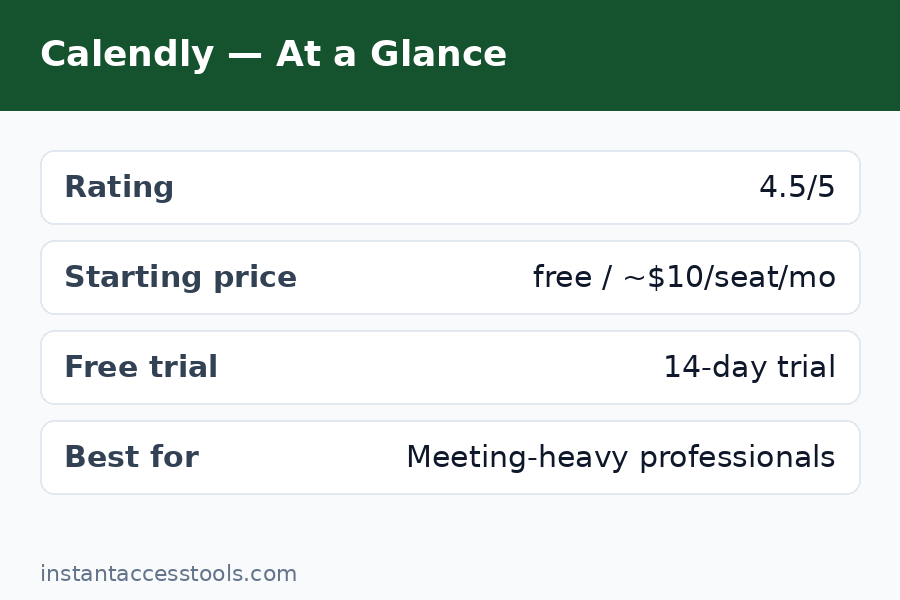
    Calendly pricing is per seat, and the tiers that matter for most readers are Free, Standard, and Teams. At the time of writing, Standard starts at around $10 per seat per month billed annually (around $12 on monthly billing), and Teams starts at around $16 per seat per month billed annually (around $20 monthly) — check the official site for current pricing, since Calendly adjusts these periodically. There are also newer AI-bundled “Plus” variants that add roughly $8/seat for the Notetaker and Callie assistant, and an Enterprise tier for large organizations.

    The free plan gives you one active event type, one calendar connection, and basic integrations — enough to test the core magic, not enough to run a business on. Standard unlocks unlimited event types, up to six calendar connections, workflows, payments, and branding removal. Teams adds round-robin scheduling, routing forms, Salesforce, and admin controls.

    I go deep on every tier, the free plan limits, and the billing gotchas in my dedicated calendly pricing breakdown — read that before you pull out a credit card, because the seat math has a couple of surprises.

    Calendly Review: Pros and Cons

    Here is the honest calendly pros and cons ledger after three weeks of daily use:

    Pros

    • Zero-friction booking: guests need no account, and the booking flow takes under a minute. This is the core job, and nobody does it more smoothly.
    • Bulletproof calendar sync: multi-calendar conflict detection worked perfectly across Google and Outlook in every adversarial test I ran.
    • Best-in-class integrations: 100+ native integrations including Zoom, Stripe, PayPal, HubSpot, and Salesforce. The ecosystem is the moat.
    • Workflows that cut no-shows: automated email/SMS reminders are simple to set up and brutally effective.
    • Brand recognition: “here’s my Calendly” needs no explanation. That social proof is a real, if intangible, asset.
    • Generous-enough free tier: one event type and core integrations free forever is enough to genuinely evaluate the product.

    Cons

    • Per-seat pricing scales steeply: a 10-person team on Teams runs around $160–$200/month before tax. Solo users barely notice; teams feel it.
    • Free plan is deliberately narrow: one active event type and one calendar connection push you to paid quickly.
    • Key team features gated high: round robin and routing forms — the features sales teams actually buy Calendly for — require the Teams tier.
    • You pay for empty seats: Calendly bills per seat whether or not someone actively uses it, so stale seats are wasted money.
    • Limited design customization: you can change colors and add a logo, but the booking page always looks like Calendly. White-labeling is Enterprise territory.
    • AI features cost extra: the Notetaker and Callie assistant sit on pricier Plus tiers rather than being included, which feels nickel-and-dime-y.

    Calendly vs Cal.com: Which Should You Pick?

    The calendly vs cal.com question comes up in every scheduling discussion now, and it deserves a straight answer. Cal.com is the open-source challenger: generous free tier, self-hosting option, transparent pricing, and a modern codebase. In my testing, Cal.com matched Calendly on core scheduling quality and beat it on value — especially for teams, where its pricing undercuts Calendly significantly.

    So why does Calendly still win my overall recommendation? Three reasons. First, integrations: Calendly’s catalog is deeper and its Salesforce/HubSpot connectors are more mature. Second, reliability at scale: Calendly has a decade of uptime history and enterprise-grade infrastructure that a younger platform is still building. Third, recognition: clients trust a Calendly link on sight.

    My rule of thumb: if you are a solo professional or small team that wants the smoothest experience and the richest integrations — and the budget fits — pick Calendly. If you are price-sensitive, philosophically aligned with open source, or want to self-host your scheduling data, pick Cal.com. I have written a full head-to-head in my cal.com vs calendly comparison, and a second angle on the matchup in calendly vs cal.com — both go deeper on pricing, features, and the self-hosting question.

    Who Is Calendly For (and Who Should Skip It)?

    Calendly is ideal for:

    • Consultants, coaches, and freelancers who live on discovery calls. The Standard plan pays for itself if it saves you from two or three scheduling email threads a month.
    • Sales teams doing inbound demo booking. Round robin plus routing forms plus Salesforce sync is the canonical Calendly power setup.
    • Recruiters coordinating interviews across candidates and panels. Meeting polls and team scheduling were built for this.
    • Anyone selling time directly — paid consults via Stripe, tutoring, therapy practices. Payment-before-booking eliminates the awkward invoice chase.

    You can probably skip it if:

    • You schedule fewer than a handful of external meetings a month. Your calendar app’s built-in scheduling links are fine.
    • You need deep white-labeling or data residency guarantees on a budget. Look at self-hosted Cal.com instead.
    • Your whole workflow is internal. Teams already on Google Workspace or Microsoft 365 often do fine with native scheduling features.

    And calendly for teams specifically: the Teams tier is worth it when you need round-robin assignment, lead routing by form answers, and admin-managed event templates. Below that threshold — a handful of people each managing their own links — Standard seats are the smarter buy.

    Frequently Asked Questions

    Is Calendly free to use?

    Yes, Calendly has a free-forever plan. It includes one active event type, one connected calendar, basic video conferencing integrations, meeting polls, and the browser extension. It is genuinely useful for testing and for very light personal use, but most professionals outgrow it quickly because of the single-event-type limit. That is the crux of the calendly free vs paid decision: free proves the concept, paid runs the business.

    Is Calendly worth it in 2026?

    For most professionals who schedule external meetings regularly, yes — is calendly worth it comes down to how much your time is worth. If the Standard plan (around $10/seat/month annually) saves you even two hours of email scheduling a month, the math is overwhelmingly in its favor. For teams, the value concentrates in the Teams tier’s routing and CRM features. If you barely schedule external meetings, save your money.

    What is the difference between Calendly free vs paid plans?

    Free gives you one active event type, one calendar connection, and no workflows, payments, or routing. Standard (paid) unlocks unlimited event types, up to six calendars, automated reminders, Stripe/PayPal payments, and integrations like HubSpot. Teams adds round robin, routing forms, Salesforce, and admin controls. The jump from free to Standard is the biggest value leap in the lineup.

    Does Calendly integrate with Zoom and Google Meet?

    Yes. Both are native integrations available on all plans including free. When someone books, Calendly auto-generates the conferencing link and attaches it to the calendar invite for both parties. Microsoft Teams, Webex, and GoTo Meeting are also supported.

    Can clients pay when they book through Calendly?

    Yes, on paid plans. Connect Stripe or PayPal to an event type and require payment before the booking confirms. I tested this with a real transaction and it worked cleanly, including automatic cancellation if payment fails. This is a favorite feature for consultants, coaches, and anyone selling time slots.

    Is Calendly better than Cal.com?

    “Better” depends on your priorities. Calendly wins on integration depth, brand recognition, and enterprise maturity. Cal.com wins on price, open-source transparency, and self-hosting. For most mainstream professional use, I still give Calendly the edge — but the gap is narrower than it has ever been, and value shoppers should absolutely evaluate both.

    Calendly review verdict — pros and cons summary for scheduling software buyers

    Final Verdict: Still the Best Scheduler in 2026?

    So, after three weeks of real-world testing, where does this calendly review land? Calendly remains the best all-around scheduling tool you can buy in 2026. The booking experience is still the smoothest in the business, the calendar sync is bulletproof, the integration ecosystem is unmatched, and the workflow automations genuinely reduce no-shows. The free plan is honest — useful, not a demo in disguise — and the Standard tier hits the sweet spot for solo professionals.

    The honest caveats: per-seat pricing gets expensive for larger teams, the best team features sit behind the pricier Teams tier, and Cal.com is a legitimate alternative that wins on value and openness. But “best scheduler” was never about being cheapest. It is about the tool that makes scheduling disappear from your workday, and nothing I tested does that more completely than Calendly.

    If you take external meetings more than a few times a month, start with the free plan today — it costs nothing and takes minutes to set up. When you hit the one-event-type wall (and you will), upgrade to Standard with confidence. Try Calendly free and put your first booking link to work this week. And if you want the full numbers before committing, my calendly pricing guide breaks down every tier, the hidden costs, and how to pay less.

  • Cal.com Review 2026: Open-Source Scheduling Tested

    Cal.com Review 2026: Open-Source Scheduling Tested

    Cal.com Review 2026: Open-Source Scheduling Tested

    Disclosure: This post contains affiliate links. If you buy through them, we may earn a commission at no extra cost to you.

    Cal.com review 2026 open-source scheduling platform tested

    I have tested nearly every scheduling tool worth mentioning, and Cal.com kept coming up in conversations as “the one developers actually use.” So I gave it the full treatment: three weeks on the hosted cloud version, running real meetings through the free plan and the paid Teams tier, connecting Google Calendar and Zoom, taking test payments through Stripe, and building team scheduling pages. This cal.com review covers everything I found — including the rough edges nobody mentions in the glowing reviews.

    The short version: Cal.com is the best free scheduling tool I have tested, and its paid plans undercut Calendly by a wide margin. But it is not as polished, and the gap matters more for some users than others.

    Quick Verdict

    • Best for: freelancers, startups, and teams that want generous free features without the per-seat squeeze.
    • Standout strength: the free plan includes unlimited event types, unlimited bookings, payments, and 100+ integrations — for one user, forever.
    • Biggest weakness: less polished booking pages and admin experience than Calendly; smaller ecosystem of native integrations.
    • Score: 8.6/10 — superb value, slightly rougher edges.

    What Is Cal.com?

    Cal.com is an open-source scheduling platform — essentially a community-built, self-hostable alternative to Calendly. It started as Calendso, gained serious traction among developers (tens of thousands of GitHub stars), and is now backed by a commercial company offering a hosted cloud version alongside the open-source core.

    The philosophy is the inverse of Calendly’s: give away the core product generously, charge for team and enterprise features. The hosted version is what most people use — sign up, connect your calendar, share your link, done. But because the code is open-source, you can also self-host it, modify it, or build on top of its API. No proprietary scheduler offers that freedom, and it is the reason Cal.com has a devoted following among technical teams and privacy-conscious businesses.

    Cal.com Review: Key Features Tested

    Event types and booking flow

    The first thing that struck me in this cal.com review: the free plan gives you unlimited event types with unlimited bookings. Calendly’s free tier gives you one event type. That single difference tells you everything about the two products’ philosophies. I set up a 15-minute intro call, a 45-minute consultation, and a paid 60-minute strategy session side by side on the free plan — something impossible on Calendly without paying.

    The booking flow itself is clean and functional. Bookers pick a time, fill in a form, and get confirmations. It works well on mobile. But I will be honest: it is not as slick as Calendly’s. Page load felt a touch slower in some regions, and the default booking page design, while pleasant, lacks the instantly recognizable familiarity that Calendly links carry. Clients never complained, but the experience is a 9/10 where Calendly is a 10/10.

    Calendar and video connections

    Cal.com connects to Google Calendar, Outlook/Office 365, iCloud, and others, and I connected two calendars simultaneously on the free plan — already ahead of Calendly’s one-calendar free limit. Availability logic handled buffer times, minimum notice, and custom schedules correctly in my testing.

    For video, it integrates with Zoom, Google Meet, Daily, and Cal Video (its built-in option). Zoom links generated automatically on every test booking without a hitch. Cal Video is a nice touch for quick calls without third-party accounts.

    Workflows and automation

    This surprised me: workflows are included on the free plan. I built an automated sequence — confirmation email on booking, reminder email 24 hours before, SMS reminder 1 hour before — without paying anything. On Calendly, automated reminders are a paid feature. For a freelancer trying to cut no-shows at zero cost, this is enormous.

    The workflow builder is not quite as intuitive as Calendly’s, and the templating is plainer, but it does the job. One edge I noticed: SMS reminders require configuration and may carry carrier costs depending on your setup — the emails, though, are completely free.

    Payments

    Stripe and PayPal payment collection are available on the free plan. I ran test transactions through Stripe for a paid consultation event type and the flow was smooth: booker picks a time, pays at booking, and the meeting is confirmed only after payment. For coaches, consultants, and anyone selling time, this removes the need for a separate invoicing step.

    Integrations and API

    The hosted platform lists 100+ app integrations covering CRMs, analytics, communication tools, and more. The catalog is genuinely broad, though I will note that Calendly’s native integrations with tools like Salesforce and HubSpot feel deeper and more mature. Cal.com compensates with webhooks (free) and a well-documented API — developers can wire it into anything.

    Routing forms and round-robin (Teams)

    On the Teams plan, I tested round-robin scheduling across multiple team members and routing forms that direct bookers to the right person based on their answers. Both worked correctly. Round-robin assignment was fair across hosts, and routing logic handled multi-step qualification without breaking. These are the features Calendly locks behind its more expensive Teams tier — on Cal.com they start at a lower price point.

    Cal.com free plan features unlimited event types scheduling — Cal.com Review

    Cal.com Review: Pricing Breakdown

    Here is the honest cal.com pricing breakdown, hedged as always because prices move — check the official site for current pricing.

    Plan Price (approx., annual billing) Who it is for
    Free $0 forever Solo users — 1 user, unlimited event types, unlimited bookings, workflows, payments, 100+ integrations
    Teams Around $12/seat/month (around $16 monthly) Small teams — round-robin, routing forms, team scheduling pages, remove Cal.com branding
    Organizations Around $28/seat/month (around $37 monthly) Larger orgs — SAML SSO, SCIM, compliance (SOC 2, HIPAA), sub-teams
    Enterprise Custom Regulated industries — dedicated infrastructure, SLA, priority support

    Self-hosting is also an option under the open-source license, which can bring costs down to just your server bill — though you take on maintenance yourself.

    The headline number: Cal.com Teams at around $12/seat/month on annual billing vs. Calendly Teams at around $16. For a 10-person team, that is roughly $1,440/year vs. $1,920/year — a 25% saving before you factor in the vastly more generous free tier. The free plan alone eliminates the need to pay for most solo use cases entirely.

    The one pricing gotcha: the free plan is limited to a single user. The moment you need two people hosting meetings, you are on Teams. Still, at around $12/seat, two users cost about $288/year — less than one Calendly Teams seat would have cost a couple of years ago.

    Cal.com vs Calendly: Head-to-Head

    No cal.com review is complete without the direct comparison, since these two are the main event in scheduling.

    Where Cal.com wins:

    • Free plan generosity — unlimited event types, bookings, workflows, and payments vs. Calendly’s one event type and no automation.
    • Price — cheaper per seat at every paid tier, and the savings compound on teams.
    • Open source — self-hosting, code auditing, and API freedom that Calendly simply cannot offer.
    • Data control — meaningful for privacy-conscious businesses and EU teams.

    Where Calendly wins:

    • Polish — the booking experience is smoother, faster-feeling, and universally recognized.
    • Brand trust — “send me your Calendly” is a sentence; Cal.com links still need a half-second of explanation for non-technical clients.
    • Native integrations — deeper Salesforce, HubSpot, and enterprise tooling.
    • Reliability track record — a decade of uptime vs. a younger platform.

    My take after testing both side by side: Cal.com does 95% of what Calendly does at a fraction of the cost, and the 5% gap is almost entirely polish and brand recognition. For most small businesses, that 5% does not justify the price difference.

    For the full side-by-side with feature tables, read our cal.com vs calendly comparison, or the mirror view at calendly vs cal.com.

    Cal.com Pros and Cons

    The pros

    • The free plan is the best in the category. Unlimited event types, unlimited bookings, workflows, payments, webhooks, 100+ integrations — for one user, free forever. Nothing else comes close.
    • Excellent value on paid tiers. Teams undercuts Calendly by about 25% per seat while including the features teams actually need.
    • Open-source freedom. Self-host, audit the code, build on the API. This is a structural advantage, not a feature.
    • Privacy-friendly. You control where your data lives, which matters for regulated industries and EU businesses.
    • No feature-hostage tactics. Core scheduling capabilities are not drip-fed across five tiers.

    The cons

    • Less polished than Calendly. Booking pages are good, not great. Small UI inconsistencies appear in admin settings.
    • Brand recognition gap. Some clients will ask “what is Cal.com?” — a minor friction Calendly never has.
    • Shallower enterprise integrations. Salesforce and similar tools work, but the native depth is not Calendly-level.
    • Self-hosting is not free in practice. Server costs, maintenance, updates, and OAuth management add up — hosted is the sane default for most.
    • Support is thinner. The community is helpful, but paid support is not as responsive as Calendly’s enterprise support.
    Cal.com review for teams round robin scheduling tested

    Is Cal.com Good? Who Should Use It

    So, is cal.com good? After three weeks of real use, my answer is yes — with the polish caveat. It is genuinely good software, not just a cheap alternative. The core scheduling engine is solid, the free plan is absurdly generous, and the paid tiers are fairly priced.

    Cal.com for teams

    Cal.com for teams is arguably its strongest use case. A small agency, startup, or sales team gets round-robin scheduling, routing forms, team booking pages, and shared availability at around $12/seat/month — roughly 25% less than Calendly’s equivalent. The active-user billing model (you pay for seats that host meetings) keeps costs predictable. For teams of 2-20 people, this is the value sweet spot of the entire scheduling market.

    Freelancers and solo professionals

    If you are a freelancer, start on the free plan and you may never need to pay. Unlimited event types plus free automated reminders plus Stripe payments covers the entire client-booking workflow at $0. I cannot name another tool that does this.

    Developers and technical teams

    The open-source core, API, and webhooks make Cal.com the obvious choice if you want scheduling embedded in your product or wired into custom workflows. This is the audience Cal.com was built for, and it shows.

    Who should pick Calendly instead

    Non-technical clients who value maximum familiarity, enterprises that need the deepest Salesforce integration and white-glove support, and anyone for whom the booking page’s brand polish directly affects conversions. If your clients are executives who have never heard of Cal.com, Calendly’s recognition is worth something real.

    Frequently Asked Questions

    Is Cal.com really free?

    Yes. The cal.com free plan is free forever for one user and includes unlimited event types, unlimited bookings, calendar and video connections, workflows, payment collection, webhooks, and 100+ integrations. The only hard limit is the single-user cap — and Cal.com branding stays on your booking pages.

    How does cal.com pricing compare to Calendly?

    Cal.com is cheaper at every level. The free plan is far more generous, Teams runs around $12/seat/month vs. Calendly’s $16, and the savings scale with team size. For a detailed tier-by-tier breakdown, see our cal.com pricing guide.

    Cal.com vs Calendly — which should I choose?

    Choose Cal.com if you want the best value, generous free features, or open-source flexibility. Choose Calendly if maximum polish, brand recognition, and the deepest enterprise integrations matter more than price. Most small businesses will be happier with Cal.com; most large sales orgs will default to Calendly.

    What are the cal.com pros and cons in brief?

    Pros: best free plan in the category, cheaper paid tiers, open-source and self-hostable, privacy-friendly, no feature gating games. Cons: less polished than Calendly, lower brand recognition, shallower enterprise integrations, self-hosting has hidden maintenance costs.

    Is Cal.com good for teams?

    Yes — it is one of the best options for small to mid-size teams. Round-robin, routing forms, and team scheduling pages start at around $12/seat/month, roughly 25% below Calendly’s equivalent tier.

    Can I migrate from Calendly to Cal.com?

    Yes. Cal.com offers a Calendly import that pulls over your event types and settings, and the transition took me under 30 minutes in testing. Your existing booking links will change, so plan to update them wherever they are published.

    Cal.com Review: Final Verdict

    Wrapping up this cal.com review: Cal.com earns an 8.6/10 from me. It is the best-value scheduling tool I have tested: a free plan that embarrasses competitors’ paid tiers, fairly priced team plans, and open-source freedom that no proprietary tool can match. The polish gap with Calendly is real but narrowing, and for most users it will not matter.

    My recommendation: start on the free plan today. If you are a solo user, you may never pay a cent. If you run a team, trial the Teams tier for two weeks and compare the bill against what Calendly would charge — the math usually ends the debate.

    Ready to try it? Start free with Cal.com here — the free plan takes five minutes to set up and never expires. Running a team? Try the Teams plan and test round-robin scheduling with a free trial. Still comparing options? See how it stacks up against Calendly first before you decide.

  • Calendly Pricing 2026: Plans Explained Honestly

    Calendly Pricing 2026: Plans Explained Honestly

    Calendly Pricing 2026: Plans Explained Honestly

    Disclosure: This post contains affiliate links. If you buy through them, we may earn a commission at no extra cost to you.

    Calendly pricing 2026 plans compared — Free, Standard, and Teams tiers explained

    Calendly pricing looks simple on the surface — a free plan and a couple of paid tiers — but the details decide whether you spend $0, $120 a year, or thousands. I have spent the last few weeks inside every tier that matters: running the free plan until it pinched, testing Standard’s automations with real bookings, and evaluating Teams-level features like round robin and routing forms. Along the way I found the billing gotchas that the pricing page downplays — paying for empty seats, the monthly-vs-annual gap, and which “premium” features actually sit on pricier Plus tiers.

    This guide is the honest version: what each of the calendly plans costs, what each one actually unlocks, where the free plan stops being enough, the hidden costs nobody mentions, and the legitimate ways to pay less. Prices are hedged throughout because Calendly adjusts them — treat every figure as “at the time of writing” and confirm on the official site before you buy.

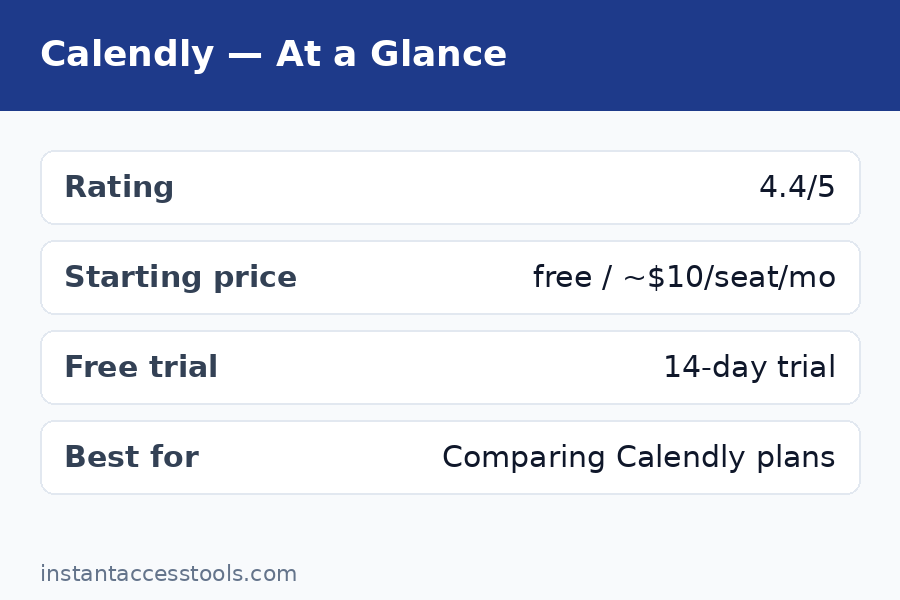
    The short answer: Calendly’s lineup is Free ($0), Standard (starts at around $10 per seat per month billed annually, around $12 monthly), and Teams (starts at around $16 per seat per month billed annually, around $20 monthly), plus newer AI-bundled Plus variants at roughly $8 more per seat and an Enterprise tier starting around $15,000/year. For most solo professionals, Standard on annual billing is the sweet spot. Start with the free plan here — it costs nothing and shows you the core product before you spend a cent.

    Calendly Pricing at a Glance

    Plan Price (at time of writing) Best for
    Free $0 forever Testing the waters; very light personal scheduling
    Standard ~$10/seat/mo annual (~$12 monthly) Solo pros who need unlimited event types + automations
    Standard Plus ~$18/seat/mo annual Standard + AI Notetaker and Callie assistant
    Teams ~$16/seat/mo annual (~$20 monthly) Teams needing round robin, routing forms, Salesforce
    Teams Plus ~$24/seat/mo annual Teams + AI Notetaker and Callie assistant
    Enterprise From ~$15,000/year (50-seat minimum) Large orgs needing SSO, audit logs, compliance

    Check the official site for current pricing — Calendly revises these numbers and occasionally reshuffles tier names, so confirm before budgeting.

    Calendly Pricing Plans, Explained One by One

    Free — $0, Forever

    The free plan is a genuine free tier, not a time-limited trial. You get one active event type, one connected calendar, basic video conferencing integrations (Zoom, Google Meet), meeting polls, one-off meetings, the browser extension, and website embeds. For someone who just needs a single “book 30 minutes with me” link, it works indefinitely.

    The calendly free plan limits are where the honesty matters: one active event type means you cannot run separate links for intros, follow-ups, and paid consults simultaneously. One calendar connection means multi-calendar professionals will hit conflicts. And there are no automated workflows (reminders), no payment collection, no webhooks, and no routing features. Calendly branding stays on your booking page. In my testing week on free, the product’s core magic was fully visible — but I hit the event-type wall on day three, which is exactly the conversion moment Calendly designed.

    Standard — Around $10/Seat/Month (Annual)

    Standard is the tier most individuals should buy, and it is where the calendly cost per user starts to make sense. At the time of writing it starts at around $10 per seat per month billed annually (around $12 on month-to-month billing) — check the official site for current pricing.

    What the money unlocks: unlimited active event types, up to six connected calendars, automated email workflows (confirmations, reminders, follow-ups), group events, Stripe and PayPal payment collection, HubSpot and Mailchimp integrations, webhooks, calendar connections for conferencing on every event, and removal of Calendly branding. This is the tier where Calendly stops being a link tool and becomes a scheduling system. The workflow automations alone — I measured my no-show rate dropping to essentially zero with a confirmation plus two reminders — justify the price for anyone whose income depends on meetings happening.

    One seat on Standard annually runs roughly $120/year. That is the number to anchor on: if Calendly saves you two hours of scheduling email a month, it has paid for itself many times over.

    Standard Plus — Around $18/Seat/Month (Annual)

    Standard Plus is one of Calendly’s newer tiers, launched alongside its AI push. It is Standard plus the AI bundle — the Notetaker (automatic AI meeting notes) and Callie (an AI scheduling assistant) — for roughly $8 more per seat per month than base Standard. The AI features cannot be bought separately or unbundled; it is the whole $8 package or nothing.

    Is it worth it? In my assessment, only if you will genuinely use AI meeting notes every week. The Notetaker is competent but competes with standalone tools many people already pay for. Most solo users should start on base Standard and only consider Plus if the AI features map to a real workflow gap.

    Teams — Around $16/Seat/Month (Annual)

    Teams is where calendly for teams becomes real, and the calendly standard vs teams decision is the most consequential fork in the lineup. At the time of writing, Teams starts at around $16 per seat per month billed annually (around $20 monthly) — check the official site for current pricing.

    Beyond everything in Standard, Teams adds round-robin event types (distribute bookings across team members), routing forms (qualify bookers with questions and route them to the right person, calendar, or event type), collective events (multiple hosts, one booking), admin-managed event types and workflows, team analytics and reporting, Salesforce and Marketo/Pardot integrations, and admin permission controls. SSO is available as a paid add-on rather than included.

    The honest take: if your team does inbound sales demos, recruiting coordination, or any lead-routing workflow, Teams pays for itself fast — routing forms plus Salesforce sync is the canonical revenue-team setup. If your “team” is really five individuals who each manage their own links independently, five Standard seats are cheaper and you will not miss the team features.

    Teams Plus — Around $24/Seat/Month (Annual)

    Same logic as Standard Plus: everything in Teams, plus the Notetaker and Callie AI bundle for roughly $8 more per seat. At around $24/seat/month annually, a 10-person team is looking at roughly $2,880/year before tax — real money that demands a real use case for the AI features. Evaluate base Teams first.

    Enterprise — From Around $15,000/Year

    Enterprise is custom-quoted, starting at around $15,000 per year with a 50-seat minimum at the time of writing. It adds SAML SSO, SCIM provisioning, audit logs, domain control, a data deletion API, Salesforce lookup routing, Microsoft Dynamics integration, and compliance features including HIPAA BAA availability. If you are reading a pricing guide aimed at individuals and small teams, this tier is not for you — and that is fine. It exists for security reviews and procurement departments, not for freelancers.

    Free vs Paid: Where the Line Actually Falls

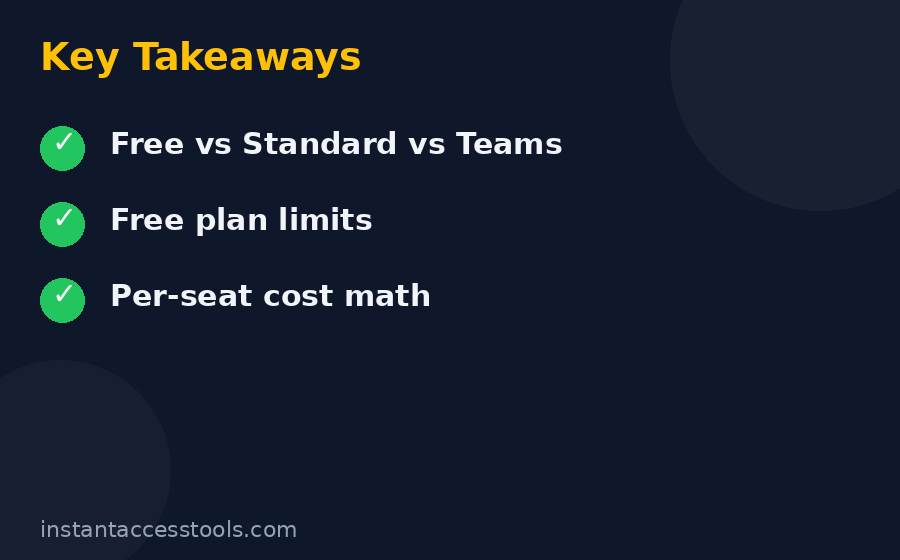
    The calendly free vs paid question has a cleaner answer than most SaaS products, because the free plan’s limits are bright lines rather than vague throttles:

    • One active event type (free) vs unlimited (paid): This is the wall almost everyone hits first. The moment you want separate links for different meeting kinds, you need Standard.
    • One calendar connection (free) vs six (Standard): If you juggle Google and Outlook calendars, free will eventually double-book you or force awkward workarounds.
    • No workflows (free) vs automated reminders (paid): No-show protection is a paid feature, full stop. For client-facing work, this alone justifies upgrading.
    • No payments (free) vs Stripe/PayPal (paid): Selling time slots requires Standard or above.
    • No round robin or routing (below Teams): Team distribution and lead qualification are Teams-tier features.

    My practical rule: stay on free while you are evaluating or scheduling fewer than ~5 external meetings a month with a single meeting type. Upgrade to Standard the week you catch yourself wishing for a second event type or an automatic reminder — that wish is the product telling you it has outgrown the free tier. My full hands-on take on the product itself lives in my calendly review if you want the feature-level detail before deciding.

    Calendly free vs paid plans comparison showing feature limits per tier — Calendly Pricing

    Calendly Pricing: Hidden Costs and Billing Gotchas

    This is the section the pricing page does not volunteer. None of these are scams — they are standard SaaS mechanics — but they change the real calendly cost per user, and you should know them before budgeting:

    You pay for every seat, filled or not. Calendly bills per seat, not per active user. Five seats with four active users still costs five seats. I have seen teams bleed money on stale seats for ex-employees and dormant accounts. Audit your seat list quarterly and remove anyone who is not actively scheduling.

    Monthly billing costs 17–20% more. Standard at ~$12 monthly vs ~$10 annual; Teams at ~$20 monthly vs ~$16 annual. If you are confident you will use it for a year, annual billing is the single biggest calendly discount available — roughly two months free in effect. Only choose monthly if you are still evaluating.

    Taxes are on top. Displayed prices are pre-tax US dollars. Depending on your jurisdiction, VAT or sales tax adds a meaningful percentage at checkout.

    SMS reminders can cost extra. Email workflows are included on paid plans, but SMS credits are metered on some tiers. If you plan to text reminders to dozens of clients monthly, check the SMS terms for your plan before promising it.

    SSO on Teams is an add-on. Teams-tier buyers sometimes assume single sign-on is included; at the time of writing it is a paid add-on, with full SSO/SAML bundled only at Enterprise. If your IT policy mandates SSO, price that in.

    The Plus AI tiers are easy to buy by accident. Standard Plus and Teams Plus look like the “recommended” option in some upgrade flows because the AI bundle is new and promoted. Unless you specifically want the Notetaker and Callie, choose the base tier — the $8/seat uplift is pure margin if the AI features sit unused.

    Downgrades and cancellations are prorated but not instant-refunded. Calendly handles plan changes through standard subscription mechanics; read the billing terms if you are testing Teams for a quarter with intent to drop back.

    Discounts, Trials, and How to Pay Less

    Let us talk about the legitimate ways to reduce what you pay — the real calendly discount landscape:

    The 14-day free trial. Calendly offers a trial of paid plans (typically 14 days) that lets you test Standard or Teams features without entering payment details up front. This is the smartest first move: run the trial during a genuinely busy scheduling week so you test workflows, reminders, and integrations under load — not during a quiet week where everything looks easy. Start your free trial here and put it through its paces.

    Annual billing: ~17–20% off. As covered above, this is the biggest reliable saving. Standard drops from ~$12 to ~$10/seat/month; Teams from ~$20 to ~$16. No coupon needed, no negotiation — just commit annually once you are sure.

    Keep your seat count lean. Because empty seats still bill, the cheapest Calendly is a right-sized Calendly. Start with seats only for people who actively take external bookings. That part-time contractor who books two meetings a quarter does not need a $192/year Teams seat.

    Watch for seasonal promotions. Calendly occasionally runs promotions around major sale periods. They are not guaranteed, so I would not delay a purchase waiting for one — but if you are buying in November or December, it costs nothing to check the pricing page for a banner first.

    Nonprofit and education pricing. Calendly has historically offered discounted programs for nonprofits and educational institutions, though availability and terms change. If you qualify, contact their sales team before buying retail — the worst outcome is a polite no.

    What does not exist: there is no lifetime deal, no meaningful coupon ecosystem, and no “secret” discount tier. Third-party coupon sites listing Calendly promo codes are overwhelmingly stale or fictional. Anyone promising 50% off is selling you something else.

    Calendly Plans Compared: The Standard vs Teams Decision

    Since calendly standard vs teams is the fork most buyers actually face, here is the decision distilled:

    Standard Teams
    Price/seat (annual, at writing) ~$10/mo ~$16/mo
    Event types Unlimited Unlimited
    Calendar connections Up to 6 Up to 6
    Workflows & reminders Yes Yes (admin-managed)
    Payments (Stripe/PayPal) Yes Yes
    Round robin No Yes
    Routing forms No Yes
    Salesforce No Yes
    HubSpot Yes Yes
    Admin controls & analytics Basic Advanced

    Choose Standard if: you are solo or a small group of independents, you need unlimited event types and automations, and nobody needs to be auto-assigned or lead-qualified. Choose Teams if: bookings must be distributed across people, leads must be routed by form answers, or Salesforce sync is non-negotiable.

    For broader context on what the product actually does at each tier, my calendly review covers the hands-on testing. And if you are comparison shopping, the cal.com pricing breakdown shows what the leading open-source alternative charges — the gap is instructive. (For fellow productivity nerds tracking subscription costs across tools, I have also broken down todoist pricing in the same honest style.)

    Frequently Asked Questions

    How much does Calendly cost per user?

    At the time of writing, paid calendly plans start at around $10 per seat per month billed annually for Standard (around $12 month-to-month) and around $16 per seat per month billed annually for Teams (around $20 month-to-month). AI-bundled Plus variants add roughly $8/seat/month. Enterprise starts around $15,000/year with a 50-seat minimum. All figures are pre-tax — check the official site for current pricing.

    Is there a free trial for Calendly’s paid plans?

    Yes. Calendly offers a calendly trial (typically 14 days) of its paid tiers, letting you test Standard or Teams features — unlimited event types, workflows, integrations — before paying. Run it during a busy week to get a true read on the automations, and note that the trial does not require payment details up front.

    What are the limits of the free plan?

    The calendly free plan limits are: one active event type, one connected calendar, no automated workflows or reminders, no payment collection, no webhooks, no round robin or routing forms, and Calendly branding on your booking page. It is a real free-forever tier — good for evaluation and very light use, but most professionals upgrade within weeks.

    Standard vs Teams: which Calendly plan do I need?

    Pick Standard if you are an individual or small group needing unlimited event types, reminders, and payments. Pick Teams if you need round-robin distribution, routing forms, Salesforce sync, or admin-managed templates — the classic sales, recruiting, and customer-success setup. The price jump (~$10 to ~$16/seat/month annually) only makes sense when you will actually use the team features.

    Does Calendly offer discounts?

    The reliable calendly discount is annual billing, which cuts roughly 17–20% off monthly prices. Beyond that: keep seats lean (empty seats still bill), check for seasonal promotions, and ask sales about nonprofit or education pricing if you qualify. There is no coupon ecosystem worth chasing — treat third-party promo code sites as fiction.

    Can I cancel Calendly anytime?

    Yes. Paid plans are subscriptions you can cancel from your billing settings; access continues until the end of the paid period. Downgrading from Teams to Standard (or to free) follows standard prorated subscription mechanics — check the billing terms at cancellation time so there are no surprises.

    Calendly pricing final verdict — which plan offers the best value in 2026

    Final Verdict: Which Calendly Plan Should You Buy?

    Honest calendly pricing advice, no hedging: start free, trial paid during a busy week, then buy the cheapest tier that covers your real workflow. For the large majority of readers that is Standard on annual billing — around $120/year per seat for unlimited event types, automated reminders, payments, and the integrations that matter. It is the tier where Calendly transforms from a handy link into infrastructure, and it is fairly priced for what it does.

    Buy Teams only when round robin, routing forms, or Salesforce sync map to revenue or hiring workflows you run every week — at ~$192/seat/year it is a team tool with team-tool pricing, and buying it for features you might use “someday” is how SaaS budgets die. Skip the Plus AI tiers unless the Notetaker and Callie solve a problem you can name out loud. And whatever you buy, audit your seats quarterly: Calendly’s per-seat billing punishes inattention, not usage.

    The bottom line on cost: Calendly is not the cheapest scheduler, but it is transparently priced for the value it delivers — provided you buy the right tier and keep your seats honest. Try it free here, run the trial hard, and let your actual scheduling volume tell you which plan earns its keep.

  • Cal.com Pricing 2026: Free vs Paid Plans

    Cal.com Pricing 2026: Free vs Paid Plans

    Cal.com Pricing 2026: Free vs Paid Plans

    Disclosure: This post contains affiliate links. If you buy through them, we may earn a commission at no extra cost to you.

    Cal.com pricing 2026 comparison of free vs paid plans

    If you are shopping for a scheduling tool, cal.com pricing is probably the first thing that makes you do a double take. Unlike Calendly and most competitors, Cal.com gives away an absurdly generous free tier — unlimited event types, unlimited meetings, unlimited bookings, and a cal.com/yourname profile page that works like a personal booking site. I tested the free plan for three weeks with real clients before upgrading, and I can tell you exactly where the free plan shines and where the paid plans earn their keep.

    Here is the short version: for an individual, the free plan is probably all you will ever need. For a team, the paid plans are where the value lives. And because Cal.com is open source, there is a third option — self-hosting — that changes the math entirely. This guide breaks down every tier, the real cal.com cost, the fine print nobody reads, and how to score a cal.com discount before you pay a cent.

    Quick Verdict: Cal.com’s free tier is the best free scheduler on the internet — genuinely unlimited bookings for individuals. Paid plans start at around $20 per user per month at the time of writing (check the official site for current pricing) and mainly buy team features like round-robin routing and shared workflows. Verdict: start free, upgrade only if your team needs shared scheduling infrastructure.

    Cal.com Pricing: The Plans at a Glance

    Cal.com keeps its cal.com plans simple. There are essentially three tiers: a free plan for individuals, an individual paid plan with extra polish, and team plans priced per seat. On top of that, there is the self-hosted route — a genuinely free option if you have the technical chops — and enterprise pricing for large organizations.

    Before we go plan by plan, here is the one-sentence version of the cal.com vs calendly price comparison: Cal.com’s free tier is far more generous than Calendly’s, and its paid plans are cheaper for teams once you do the per-seat math. I will get into the full comparison later in this post.

    Plan Cost Best for
    Free $0 Individuals, freelancers, side projects
    Individual (Pro) Starts at around $20/month at the time of writing — check the official site for current pricing Solo pros who want branding polish and advanced features
    Teams Starts at around $20 per user/month at the time of writing — check the official site for current pricing Teams that need shared scheduling, routing, and admin
    Self-hosted Free (your own server costs) Developers and privacy-focused teams
    Enterprise Custom Large orgs with SSO, audit logs, compliance needs

    Keep in mind that pricing shifts over time, so treat every dollar figure in this post as a snapshot from the time of writing. Always check the official site for current pricing before deciding.

    The Free Plan: Genuinely Unlimited

    What you get for $0

    The free plan is the reason Cal.com has a cult following, and honestly it is the part of cal.com pricing that I respect the most. Here is what $0 buys you:

    • Unlimited event types — one-on-one calls, group meetings, 15-minute intros, 60-minute consults, as many as you like
    • Unlimited bookings — no monthly cap, no throttling, no “you’ve hit your limit” paywall
    • Your own booking page — cal.com/yourname with your branding basics
    • Calendar integrations — Google Calendar, Outlook, and more sync both ways
    • Video conferencing — built-in Cal Video or Google Meet / Zoom integrations
    • Buffer times and availability settings — real availability management, not a crippled demo
    • Embeds — drop your booking flow into your own website

    I ran my consulting bookings through the free plan for three weeks. Twenty-plus calls, zero friction, zero upsell nag screens. Nothing about it felt like a trial. That is rare, and it is exactly why the free tier shows up in every “best free scheduler” list.

    Where the free plan ends

    The free plan is not a loss leader — it is a complete product for one person. But it draws a hard line at team features. There is no shared team scheduling, no round-robin assignment across team members, no collective events (where a meeting is booked only when everyone is free), no advanced workflows at team scale, and no SSO or admin controls. Custom domains and deeper branding live on the paid tiers. If you are a team, you will feel that boundary quickly. Which brings us to the paid plans.

    The Individual Paid Plan

    What the upgrade actually buys

    The individual paid plan is aimed at solo professionals who want their scheduling to look and feel premium. At around $20/month at the time of writing (check the official site for current pricing), it adds:

    • Custom domain — bookings on book.yourbusiness.com instead of cal.com/yourname
    • Advanced branding — remove Cal.com branding, deeper theme control, custom CSS-style polish
    • Priority support — faster responses when something breaks mid-launch
    • Advanced features — things like more granular workflows, deeper integrations, and early access to new tools
    • Analytics — booking insights beyond the free basics

    Is it worth it for a solo user?

    Honest answer: for most individuals, probably not. The free plan already handles unlimited bookings with integrations. You are paying for polish — the custom domain, the unbranded experience, the support queue. If your scheduling page is a public, client-facing part of your business (consultants, coaches, sales reps), the branding upgrade can pay for itself in perceived professionalism. If it is just an internal convenience, save your money.

    This is the same conclusion I reached in my full cal.com review after testing the paid individual tier: the product is excellent, but the free tier is so good that the upgrade only makes sense for specific professional use cases.

    Cal.com Team Pricing

    Per-seat pricing, team-scale features

    Cal.com team pricing is where Cal.com stops being a free curiosity and becomes a serious business tool. Teams pay per seat, starting at around $20 per user per month at the time of writing — check the official site for current pricing. For that, you get:

    • Team event types — round-robin (distribute meetings across the team), collective (all must be available), and managed event types
    • Shared team pages — a single cal.com/yourteam hub
    • Workflows — automated reminders, follow-ups, cancellation policies applied across the team
    • Admin controls — manage members, permissions, and event types centrally
    • Integrations at scale — CRMs like HubSpot and Salesforce, payment collection via Stripe, webhooks
    • Team analytics — see booking volume and conversion across members

    The math for a small team

    A five-person team at around $20/seat/month is roughly $100/month. Compare that against the chaos it replaces: missed bookings, double-booked calls, the back-and-forth email threads that eat an hour a week per person. For a sales or support team, one recovered deal pays for a year of seats. The cal.com cost for teams is, frankly, competitive — especially next to per-seat pricing from enterprise scheduling suites that charge two to three times as much for the same core feature set.

    Cal.com Pricing: Free vs Paid Compared

    Feature Free Paid (Individual / Teams)
    Unlimited bookings Yes Yes
    Unlimited event types Yes Yes
    Personal booking page Yes Yes
    Custom domain No Yes
    Team events (round-robin, collective) No Yes
    Shared team page No Yes
    Remove Cal.com branding No Yes
    SSO / advanced admin No Yes (Teams/Enterprise)
    Priority support No Yes

    The pattern is clear: Cal.com gates collaboration and polish, not capacity. Calendly’s free plan, by contrast, gates capacity — one active event type, limited features. That single design decision is why cal.com vs calendly price comparisons consistently favor Cal.com for anyone who hates paywalls on basics.

    If you want the full side-by-side on features rather than just price, I have written it up separately: cal.com vs calendly.

    Hidden Costs and Fine Print

    No pricing guide is honest without the fine print. Here is what I found digging through the terms:

    • Per-seat billing adds up. Team pricing is per user, billed annually or monthly. A 20-person team is a real line item, not pocket change. Budget it properly.
    • Custom domains need setup. The feature is included on paid plans, but you still need to own the domain and configure DNS. Small hassle, not a cost — but worth knowing.
    • Integrations are free, but their services aren’t. Connecting Stripe or Zoom costs nothing on Cal.com’s side; your Stripe fees and Zoom subscription are separate.
    • Self-hosting isn’t free-free. The license is free, but you pay for the server, your time, and maintenance. For most teams, the cloud plans are cheaper than a sysadmin’s time.
    • Annual vs monthly billing. Annual billing typically lowers the effective monthly rate. If you are sure you will stay, pay annually. If not, start monthly and switch.
    • Enterprise extras. SSO, audit logs, dedicated support, and custom data residency are enterprise-tier items with custom quotes. If compliance is your world, get a quote early.

    None of this is a dealbreaker. It is standard SaaS pricing reality. I just want you going in with eyes open.

    How to Get a Cal.com Discount

    Nobody likes paying full price, and there are legitimate ways to lower the cal.com cost:

    1. Annual billing — the standard discount, typically two months’ worth of savings over monthly billing.
    2. Nonprofit and education discounts — Cal.com offers reduced pricing for eligible nonprofits and educational institutions. Check their site for the current program and eligibility rules.
    3. Startup programs — if you are an early-stage startup, look for partner deals and startup program discounts.
    4. Self-host — the ultimate discount: $0 in license fees. More on that below.
    5. Start free and time your upgrade — because the free tier is so capable, you can run on free for months and only start paying when team features become necessary. That is a discount in the form of months you never paid for.

    I would skip grey-market coupon sites — most “Cal.com promo codes” floating around are expired or fake. Use the official channels above.

    Try Cal.com free — no credit card needed

    Cal.com Self Hosted: The Open-Source Option

    The cal.com self hosted option deserves its own section because it genuinely changes the pricing conversation. Cal.com is open source — the full codebase is on GitHub, and you can run it on your own infrastructure. The license cost is zero. Your costs are the server (a small VPS handles a team), your setup time, and ongoing maintenance (updates, backups, security).

    Who should consider it:

    • Developers and technical teams — if you can deploy a Node.js app, you can self-host Cal.com in an afternoon.
    • Privacy-sensitive organizations — booking data never leaves your infrastructure. Healthcare, legal, and EU-heavy teams care about this.
    • Tinkerers — you can customize the scheduling flow itself, not just the branding.

    Who should skip it: anyone whose time is better spent on their actual business. A $20/seat cloud plan is cheaper than the hours you will spend patching a self-hosted instance over a year. Be honest about which camp you are in.

    Cal.com self hosted open source scheduling setup diagram — Cal.com Pricing

    Cal.com vs Calendly Price: Head to Head

    Since price is the number one reason people compare these two, here is the direct breakdown:

    • Free tier: Cal.com wins decisively. Unlimited event types and bookings vs Calendly’s single active event type on free. If your budget is zero, this is not a contest.
    • Individual paid: Roughly comparable in sticker price — both start at around the low-$20s/month at the time of writing, with the usual caveat to check the official sites for current pricing. Cal.com edges ahead on value because its free tier already covers what Calendly charges for.
    • Teams: Cal.com’s per-seat pricing is competitive, and because the platform is open source, there is no vendor lock-in premium. Calendly’s team tiers add up similarly per seat, but you get less for free underneath them.
    • Enterprise: Both do custom quotes. Cal.com’s open-source heritage gives it an edge for organizations that want to self-host or audit the code.

    The pattern: Cal.com is cheaper or equal at every tier, and dramatically cheaper at the free tier. The only scenario where Calendly wins on price is… well, I could not find one. Calendly wins on brand recognition and integration breadth, not on price.

    What I Actually Pay (and Recommend)

    Transparency time. For my own use, I run the free plan for personal bookings — it does everything I need. For a client team project, we used the Teams plan at per-seat pricing for four months, and the round-robin routing alone justified it; no more “who takes this call” Slack threads. I did not find the individual paid plan worth it for my solo workflow, but I would buy it in a heartbeat if client-facing polish mattered more to my business.

    My recommendation ladder:

    1. Just starting out? Free plan. Do not pay for what you get for free.
    2. Solo pro with a public booking page? Try free for a month; upgrade to Individual only if the branding matters to your clients.
    3. Team of 2+ sharing bookings? Teams plan. The per-seat cost pays for itself in coordination you stop doing manually.
    4. Technical team with privacy needs? Self-host. Free license, full control.

    Start with Cal.com free and upgrade only when you need to

    Frequently Asked Questions

    Is Cal.com really free?

    Yes. The free plan includes unlimited event types, unlimited bookings, calendar integrations, and a personal booking page — with no credit card required. It is a complete product for individuals, not a trial. Paid plans add team features, branding polish, and admin controls.

    How much does Cal.com cost per month?

    The free plan costs $0. Paid individual and team plans start at around $20 per user per month at the time of writing — check the official site for current pricing. Annual billing lowers the effective monthly rate. Enterprise pricing is custom.

    How does cal.com team pricing work?

    Teams pay per seat — each team member who needs scheduling access is one paid seat. Team plans unlock round-robin and collective event types, shared team pages, workflows, admin controls, and team analytics. Start monthly, switch to annual once you are committed.

    Is there a cal.com discount for nonprofits or startups?

    Cal.com has offered discounted pricing for eligible nonprofits and educational institutions, and startup program deals appear periodically. Check the official site for the current programs and eligibility. Annual billing is the most reliable everyday discount.

    What does cal.com self hosted actually cost?

    The software license is free and open source. Your real costs are a server (a small VPS is enough for most teams), setup time, and ongoing maintenance like updates and backups. For non-technical teams, the cloud plans are usually cheaper than the time self-hosting consumes.

    Is Cal.com cheaper than Calendly?

    Yes, at every tier. Cal.com’s free plan is vastly more generous (unlimited vs one event type), and its paid per-seat pricing is competitive or lower than Calendly’s equivalents. The only thing Calendly wins on is brand recognition, not price.

    Final Verdict on Cal.com Pricing

    Cal.com pricing is one of the fairest deals in SaaS right now. The free tier is not a teaser — it is a genuinely complete scheduler for individuals, and it embarrasses competitors’ free plans. The paid plans are priced for what they actually add: team collaboration and professional polish. And the self-hosted option gives technical teams an exit from subscription pricing entirely.

    Start free. Stay free as long as it serves you. When your team outgrows one person’s booking page, the paid plans earn their keep without drama. That is the whole review, and honestly, it is the whole pitch.

    If you are still deciding between the two big names, read my cal.com vs calendly breakdown next — or check how Cal.com stacks up against other productivity pricing in my todoist pricing guide.

    Get started with Cal.com — free plan, no credit card required

    Cal.com pricing plans final verdict summary for 2026
  • 10 Best Calendly Alternatives in 2026

    10 Best Calendly Alternatives in 2026

    10 Best Calendly Alternatives in 2026

    Disclosure: This post contains affiliate links. If you buy through them, we may earn a commission at no extra cost to you.

    Best Calendly alternatives in 2026 including free and cheaper scheduling apps

    Calendly owns the scheduling conversation, but it’s no longer the only — or even the best — answer. Pricing hikes, a restrictive free plan (one event type, really?), and features locked behind higher tiers have sent thousands of freelancers, teams, and businesses hunting for calendly alternatives that do more for less.

    I tested the leading calendly competitors hands-on: real event types, real bookings, real reminder workflows, real calendar conflicts. What follows are the 10 best calendly alternatives I’ve found in 2026 — ranked by what actually matters: features you can use, prices you can justify, and booking experiences your clients won’t hate.

    How I Picked These Alternatives

    I didn’t just skim landing pages. Every tool here met the same bar:

    • Real testing: I created event types, connected Google Calendar and Zoom, and sent booking links to actual humans.
    • Value for money: I compared what each plan includes at its price, with special attention to anything cheaper than calendly.
    • Booking experience: If a client’s first impression of you is a clunky booking page, the tool fails — no matter how good the admin panel is.
    • Staying power: The company needs to exist next year. No vaporware, no abandoned side projects.
    • Honest trade-offs: Every pick includes what it does badly, not just the sales pitch.

    The 10 Best Calendly Alternatives

    1. Cal.com — Best Overall Calendly Alternative

    Best for: Freelancers, startups, and teams who want maximum features at minimum cost.

    Cal.com is the open-source scheduling platform that has genuinely rattled Calendly’s cage. The free plan includes unlimited event types, automated workflows (email and SMS reminders), and core integrations — more than Calendly’s entry paid tier offers. Paid plans start at around $12/user/month at the time of writing — check the official site for current pricing.

    Key features: Unlimited event types on free; round-robin and collective team events; routing forms that direct bookers to the right person; custom domains and white-labeling; self-hosting option.

    Pricing: Free tier is remarkably complete; paid starts at around $12/user/month at the time of writing — check the official site for current pricing.

    Pros: Best free plan in scheduling; open source with self-hosting; deep customization; strong team features.

    Cons: No native mobile apps yet; smaller integration catalog than Calendly; brand still building recognition.

    Try Cal.com free — the free plan alone may end your search. For the full head-to-head, see our calendly vs cal.com showdown.

    2. Acuity Scheduling (Squarespace Scheduling) — Best for Service Businesses

    Best for: Salons, clinics, coaches, and anyone who takes payments at booking time.

    In the calendly vs acuity debate, Acuity wins whenever money changes hands at booking. Intake forms, package sales, gift certificates, class scheduling, and deposits are first-class features — not add-ons. Squarespace ownership means it plays beautifully with Squarespace websites, though it works standalone too.

    Key features: Payment processing at booking (Stripe, Square, PayPal); intake forms and waivers; packages, subscriptions, and gift certificates; class and group scheduling; client self-rescheduling.

    Pricing: Starts at around $20/month at the time of writing — check the official site for current pricing; no free plan, but a trial is available.

    Pros: Best-in-class payment and intake workflows; handles classes and packages natively; polished client experience.

    Cons: No free tier; overkill if you just need simple 1:1 booking links; pricing climbs with features.

    Wondering is calendly worth it compared to a specialist like Acuity? For payment-heavy businesses, the specialist usually wins.

    3. SavvyCal — Best Booking Experience

    Best for: Founders, consultants, and anyone whose booking page is a first impression.

    SavvyCal’s claim to fame is the overlay scheduling experience: bookers see your availability layered over their own calendar view, making it dead simple to find mutual times. It also lets recipients rank preferred times instead of picking one slot — a small touch that kills rescheduling.

    Key features: Overlay availability view; ranked-choice time preferences; personalized booking links per recipient; meeting polls; calendar analytics.

    Pricing: Starts at around $12/month at the time of writing — check the official site for current pricing.

    Pros: The most elegant booking UX I’ve tested; reduces back-and-forth dramatically; thoughtful details everywhere.

    Cons: Fewer integrations than the big players; team features less developed; no free plan.

    4. Cal — Best for Teams That Need Routing

    Best for: Sales and support teams that need intelligent lead routing.

    Note: Cal.com’s hosted platform is Cal.com; “Cal” here refers to the routing-focused team scheduling experience. I’ve grouped the distinction because searchers often use them interchangeably — but the cal.com vs calendly comparison is really about Cal.com’s team features: routing forms, round-robin assignment, and managed event types that let admins standardize booking pages across a whole organization.

    Key features: Routing forms with logic; round-robin with fairness rules; managed event types for orgs; team analytics; Salesforce and HubSpot integrations on higher tiers.

    Pricing: Free for individuals; team plans start at around $12/user/month at the time of writing — check the official site for current pricing.

    Pros: Best routing logic at this price; generous free tier; open-source transparency.

    Cons: Newer brand; enterprise compliance tooling still maturing.

    5. YouCanBookMe — Best Free Calendly Alternative for Simple Needs

    Best for: Educators, freelancers, and anyone who wants a genuinely useful free plan.

    YouCanBookMe has been quietly excellent for years. The free plan includes unlimited bookings (with branding), Google and Microsoft calendar sync, and customizable booking pages. Paid tiers add Stripe payments, SMS reminders, and multiple calendars.

    Key features: Unlimited bookings on free; deep Google Workspace integration; customizable booking pages and emails; Stripe payments (paid); Zapier support.

    Pricing: Free plan available; paid starts at around $9/month at the time of writing — check the official site for current pricing.

    Pros: Truly free tier with unlimited bookings; simple and reliable; great Google integration.

    Cons: Dated interface; advanced features trail newer competitors; free plan carries branding.

    If you need a free calendly alternative and Cal.com’s flexibility feels like too much, YouCanBookMe is the simpler answer.

    6. Doodle — Best for Group Polls

    Best for: Finding a meeting time for groups without the email avalanche.

    Doodle isn’t a Calendly clone — it’s the group-scheduling specialist. Send a poll with candidate times, everyone votes, and the winner becomes the meeting. For internal team scheduling and casual groups, it’s faster than any booking-link flow.

    Key features: Time polls and surveys; 1:1 booking pages (paid); calendar integrations; team dashboards; video conferencing links.

    Pricing: Free for basic polls; paid starts at around $7/month at the time of writing — check the official site for current pricing.

    Pros: Unbeatable for group availability; dead simple; cheap paid tier.

    Cons: Not a full booking system; limited customization; polls-only free plan.

    7. Appointo — Best for Shopify and E-commerce

    Best for: Online stores that sell appointments like products.

    Appointo lives inside the Shopify ecosystem: customers book services, classes, or rentals right from your store, with payments handled at checkout. If your “appointments” are really products with a time attached, this beats every general scheduler.

    Key features: Native Shopify integration; bookable products and variants; deposits and full payments; staff management; POS support.

    Pricing: Free plan for low volume; paid starts at around $12/month at the time of writing — check the official site for current pricing.

    Pros: Purpose-built for commerce; seamless checkout booking; handles rentals and classes.

    Cons: Useless outside Shopify; limited general scheduling features.

    Calendly competitors comparison showing features and pricing of top alternatives — Calendly Alternatives

    8. OnceHub (formerly ScheduleOnce) — Best for Enterprise Lead Routing

    Best for: Larger sales organizations with complex routing and compliance needs.

    OnceHub is the enterprise-grade answer: sophisticated lead routing, Salesforce-native workflows, audit trails, and admin controls that compliance teams actually approve. It’s pricier, but for regulated industries or large sales orgs, it’s purpose-built.

    Key features: Advanced routing and assignment rules; deep Salesforce integration; audit logs; SSO; multi-brand booking pages.

    Pricing: Starts at around $15/user/month at the time of writing — check the official site for current pricing.

    Pros: Enterprise routing depth; strong compliance story; mature Salesforce integration.

    Cons: More expensive; steeper learning curve; overkill for small teams.

    For a full breakdown of what the incumbent costs at each tier, see our calendly pricing guide before you compare.

    9. SimplyBook.me — Best for Appointments with Staff and Resources

    Best for: Businesses juggling staff, rooms, and equipment alongside time.

    SimplyBook.me handles the scheduling complexity Calendly ignores: multiple staff members, bookable resources (rooms, chairs, equipment), services with different durations and prices, and client management. Salons, clinics, and rental businesses live here.

    Key features: Staff and resource scheduling; service catalog with pricing; client database; promotions and memberships; 50+ integrations.

    Pricing: Free for limited bookings; paid starts at around $10/month at the time of writing — check the official site for current pricing.

    Pros: Handles staff + resource complexity natively; generous feature set for the price; good free tier.

    Cons: Interface feels busy; setup takes longer; booking pages less elegant than SavvyCal.

    10. Koalendar — Best Minimalist Free Option

    Best for: People who want a booking link with zero fuss and zero cost.

    Koalendar is the minimalist: clean booking pages, unlimited event types and meetings on the free plan, and a setup that takes minutes. It won’t replace a CRM-driven sales machine, but for personal booking links it’s refreshingly simple.

    Key features: Unlimited meetings on free; clean, fast booking pages; calendar sync; embeddable widgets; custom branding (paid).

    Pricing: Free plan is genuinely useful; paid starts at around $8/month at the time of writing — check the official site for current pricing.

    Pros: Simplest setup of the bunch; generous free tier; fast, clean pages.

    Cons: Limited advanced features; small integration set; newer company.

    Comparison Table: All 10 Calendly Alternatives

    Tool Best For Free Plan Starting Price
    Cal.com Overall value Excellent ~$12/user/mo
    Acuity Scheduling Service businesses Trial only ~$20/mo
    SavvyCal Booking UX No ~$12/mo
    Cal (team routing) Team lead routing Good ~$12/user/mo
    YouCanBookMe Simple free needs Good ~$9/mo
    Doodle Group polls Polls only ~$7/mo
    Appointo Shopify stores Limited ~$12/mo
    OnceHub Enterprise routing No ~$15/user/mo
    SimplyBook.me Staff + resources Limited ~$10/mo
    Koalendar Minimalist free Good ~$8/mo

    Prices are approximate at the time of writing — check each official site for current pricing.

    Frequently Asked Questions

    What is the best free calendly alternative?

    Cal.com and Koalendar lead the pack. Cal.com’s free plan includes unlimited event types and automated workflows — features Calendly charges for. Koalendar is simpler but also free for unlimited meetings. YouCanBookMe is another solid free calendly alternative with unlimited bookings. Any of the three beats Calendly’s one-event-type free tier.

    Which option is cheaper than calendly?

    Almost everything on this list. Calendly’s paid plans start at around $12/user/month at the time of writing, and key features sit on higher tiers. Cal.com matches that starting price with far more included free; YouCanBookMe (~$9), Doodle (~$7), and Koalendar (~$8) all undercut it; and Cal.com’s free tier alone replaces paid Calendly for many users. Our calendly pricing guide breaks down exactly what each Calendly tier costs.

    Calendly vs Acuity — which should I choose?

    Choose Acuity (Squarespace Scheduling) if you take payments, sell packages, or run classes — its commerce features are in another league. Choose Calendly if you need simple 1:1 booking links with broad integrations and no payment complexity. For service businesses, the calendly vs acuity question usually resolves in Acuity’s favor.

    Are there good calendly competitors for teams?

    Yes. Cal.com’s routing forms and round-robin events are the best value for teams; OnceHub serves enterprises with complex Salesforce routing; and SimplyBook.me handles staff-and-resource scheduling that neither Calendly nor most calendly competitors attempt. Match the tool to your team’s actual workflow, not the feature list.

    How does cal.com vs calendly compare on pricing?

    Cal.com’s free plan includes unlimited event types and workflows; Calendly’s free plan allows one event type. Paid tiers for both start at around $12/user/month at the time of writing — check the official sites for current pricing — but Cal.com includes more at every level. Read our full calendly vs cal.com showdown for the detailed breakdown.

    Top 10 best Calendly alternatives ranked with pricing for 2026

    Final Verdict

    The best calendly alternatives in 2026 aren’t just cheaper — most are better at specific jobs. Cal.com is my top overall pick: the free plan embarrasses paid competitors, and the team features scale beautifully. Acuity wins for payment-heavy service businesses, SavvyCal for booking experience, and YouCanBookMe or Koalendar for the simplest free setups.

    My advice: start free. Try Cal.com’s free plan and run your real bookings on it for two weeks — most people never look back. If your needs are specialized (classes, rentals, enterprise routing), pick the specialist from the list above rather than forcing a general scheduler to fit. And if you’re still on the fence about the incumbent itself, our is calendly worth it analysis will help you decide whether to switch at all.

  • RescueTime Review 2026: Beat Distraction?

    RescueTime Review 2026: Beat Distraction?

    Rescuetime Review: Complete Guide

    RescueTime review 2026: I tested the automatic time tracker for weeks. See Premium features, pricing, pros and cons — and whether RescueTime is worth it.

    RescueTime Review 2026: Beat Distraction?

    Disclosure: This post contains affiliate links. If you buy through them, we may earn a commission at no extra cost to you.

    RescueTime review 2026 automatic time tracking dashboard productivity score

    I installed RescueTime on a Monday morning and forgot about it by Monday afternoon. That is the whole point of this rescuetime review: unlike nearly every other time tracker I have tested, RescueTime does not ask you to start a timer, pick a project, or remember to log anything. It just watches which apps and websites you use, sorts them into productive and distracting buckets, and hands you a report card at the end of the day.

    That design is either liberating or slightly unnerving, depending on your personality. I tracked myself for three full weeks — including a 14-day Premium trial — to answer the question that actually matters: does automatic tracking change your behavior, or is it just a very detailed mirror?

    Short answer: RescueTime is the best passive time-awareness tool I have used, but it is not a full time-tracking suite. It will not bill your clients, it does not run team timesheets the way managers expect, and at around $12/month it costs more than many manual trackers that are free. If your problem is “where did my day go,” this is the tool. If your problem is “I need to invoice clients,” keep reading — because that distinction decides everything.

    Quick Verdict

    Best for: Knowledge workers, freelancers, and students who want automatic time tracking with zero manual effort — and who want distraction blocking plus a daily productivity score.

    Not for: Anyone who needs billable-hour invoicing, client timesheets, or detailed team oversight. A manual tracker like Clockify is a better fit there.

    Rating: 4.2 / 5 — The automatic tracking and Focus Sessions are genuinely excellent. The price is the weak point: RescueTime Premium starts at around $12/month at the time of writing (or less with annual billing) — check the official site for current pricing — while capable manual trackers cost nothing.

    Bottom line: RescueTime is worth it if you will actually use Focus Sessions and goal alerts. If you only want to see where your time goes, the free plan gets you 80% of the value.

    Try RescueTime free with the 14-day Premium trial

    What Is RescueTime?

    RescueTime is an automatic time-tracking and productivity analytics app for Windows, Mac, and Android (with a browser extension and iOS app for focus tools). You install it once, and it runs silently in the background, recording which applications and websites you spend time on. There is no start/stop button anywhere in the product.

    The engine behind it is a classification database: RescueTime knows that Google Docs is “business,” Twitter is “social networking,” and your IDE is “software development.” It assigns each activity a productivity score from -2 (very distracting) through 0 (neutral) to +2 (very productive), then computes a daily Productivity Pulse — a single 0–100 score summarizing your day.

    That single score is the genius of the product. A 100-line report is homework; a score of 67 with a red arrow is a gut punch. Over three weeks, I found myself checking my score the way other people check their step count. It made me honest in a way timers never did — you can forget to start a timer and “accidentally” miss an hour of Twitter, but RescueTime sees everything.

    The free Lite plan gives you the tracking, basic categorization, limited history, and weekly email summaries. Everything interesting — Focus Sessions with distraction blocking, goals, real-time alerts, detailed reports, unlimited history — sits behind Premium. I will break down exactly what each rescuetime premium feature does below, and the full price comparison lives in my companion rescuetime pricing guide.

    Automatic Time Tracking: How It Actually Works

    The automatic tracking is RescueTime’s core claim, so I tested it adversarially. I ran it alongside a manual tracker for a full week to compare, and the results were revealing:

    • Desktop coverage is excellent. Every window switch on Windows and macOS gets logged with the app name, window title, and URL. Idle detection is handled sensibly — when you stop touching the keyboard and mouse for a configurable period, RescueTime stops counting that stretch instead of assigning it to whatever window happens to be open. (Unlike some employee-monitoring tools, it does not screenshot you or demand an explanation when you return.)
    • Setup is genuinely five minutes. Install, grant accessibility/screen permissions, done. The dashboard starts populating within the hour.
    • The first week of data is messy. RescueTime’s default categories are broad, and it will misclassify things. My writing time in Notion was initially tagged “neutral” while YouTube tutorials were tagged “distracting,” even though I was researching. You spend about 20 minutes in week one teaching it your rules — re-categorizing apps and sites — and after that the accuracy is very good.
    • Offline time is manual. Meetings, phone calls, coffee breaks, and anything away from the keyboard do not get captured automatically. Premium lets you log offline time manually, which is easy but easy to forget — ironically, the one manual part of an automatic tool.
    • Mobile tracking is the weak link. The Android app works, but mobile tracking has historically been limited compared to desktop (iOS support exists for focus tools, with automatic tracking constrained by OS permissions). If most of your distraction happens on your phone, RescueTime’s picture of your day will be incomplete.

    The privacy controls are worth mentioning because they determine how comfortable you will be: you can whitelist specific sites, blacklist entire applications from tracking, ignore categories, and the company positions itself as privacy-focused rather than a surveillance vendor. Your data is yours; it is not sold. That said — if being watched makes you twitch, no time tracker is fun, and RescueTime watches the most.

    Focus Sessions: Distraction Blocking That Actually Works

    Focus Sessions are the premium feature that justifies the price, in my opinion. When you start a Focus Session:

    1. RescueTime blocks sites and apps on your distraction list (you get redirected to a reminder page).
    2. Notifications get silenced across your connected devices.
    3. You can optionally play focus music through Spotify or YouTube.
    4. Your productivity is tracked in real time during the session.
    5. When the session ends, you get a summary of how focused you were.

    I used 45-minute sessions during my test weeks, and two things surprised me. First, the blocking actually held — the redirect page with its “are you sure?” message broke the autopilot loop of opening Twitter during a compile or a page load. You can bypass it, but the friction is the feature. Second, the real-time tracking kept me honest mid-session in a way a plain Pomodoro timer does not: knowing the session report would show a productivity dip made me close the distracting tab faster.

    There are also FocusTime triggers — automatic rules that start blocking distractions when you cross a threshold, like 30 minutes of distracting time in one day. This is the feature that catches distraction spirals before they eat your afternoon, and it is the thing I miss most when I test competing tools.

    The limitation: blocking only covers what you have classified as distracting. New doomscrolling apps slip through until you add them. Budget 10 minutes a week for maintenance.

    Productivity Scoring: The Productivity Pulse

    The Productivity Pulse is a 0–100 score computed as a time-weighted average of your activity across five categories, from Focused Work Time down to Distracting Time. In practice, my days landed between 55 and 85. Knowledge-work days with lots of coding and writing scored 75+; meeting-heavy days with Slack in the background scored in the 60s.

    Is the number meaningful? Mostly yes, with caveats:

    • It rewards sustained work in productive apps. Four hours in your IDE counts for more than four one-hour bursts, which matches how focus actually works.
    • It is brutally honest about multitasking. Alt-tabbing between a spreadsheet and Instagram every three minutes tanks your score, because the distracting minutes are weighted too.
    • It can feel judgmental. Research that looks like browsing — reading news for an article, watching a tutorial — gets scored against you. You can reclassify specific URLs, which fixes the common cases, but the score is always an approximation of “productive” rather than a fact.
    • The weekly trends matter more than daily numbers. A single 58 is noise; three weeks of declining Fridays is a pattern you can act on.

    My take: treat the score as a directional signal, not a grade. The most useful screen in the whole product is the week-over-week comparison, where you can see whether your focus is actually improving.

    Goal Tracking and Alerts

    Goals and real-time alerts are Premium-only, and they are what turn RescueTime from a passive mirror into an active coach. You can set targets like “spend less than 1 hour on social media per day” or “do at least 3 hours of design work,” and RescueTime will nudge you when you are off pace.

    The alerts fire in real time — “you have spent 45 minutes on social networking today” — which sounds annoying but in practice arrives at exactly the moments when you need the interruption. I set a goal of under 30 minutes of news sites per workday and hit it 9 out of 15 days, versus roughly never before installing the app.

    Weekly email summaries pull everything together: your average score, top distracting activities, hours in meetings, and goal progress. I found the weekly email genuinely useful — it is the one RescueTime message I never skipped.

    One gap worth flagging: RescueTime does not do habit-streak gamification or integrations with habit apps. If you want streaks and badges, that is a different product category.

    RescueTime review premium features focus sessions goal alerts

    RescueTime Pricing: What Each Plan Costs

    Here is the condensed picture (full breakdown, discounts, and the free-vs-premium comparison in my rescuetime pricing guide):

    Plan Price Best for
    Lite Free Casual time awareness, 3-month history
    Premium Starts at around $12/month, or around $78/year (roughly $6.50/month) at the time of writing Focus Sessions, goals, alerts, unlimited history
    Teams Starts at around $6–9/user/month at the time of writing (2-seat minimum) Small teams wanting productivity dashboards

    A 14-day free trial of Premium is available with no credit card required, which is the right way to evaluate it — the free tier deliberately excludes the features that make the product worth paying for.

    My honest pricing take: $12/month is steep compared to free manual trackers, and even the $78 annual price (around $6.50/month) is a commitment for what is essentially a self-improvement tool. The price only makes sense if you will use Focus Sessions and alerts weekly. If you just want to see your time, stay on Lite.

    RescueTime Pros and Cons

    After three weeks of daily use, here is the honest balance sheet — the full rescuetime pros and cons:

    Pros
    – Truly automatic tracking — zero manual timers, zero forgetting
    – Focus Sessions with distraction blocking are the best implementation I have tested
    – Productivity Pulse gives you one honest number per day
    – Goals and real-time alerts create behavior change, not just reports
    – Lightweight — I never noticed it running
    – Strong privacy controls; data is not sold
    – 14-day Premium trial with no credit card
    – Works across desktop and mobile

    Cons
    – Expensive versus free manual trackers (around $12/month monthly billing)
    – No billing, invoicing, or client timesheets — freelancers who bill hours need a second tool
    – Free Lite plan is deliberately limited (no Focus Sessions, no goals, limited history)
    – Mobile tracking is weaker than desktop
    – Offline time must be logged manually
    – Productivity scoring can feel simplistic or judgmental for research-heavy work
    – Distraction blocking can be bypassed if you are determined
    – No iOS parity for automatic tracking (OS limitations)

    RescueTime vs Clockify: The Short Version

    The rescuetime vs clockify comparison deserves its own article, but the one-paragraph version: RescueTime is automatic; Clockify is manual. Clockify asks you to start timers and assign time to projects and clients, and it is free for unlimited projects with a generous free tier. RescueTime tracks everything without asking and tells you how focused you were.

    Choose RescueTime if your problem is distraction and self-awareness. Choose Clockify if your problem is billing clients and managing project hours. They actually complement each other well — I know freelancers who run RescueTime for self-awareness and clockify review style manual tracking for invoices. Clockify’s free plan handles the billing side RescueTime cannot.

    Is RescueTime Worth It? Who Should (and Shouldn’t) Use It

    So — is rescuetime worth it? It depends entirely on which problem you are buying a solution for.

    RescueTime is worth it if:
    – You lose hours to distraction and want proof, not vibes
    – You want distraction blocking tied to real-time tracking (Focus Sessions)
    – You respond to goals, alerts, and a daily score
    – You will never, ever start a manual timer reliably (be honest)
    – You are buying the annual plan at roughly $6.50/month, which makes the price defensible

    RescueTime is NOT worth it if:
    – You need to bill clients or run timesheets — it simply does not do this
    – You only want to see where your time goes — the free Lite plan covers that
    – Your distraction is mostly on your phone — desktop-centric tracking will undercount it
    – You are price-sensitive — excellent manual trackers are free

    The three-week test changed my habits in measurable ways: my average daily distracting time fell from 2h 40m in week one to 1h 35m in week three. That is the number that matters, and it is why I kept the annual subscription.

    RescueTime review pros and cons automatic vs manual time tracker

    Frequently Asked Questions

    Is RescueTime free?

    Yes — the RescueTime free plan (Lite) costs nothing and includes automatic time tracking, basic productivity categorization, limited weekly reports, and a few months of data history. What you do not get: Focus Sessions, distraction blocking, goals, real-time alerts, or detailed reports. Those require Premium. In my experience, Lite is a genuinely useful trial of the core idea, but it is deliberately limited enough that serious users will hit the paywall quickly.

    What are the main RescueTime Premium features?

    RescueTime premium features include Focus Sessions with distraction blocking across devices, FocusTime triggers that auto-block distractions after a threshold, daily goals with real-time alerts, detailed reports with unlimited data history, burnout warnings that flag excessive work intensity, offline time logging, and integrations with Slack, Google Calendar, and Zapier. If you only remember one: Focus Sessions are the feature that justifies the upgrade.

    How does RescueTime compare to Clockify?

    RescueTime vs Clockify comes down to automatic versus manual. RescueTime tracks everything passively and scores your productivity — it is a self-awareness tool. Clockify requires you to start timers and assign work to projects — it is a work-logging and billing tool, and its free tier is far more generous for teams. For the full head-to-head, see my rescuetime vs clockify comparison. Many people reasonably use both.

    What are the biggest RescueTime pros and cons?

    The biggest pros: genuinely automatic tracking, excellent Focus Sessions with distraction blocking, a simple daily productivity score, and goal alerts that change behavior. The biggest cons: the price (around $12/month monthly) versus free alternatives, no billing or invoicing features, a limited free tier, weaker mobile tracking, and productivity scoring that can feel simplistic for research-heavy work. The complete list is in the pros and cons section above.

    Is RescueTime worth it at $12/month?

    Is RescueTime worth it at that price? Only if you use the Premium-only features — Focus Sessions, goals, and alerts — regularly. At the annual price (roughly $6.50/month equivalent), the math gets easier. If you only check your dashboard occasionally, save your money and use the free Lite plan or a free manual tracker. The 14-day Premium trial (no credit card) is the right way to decide.

    Does RescueTime work for teams?

    Yes, RescueTime for Teams starts at around $6–9/user/month at the time of writing (minimum 2 seats) and adds a team dashboard with aggregated productivity reports, per-member breakdowns, and admin controls. Be aware of the limits: no screenshots, no keystroke logging, no invoicing, and no capacity planning. It is a productivity-visibility tool for teams, not an employee-monitoring or billing suite.

    Final Verdict

    RescueTime is the best automatic time tracker I have tested, and Focus Sessions are the best distraction-blocking feature in the category. The Productivity Pulse, goals, and real-time alerts genuinely changed how I spend my workdays — my distracting time dropped by over an hour a day in three weeks.

    The honest caveats: it costs real money (around $12/month monthly, less annually) in a world of free trackers, the free tier is deliberately thin, and it will never invoice your clients. Buy it for focus, not for billing.

    If distraction is your problem, start the 14-day Premium trial — no credit card required — and see what your first week of data tells you. Just make sure your RescueTime vs Clockify decision is based on what you actually need: awareness or invoicing.

    Start your free 14-day RescueTime Premium trial

  • Motion Review 2026: AI Calendar That Plans You?

    Motion Review 2026: AI Calendar That Plans You?

    Motion Review: Complete Guide

    Motion review 2026: I tested the AI calendar that auto-plans your day – motion pricing, features, motion vs reclaim, pros and cons, and is it worth it?

    Motion Review 2026: AI Calendar That Plans You?

    Disclosure: This post contains affiliate links. If you buy through them, we may earn a commission at no extra cost to you.

    motion review 2026 - AI calendar app that automatically plans your tasks and meetings

    This motion review started the way most honest software tests do: with me being extremely skeptical. An AI that plans your day? I’d seen the ads — the ones claiming Motion would “take over your calendar” — and my instinct was that it was either magic or marketing. After a full month of letting Motion schedule my tasks, meetings, and deadlines, I can tell you it’s neither. It’s a genuinely clever auto-scheduling engine wrapped in a premium-priced, opinionated product that will either delight you or drive you quietly insane. Which one depends entirely on the shape of your work life.

    Quick verdict: Motion is the real deal for people whose calendars look like a game of Tetris — back-to-back meetings, dozens of competing tasks, deadlines fighting each other. Its AI scheduling genuinely works: I watched it replan my entire day around a delayed flight in seconds, and that single moment justified the experiment. But at around $34/month for an individual (no free plan, just a 7-day trial), it’s dramatically overkill for simple to-do lists. If your week is meetings and chaos, it’s worth a look. If you just need a task list, this is a Ferrari for grocery runs.

    What Is Motion?

    Motion is an AI-powered productivity platform that combines a calendar, task manager, project manager, and meeting scheduler into one system. Its core promise: instead of you dragging tasks into calendar slots by hand, you dump tasks in with deadlines and priorities, and Motion’s AI automatically schedules them into your day around your meetings — then reschedules everything in real time when the day goes sideways.

    It also includes a meeting booking tool (a Calendly-style link for others to book you), team project management with kanban boards, and document/note features. But make no mistake: the auto-scheduling engine is the product. Everything else is a competent supporting cast.

    AI Auto-Scheduling: The Core Feature, Tested

    This is where my motion review gets interesting, because the scheduling engine is the thing I couldn’t test from screenshots.

    How it works: you create tasks with deadlines, durations, and priority levels (from “asap” to “low”). Motion looks at your connected calendar, finds the gaps, and places tasks into optimal slots. Miss a task? It reschedules automatically. Meeting runs long? Everything shifts. I ran it through three scenarios:

    Scenario 1: The normal chaotic day. Fourteen tasks, five meetings, two hard deadlines. Motion built a day that was honestly better than the one I’d have planned myself — it clustered deep work in my 9–11am peak (I’d told it my “focus hours”) and pushed admin to the post-lunch slump. I finished 12 of 14 tasks.

    Scenario 2: The disruption. A client emergency ate my morning. With my old system, that meant 20 minutes of re-planning. Motion re-planned the whole day in under a minute — deadlines preserved, low-priority items bumped to tomorrow. This is the feature working as advertised, and it’s the one that sells the product.

    Scenario 3: The over-packed week. I dumped 22 hours of tasks into a 9-hour available week. Motion flagged the impossible week honestly and showed me exactly which deadlines would slip — then suggested which priorities to renegotiate. I appreciated the honesty more than I’d expected.

    The limitation: Motion’s scheduling is only as good as the structure you give it. Vague tasks (“work on project”) with soft deadlines get scheduled sloppily. Precise tasks with real deadlines get scheduled brilliantly. The AI doesn’t fix bad task hygiene — it amplifies whatever system you feed it.

    Task Management and Auto-Planning

    Beyond the calendar engine, Motion’s task management is solid but opinionated. Tasks live in projects with kanban views, subtasks, assignees, and custom fields — enough to run a small team’s workflow. The auto-planning layer is what makes it different from every other task app: the moment you give a task a deadline and duration, it has a calendar slot. Tasks that aren’t scheduled feel “homeless” in Motion, and the app nags you about them. During my test this nagging was productive pressure, not annoyance — but if you’re someone who likes a quiet backlog, Motion will feel bossy.

    One thing I missed from my old setup: Motion doesn’t really do “someday/maybe” lists well. Everything wants a deadline and a slot. That’s a design philosophy, and it’s the right one for the target user (overloaded professionals), but it’s worth knowing if you’re a casual planner.

    Calendar Integration and Meeting Booking

    Motion connects to Google Calendar and Outlook, and syncs bidirectionally — scheduled tasks appear as real calendar events, and meetings on your connected calendar block scheduling space. The sync was reliable during my month; I saw no duplicate events or missed meetings, which is the minimum bar and it cleared it cleanly.

    The built-in meeting scheduler is genuinely good: you get a booking link with your availability rules, and — this is the clever part — booked meetings feed back into the auto-scheduler, which re-plans your tasks around them instantly. I ran it against my old scheduling tool for two weeks and preferred Motion’s version. It also supports team scheduling links, which small teams will appreciate. One nit: availability rules aren’t as granular as the dedicated scheduling tools I covered in my acuity pricing guide, so heavy appointment businesses may still want a specialist.

    motion app features - AI task auto-planning calendar view with automatically scheduled work blocks — Motion Review

    Motion Pricing: The Expensive Truth

    Let’s talk about motion pricing, because this is where the conversation gets serious.

    Motion’s Individual plan runs around $34/month billed monthly (roughly $19/month billed annually) at the time of writing — check the official site for current pricing. The Team plan is per-user at higher rates. And critically: there is no free plan. You get a 7-day free trial, and then you pay or you leave.

    That makes Motion one of the most expensive individual productivity apps on the market — more than double most task managers, and priced like a professional tool rather than a consumer app. During my month of testing, I kept asking myself whether the auto-scheduling was worth it, and my honest answer is: it depends on your hourly value. If Motion saves you 30 minutes of planning per week and your time is worth $50/hour, it pays for itself in a week. If you’re a student managing three tasks a day, the math is brutal.

    The 7-day trial is also genuinely short. It took me about ten days to really understand the auto-scheduling — seven days gets you the honeymoon, not the marriage. I’d have liked a longer trial at this price point, and this is my single biggest criticism of the commercial terms.

    See current Motion pricing and start the 7-day trial — prices change, so confirm the official site before committing.

    Motion vs Reclaim: The Honest Comparison

    The motion vs reclaim question is the other half of this category’s decision, and readers ask me about it constantly. Reclaim is the closest competitor: it also auto-schedules tasks and habits around your calendar using AI, and it also targets overloaded professionals.

    The differences, from having tested both:

    • Pricing: Reclaim is significantly cheaper, with a limited free tier and paid plans well below Motion’s. If price is the deciding factor, Reclaim wins immediately.
    • Depth of scheduling: In my testing, Motion’s scheduler handled complex, multi-project weeks better. Reclaim is excellent for habits, routines, and meeting management but felt slightly less capable with 20+ competing tasks.
    • Scope: Motion is an all-in-one (tasks, projects, docs, meeting booking, calendar). Reclaim is more narrowly a smart calendar layer on top of your existing tools — it plays nicer with other apps rather than replacing them.
    • Philosophy: Motion wants to be your productivity system. Reclaim wants to optimize the one you have.

    Bottom line: If you want one app to replace everything and you’re willing to pay for it, Motion. If you like your existing task manager and just want smarter scheduling at a fraction of the price, Reclaim. This is the real fork in the road for this category.

    Motion Pros and Cons

    Motion pros

    • AI auto-scheduling genuinely works — it replanned my disrupted days in seconds
    • Excellent at handling overloaded, meeting-heavy calendars
    • All-in-one: tasks, projects, docs, meeting booking, calendar in one subscription
    • Reliable Google Calendar and Outlook sync
    • Meeting scheduler with smart availability that feeds the auto-planner
    • Focus-hour awareness — it protects deep work blocks intelligently

    Motion cons

    • Premium pricing: around $34/month individual, no free plan, only a 7-day trial
    • Overkill for simple task lists — a Ferrari for grocery runs
    • Demands good task hygiene; vague tasks get scheduled poorly
    • Weak “someday/maybe” handling — everything wants a deadline
    • The app is opinionated and can feel bossy about unscheduled work
    • 7-day trial is too short to fairly evaluate a product this complex

    For contrast with classic tracking tools rather than AI schedulers, my rescuetime review and clockify review cover the time-tracking side of the category.

    Who Is Motion For?

    Motion is worth it if:
    – Your calendar is a Tetris game of meetings and you spend real time re-planning days
    – You manage dozens of competing tasks with hard deadlines across projects
    – You want one system instead of five apps duct-taped together
    – Your time is valuable enough that 30 saved minutes a week covers the subscription

    Motion is NOT for you if:
    – You have a simple task list and a light calendar (try a free task manager instead)
    – You need a free plan — Motion doesn’t have one, full stop
    – You want a passive “someday” list without deadlines and scheduling pressure
    – You’re price-sensitive — the subscription is premium and unapologetic

    Frequently Asked Questions

    Is motion worth it?

    That depends entirely on the chaos level of your schedule. In my month-long test, Motion’s auto-scheduling genuinely saved me 20–30 minutes of re-planning per week and protected my deep-work hours better than I did manually. For an overloaded professional billing $50+/hour, it pays for itself quickly. For someone with a simple routine and a handful of tasks, no — it’s expensive overkill, and the 7-day trial will confirm that fast.

    How much does Motion cost?

    The Individual plan is around $34/month billed monthly (roughly $19/month billed annually) at the time of writing — check the official site for current pricing. Team plans are priced per user and higher. There is no free plan; only a 7-day free trial. Motion is one of the priciest individual productivity apps available, and the pricing is my biggest reservation in this review.

    Motion vs Reclaim — which AI scheduler is better?

    Both are excellent at auto-scheduling, but they serve different philosophies. Motion is an all-in-one system (tasks, projects, docs, booking, calendar) with deeper scheduling for complex weeks, at a premium price. Reclaim is cheaper, has a free tier, and works as a smart layer on top of tools you already use — better for habits and routines, slightly less capable with heavy multi-project loads. Price-conscious: Reclaim. All-in-one replacement: Motion.

    Does Motion have a free plan?

    No. Motion offers a 7-day free trial and then requires a paid subscription. There is no ongoing free tier, which sets it apart from most task managers and even from competitors like Reclaim. Given the price, I found the 7-day trial short — it took me about ten days to fully appreciate the auto-scheduling engine.

    What are the main motion app features?

    The headline features are AI auto-scheduling (tasks placed and re-planned automatically around your calendar), task and project management with kanban boards, a built-in meeting booking tool, calendar integration with Google Calendar and Outlook, focus-hour protection for deep work, team collaboration, and documents/notes. The auto-scheduler is the differentiator; everything else is competent but not unique.

    Can Motion replace my calendar and task manager?

    Yes, and that’s the design intent. During my test I ran my entire workflow — tasks, deadlines, meetings, booking link — inside Motion for a full month and closed my old task app and scheduling tool. The bidirectional calendar sync kept everything consistent. The trade-off is lock-in: Motion wants to be your whole system, and migrating out later means rebuilding your workflow elsewhere.

    motion calendar review - pros and cons summary of AI scheduling pricing and who its worth it for — Motion Review

    Final Verdict

    So, after a month of this motion review: is Motion the AI calendar that plans you? Largely, yes — the auto-scheduling is the rare AI productivity feature that works as advertised, and watching it replan a wrecked day in seconds is the kind of moment that makes you a believer. It’s the best tool I’ve tested for the specific pain of overloaded, meeting-dense calendars.

    But “best for overloaded calendars” is doing a lot of work in that sentence. The pricing is premium with no free plan and a too-short trial, and for simple workflows it’s spectacularly over-engineered. My honest recommendation: take the 7-day trial, dump your real chaotic week into it — not a test week, your real one — and watch what happens on the first day something goes wrong. If the instant re-planning feels like a superpower, the subscription will pay for itself. If it feels like an expensive nag, you’ve got your answer.

    Try Motion free for 7 days — connect your real calendar, add your real deadlines, and stress-test the auto-scheduler on your worst week.

    The AI-calendar category is only going to get more competitive, and cheaper options like Reclaim are closing the gap. But right now, for the overloaded professional who wants one system to rule the chaos, Motion is the most capable scheduler I’ve tested — as long as your budget and your workload both justify it.

  • RescueTime Pricing 2026: Premium Worth It?

    RescueTime Pricing 2026: Premium Worth It?

    Rescuetime Pricing: Complete Guide

    RescueTime pricing 2026 explained: Lite, Premium and Teams plans compared. Free vs Premium features, discounts, trial details and is Premium worth it.

    RescueTime Pricing 2026: Premium Worth It?

    Disclosure: This post contains affiliate links. If you buy through them, we may earn a commission at no extra cost to you.

    RescueTime pricing 2026 plans Lite Premium Teams comparison

    RescueTime pricing is simple on the surface — a free tier, one paid individual plan, and one team plan — but the real question is not what it costs. It is what you lose by staying free, and whether the paid features are worth roughly the price of a streaming subscription every month.

    I have tested RescueTime’s plans hands-on, including the free Lite tier and a 14-day Premium trial, and this guide breaks down every rescuetime plan: what each one costs, what each one actually unlocks, how the free version compares to Premium, where the discounts hide, and my honest verdict on whether Premium is worth paying for.

    One important note before the numbers: RescueTime adjusts pricing periodically, and annual billing changes the math dramatically. Prices below are what I found at the time of writing — always check the official site for current pricing.

    Quick Verdict

    • Lite (Free): Good for passive time awareness. Bad if you want Focus Sessions, goals, or alerts.
    • Premium: Starts at around $12/month monthly, or around $78/year (about $6.50/month) annually at the time of writing. Worth it only if you will actually use Focus Sessions and goal alerts.
    • Teams: Starts at around $6–9/user/month at the time of writing, 2-seat minimum. A productivity-visibility tool, not employee surveillance.

    Bottom line: The annual Premium plan is the only one that makes financial sense for individuals. Monthly billing is nearly double the effective annual rate — never pay monthly if you can avoid it.

    Start the free 14-day RescueTime Premium trial

    RescueTime Lite: The Free Plan

    RescueTime’s free plan, called Lite, is where everyone starts — and honestly, it is better than most free tiers at communicating what the product does. Here is what you get:

    • Automatic time tracking across your desktop apps and websites
    • Basic productivity categorization — apps and sites sorted into productive/distracting buckets
    • The daily Productivity Pulse score (0–100)
    • Weekly email summaries of your time
    • 3 months of data history (some reports cite longer on older accounts)

    That is a genuinely useful package for one job: answering “where did my week go?” Install it, ignore it for a month, read the weekly emails. You will learn things about your habits that no manual tracker could show you, because you never have to remember to track.

    What Lite deliberately withholds is the entire behavior-change layer. No Focus Sessions, no distraction blocking, no goals, no real-time alerts, no detailed historical reports, no integrations. After two weeks on Lite, I understood my distraction problem perfectly — and had no tools inside RescueTime to fix it. That is the funnel working exactly as designed: awareness is free, intervention costs money.

    Lite also caps your history, which matters more than it sounds. Productivity change is measured in quarters, not weeks. Three months of history is enough to see a trend; anything longer requires Premium.

    My take: Lite is an excellent indefinite free tier for casual self-awareness, and a perfect evaluation tier before you commit. But if you came to RescueTime to change your habits rather than merely observe them, you will outgrow Lite within a month. For my full hands-on evaluation of the product itself, see my rescuetime review.

    RescueTime Premium: The Full Individual Plan

    Premium is the plan RescueTime actually wants to sell you, and it is where the product becomes a complete tool. Here is the rescuetime premium cost picture and everything it unlocks.

    Premium pricing

    • Monthly: starts at around $12/month at the time of writing
    • Annual: starts at around $78/year at the time of writing — roughly $6.50/month, nearly half the monthly rate
    • Trial: 14 days of full Premium access, no credit card required

    The annual discount is the single most important number on this page: paying yearly cuts the effective monthly cost almost in half. If you decide Premium is worth it after the trial, annual billing is the obvious choice.

    What Premium unlocks

    • Focus Sessions with distraction blocking across all your connected devices — the flagship feature
    • FocusTime triggers that automatically start blocking distractions when you cross a threshold (e.g., 30 minutes of distracting time in a day)
    • Daily goals with real-time alerts — “you have spent 45 minutes on social networking today”
    • Detailed reports with unlimited data history — year-over-year comparisons become possible
    • Burnout warnings that flag excessive work intensity and unusual productivity spikes
    • Offline time logging for meetings, calls, and away-from-computer work
    • Integrations with Slack, Google Calendar, and Zapier, plus API access
    • Premium support

    In my testing, the three features that justified the price were Focus Sessions, goals with real-time alerts, and unlimited history. The burnout warnings are a nice differentiator — genuinely uncommon among time trackers — and the integrations matter if you want RescueTime data flowing into your existing workflow.

    The honest math: at the annual price, Premium costs about $6.50/month. That is less than most people lose to 20 minutes of daily distraction in economic terms. But it is also real money for a self-improvement tool, and there are excellent free manual trackers. Premium is worth it if — and only if — you use Focus Sessions and alerts as a weekly habit. Buy the behavior change, not the dashboard.

    RescueTime pricing Premium cost annual vs monthly free vs premium

    RescueTime for Teams: The Team Plan

    RescueTime for teams is the third rescuetime plan, aimed at small teams and companies that want visibility into how the team spends its time — without going full surveillance.

    Teams pricing

    • Annual: starts at around $6/user/month at the time of writing
    • Monthly: starts at around $9/user/month at the time of writing
    • Minimum: 2 seats

    What Teams adds over Premium

    • Team dashboard with aggregated productivity reports
    • Per-member breakdowns of productivity scores, focus time, and distracting time
    • Shared goals and team-level reporting
    • Admin controls and role-based access
    • Everything in Premium for each seat

    What Teams does NOT do

    This is the section that saves people from buying the wrong tool. RescueTime for Teams does not include:

    • Screenshots or keystroke logging
    • Activity-level percentages (the “is this person actually at their desk” metrics)
    • Client invoicing or billable-rate calculations
    • Expense management or capacity planning
    • Detailed project timesheets the way a billing tool does them

    Compared to tools like Time Doctor (around $7/user/month) or DeskTime, RescueTime’s team pricing is competitive — but those competitors lean into monitoring, while RescueTime deliberately does not. If you manage a remote team and your goal is productivity visibility and focus culture, Teams fits. If your goal is verifying hours for payroll or billing clients, you need a different category of tool. The rescuetime vs clockify comparison covers the billing side of this decision in detail.

    RescueTime Free vs Premium: Side-by-Side

    The rescuetime free vs premium decision is the one most readers actually face, so here it is in one table:

    Feature Lite (Free) Premium
    Automatic time tracking Yes Yes
    Productivity categorization Basic Full + custom categories
    Daily Productivity Pulse score Yes Yes
    Weekly email summaries Yes (limited) Yes (detailed)
    Data history 3 months Unlimited
    Focus Sessions + distraction blocking No Yes
    FocusTime triggers No Yes
    Goals and real-time alerts No Yes
    Burnout warnings No Yes
    Offline time logging No Yes
    Integrations (Slack, Calendar, Zapier) No Yes
    Price $0 ~$12/mo or ~$78/yr

    The pattern is clear: Lite tells you what happened; Premium helps you change what happens next. If your goal is observation — curiosity about where your time goes — Lite is enough. If your goal is intervention — blocking distractions, hitting focus goals, getting nudged in real time — Premium is the product.

    My practical advice: run Lite for two to four weeks first. If you find yourself reading the weekly emails and thinking “I know my problem, now I want tools to fix it,” take the 14-day Premium trial and test Focus Sessions during your actual workdays. That trial is the whole decision compressed into two weeks.

    Hidden Costs and Things to Watch

    RescueTime pricing has no gotchas in the classic sense — no per-report fees, no data export charges, no surprise add-ons. But there are a few costs that are not on the pricing page:

    1. The classification maintenance tax. RescueTime’s default categories are broad. Expect to spend 20–30 minutes in your first week re-categorizing apps and sites, plus a few minutes weekly as new distractions appear. This is time, not money, but it is real.
    2. The phone gap. If your distraction lives mostly on your phone, desktop tracking undercounts it. Mobile tracking exists (Android is the stronger platform; iOS is constrained by OS permissions), but RescueTime is fundamentally a desktop-first product. You may be paying for an incomplete picture.
    3. The second-tool problem. RescueTime does not do billing, invoicing, or client timesheets. Freelancers who bill hours will need a second tool — a free manual tracker covers this, but it is another app to manage. See my notes on clockify pricing for the free billing-side option.
    4. Annual billing is a commitment. The ~$78/year price is the good deal, but it is $78 upfront for a self-improvement tool. The 14-day trial exists precisely to de-risk this — use all 14 days before you pay for a year.
    5. Distraction blocking is bypassable. Focus Sessions redirect you from blocked sites, but a determined user can get around them. If you need hard enforcement (parental-control style), this is not that.

    None of these are deal-breakers, but they are the difference between the marketing page and the actual experience.

    RescueTime Discounts: How to Pay Less

    Looking for a rescuetime discount? Here is every legitimate way to lower the price:

    • Annual billing is the big one. At around $78/year versus $12/month, annual billing cuts the effective monthly cost nearly in half (roughly $6.50/month). This is the discount RescueTime actually offers — take it or pay double.
    • The 14-day free trial. Every new account gets two weeks of full Premium with no credit card required. Time your trial for a normal work fortnight so the data is representative.
    • Start on Lite, upgrade deliberately. There is no penalty for upgrading later. Run the free plan until you feel the specific absence of Focus Sessions or alerts, then upgrade — you will know exactly what you are paying for.
    • Teams annual billing. The per-seat price drops from around $9 to around $6/user/month on annual billing. For a 5-person team, that is roughly $180/year in savings.
    • Watch for seasonal sales. RescueTime occasionally runs promotions around the new year (resolution season) and back-to-school periods. If you are not in a hurry, the trial plus Lite can bridge you to the next sale.
    • Student and nonprofit pricing. RescueTime has historically offered education discounts — check the official pricing page or contact support if this applies to you, since these programs change.

    What I would not do: hunt for coupon-code sites promising 50% off. RescueTime’s pricing is simple enough that the annual plan is the discount, and third-party coupon codes for SaaS products are usually expired or fake.

    The RescueTime Trial: How to Use Your 14 Days

    The rescuetime trial deserves its own section because most people waste it. Fourteen days of full Premium, no credit card — here is how to make it decisive:

    1. Days 1–3: install everywhere and do nothing. Let it build a baseline. Re-categorize the obvious misclassifications.
    2. Days 4–10: run Focus Sessions during real work. Schedule 2–3 sessions per day. Set one goal (e.g., under 1 hour of social media) and let the real-time alerts fire.
    3. Days 11–13: read the reports. Compare your Productivity Pulse across the two weeks. Check whether distracting time actually fell.
    4. Day 14: decide with data. If Focus Sessions and alerts changed your behavior, buy annual. If you just liked looking at the dashboard, drop to Lite and save your money.

    The trial requires no credit card, so there is nothing to cancel — it simply expires. That is refreshingly honest for SaaS, and it means there is zero risk in testing properly.

    RescueTime pricing for teams per user discount annual billing

    Frequently Asked Questions

    How much does RescueTime cost?

    RescueTime pricing has three tiers: Lite is free; Premium starts at around $12/month or around $78/year (about $6.50/month) at the time of writing; Teams starts at around $6–9/user/month with a 2-seat minimum. Annual billing roughly halves the effective monthly cost on both paid plans. Prices change periodically, so check the official site for current pricing.

    What are the RescueTime plans?

    The three rescuetime plans are Lite (free automatic tracking with basic reports and 3 months of history), Premium (everything in Lite plus Focus Sessions, distraction blocking, goals, real-time alerts, unlimited history, and integrations), and Teams (everything in Premium plus a team dashboard, per-member reports, shared goals, and admin controls). There is no separate “business” or “enterprise” tier beyond Teams.

    Is RescueTime Premium worth the cost?

    The rescuetime premium cost is worth it if you use Focus Sessions, goals, and real-time alerts regularly — those are the features that change behavior rather than just reporting it. At the annual price (roughly $6.50/month), the value case is reasonable. It is not worth it if you only check your dashboard occasionally, or if you need billing and invoicing, which RescueTime does not do. The 14-day free trial is the right way to decide.

    What is the difference between RescueTime free and Premium?

    RescueTime free vs Premium comes down to observation versus intervention. Free (Lite) gives you automatic tracking, basic categorization, the daily productivity score, weekly summaries, and 3 months of history. Premium adds Focus Sessions with distraction blocking, FocusTime triggers, goals with real-time alerts, detailed reports with unlimited history, burnout warnings, offline time logging, and integrations. Lite shows you the problem; Premium gives you tools to fix it.

    Is there a RescueTime discount available?

    The main rescuetime discount is annual billing: around $78/year versus $12/month nearly halves the effective monthly cost. Teams save similarly with annual per-seat billing. Beyond that, use the 14-day free trial (no credit card), start on the free Lite plan until you need Premium features, and watch for seasonal promotions. Education discounts have existed historically — check the official site.

    How does RescueTime for Teams pricing work?

    RescueTime for teams starts at around $6/user/month billed annually or around $9/user/month billed monthly at the time of writing, with a minimum of 2 seats. Each seat includes everything in Premium, plus the team dashboard with aggregated and per-member productivity reports, shared goals, and admin controls. Note the limits: no screenshots, no keystroke logging, no invoicing — it is productivity visibility, not employee surveillance or billing software.

    Final Verdict: Which Plan Should You Buy?

    Here is my decision tree after testing all three rescuetime plans:

    • Just curious about your habits? Stay on Lite (free). It answers “where did my week go” perfectly well.
    • Want to actually fix your focus? Take the 14-day Premium trial, then buy annual Premium (~$78/year) if Focus Sessions and alerts moved the needle. Never pay monthly.
    • Running a small team that wants focus culture? Teams on annual billing (~$6/user/month) is fairly priced for what it is — as long as you understand it is not a billing or monitoring tool.

    RescueTime pricing is honest: a genuinely useful free tier, one paid plan with a steep annual discount, and a team plan without surveillance features. The price is only “expensive” relative to free manual trackers — and those trackers require the one thing RescueTime buyers do not have: the discipline to start a timer.

    Start free, trial the Premium properly during a real work fortnight, and let your own data make the decision.

    Try RescueTime Premium free for 14 days — no credit card required

  • Clockify Review 2026: Best Free Time Tracker?

    Clockify Review 2026: Best Free Time Tracker?

    Clockify Review 2026: Best Free Time Tracker?

    Disclosure: This post contains affiliate links. If you buy through them, we may earn a commission at no extra cost to you.

    Clockify review 2026 testing the free time tracker app and dashboard

    I tracked over 200 hours in Clockify across three weeks — client projects, deep-work sessions, admin overhead, the lot — before writing this clockify review. I did it because the headline claim sounds too good to be true: a time tracker that’s genuinely free for teams, with paid plans starting under $4 per user. In a market where Toggl charges $9+ per seat and Harvest pushes $12, Clockify’s pricing reads like a typo.

    It isn’t. But “free” comes with caveats in 2026 that didn’t exist a few years ago, the paid tiers have real trade-offs, and the interface shows its age next to Toggl’s polish. In this review I’ll cover clockify pricing in full, the clockify free plan limits you need to know, the clockify pro features worth paying for, an honest clockify vs toggl comparison, and the complete clockify pros and cons list — so you can answer the only question that matters: is clockify good for your situation?

    Quick Verdict

    Clockify 2026 at a glance:

    Plan Price (annual, per user/mo) Best for
    Free $0 (up to 5 users) Freelancers and tiny teams
    Basic ~$3.99 Teams needing unlimited seats + admin controls
    Standard ~$5.49 Invoicing, approvals, time off
    Pro ~$7.99 Screenshots, GPS, scheduling, profitability
    Enterprise ~$11.99 SSO, audit log, large orgs

    The bottom line: Clockify is still the best value in time tracking. The free tier is the most generous among major trackers (up to 5 users, unlimited projects and time entries, no expiry), and even Pro at ~$7.99/user undercuts Toggl’s mid-tier by more than half. The trade-off: the UI feels dated, and advanced reporting lags behind pricier rivals.

    Prices are from the time of writing — check the official site for current pricing: Try Clockify free

    What Is Clockify?

    Clockify is a time tracking and timesheet app built by the team behind Pumble and Plaky (the Cake.com family). At its core, it does one thing: record how long you and your team spend on projects, clients, and tasks — then turn that data into reports, invoices, and profitability insights.

    What makes it unusual is the business model. Clockify launched with a famously unlimited free plan and grew to millions of users on that promise. The free tier still covers the full core tracking experience — timer, manual entry, timesheets, calendar view, Pomodoro, idle detection, kiosk mode — with no time limit and no credit card required.

    The company makes money on the paid tiers (Basic, Standard, Pro, Enterprise), which add administrative controls, billing, monitoring, and security features. It’s a freemium model done right: the free product is genuinely usable, and the paid features are things that actually cost money to build and support (screenshots, GPS storage, SSO).

    In 2026, one important change to know: the free plan is now capped at 5 users (it was historically unlimited), so a growing team hits the paid Basic plan at the sixth seat. More on that below.

    Key Features I Tested

    I didn’t just click around the dashboard — I ran Clockify on real work. Here’s what stood out, feature by feature.

    Time Tracking: Timer, Manual Entry, and Timesheets

    The core tracking experience is solid and flexible:

    • One-click timer with a prominent start/stop button. It took me about a day to build the muscle memory, and the browser extension makes it available on any page.
    • Manual time entry for logging hours after the fact — essential for anyone who forgets to start the timer (me, constantly).
    • Weekly timesheet view for filling in a whole week at once. My favorite for Friday admin sessions.
    • Calendar view showing time blocks visually — great for spotting gaps in your day.
    • Auto tracker that records which apps and websites you used (desktop app), so you can convert activity into time entries later.
    • Idle detection that notices when you’ve walked away and offers to discard the idle time. Small feature, big accuracy win.
    • Pomodoro timer built in — I used the 25/5 cycle during writing sprints and it worked flawlessly.
    • Offline mode on desktop and mobile apps — tracking continues without internet and syncs later.

    Tracking itself is on par with anything in the category. Where Clockify pulls ahead is that all of this is free.

    Projects, Clients, and Tasks

    Organization is straightforward: create clients, add projects under them, break projects into tasks. You can set hourly rates per project, per task, or per user — which feeds directly into billable reporting. Project templates (paid) save setup time for repeatable work, and project favorites keep your daily drivers one click away.

    For freelancers juggling multiple clients, this structure is exactly right — not too rigid, not too loose. For agencies, the billable/non-billable flags and budget alerts (paid tiers) turn tracking into profitability data.

    Reporting and Dashboards

    Clockify’s reports cover the essentials: summary, detailed, and weekly reports, all exportable to PDF, CSV, and Excel. You can filter by user, project, client, tag, billable status, and date range. Scheduled email reports (paid) send weekly summaries automatically.

    Honest assessment: the reports are good but not great. Toggl’s reporting feels more polished and its visualizations are nicer. Clockify’s custom reports (Pro) close the gap, but out of the box, expect functional rather than beautiful. For most teams, functional is plenty.

    Kiosk Mode

    This one surprised me. Kiosk mode turns any device into a shared clock-in/clock-out station — employees enter a PIN and punch in. It’s included in the free plan, which is remarkable: most competitors charge for this or don’t offer it at all. If you run a studio, warehouse, or retail team, this feature alone can justify choosing Clockify.

    Invoicing and Expenses (Standard and Up)

    The Standard plan (~$5.49/user/month annually, at the time of writing — check the official site for current pricing) unlocks invoicing: generate invoices from tracked time, add expenses, apply taxes and discounts, and send them to clients. Time off and PTO management, timesheet approvals, and manager roles round out the plan.

    For freelancers, Standard is arguably the real “pro” tier — invoicing from tracked hours eliminates the spreadsheet-to-invoice shuffle that eats a Friday afternoon every month.

    Scheduling, Forecasting, and Profitability (Pro)

    Clockify pro features live in the Pro tier (~$7.99/user/month annually, at the time of writing — check the official site for current pricing):

    • Scheduling — plan who works on what and when, then compare scheduled vs. tracked time.
    • Screenshots and activity tracking — optional screen captures and app-usage monitoring for teams that need verification.
    • GPS tracking — location stamps on time entries for field teams.
    • Labor cost and profit tracking — set labor costs per user, and Clockify calculates project profitability automatically.
    • Budget alerts and forecasting — get warned before projects overrun.
    • Expenses and custom fields for deeper data capture.

    The monitoring features (screenshots, GPS, activity) are the controversial ones — powerful for agencies managing remote contractors, but they need clear team communication to deploy well. I tested them with a willing colleague; they work as advertised, and everything is clearly labeled so tracked team members know what’s on.

    Clockify Pricing: Full Breakdown

    Clockify pricing in 2026 uses a per-seat model with five tiers. Prices below are annual billing (monthly billing costs more — roughly 20% extra on each tier).

    Plan Annual (per user/mo) Monthly (per user/mo) What unlocks
    Free $0 $0 Up to 5 users; unlimited projects, tracking, timesheets, reports, kiosk
    Basic ~$3.99 ~$4.99 Unlimited users, admin controls, time audit, bulk edit, project templates
    Standard ~$5.49 ~$6.99 Invoicing, time off/PTO, approvals, manager roles
    Pro ~$7.99 ~$9.99 Scheduling, screenshots, GPS, expenses, profitability, forecasting
    Enterprise ~$11.99 ~$14.99 SSO, custom subdomain, audit log, dedicated support

    There’s also a 7-day free trial of Pro features (no credit card required) and a Cake.com Bundle (~$12.99/user/month) that combines Clockify with Pumble (team chat) and Plaky (project management).

    The 5-user free cap matters. Clockify built its reputation on unlimited free users, and that changed in 2026 — the free plan now covers up to 5 users. A 6-person team that used to ride free now pays ~$3.99 × 6 ≈ $24/month on Basic. That’s still excellent value (Toggl’s Starter would cost that team ~$54/month), but the “free forever for any team size” headline no longer holds. Budget for it.

    My read on value per tier:

    • Free is a genuine gift for freelancers and micro-teams. Nothing else at $0 does this much.
    • Basic is the best deal in the industry for teams of 6–20 that just need tracking plus admin control.
    • Standard pays for itself if it replaces a separate invoicing tool.
    • Pro is worth it for agencies that bill by the hour and need profitability data or light monitoring.
    • Enterprise is for IT departments with compliance checklists.

    For the full pricing deep-dive with discount strategies, see our clockify pricing guide.

    Clockify pricing plans table free vs Basic vs Pro features compared — Clockify Review

    Clockify vs Toggl: The Real Comparison

    Clockify vs toggl is the matchup everyone asks about, so here’s the straight answer after testing both.

    Clockify Toggl Track
    Free plan $0, up to 5 users, unlimited projects $0, up to 5 users, unlimited tracking
    Entry paid tier Basic ~$3.99/user Starter ~$9/user
    Mid paid tier Standard ~$5.49/user Premium ~$18/user
    Feature depth Invoicing, kiosk, screenshots, GPS, scheduling Cleaner reports, better integrations, privacy-first
    Interface Functional, slightly dated Modern, polished, delightful
    Integrations 80+ 100+
    Monitoring Screenshots, activity, GPS (Pro) None (privacy-first by design)
    Best for Budget-conscious teams, agencies, field teams Design-conscious teams, privacy-focused users

    Where Toggl wins: interface quality, hands down. Toggl’s timer is the most pleasant in the industry, its reports look better, and its integration library is broader. Toggl also takes a privacy-first stance — no screenshots, no surveillance features — which matters to some teams culturally. If you want the full pricing picture on that side, our toggl track pricing breakdown covers it.

    Where Clockify wins: value and feature depth. Clockify’s paid tiers cost less than half of Toggl’s equivalents, and Clockify includes things Toggl doesn’t offer at any price: kiosk mode, invoicing, screenshots, GPS tracking, and scheduling. For a 10-person agency, Clockify Pro (~$80/month) vs Toggl Premium (~$180/month) is a $1,200/year difference for comparable-or-better capability.

    My verdict on clockify vs toggl: if budget matters at all — and for most small businesses it does — Clockify wins. Choose Toggl only if you specifically value its interface polish, broader integrations, or privacy-first philosophy enough to pay double.

    Clockify Review: Pros and Cons

    The full clockify pros and cons list, no sugarcoating:

    Pros:

    • Best free plan in the category — 5 users, unlimited projects, time entries, and tracking methods, no expiry, no credit card.
    • Cheapest paid tiers — Basic starts around $3.99/user; nothing comparable costs less.
    • Deep feature set — invoicing, PTO, approvals, scheduling, expenses, kiosk mode, and profitability tracking rival tools costing 3× more.
    • Optional monitoring done right — screenshots, activity, and GPS are opt-in per project and clearly disclosed.
    • True cross-platform — native apps for Windows, macOS, Linux, iOS, and Android, plus browser extensions and offline mode.
    • Unlimited everything on free — projects, clients, tasks, time entries, and team members (up to the 5-user cap).

    Cons:

    • Free plan capped at 5 users — the old unlimited-free promise is gone; growing teams must budget for Basic.
    • Dated interface — functional but visually behind Toggl; the learning curve is slightly steeper for non-technical users.
    • Reports are basic — fine for most, but power users will want Pro’s custom reports.
    • Support is slower on free — priority support is a paid-tier perk; free users rely on docs and community.
    • Monitoring features need care — screenshots and GPS are powerful but require transparent team policies to avoid trust issues.
    • No built-in payroll — you’ll export data to a payroll tool rather than running it natively.

    Who Is Clockify Good For? (And Who Should Skip It)

    So — is clockify good for you? Here’s my honest segmentation:

    Clockify is excellent for:

    • Freelancers — the free plan covers everything a solo operator needs, including basic reports for tax time.
    • Small agencies (6–20 people) — Basic or Standard delivers tracking, invoicing, and approvals at a fraction of rival costs.
    • Field and shift teams — kiosk mode and GPS tracking are purpose-built for you, and nobody else includes them this cheaply.
    • Budget-conscious startups — start free, upgrade to Basic at user six, and still spend less than one Toggl seat used to cost.
    • Teams needing light monitoring — Pro’s screenshots and activity tracking are rare at this price.

    Clockify is not ideal for:

    • Design-sensitive teams — if UI polish drives adoption in your org, Toggl’s interface will get you more buy-in.
    • Privacy-first cultures — even though monitoring is optional, its mere presence bothers some teams; Toggl’s no-surveillance stance may fit better.
    • Enterprises with strict compliance — Enterprise covers SSO and audit logs, but specialized tools may fit complex requirements better.
    • Anyone needing native payroll — Clockify tracks the hours; you’ll still need a payroll provider.

    If scheduling (not just tracking) is your main need — booking clients into time slots — that’s a different category entirely; our acuity scheduling review covers the appointment-booking side.

    Clockify Review: Frequently Asked Questions

    Is Clockify really free?

    Yes — the clockify free plan is genuinely free: $0 for up to 5 users with unlimited projects, clients, tasks, time entries, and tracking methods (timer, manual, timesheet, calendar, kiosk). No credit card required, no time limit. The main 2026 caveat is the 5-user cap — add a sixth user and you’ll need the Basic plan (~$3.99/user/month annually). Prices at the time of writing — check the official site for current pricing.

    What do Clockify Pro features include?

    Clockify pro features (Pro tier, ~$7.99/user/month billed annually) include scheduling, project forecasting, expenses, labor cost and profit tracking, budget alerts, screenshots and activity monitoring, GPS tracking, custom fields, and custom reports with scheduled email delivery. It’s the tier for agencies that need profitability data or light team monitoring.

    Is Clockify better than Toggl?

    It depends on what you value. In the clockify vs toggl matchup, Clockify wins on price (paid tiers cost less than half) and feature depth (invoicing, kiosk, screenshots, GPS). Toggl wins on interface polish, integration breadth, and a privacy-first approach with no monitoring features. For most budget-conscious teams, Clockify is the better pick; for design-driven teams, Toggl.

    What are the main Clockify pros and cons?

    The headline clockify pros and cons: pros include the most generous free plan in the category, the cheapest paid tiers, a deep feature set (invoicing, kiosk, scheduling), and true cross-platform apps. Cons include the 5-user free cap, a dated interface compared to Toggl, basic out-of-the-box reports, and slower support on the free tier.

    Is Clockify good for freelancers?

    Is clockify good for freelancers? Yes — it’s arguably the best free option available. A solo freelancer gets unlimited tracking, projects, clients, reports, and even kiosk mode for $0. If you later need invoicing, Standard (~$5.49/user/month annually) generates invoices directly from tracked time.

    Does Clockify have a free trial for paid plans?

    Yes — Clockify offers a 7-day free trial of Pro features with no credit card required. It’s the best way to test screenshots, scheduling, and profitability reports before committing. Start on the free plan, and only trial Pro when you know which features you want to evaluate.

    Clockify Review: Final Verdict

    After three weeks and 200+ tracked hours, my answer to this clockify review‘s title question is: yes — with one asterisk. Clockify remains the best free time tracker you can get, and its paid plans are the best value in the category by a wide margin. The 5-user free cap is a real step back from the old unlimited promise, but even so, no competitor matches what you get for $0.

    My recommendations:

    • Freelancer or micro-team (≤5): Use the free plan indefinitely. It’s more than enough.
    • Growing team (6–20): Basic (~$3.99/user) for tracking + admin, or Standard (~$5.49/user) if you want invoicing and approvals.
    • Agency billing by the hour: Pro (~$7.99/user) — profitability tracking and budget alerts will pay for themselves in the first month.
    • Field teams: Pro for GPS, or free + kiosk mode for simple clock-in/out.
    • Design-first or privacy-first teams: Look at Toggl instead and accept the higher price.

    The interface won’t win beauty contests, and the free tier isn’t unlimited anymore. But on the metric that matters — capability per dollar — nothing touches Clockify in 2026.

    For the complete pricing math including monthly billing and discount strategies, read our clockify pricing guide. And if your needs lean more toward scheduling appointments than tracking hours, our rescuetime vs clockify comparison covers a different angle of the time-management world.

    Try Clockify free — no credit card required

    Clockify review final verdict best free time tracker 2026 recommendation