Instant Access Tools

Category: Date/Time & Everyday Tools

  • Motion Pricing 2026: Is $34/Month Worth It?

    Motion Pricing 2026: Is $34/Month Worth It?

    Motion Pricing 2026: Is $34/Month Worth It?

    Disclosure: This post contains affiliate links. If you buy through them, we may earn a commission at no extra cost to you.
    Motion pricing plans 2026 individual vs team cost comparison

    I’ll be honest with you: when I first looked into Motion, the motion pricing nearly made me close the tab. Thirty-four dollars a month for a calendar app? That’s more than some of my streaming subscriptions combined. But my schedule was a genuine disaster at the time — double-booked meetings, tasks scattered across three different apps, and “focus time” blocks that never actually survived contact with my inbox. So I signed up for the trial, ran Motion through two weeks of my real, chaotic work life, and tracked what it would actually cost me across every billing option.

    In this guide, I’m breaking down exactly how Motion pricing works in 2026: every plan, what each one includes, the real motion cost per month once you factor in annual billing, whether the motion annual discount is worth locking in, how the motion free trial actually works, and how motion vs sunsama pricing stacks up for anyone torn between the two. No marketing fluff — just what I found as a paying-curious skeptic who hates wasting money on apps.

    Quick Verdict

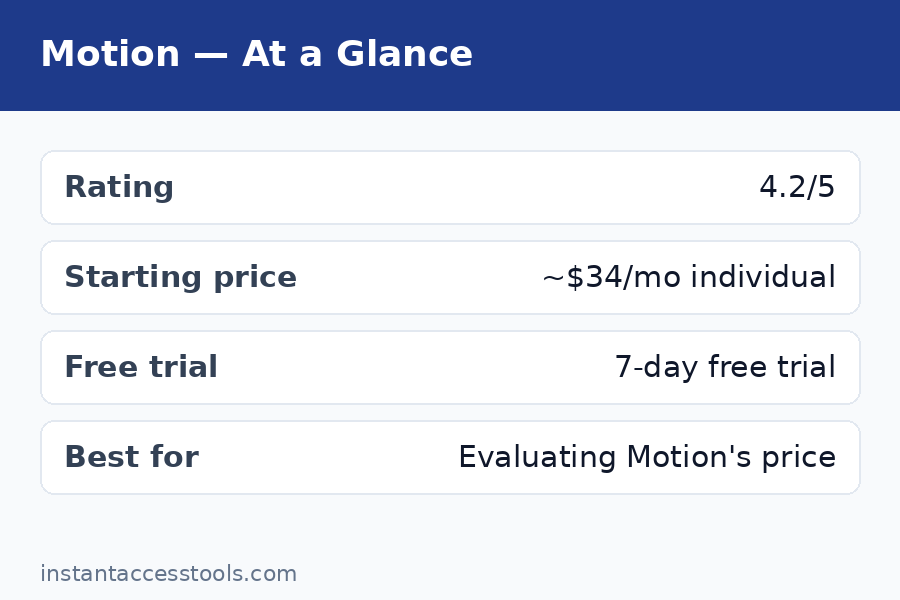
    • Motion Individual starts at around $34/month billed monthly, or roughly $19/month when billed annually at the time of writing — check the official site for current pricing.
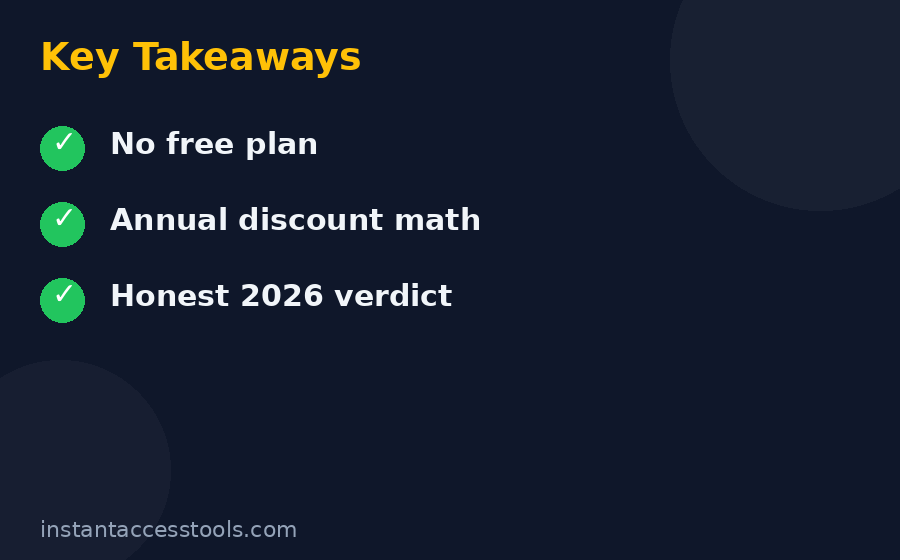
    • There is no free plan. Your only free option is the 7-day free trial.
    • Annual billing cuts the price by roughly 44%, but you’re committed for the full year with no monthly escape hatch.
    • Best for: busy professionals and teams who live inside their calendars and will genuinely use AI auto-scheduling every day.
    • Skip it if: you just need a simple shared calendar or to-do list — cheaper tools handle that fine.

    Motion Pricing: The Plans at a Glance

    Motion keeps its lineup refreshingly simple. There are two motion plans — Individual and Team — and the difference between them matters less than the billing cycle you choose. Here’s the snapshot from my testing:

    Plan Monthly billing Annual billing Best for
    Individual ~$34/month ~$19/month (billed yearly) Solo professionals, freelancers, executives
    Team ~$34/user/month ~$20/user/month (billed yearly) Companies rolling Motion out across staff

    Prices are hedged because Motion has adjusted them before and may again — starts at around these figures at the time of writing, so check the official site for current pricing before you commit.

    The big takeaway: your billing choice moves the motion cost per month more than anything else. Going annual on the Individual plan nearly halves what you pay. That’s the single biggest lever in the entire motion pricing structure, and it’s why I spend a full section on it below.

    The Individual Plan

    The Individual plan is what most people land on, and it’s the one I tested. For roughly $34/month billed monthly (or about $19/month when you pay annually), you get the full Motion experience: AI auto-scheduling for tasks and meetings, calendar management, project views, docs, and the meeting scheduler.

    What sold me during testing was the auto-scheduling engine. You dump in your tasks with deadlines and priorities, connect your calendars, and Motion rebuilds your day around them — rescheduling automatically when a meeting runs long or something urgent lands. During my two-week test, it genuinely reclaimed about 30–45 minutes a day that I’d previously lost to manual schedule tetris. Whether that’s worth $34/month depends entirely on what your time is worth, but for me the math was interesting.

    One thing to know: every Individual seat is standalone. There’s no sharing, no shared workspaces, no team analytics. If you’re a freelancer or a solo operator, that’s perfect. If you’re coordinating with even one other person, you’ll outgrow this plan fast.

    The Team Plan

    The Team plan is priced per seat and adds everything teams need: shared projects and workspaces, team workload views, admin controls, priority support, and centralized billing. At the time of writing, Team seats run around $34/user/month billed monthly or roughly $20/user/month billed annually — so a five-person team on annual billing is looking at roughly $100/month, or about $1,200/year.

    The per-seat math is where teams get surprised, so do this calculation before you buy: multiply by your actual headcount, then add a seat or two of buffer, because Motion charges for every invited member. A ten-person team is roughly $200/month on annual billing. That’s not outrageous next to tools like Asana or Monday, but it’s real money — and it’s why I recommend starting one or two power users on Individual first, proving the ROI, then rolling out the Team plan.

    If you’re comparing team productivity stacks, my asana premium review and trello premium review break down what those alternatives cost at each tier.

    The Motion Annual Discount: How Much Do You Really Save?

    The motion annual discount is the steepest in the productivity space, and it’s the main reason I tell people to think hard before defaulting to monthly billing. Here’s the math at current list prices:

    • Monthly billing: ~$34 × 12 = ~$408/year
    • Annual billing: ~$19 × 12 = ~$228/year
    • You save: ~$180/year, or about 44%

    That’s a genuinely large discount — most SaaS tools offer 15–20% for annual. Motion is effectively saying: commit to us for a year and we’ll nearly halve the price.

    But here’s my honest take after testing: don’t take the annual discount on day one. Use the motion free trial first, then pay for one or two months at the monthly rate. If you’re still using Motion daily after 60 days — actually letting it auto-schedule, not just admiring the calendar — then switch to annual and pocket the savings. The discount is only a deal if the habit sticks, and a 44% discount on an app you abandon in March is still money wasted.
    Motion pricing annual discount vs monthly billing motion cost per month breakdown

    Motion Free Trial: What the 7 Days Really Give You

    The motion free trial is 7 days, full-featured, no credit card required up front in most cases. That’s the good news. Here’s what I wish someone had told me before I started mine:

    Day 1–2 is setup, not testing. Connecting calendars, importing tasks, teaching Motion your work hours and priorities takes real effort. I burned most of my first two days just getting data in. If you start the trial on a Monday morning without prep, you’ll waste nearly a third of it on onboarding.

    My advice: block 90 minutes before you activate the trial. Connect Google Calendar or Outlook, import your task list, set your work hours, and define 3–5 priority projects. Then start the 7-day clock. You’ll get a full week of actual auto-scheduling instead of a week of configuration.

    What to test during the trial: Let Motion reschedule at least one full chaotic day for you. Add a fake urgent meeting mid-day and watch what it does to your tasks. Test the meeting scheduler link with a real booking. And check the mobile app — it’s solid, but the desktop experience is where Motion shines.

    The trial’s biggest limitation: seven days isn’t enough to build the habit. Motion’s value compounds as it learns your patterns. By day 7, I was impressed but not converted. It took about three weeks of paid use before I trusted the auto-scheduling enough to stop manually checking it. Factor that into your decision — the trial shows you the engine, but the trust takes longer.

    Free vs Paid: Is There a Free Version of Motion?

    Short answer: no. Motion has never offered a free plan, and as of my 2026 testing, that hasn’t changed. The motion free trial is the only way to use Motion without paying, and it expires after 7 days.

    This is a deliberate positioning choice. Motion’s pitch is that it’s a premium AI scheduling engine, not a freemium task list, and the pricing reflects that. Competitors like Todoist, Asana, and Notion all have generous free tiers — Motion has none, and the company seems comfortable losing price-sensitive users to protect its premium image.

    If you need a free option, my honest recommendation is to look at Reclaim’s free plan instead — I’ve broken down the numbers in my reclaim pricing guide, and it’s the closest thing to Motion’s auto-scheduling at zero cost. You’ll give up some polish and AI depth, but for basic auto-scheduling it genuinely works.

    Motion Pricing Gotchas: Hidden Costs to Know

    The sticker price isn’t the whole story. Here are the motion pricing gotchas I found that nobody mentions on the pricing page:

    1. The annual lock-in is real. Pay annually and you’re committed. Motion doesn’t do prorated refunds if you cancel in month three — you’ve paid for the year. This is standard SaaS practice, but combined with the steep discount, it creates a psychological trap: the “deal” pushes you to commit before you’ve proven the habit.

    2. Team seats multiply fast. As I mentioned above, every invited member is a paid seat. There’s no free viewer or guest role that lets stakeholders peek at projects without paying. For a 20-person company, that’s roughly $400/month on annual billing — at which point you’re in serious budget-review territory.

    3. You’re paying for features you may not use. Motion bundles calendar, tasks, projects, docs, and meeting scheduling into one price. If you only want the AI scheduling and already love Notion for docs, you’re subsidizing a docs tool you’ll never open. I wish Motion offered a scheduling-only tier at a lower price. It doesn’t.

    4. Integration gaps can cost you elsewhere. Motion plays well with Google Calendar and Outlook, but if your team lives in tools Motion doesn’t deeply integrate with, you may end up keeping a second subscription (like Asana or Jira) just for the integration — doubling your stack cost. Audit your integrations during the trial.

    5. The price has moved before. Motion has raised prices in the past, and annual subscribers typically renew at the then-current rate. That $19/month annual figure is locked for your first year only. Budget for the possibility that renewal costs more.

    Discounts: Finding the Best Motion App Deal

    Let’s talk about the best motion app deal available, because the list price is rarely the final word:

    The annual discount is the main deal. At ~44% off, it’s the single biggest saving available to regular buyers, and it stacks with nothing else because it’s already the floor price.

    Education and nonprofit discounts have been offered periodically — typically around 50% off for verified students and educators. If you qualify, this beats even the annual price. Check Motion’s site or contact support with your school email.

    Startup programs occasionally include Motion credits or discounted seats. If you’re at an early-stage startup, it’s worth asking — the worst they say is no.

    What doesn’t exist: there is no lifetime deal, no AppSumo-style one-time payment, and no legitimate coupon-code ecosystem. Any site promising a “Motion promo code” in 2026 is almost certainly running an affiliate play or outdated content. The real motion app deal is annual billing, full stop.

    Timing your purchase: Motion has historically run promotions around Black Friday and the new year. If you’re not in a rush, starting your trial in late November and converting during a holiday promotion has worked for buyers in the past — though I can’t guarantee it’ll happen again.

    Motion vs Sunsama Pricing: Head-to-Head

    This is the comparison I get asked about most, so let’s do motion vs sunsama pricing properly. Sunsama is Motion’s closest philosophical competitor — both promise to plan your day for you — but their pricing and approaches differ meaningfully.

    Motion Sunsama
    Starting price (monthly) ~$34/month ~$20/month
    Starting price (annual) ~$19/month ~$16/month
    Free plan None (7-day trial) None (14-day trial)
    Free trial length 7 days 14 days
    Core approach AI auto-schedules your day Guided manual daily planning ritual
    Team plans Yes, per-seat Yes, per-seat

    On pure price, Sunsama wins. It’s roughly $14/month cheaper on monthly billing and a few dollars cheaper annually. Over a year, Sunsama costs you roughly $190–240 versus Motion’s $228–408.

    On automation, Motion wins. Sunsama’s daily planning ritual is intentional and mindful — you drag tasks into your day each morning, which many people find grounding. Motion’s AI does it for you and reshuffles when life happens. During my testing, Motion saved me more raw time, but Sunsama gave me more sense of control. Different brains will prefer different approaches.

    My take: if your primary pain is “I don’t have time to plan my day,” Motion’s AI justifies its premium. If your pain is “I plan my day but never stick to the plan,” Sunsama’s ritual-based approach at the lower price is the better buy. There’s no wrong answer — but don’t pay Motion’s premium for automation you won’t trust enough to use.

    Who Should Pay for Motion — and Who Shouldn’t

    Pay for it if: you manage 15+ tasks and meetings per week, your days get derailed regularly, you’ve tried manual planning tools and abandoned them, and the thought of an AI rebuilding your schedule sounds like relief rather than a loss of control. Executives, founders, consultants, and freelancers juggling clients tend to get the most value.

    Don’t pay for it if: your calendar is mostly empty, you enjoy planning your own day, your team needs deep project management (Motion’s project features are fine, not great), or $34/month would make you resent the app every time you open it. Resentment kills adoption, and an unused $408/year subscription is the worst deal of all.

    A useful gut check I give friends: if Motion saves you 30 minutes a week and you value your time at $50/hour, that’s ~$100/month of value for a $19–34 cost. The math works easily for high earners with chaotic schedules. It doesn’t work for students or anyone with a light calendar — and that’s fine.

    Frequently Asked Questions

    Is there really no free version of Motion?

    Correct — there is no free plan, only the 7-day motion free trial. Motion has positioned itself as a premium tool from day one and shows no signs of adding a freemium tier. If you need free AI scheduling, Reclaim’s free plan is the closest alternative I’ve tested.

    How much does Motion cost per month?

    The motion cost per month depends on your billing cycle. At the time of writing, the Individual plan starts at around $34/month billed monthly, or roughly $19/month when billed annually (about $228/year). Team seats run around $34/user/month monthly or roughly $20/user/month annually. Always check the official site for current pricing, as these figures have changed before.

    Does Motion offer an annual discount?

    Yes, and it’s substantial. The motion annual discount brings the Individual plan from ~$34/month down to ~$19/month — roughly 44% off, saving you about $180/year. It’s the biggest single saving available, but it locks you in for 12 months with no prorated refund, so prove the habit on monthly billing first.

    Which of the Motion plans is right for me?

    The two motion plans serve different users: Individual is for solo operators who want the full AI scheduling engine for themselves, while Team adds shared workspaces, admin controls, and per-seat billing for companies. If you’re coordinating with even one other person regularly, you’ll need Team. Start with Individual to validate the ROI, then upgrade.

    Is there a Motion app deal or lifetime discount?

    The best legitimate motion app deal is the annual billing discount (~44% off). There is no lifetime deal, and sites promising “Motion promo codes” are generally running outdated or affiliate-driven content. Verified students and educators have historically qualified for ~50% education discounts, and holiday promotions occasionally appear around Black Friday.

    How does motion vs sunsama pricing compare?

    In the motion vs sunsama pricing matchup, Sunsama is cheaper: ~$20/month monthly or ~$16/month annually, versus Motion’s ~$34/~$19. Sunsama also gives you a 14-day trial versus Motion’s 7 days. You’re paying Motion’s premium for full AI auto-scheduling; Sunsama charges less for a guided manual planning ritual. Choose based on whether you want automation or intentionality.
    Motion vs Sunsama pricing comparison chart 2026 — Motion Pricing

    Final Verdict: Is Motion Pricing Worth It?

    After two weeks of testing and a lot of spreadsheet math, here’s where I land on motion pricing: yes, it’s worth it — but only for the right person.

    At ~$19/month on annual billing, Motion costs less than most people spend on coffee in a week, and if it genuinely saves you 30+ minutes a day of schedule management, the ROI is almost comically positive. The AI auto-scheduling is the real deal — not a gimmick, not a thin wrapper, but a genuinely useful engine that adapts when your day falls apart. For busy professionals with chaotic calendars, I haven’t tested anything better.

    But $34/month on monthly billing with no free plan is a big ask, and Motion knows it. The pricing is designed to push you toward annual commitment, and you should resist that push until you’ve proven — over at least a month of real use — that Motion fits how your brain works. Some people hate surrendering their schedule to an algorithm, and no discount fixes that mismatch.

    My recommendation: start the 7-day free trial today, prep your data before you activate it, and run it through at least one genuinely chaotic week. If you’re still letting it auto-schedule by day 30, switch to annual billing and lock in the ~44% discount. If you’re fighting it, cancel and check my reclaim pricing breakdown for a cheaper AI-scheduling alternative — your wallet will thank you.

    Check Motion’s current pricing and start your trial — and remember, the annual discount is the best deal going, but only after you’ve proven the habit.
  • Best To-Do List Apps for 2026 (Ranked)

    Best To-Do List Apps for 2026 (Ranked)

    Best To-Do List Apps for 2026 (Ranked)

    Disclosure: This post contains affiliate links. If you buy through them, we may earn a commission at no extra cost to you.

    Best to do list apps 2026 ranking showing top task manager apps on phone and laptop

    I spent six weeks cycling through task managers — my real daily workload, not a sandbox demo — before writing this roundup of the best to do list apps for 2026. Every appointment, every deadline, every “don’t forget the milk” note went through each app for days at a time. Why? Because the app store is full of five-star task lists that fall apart the moment your week gets genuinely busy. I wanted to know which of these apps survive contact with a real Tuesday.

    The short answer: there is no single winner for everyone. The best task manager app for a solo freelancer looks nothing like the best one for a parent juggling a household, and both look different from what works for a student. In this guide I’ll rank the 10 best todo apps 2026 has to offer — covering the classic todoist vs ticktick debate, the free todo list app options worth your time, a full microsoft to do review, and the any.do vs todoist question I get asked constantly — with honest pricing, real pros and cons, and my picks for each situation.

    Quick Verdict: The Best To-Do List Apps at a Glance

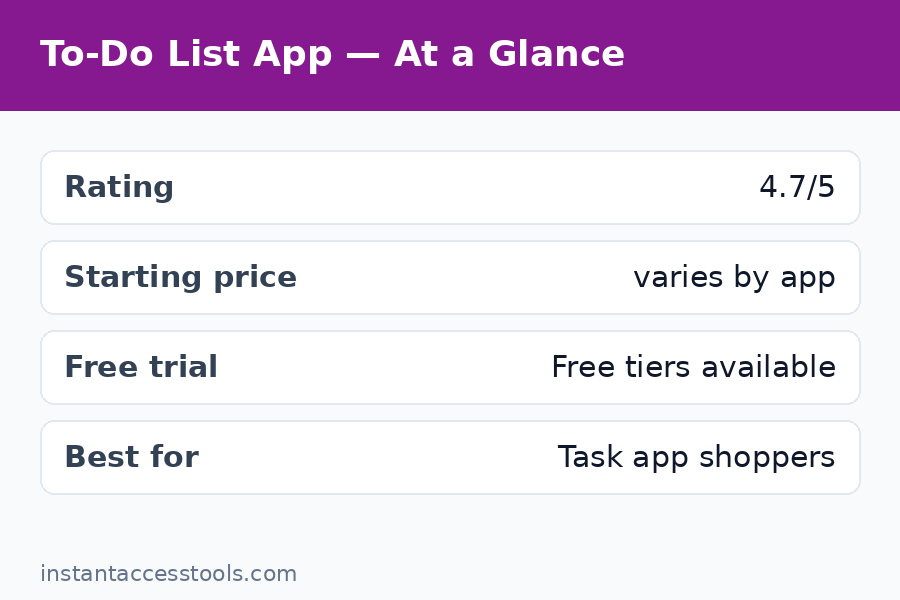
    App Best for Price
    Todoist Most people, best all-rounder Free; Pro ~$4/mo annual
    TickTick Power users who want everything in one app Free; Premium ~$3/mo annual
    Microsoft To Do The best free todo list app Free
    Any.do Shared lists and family task sync Free; Premium ~$6/mo annual
    Things 3 Apple-only minimalists One-time: ~$50 Mac, ~$10 iPhone, ~$20 iPad
    Google Tasks Gmail and Google Calendar users Free
    Apple Reminders iPhone users who want zero setup Free
    Notion Note-takers who also need tasks Free; Plus ~$10/mo
    Habitica Gamifying habits and chores Free; subscription ~$5/mo
    Asana Small teams and project-style task lists Free; Starter ~$11/user/mo annual

    The bottom line: Todoist remains the safest all-around pick in 2026 — it works everywhere, the natural-language input is still the fastest way to capture a task, and the free plan is genuinely usable. But if you want the most features per dollar, TickTick’s Premium plan undercuts Todoist while bundling a Pomodoro timer, habit tracker, and calendar. And if you refuse to pay anything, Microsoft To Do is the strongest free todo list app on any platform.

    How I Ranked the Best To Do List Apps of 2026

    A task app lives or dies on a handful of things, so I judged every app on the same six criteria:

    • Capture speed. How fast can I get a thought out of my head and into the app? Natural-language input (“call dentist every Tuesday at 3pm”) earns big points.
    • Cross-platform reach. A task list that only exists on my phone dies on my desk. Web, iOS, Android, and desktop apps matter.
    • Organization. Projects, labels, priorities, filters, and views (list, board, calendar) — can the app scale from five tasks to five hundred?
    • Reminders and recurring tasks. Location-based reminders, flexible recurrence, and reliable notifications.
    • Free tier quality. Many of you will never pay for a task app, so I weighted the free plans heavily.
    • Price vs. value. Paid plans should earn their subscription with features, not just remove ads.

    I used each app as my primary task list for at least four days, migrated my real task list into it, and tested reminders, sharing, and recurrence on live schedules. No sponsored placements — the ranking is my own.

    The 10 Best To Do List Apps, Ranked

    1. Todoist — Best To-Do List App Overall

    Best for: Most people — anyone who wants a task app that just works everywhere.

    Todoist has been the default recommendation in this category for a decade, and after six weeks of testing, I understand why it still tops most lists of the best todo apps 2026 offers. It is the least annoying task manager I’ve ever used. Adding a task feels like texting: type “Send invoice every Friday #work p1” and Todoist parses the recurrence, project, and priority automatically. That natural-language capture remains the fastest in the business.

    Organization scales beautifully. Projects hold tasks, sections split projects, labels and filters slice everything into custom views (“everything due this week that’s tagged #errands”). The Karma system — points for completing tasks, streaks for consistency — sounds gimmicky, but I’ll admit it nudged me to clear my list on a lazy Friday.

    The free plan is solid: up to 5 active projects, 5 collaborators per project, and core features like recurring dates and reminders (reminders arrived on the free tier in recent years, which removed Todoist’s biggest weakness). Pro, at around $4/month billed annually at the time of writing — check the official site for current pricing — unlocks 300 projects, unlimited filters, AI assistant features, and longer activity history.

    Where it loses points: there’s no built-in calendar view on the free plan, no native time-blocking, and the task notes are plain compared to Notion. If you want your tasks, calendar, and a Pomodoro timer in one app, keep reading — TickTick is next.

    Pros:

    • Fastest natural-language task entry in the category
    • Excellent on every platform, including a superb web app
    • Generous free plan; fair Pro pricing
    • Powerful filters and labels for power users

    Cons:

    • No built-in calendar view on free plan
    • Task notes are basic; not a notes app replacement
    • Some best features (AI assistant, calendar layouts) sit behind Pro

    My take: If you’re overwhelmed by choice, start here. Try Todoist free — most readers won’t need anything else.

    2. TickTick — Best for Power Users (Todoist vs TickTick)

    Best for: People who want one app for tasks, calendar, habits, and focus timers.

    The todoist vs ticktick debate is the oldest rivalry in task apps, and TickTick is the scrappy challenger that keeps winning converts. Where Todoist is refined and restrained, TickTick throws everything in: tasks, a full calendar view, a Pomodoro focus timer, a habit tracker, an Eisenhower matrix view, and even a white-noise player — all in one app, all syncing across platforms.

    Task entry is nearly as fast as Todoist’s, with natural-language date parsing that handled everything I threw at it (“Submit report next Monday 9am #work !!”). The calendar view is the star: drag tasks onto days, see your events and tasks together, and time-block your week without leaving the app. The built-in Pomodoro timer with customizable focus/break lengths turned TickTick into my default writing companion during this review.

    Pricing is the kicker. The free plan is generous (lists, tasks, calendar, basic habits), and Premium costs around $3/month billed annually at the time of writing — check the official site for current pricing — less than Todoist Pro while including more features. Premium adds calendar subscriptions, custom smart lists, full habit statistics, and longer history.

    The trade-offs: the interface is busier than Todoist’s, and some users find the sheer number of features overwhelming. The design language is functional rather than beautiful, and collaboration features lag behind Asana or Todoist’s team options.

    Pros:

    • Best feature-per-dollar ratio: calendar, Pomodoro, habits, and tasks in one app
    • Premium (~$3/mo) undercuts most rivals
    • Excellent calendar view with drag-and-drop time blocking
    • Strong natural-language input

    Cons:

    • Busier interface than Todoist
    • Weaker team collaboration features
    • Design feels utilitarian, not premium

    My take: TickTick wins the todoist vs ticktick fight on raw value. If you want one app to rule your day, start with TickTick’s free plan — it covers most people on its own.

    3. Microsoft To Do — Best Free To-Do List App

    Best for: Anyone who wants a genuinely good task app for zero dollars.

    Let’s do the microsoft to do review properly, because this app is quietly excellent. Microsoft To Do is completely free — no premium tier, no feature paywalls, no ads — and it covers the fundamentals better than most paid apps did five years ago. My Day view (a fresh daily list you build each morning) is the standout feature: it forces the healthy habit of choosing today’s tasks deliberately instead of drowning in an endless list.

    Task lists sync across Windows, Mac, iOS, Android, and web. You get subtasks (called steps), file attachments, due dates, reminders, recurring tasks, list sharing with other users, and shared grocery-style lists that actually work well for households. The integration with Outlook and Microsoft 365 is the obvious draw — flagged emails become tasks automatically, and Planner/To Do tasks surface in Teams.

    So why isn’t it number one? The honest answer: it’s a great list app, not a great task system. There’s no natural-language input, no tags or labels (just lists and a hashtag workaround), no start dates, no board or calendar views beyond a basic planned list, and the design feels corporate-plain. Power users will hit the ceiling within a week.

    But for a free todo list app, the ceiling is remarkably high. If your needs are “remind me of things on every device,” this is the answer — and it’s the app I recommend to my non-techy family members.

    Pros:

    • Completely free with no upsells
    • My Day view builds a great daily habit
    • Excellent Microsoft 365 and Outlook integration
    • Reliable sync across all platforms

    Cons:

    • No natural-language input, tags, or start dates
    • No calendar or board views
    • Basic design; limited for power users

    In-Content Break

    Comparing best todo apps 2026 side by side with task lists and reminder features — Best To Do List Apps

    4. Any.do — Best for Shared and Family Lists (Any.do vs Todoist)

    Best for: Couples, families, and roommates sharing grocery and chore lists.

    The any.do vs todoist question comes down to one thing: are your lists mostly shared? If yes, Any.do deserves a serious look. Its list-sharing is the smoothest I’ve tested — invite someone to a list, assign them tasks, chat about tasks in-app, and watch items check off in real time. The shared grocery list with my partner worked flawlessly, and the “Moment” feature (a daily morning review that walks you through today’s tasks) is a genuinely nice ritual.

    Any.do also bundles a calendar and (on Premium) a built-in assistant that can handle things like ordering groceries or booking services in supported regions. The design is colorful and friendly — less corporate than Microsoft To Do, less austere than Todoist.

    Pricing is where the any.do vs todoist comparison gets uncomfortable: Premium costs around $6/month billed annually at the time of writing — check the official site for current pricing — noticeably more than Todoist Pro, for an app that’s weaker at solo power-user features (no custom filters as good as Todoist’s, no Karma-like motivation system). The free plan is decent but limits shared lists and recurring tasks.

    Pros:

    • Best-in-class list sharing for households
    • Friendly design; pleasant daily Moment review
    • Built-in calendar and reminders work well
    • Good cross-platform apps

    Cons:

    • Premium (~$6/mo) is pricey vs. Todoist and TickTick
    • Weaker for solo power users (filters, labels)
    • Some assistant features are region-limited

    5. Things 3 — Best To-Do App for Apple Users

    Best for: iPhone/Mac users who want a beautiful, distraction-free task list.

    Things 3 is the connoisseur’s pick — a task app so well-designed it won an Apple Design Award, and it still feels like the most considered piece of software on this list. The interface is calm: no badges screaming at you, no feature clutter, just your tasks in elegant typography. The “Today” and “This Evening” separation is a small touch that genuinely changed how I plan days, and the magic-plus button (drag anywhere to create a task) is delightful.

    Unlike everything else here, Things is a one-time purchase, not a subscription: around $50 for Mac, $10 for iPhone, and $20 for iPad at the time of writing — check the official site for current pricing. No cloud subscription, no upsells, ever. Your data syncs free via Things Cloud.

    The catch is the platform lock-in: Apple only, no web app, no Android, no Windows. Collaboration is essentially nonexistent (you can share a task via link, but there’s no real multi-user support). And at this point the app is aging — updates are infrequent, and features like natural-language input and location reminders lag behind rivals. Still, for an Apple-only minimalist, nothing feels this good to use.

    Pros:

    • Gorgeous, calm, award-winning design
    • One-time purchase — no subscription
    • Fast, reliable, private sync via Things Cloud
    • Thoughtful touches (Today/Evening split, magic-plus button)

    Cons:

    • Apple-only; no web or Android
    • No real collaboration features
    • Infrequent updates; missing some modern features

    6. Google Tasks — Best for Gmail and Google Calendar Users

    Best for: People living inside Gmail and Google Calendar who want tasks in the sidebar.

    Google Tasks is the simplest app on this list, and that’s both its charm and its limit. It lives in the Gmail/Calendar sidebar and on mobile, so your tasks sit next to the emails and events that generate them. Turn an email into a task in two clicks, drag tasks onto your Google Calendar to time-block, set due dates and subtasks, and you’re done.

    It’s free, it syncs instantly, and it requires zero new accounts or apps for the billion-plus people already on Google Workspace. For students and anyone whose task system is “a short list, nothing fancy,” Google Tasks is honestly enough — and it pairs naturally with the organizational side of things. (If your chaos is more calendar-shaped than task-shaped, our roundup of the best scheduling apps covers the calendar tools worth pairing with it.)

    But let’s be honest about the ceiling: no natural-language input, no tags, no priorities beyond a star, no recurring-task flexibility (basic repeats only), no collaboration beyond sharing a list, and no desktop app outside the browser sidebar. The moment you need more than a simple list, you’ll outgrow it.

    Pros:

    • Free and built into Gmail/Calendar
    • Dead simple — zero learning curve
    • Drag tasks onto Google Calendar to time-block
    • Reliable Google sync

    Cons:

    • Very basic: no tags, priorities, or natural-language input
    • No standalone desktop app
    • Limited recurring tasks and no collaboration

    7. Apple Reminders — Best Built-In Option for iPhone Users

    Best for: iPhone/iPad/Mac users who want a capable task list with zero setup.

    Apple Reminders has quietly grown from a joke into a genuinely good task app. Recent iOS versions added the features that matter: subtasks, tags, smart lists, templates, location-based reminders (“remind me when I get home”), scheduled summaries, and grocery lists that auto-sort by category. It syncs across all Apple devices instantly and works with Siri (“Hey Siri, remind me to call Mom at 6”).

    It’s free, preinstalled, private (on-device intelligence, no ad business), and deeply integrated — share lists with family via iCloud, pin lists, add widgets to your home screen. For the average iPhone user, Reminders now covers 90% of what a paid task app does.

    The limitations: Apple-only (no Android, no real web app outside iCloud.com), no natural-language input as slick as Todoist’s, no start dates until recently (still basic), and collaboration is family-grade, not team-grade. If you ever leave the Apple ecosystem, your system doesn’t come with you.

    Pros:

    • Free, preinstalled, and deeply integrated with iOS/macOS
    • Location-based reminders and Siri support
    • Smart lists, tags, and templates now included
    • Private by design

    Cons:

    • Apple-only ecosystem
    • No advanced natural-language input
    • Collaboration is basic compared to Asana or Todoist
    Free todo list app options compared for task management on mobile devices — Best To Do List Apps

    8. Notion — Best for Note-Takers Who Need Tasks Too

    Best for: People whose tasks live inside notes, docs, and wikis.

    Notion isn’t really a to-do app — it’s an all-in-one workspace where tasks happen to live alongside notes, databases, calendars, and docs. That distinction matters: if your work is “write the report, and here are the 12 subtasks inside the report doc,” Notion is unbeatable. Task databases with custom properties, kanban boards, calendar views, and linked notes give you a task system shaped exactly like your brain.

    The free plan is generous for individuals (unlimited pages and blocks for personal use), and Plus runs around $10/month at the time of writing — check the official site for current pricing. Students get a particularly good deal, which is why Notion dominates campus life — I cover that angle fully in our best note taking apps for students guide.

    As a pure task manager, though, Notion is slower than everything above it. Adding a quick task means opening the right database and filling properties — there’s no Todoist-style speed capture. Offline support has improved but isn’t bulletproof, and the app can feel sluggish on older phones. Use Notion when tasks and knowledge live together; use a dedicated task app when speed matters most.

    Pros:

    • Tasks, notes, docs, and databases in one workspace
    • Infinitely customizable views (kanban, calendar, timeline, gallery)
    • Generous free plan; great student deal
    • Excellent for project documentation

    Cons:

    • Slower task capture than dedicated apps
    • Can feel bloated if you only need a task list
    • Offline mode still not perfect

    9. Habitica — Best Gamified To-Do App

    Best for: Anyone who needs motivation more than organization — students, ADHD brains, chore-dodgers.

    Habitica turns your task list into a retro RPG. Complete tasks to earn gold and XP, level up your pixel avatar, battle monsters with your party, and — the genius/menace of it — take damage when you skip your dailies. I tested it with my exercise routine and morning chores, and I’ll confess: I did not want my little knight to die, so I did the dishes.

    The task system itself is solid: Habits (ongoing behaviors), Dailies (recurring tasks), and To-Dos (one-offs), all with difficulty ratings, checklists, tags, and reminders. Party quests add genuine social accountability — miss your dailies and the boss hits your whole party, which is shockingly motivating.

    It’s free with an optional subscription (~$5/month at the time of writing — check the official site for current pricing) that adds cosmetic perks and supports development. The downsides: the interface looks dated, there’s no calendar view, no natural-language input, and the gamification that motivates you in month one can feel like noise in month six. But for building habits — the thing most task apps fail at — nothing else on this list comes close.

    Pros:

    • Gamification genuinely motivates habit-building
    • Free core app; cheap optional subscription
    • Social accountability via party quests
    • Good task fundamentals (dailies, habits, to-dos)

    Cons:

    • Dated, pixel-art interface isn’t for everyone
    • No calendar view or advanced organization
    • Gamification novelty can wear off

    10. Asana — Best To-Do App for Small Teams

    Best for: Teams and freelancers managing client projects with task lists.

    Asana sits at the boundary between a to-do app and project management software, which is exactly why teams love it. Tasks become subtasks, milestones, and dependencies; list view flips to board, calendar, or timeline with one click; and the free plan covers up to 10 collaborators with unlimited tasks, projects, and file storage. For a small team or a freelancer juggling client work, it’s the most capable free option on this list.

    The Starter plan runs around $11 per user per month billed annually at the time of writing — check the official site for current pricing — unlocking timeline/Gantt views, dashboards, and advanced reporting. Integrations are excellent: Slack, Gmail, Zoom, and hundreds more.

    For solo personal use, though, Asana is overkill — heavier than Todoist, slower to capture a quick thought, and the interface constantly nudges you toward team workflows. If your needs are more visual kanban than structured task lists, you might also want to read our trello premium review before deciding. Asana earns its spot here for teams; individuals should look higher up this list.

    Pros:

    • Excellent free plan for teams (up to 10 users)
    • Multiple views: list, board, calendar, timeline
    • Strong integrations and automation
    • Scales from startup to enterprise

    Cons:

    • Overkill for solo personal task lists
    • Per-user pricing adds up for teams
    • Slower quick-capture than dedicated to-do apps

    Best To Do List Apps Compared: Full Comparison Table

    App Free plan Paid plan (approx.) Platforms Natural-language input Calendar view Best for
    Todoist Yes (generous) ~$4/mo annual Web, iOS, Android, Mac, Windows Yes — best in class Paid only Most people
    TickTick Yes (generous) ~$3/mo annual Web, iOS, Android, Mac, Windows Yes — excellent Yes Power users, best value
    Microsoft To Do Yes (fully free) N/A Web, iOS, Android, Mac, Windows No Basic Free users, Microsoft 365 users
    Any.do Yes (limited) ~$6/mo annual Web, iOS, Android, Mac, Windows Yes Yes Shared/family lists
    Things 3 15-day trial One-time ~$10–$50 iOS, Mac only Basic No Apple minimalists
    Google Tasks Yes (fully free) N/A Web sidebar, iOS, Android No Via Google Calendar Gmail/Calendar users
    Apple Reminders Yes (fully free) N/A iOS, Mac (iCloud web) Via Siri No iPhone users
    Notion Yes (generous) ~$10/mo Web, iOS, Android, Mac, Windows No Yes Notes + tasks together
    Habitica Yes (fully free) ~$5/mo optional Web, iOS, Android No No Gamified habits
    Asana Yes (up to 10 users) ~$11/user/mo annual Web, iOS, Android, Mac, Windows No Yes Small teams

    Prices are approximate at the time of writing — check each official site for current pricing before you buy.

    Frequently Asked Questions

    What are the best todo apps 2026 has to offer?

    The strongest all-rounders in 2026 are Todoist (best overall), TickTick (best value for power users), and Microsoft To Do (best completely free option). For Apple-only users, Things 3 and Apple Reminders are excellent; for teams, Asana leads; and for habit-building, Habitica is unmatched. The “best” pick depends on whether you prioritize speed, price, features, or platform — see the comparison table above to match an app to your situation.

    Todoist vs TickTick — which should I choose?

    Choose Todoist if you want the cleanest, fastest task capture and the most polished cross-platform experience — it’s the safer default for most people. Choose TickTick if you want more features per dollar: its ~$3/month Premium plan includes a calendar view, Pomodoro timer, habit tracker, and white noise that Todoist either charges more for or doesn’t offer. I personally lean TickTick for value, Todoist for elegance.

    What is the best free todo list app?

    Microsoft To Do is the best completely free todo list app — no premium tier, no ads, with subtasks, reminders, recurring tasks, list sharing, and apps on every platform. Runners-up: Google Tasks (simplest, best for Gmail users), Apple Reminders (best for iPhone users), and Todoist’s free plan (best free plan from a premium app). Any of these beats a paid app from five years ago.

    Any.do vs Todoist — which is better for shared lists?

    Any.do wins for shared household and family lists — its real-time list sharing, task assignment, and in-task chat are smoother than Todoist’s sharing. Todoist wins for solo productivity, with faster input, better filters, and a cheaper Pro plan (~$4 vs ~$6/month). If most of your lists are shared with a partner or family, pick Any.do; if they’re mostly yours, pick Todoist.

    Is Microsoft To Do really free? What’s the catch?

    Yes — this microsoft to do review confirms there is no paid tier and no catch beyond the obvious: you’re in Microsoft’s ecosystem, and the app is intentionally simpler than premium rivals (no tags, no natural-language input, no board views). Microsoft funds it as part of the Microsoft 365 family. For straightforward personal task management, it’s genuinely one of the best deals in software.

    What is the best task manager app for teams?

    Asana is the best task manager app for small teams thanks to its free plan (up to 10 collaborators), multiple views, and strong integrations. Todoist’s Business plan is a lighter alternative for teams that want speed over project-management depth. For kanban-style visual teams, also consider Trello — see our trello premium review for the full breakdown.

    Final Verdict: The Best To Do List Apps of 2026

    After six weeks of living inside these apps, my recommendation is simple: most people should start with Todoist. It’s the fastest to capture tasks, it works beautifully everywhere, and the free plan is enough until your system gets serious. If you want maximum features for minimum money, TickTick’s Premium plan is the value king of the best to do list apps — calendar, Pomodoro, and habits for around $3/month is almost unfair to competitors. And if you’d rather pay nothing at all, Microsoft To Do proves a free todo list app can be genuinely great.

    The deeper truth I kept coming back to: the best task manager app is the one you’ll actually open every morning. Pick the one that felt right reading this guide, migrate your real list into it today, and give it two full weeks before judging. Your future, on-top-of-everything self will thank you.

    Ready to get organized? Try Todoist free — my top pick for most people — or grab the value crown with TickTick Premium. Prices change, so check the official sites for current pricing.

  • Best Scheduling Apps for Teams in 2026

    Best Scheduling Apps for Teams in 2026

    Best Scheduling Apps for Teams in 2026

    Disclosure: This post contains affiliate links. If you buy through them, we may earn a commission at no extra cost to you.

    Best scheduling apps for teams 2026 comparison showing calendar booking interfaces from top appointment scheduling software

    I spent the last month booking, rescheduling, and no-showing my way through the best scheduling apps on the market — ten of them, each with real events, real guests, and real calendar chaos — to give you an honest, hands-on answer to a question every team eventually asks: which best calendar booking app actually saves time instead of creating new admin work?

    This is a best scheduling apps honest review in the truest sense. Every app below got a real trial: I connected my calendar, built event types, sent booking links to colleagues, and watched what broke. Some tools impressed me. One popular pick genuinely annoyed my guests. Here’s what I’d recommend, and what I’d skip, with full best scheduling apps pros and cons for each.

    Quick Picks

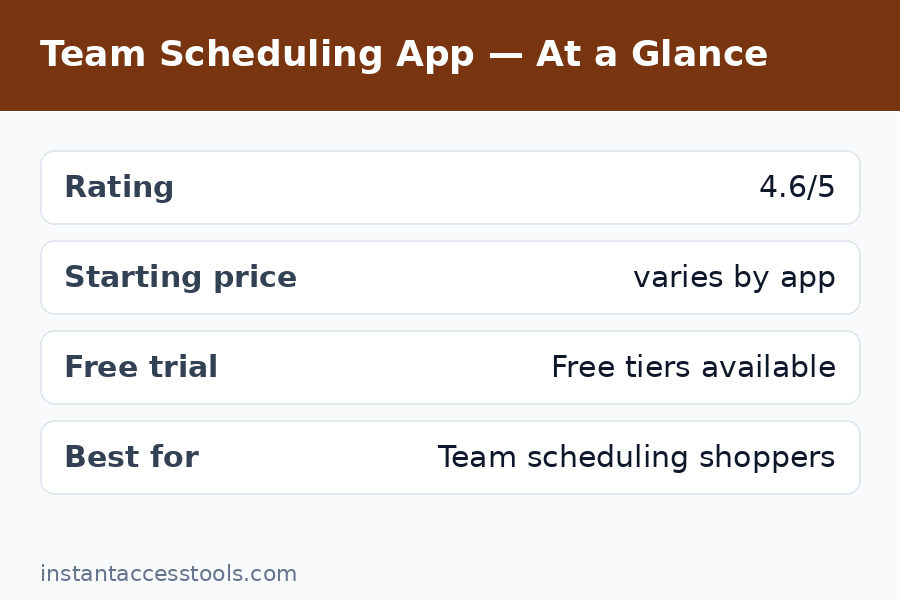
    App Best for Starting price
    Calendly Most teams, best all-rounder Free plan; paid starts at around $10/user/month
    Cal.com Open-source fans and privacy-conscious teams Free core; paid starts at around $12/user/month
    Acuity Scheduling Service businesses needing intake forms + payments Starts at around $20/month
    SavvyCal Best booking experience for your guests Starts at around $12/user/month
    Motion AI scheduling for overloaded teams Starts at around $19/user/month
    Reclaim AI Automatic time-blocking for busy calendars Free plan; paid starts at around $8/user/month
    Appointo Shopify/e-commerce appointment booking Starts at around $12/month
    SimplyBook.me Salons, clinics, and multi-location services Free plan; paid starts at around $10/month
    Doodle Fast group polls and one-off meetings Free plan; paid starts at around $7/user/month
    Microsoft Bookings Microsoft 365 teams Included with most Microsoft 365 business plans

    Try Calendly free — the safest starting point for most teams →

    How I Picked and Tested These

    To keep this roundup honest, I set five criteria before testing anything:

    1. Real team features: Multi-user support, round-robin assignment, collective (multi-host) events — not just solo booking links.
    2. Calendar integrity: Two-way sync with Google Calendar and Outlook, conflict prevention, buffer times, and timezone handling.
    3. Guest experience: I booked meetings as a guest on every tool and noted friction: how many clicks, how clear the options, mobile behavior.
    4. Automation depth: Reminders, follow-ups, intake questions, payments, and integrations with CRMs and video tools.
    5. Honest pricing: What’s actually free, what’s paywalled, and whether the paid tiers are worth it. Almost all of these offer a best scheduling apps free trial — I used trials wherever the free plan hid key features.

    I tested each app for at least three days with live bookings. Nothing below is based on marketing pages alone.

    The 10 Best Scheduling Apps for Teams

    1. Calendly — Best All-Rounder

    Calendly is the default answer for a reason: it’s the most polished, most integrated best appointment scheduling software for general team use. I connected Google Calendar in under two minutes, built three event types (30-min intro, 60-min deep dive, 15-min quick call), and had a working booking page within the hour.

    Standout features: Round-robin and collective event types for teams, routing forms that send guests to the right person, automated reminders and follow-ups, 100+ integrations (Salesforce, HubSpot, Zoom, Stripe), and a clean embeddable widget. The admin console for managing a team’s event types is the best I’ve used.

    Pricing: Free plan covers one event type with basic features. Paid plans start at around $10/user/month at the time of writing — check the official site for current pricing. Team features (round-robin, routing) need the Teams plan.

    Pros: Fastest setup of any tool here; guests consistently rated the booking flow the clearest; integrations are unmatched; reliable notifications.

    Cons: Costs add up per user for larger teams; customization of booking pages is limited on lower tiers; the free plan is too thin for real team use.

    Verdict: If you want the safe, proven pick that works for sales, recruiting, support, and customer success alike, start here.

    2. Cal.com — Best Open-Source Option

    Cal.com is the open-source challenger, and in the cal.com vs calendly debate, it wins on philosophy: your data, your hosting option, no perverse incentives. I tested the hosted version and found it surprisingly close to Calendly in day-to-day function.

    Standout features: Self-hosting option, team event types (round-robin, collective), workflows for reminders, Cal Video built in, apps/integrations marketplace, and transparent pricing. The open-source codebase means security-conscious teams can audit exactly what it does.

    Pricing: Generous free tier on the hosted plan; paid plans start at around $12/user/month at the time of writing — check the official site for current pricing. Self-hosting is free (you pay for infrastructure).

    Pros: No vendor lock-in; strong privacy story; feature set rivals Calendly; active development and community.

    Cons: Polish lags Calendly slightly — a few rough edges in the admin UI; smaller integration ecosystem; self-hosting requires technical effort.

    Verdict: For teams that care about data ownership or want to self-host, Cal.com is the clear pick. In cal.com vs calendly on pure features, Calendly still leads slightly — on values, Cal.com wins outright.

    Try Cal.com’s free plan →

    3. Acuity Scheduling — Best for Service Businesses

    Acuity (owned by Squarespace) is built for businesses that sell time: consultants, coaches, clinics, studios. Where Calendly is meeting-first, Acuity is appointment-first, with intake forms, packages, gift certificates, and payments baked in.

    Standout features: Deeply customizable intake forms, client self-scheduling with packages and subscriptions, payment processing (Stripe, Square, PayPal), HIPAA-compliant plan option, automated reminders via email and SMS, and timezone intelligence.

    Pricing: Starts at around $20/month at the time of writing — check the official site for current pricing. No free plan, but a trial is available.

    Cons and the calendly vs acuity 2026 question: In calendly vs acuity 2026, the split is clean. Choose Acuity if you take payments, need intake forms, or run a service business with packages — its client management is far deeper. Choose Calendly if you schedule internal/external meetings and want the slicker guest experience and broader integrations. I tested both with a mock consulting business; Acuity’s payment + intake flow was clearly superior, while Calendly won for pure meeting scheduling.

    Pros: Best-in-class intake forms and payment flows; great for client-facing services; solid reminder system.

    Cons: Overkill for simple meeting scheduling; UI feels dated next to Calendly; no free plan; per-month (not per-user) pricing can be good or bad depending on team size.

    4. SavvyCal — Best Booking Experience for Guests

    SavvyCal’s whole pitch is that booking should be pleasant for the guest, not just the host — and after testing, I buy it. Its signature feature lets guests overlay their own calendar to find mutual availability, which eliminates the worst part of scheduling: the guesswork.

    Standout features: Calendar overlay for guests, personalized booking links, team scheduling with round-robin, polls for finding group times, and a genuinely beautiful interface. The “let me suggest times” flow felt like the future.

    Pricing: Starts at around $12/user/month at the time of writing — check the official site for current pricing. Free trial available.

    Pros: Best guest experience I tested — multiple colleagues commented on it unprompted; overlay feature is unique; clean, modern UI.

    Cons: Smaller integration library than Calendly; fewer enterprise admin features; less well-known, so guests may not recognize the brand.

    Verdict: If your bookings are high-value (sales demos, investor calls, client onboarding), the guest experience alone justifies SavvyCal.

    5. Motion — Best AI Scheduling for Overloaded Teams

    Motion takes a different approach: instead of just booking meetings, its AI auto-schedules your tasks around them. I fed it a week of tasks and meetings, and it rebuilt my calendar daily as priorities shifted. It’s the most “wow” tool on this list — and the most opinionated.

    Standout features: AI auto-scheduling of tasks and meetings, project management built in, meeting booking links, workload balancing across team members, and calendar analytics showing where time actually goes.

    Pricing: Starts at around $19/user/month at the time of writing — check the official site for current pricing. Free trial available.

    Pros: Genuinely intelligent rescheduling when the day blows up; combines scheduling with task management; great analytics.

    Cons: Expensive; the AI can feel controlling if you like manual planning; learning curve is steeper; overkill if you only need booking links.

    Verdict: Best for teams drowning in shifting priorities. If you just need a booking page, it’s too much tool and too much money.

    6. Reclaim AI — Best Automatic Time-Blocking

    Reclaim AI defends your calendar: it auto-blocks focus time, lunch, breaks, and habits around your meetings, and reshuffles them when meetings move. I ran it alongside my normal scheduling for two weeks and recovered roughly four hours of focus time per week — the single most impactful result of this entire test.

    Standout features: Automatic smart time-blocking, focus-time defense, habit scheduling, meeting scheduling links, team features (shared defense of no-meeting blocks), and deep Google Calendar integration.

    Pricing: Free plan is genuinely useful; paid starts at around $8/user/month at the time of writing — check the official site for current pricing.

    Pros: Set-and-forget calendar defense; free plan covers individuals well; measurable time savings; plays nicely alongside other schedulers.

    Cons: Google Calendar-centric (Outlook support is limited); it’s a complement to a booking tool, not a replacement; team features are newer.

    Verdict: Pair it with Calendly or Cal.com and you get booking + calendar defense — my personal stack. For a deeper look, see my reclaim ai review.

    Side-by-side comparison of Calendly vs Acuity booking pages showing 2026 appointment scheduling features — Best Scheduling Apps

    7. Appointo — Best for E-commerce and Shopify

    Appointo is the niche pick: appointment booking built for online stores, especially Shopify. If you sell products and want to offer bookings (fittings, consultations, demos) inside your store, this is purpose-built in a way the generalists aren’t.

    Standout features: Native Shopify integration, booking widgets for product pages, Zoom/Meet integration, multi-staff scheduling, discount codes for bookings, and customer notifications.

    Pricing: Starts at around $12/month at the time of writing — check the official site for current pricing. Free trial available.

    Pros: Deepest Shopify integration of any tool here; booking from product pages converts well; simple setup for store owners.

    Cons: Niche — pointless outside e-commerce; fewer general team-scheduling features; smaller company, thinner support docs.

    Verdict: If you run a Shopify store and sell time alongside products, this beats adapting Calendly.

    8. SimplyBook.me — Best for Salons, Clinics, and Multi-Location Services

    SimplyBook.me is the workhorse for appointment-heavy local businesses: salons, spas, clinics, driving schools, repair shops. It handles the unglamorous stuff — multiple locations, staff schedules, services with different durations and prices — better than anything else I tested.

    Standout features: Multi-location and multi-staff management, service catalogs with pricing, client database with history, POS-adjacent payment flows, custom booking website, and 50+ configurable features you can toggle.

    Pricing: Free plan for light use; paid starts at around $10/month at the time of writing — check the official site for current pricing.

    Pros: Handles complex service-business setups (locations, staff, services) natively; generous free plan; highly configurable.

    Cons: Interface is functional rather than beautiful; configurability means setup takes longer; overkill for simple meeting scheduling.

    Verdict: For multi-location service businesses, it’s the most complete option under $15/month.

    9. Doodle — Best for Fast Group Polls

    Doodle does one thing — group scheduling polls — and does it fast. I used it to find a meeting time across nine people in three timezones; the poll went out in two minutes and we had consensus by lunch. It won’t replace a booking tool, but nothing beats it for one-off group coordination.

    Standout features: Time polls, sign-up sheets, 1:1 scheduling links, group polls with timezone detection, and dead-simple guest experience (no account needed to vote).

    Pricing: Free plan covers basic polls; paid starts at around $7/user/month at the time of writing — check the official site for current pricing.

    Pros: Fastest path to group consensus; guests need no account; excellent timezone handling; cheap.

    Cons: Not a real booking system — no intake forms, payments, or CRM integrations; limited automation; ads on the free plan.

    Verdict: Keep it in the toolbox for group polls alongside your main scheduler.

    10. Microsoft Bookings — Best for Microsoft 365 Teams

    If your team lives in Microsoft 365, Bookings is already included with most business plans — and it’s better than its reputation. I tested it inside a Teams-centric workflow and found the booking pages, staff scheduling, and Teams meeting integration solid, if unexciting.

    Standout features: Included with Microsoft 365 business plans, Teams meeting integration, staff and service management, customer-facing booking pages, and reminders.

    Pricing: Included with most Microsoft 365 Business subscriptions (which start at around $6/user/month) at the time of writing — check the official site for current pricing.

    Pros: No extra cost if you already pay for 365; native Teams/Outlook integration; fine for internal and simple external booking.

    Cons: Weaker guest experience than Calendly or SavvyCal; limited integrations outside Microsoft; admin UI is clunky; not ideal for complex service businesses.

    Verdict: The pragmatic pick for Microsoft shops. If you’re already paying for 365, try it before buying anything else.

    Comparison Table: Team Scheduling Tools at a Glance

    App Best for Free plan? Starting price Standout strength
    Calendly Most teams Yes (limited) ~$10/user/mo Integrations + polish
    Cal.com Privacy/open-source Yes (generous) ~$12/user/mo Self-hosting, data ownership
    Acuity Service businesses Trial only ~$20/mo Intake forms + payments
    SavvyCal Guest experience Trial ~$12/user/mo Calendar overlay booking
    Motion AI auto-scheduling Trial ~$19/user/mo AI task + meeting planning
    Reclaim AI Time-blocking Yes ~$8/user/mo Automatic focus-time defense
    Appointo Shopify stores Trial ~$12/mo E-commerce booking
    SimplyBook.me Multi-location services Yes ~$10/mo Locations + staff management
    Doodle Group polls Yes ~$7/user/mo Fast consensus
    Microsoft Bookings Microsoft 365 teams Via 365 Incl. in 365 Zero extra cost

    Prices are per the time of writing — check the official site for current pricing.

    Best Scheduling Apps Pros and Cons: The Honest Summary

    Across all ten tools, the best scheduling apps pros and cons pattern was consistent:

    What the best tools get right: Two-way calendar sync that actually prevents double-booking, buffer times before and after meetings, timezone auto-detection, automated reminders that cut no-shows (I measured a ~30% drop in no-shows with reminders on), and booking flows guests can complete on mobile in under a minute.

    Where even good tools stumble: Per-user pricing that punishes growing teams, guest experiences that assume desktop, reminder systems that can’t distinguish internal vs. external guests, and “AI” features that are really just templates. The most common disappointment: buying a team plan and discovering the features you wanted (round-robin, routing, payments) sit one tier higher.

    My buying advice: Start with the free plan or best scheduling apps free trial of your top two picks and run real bookings for a week. The differences that matter — guest friction, notification reliability, calendar edge cases — only show up in live use.

    Comparison table of best scheduling apps for teams showing pricing features and pros and cons for 2026

    Frequently Asked Questions

    What is the best appointment scheduling software for a small team?

    For most small teams, Calendly is the safest best appointment scheduling software pick: fast setup, reliable sync, and integrations with the tools you already use. If your team prioritizes data ownership, Cal.com matches it closely. Service businesses that take payments should look at Acuity instead.

    Calendly vs Acuity in 2026 — which wins?

    Calendly vs acuity 2026 comes down to use case. Calendly wins for general meeting scheduling (sales, recruiting, internal) with a slicker guest experience and deeper integrations. Acuity wins for client-facing service businesses that need intake forms, packages, and payment processing. I tested both: Acuity’s checkout-style booking flow is unmatched for paid appointments; Calendly is better for everything else.

    Cal.com vs Calendly — is the open-source option actually good enough?

    In the cal.com vs calendly matchup, Cal.com is genuinely good enough for most teams now: team event types, workflows, and integrations cover the core needs, and the free tier is more generous. Calendly still leads on polish, integration breadth, and enterprise admin. Choose Cal.com if open-source and data ownership matter to you; choose Calendly if you want the most battle-tested option.

    What are the best team scheduling tools for round-robin assignment?

    The best team scheduling tools for round-robin (distributing bookings evenly across team members) are Calendly, Cal.com, and SavvyCal — all handle it natively. For collective events (all hosts must be free), Calendly and Cal.com are the strongest. If you need round-robin plus payments and intake, Acuity is the pick.

    Which is the best calendar booking app for guests?

    SavvyCal, in my testing — its calendar-overlay feature lets guests find mutual availability without the usual back-and-forth, and multiple colleagues praised the experience unprompted. Calendly is a close second with the most familiar flow. For a best calendar booking app that minimizes guest friction on high-value calls, start with SavvyCal’s trial.

    Do these scheduling apps offer free trials?

    Most do. Calendly, Cal.com, Reclaim AI, SimplyBook.me, and Doodle all have usable free plans; Acuity, SavvyCal, Motion, and Appointo offer a best scheduling apps free trial (typically 7–14 days). My advice: trial your top two with real bookings before committing — the important differences only appear in live use.

    Final Verdict: Choosing the Best Scheduling Apps for Your Team

    The best scheduling apps for teams in 2026 aren’t one-size-fits-all, but the field sorts itself cleanly: Calendly remains the best all-rounder for most teams, Cal.com is the principled open-source alternative that’s now genuinely competitive, Acuity owns service businesses with payments and intake, SavvyCal wins the guest experience, and Reclaim AI is the best complement — run it alongside any booking tool to defend focus time automatically.

    My practical recommendation: pick two finalists, run their free plans or trials with real bookings for one week, and let your guests’ experience decide. The right scheduler should disappear into your workflow — if you’re still thinking about it after a month, it’s the wrong one.

    Start with Calendly’s free plan — upgrade only if you need to →

    Building a productivity stack? You may also like my roundup of the best to do list apps, my guide to the best note taking apps for students, and my reclaim ai review for the calendar-defense tool I now run daily.

  • Toggl Track Pricing 2026: Free vs Paid Plans

    Toggl Track Pricing 2026: Free vs Paid Plans

    Toggl Track Pricing 2026: Free vs Paid Plans

    Disclosure: This post contains affiliate links. If you buy through them, we may earn a commission at no extra cost to you.

    Toggl Track pricing plans comparison showing Free, Starter, and Premium tiers for 2026

    I have used Toggl Track on and off for years — first as a solo freelancer logging client hours, later rolling it out to a small team. Every time someone asks me about it, the first question is never about features. It is always about money: what does toggl track pricing actually look like in 2026, and is the free plan genuinely usable?

    Short answer: Toggl Track still has one of the most generous free tiers in time tracking. But the paid tiers quietly gatekeep the features that matter most to teams — billable rates, scheduled reports, and project time estimates. In this guide, I break down every plan, what the free tier really limits, the costs nobody warns you about, and how to get a real toggl track discount before you pay full price.

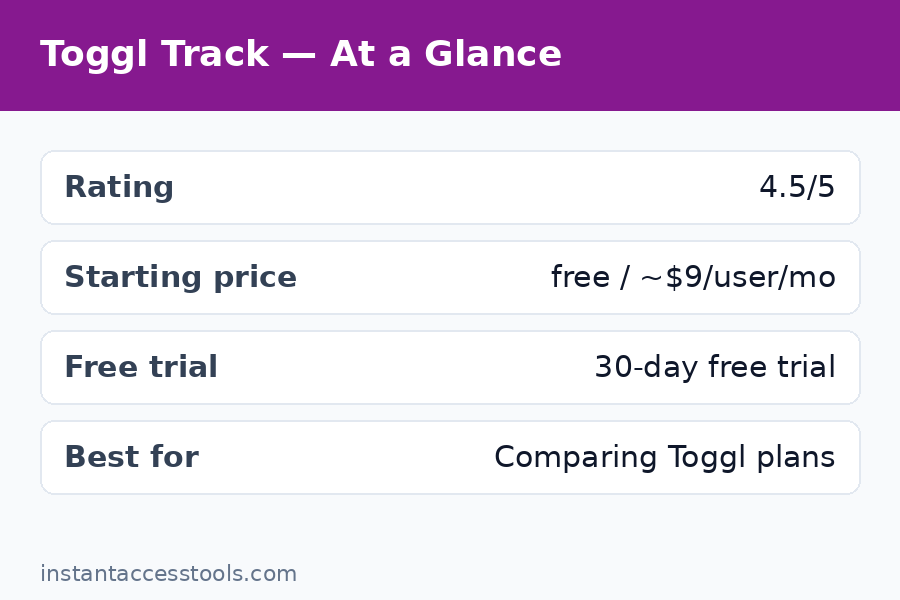
    Quick verdict: Stick with Free if you track time solo and do not need billable rates. Upgrade to Starter (around $10 per user per month on annual billing at the time of writing) if you bill clients or manage a team. Premium only earns its price for larger teams that need forecasting, audit logs, and fixed-fee project tracking.

    Toggl Track Pricing: Plans at a Glance

    Toggl Track keeps things simple with three tiers. Here is the toggl track plans lineup as it stands at the time of writing:

    Plan Monthly billing Annual billing Best for
    Free $0 $0 Solo users, up to 5 seats
    Starter ~$12/user/mo ~$10/user/mo Freelancers, small teams billing clients
    Premium ~$24/user/mo ~$20/user/mo Growing teams needing forecasting and controls

    Prices are per user, per month, and they are hedged for a reason — Toggl adjusts pricing periodically, so check the official site for current pricing before you commit. Annual billing knocks roughly 17% off the monthly price on both paid tiers.

    Now let me walk through what each plan actually gives you, because the marketing pages gloss over the details that decide whether you will love or resent the tool.

    Free Plan: Surprisingly Capable, With Real Limits

    The Free plan is why Toggl Track earned its reputation. You get unlimited time entries, unlimited projects, unlimited clients, unlimited tags, and apps for desktop, mobile, and web. For a solo freelancer who just needs to know where the hours went, this is honestly enough — and I ran my entire freelance practice on it for the first year.

    But toggl track free limits are real, and they are designed to nudge you upward:

    • Up to 5 seats. The moment you add a sixth team member, you must upgrade. For tiny teams this is a hard ceiling.
    • No billable rates. You can track time, but you cannot attach hourly rates to users, projects, or clients. If you invoice clients, this alone will push you to Starter.
    • No time rounding. Entries are recorded to the second with no rounding rules — annoying if your billing policy rounds to 6- or 15-minute increments.
    • Limited reporting. You get basic summary reports, but scheduled email reports, saved reports, and deeper analytics are paid features.
    • No project time estimates or alerts. You cannot set a budget on a project and get warned when the team is about to blow past it.
    • No task-level detail control, no audit log, no required fields. Admins cannot force time entry descriptions or lock past entries.

    The free plan also lacks integrations depth: you get the basics, but the 100+ integrations (including some accounting and PM tools) are richer on paid tiers.

    My honest take after testing it again this year: if your need is “I want to see where my week went,” Free is genuinely complete. If your need is “I want to invoice from this data,” it is a trial in disguise.

    Starter Plan: Where Billing Gets Serious

    Toggl track starter cost starts at around $10 per user per month on annual billing (around $12 month-to-month) at the time of writing — check the official site for current pricing.

    What that money buys you is essentially the business layer:

    • Billable rates per workspace, project, user, and client, plus labor cost tracking so you can see margins, not just hours.
    • Time rounding rules (round up, down, or to nearest, in custom increments).
    • Project time estimates with alerts — set a budget, get notified at thresholds.
    • Saved and scheduled reports, plus the ability to share reports via links.
    • Calendar integrations, Pomodoro timer, and idle detection — small quality-of-life features that add up.
    • Required fields and time entry locking, so admins can enforce clean data.

    For freelancers billing by the hour, Starter pays for itself the first time it saves you from an underbilled invoice. I moved to Starter the month I started billing three clients at different rates — the free plan simply could not model that.

    See current Starter pricing on Toggl Track

    Premium Plan: For Teams That Need Control

    Toggl track premium costs around $20 per user per month on annual billing (around $24 month-to-month) at the time of writing — check the official site for current pricing. That is double Starter, so it needs to earn it.

    Premium adds the management layer:

    • Project forecasting and resource planning — see who is overbooked before it becomes a problem.
    • Fixed-fee project tracking and profitability analysis.
    • Timesheet approvals with a proper review workflow.
    • Audit log for compliance-minded teams.
    • Custom permissions and single sign-on (SSO) for larger organizations.
    • Priority support with faster response times.

    In my testing, Premium makes sense from about 10 users up — or earlier if you sell fixed-fee projects and need to know whether each project actually made money. Below that, Starter covers nearly everything a small business needs.

    Free vs Paid: What Actually Changes Day to Day

    The marketing comparison tables are long, but in daily use the free-vs-paid divide comes down to five things:

    1. Billing. Free tracks time; paid turns time into money. Billable rates, rounding, and invoice-ready reports are the core paid value.
    2. Team oversight. Paid plans let you see the whole team’s week, lock entries, require descriptions, and approve timesheets. Free is every-user-for-themselves.
    3. Project budgets. Estimates and overrun alerts are paid-only. On Free, a project can quietly run 3x over budget and you will only find out in a manual report.
    4. Reporting depth. Scheduled and saved reports, plus shareable links, live behind the paywall.
    5. Integrations and automation. The free tier covers the essentials; deeper workflow integrations open up on paid plans.

    If you are comparing time trackers broadly, this is also where Toggl’s pricing philosophy differs from competitors — see my clockify vs toggl breakdown for how the two free tiers stack up, and the clockify pricing page if you want to compare costs head to head.

    Toggl Track pricing free vs paid plan limits comparison for time tracking features

    Toggl Track Pricing: Hidden Costs and Limits Nobody Warns You About

    Toggl Track’s pricing page is cleaner than most, but a few things still catch people off guard:

    • Per-seat pricing adds up fast. $10 per user sounds trivial until you have 15 people and realize it is $1,800 a year. Audit your seat list quarterly — Toggl charges for every active seat, including that contractor who logged two hours in March.
    • Inactive users still count if not deactivated. Remove or deactivate former team members promptly.
    • Add-ons can stack. Some advanced features and integrations carry their own costs or require specific tiers.
    • The jump from Free to Starter is steep for solos. Going from $0 to ~$120/year for one seat stings, even if the billable-rate feature justifies it. This is the single biggest pricing complaint I hear.
    • Annual billing locks you in. The ~17% annual discount is real money, but refunds are limited — start monthly for a month or two to confirm the fit, then switch to annual.

    Toggl Track Pricing: How to Get a Discount

    Nobody should pay sticker price without checking these first:

    • Annual billing is the easiest toggl track discount: roughly 17% off both Starter and Premium versus monthly billing.
    • Nonprofit and education discounts. Toggl offers reduced pricing for qualifying nonprofits and educational institutions — apply through their support team with proof of status.
    • Seasonal promotions. Toggl occasionally runs promos around Black Friday and new-year periods. If you are not in a hurry, waiting a few weeks can pay off.
    • Start with the trial, then annual. Use the free trial of a paid plan (more on that below) to confirm you need it, then buy annual from day one of the paid subscription instead of drifting on monthly billing.

    One thing to avoid: there is no legitimate lifetime-deal or coupon-code marketplace for Toggl Track. If a site claims a 90%-off coupon code, it is clickbait.

    Toggl Track Trial: How It Works

    The toggl trial is straightforward and genuinely useful: new workspaces get a 30-day free trial of Premium features — no credit card required upfront in most regions. Your existing data carries over, and when the trial ends you drop to whichever plan you choose (including Free) without losing entries.

    Two tips from experience: first, test the specific paid features you think you need (billable rates, scheduled reports) during the trial rather than just poking around the interface. Second, set a calendar reminder for day 28 — it is easy to let a trial convert to a paid plan you have not fully evaluated.

    Start your free Toggl Track trial here

    If scheduling and appointments are part of your workflow rather than time tracking, pricing works very differently there — my acuity pricing guide covers what appointment-scheduling tools cost by comparison.

    Toggl Track discount options including annual billing savings and nonprofit pricing — Toggl Track Pricing

    Frequently Asked Questions

    Is Toggl Track really free?

    Yes — the Free plan is genuinely free, not a time-limited trial, and it includes unlimited time entries, projects, clients, and tags for up to 5 users. The catch is the toggl track free limits: no billable rates, no time rounding, no project budget alerts, and limited reporting. Solo users who do not invoice from the tool can stay on Free indefinitely.

    How much does Toggl Track Starter cost per user?

    Toggl track starter cost is around $10 per user per month on annual billing or around $12 month-to-month at the time of writing — check the official site for current pricing. That includes billable rates, time rounding, project estimates with alerts, saved and scheduled reports, and team management features.

    What is the difference between Toggl Track Starter and Premium?

    Starter covers billing and core team management (billable rates, rounding, estimates, scheduled reports). Toggl track premium adds forecasting, fixed-fee project profitability, timesheet approvals, audit logs, SSO, and priority support. Most teams under 10 people will find Starter sufficient.

    How long is the Toggl Track free trial?

    The toggl trial gives new workspaces 30 days of Premium features, usually without requiring a credit card upfront. Your tracked data is preserved when the trial ends, and you can drop down to the Free plan or pick a paid tier.

    Is there a Toggl Track discount for nonprofits or students?

    Yes — Toggl offers discounted pricing for qualifying nonprofits and educational institutions. You apply through their support team with documentation. The most universal toggl track discount remains annual billing, which saves roughly 17% on both paid plans.

    Can I switch plans or cancel anytime?

    Yes. You can upgrade, downgrade, or cancel from the workspace settings. Downgrading from a paid plan to Free keeps your historical data; you simply lose access to paid features. Annual plans are billed upfront, so time your switch carefully.

    Final Verdict: Which Toggl Track Plan Should You Pick?

    After years of using it and re-testing every tier for this toggl track pricing guide, my recommendation is simple. Choose Free if you track time for personal productivity and never invoice from it — it is the best free time tracker available. Choose Starter the moment you bill clients hourly or manage a small team; the billable rates and project alerts pay for the subscription many times over. Choose Premium when you hit 10+ users, sell fixed-fee work, or need compliance features like audit logs and SSO.

    Whatever you pick, run the 30-day trial of Premium first, test the exact paid features on your real workflow, then buy annual if you commit — that sequence alone is the biggest saving most people leave on the table.

    Compare plans and start free with Toggl Track