Instant Access Tools

Author: admin

  • 10 Best Adobe Express Alternatives for 2026

    10 Best Adobe Express Alternatives for 2026

    10 Best Adobe Express Alternatives for 2026

    Disclosure: This post contains affiliate links. If you buy through them, we may earn a commission at no extra cost to you.
    10 best Adobe Express alternatives compared side by side in 2026

    Adobe Express is good. I want to get that out of the way first, because most roundups either praise it blindly or bury it unfairly. It has the best AI tools of any browser editor I have tested, and the free plan is genuinely generous. But it is not the right fit for everyone — and that is exactly why the market of adobe express alternatives is worth exploring in 2026.

    Maybe the subscription stings when you only design a few times a month. Maybe you tried it and found the template library thinner than expected, or you need stronger photo editing, better multi-page documents, or simpler brand management. Whatever brought you here, I have spent the last few weeks putting the best adobe express competitors through the same real-world workload: social graphics, thumbnails, a pitch deck, a flyer under deadline, and a round of photo touch-ups. This adobe express alternatives honest review covers what each tool does better than Express, where each one falls short, and what you will actually pay.

    Quick Verdict

    If you want one answer: Canva Pro is the safest overall replacement for Adobe Express — bigger template and stock libraries, stronger collaboration, and a free trial to prove it to yourself. If your main problem is price, VistaCreate delivers 90% of the experience for noticeably less money. If you live in Photoshop’s shadow and want the AI perks, stick with Express itself — nothing on this list matches Firefly yet. Details below.

    How I Picked These Adobe Express Alternatives

    No filler picks. Every tool below earned its place by clearing three bars: it had to handle everyday design jobs (social posts, thumbnails, simple marketing graphics) without making me miss Adobe Express; it had to be meaningfully better at something specific or a cheaper adobe express option; and it had to offer a real free plan or adobe express alternatives free trial so you can verify my claims yourself. I also weighed the adobe express alternatives pros and cons honestly — the template counts, the AI tools, the export limits, and the pricing fine print.

    Where I had direct comparisons, I ran them side by side. You will notice two callouts in particular — adobe express vs vistacreate and adobe express vs snappa — because those are the two matchups readers ask me about most often.

    The 10 Best Adobe Express Alternatives

    1. Canva Pro — Best Overall Alternative

    Best for: Creators and small teams who want the biggest template library and the smoothest editor.

    Canva Pro is the obvious headliner among adobe express alternatives, and it earns the spot. The template library is simply bigger and better organized than Express’s — hundreds of thousands of social, presentation, and print templates with consistently high design quality. The editor is forgiving for beginners but deep enough for daily production work, and features like Magic Resize, Brand Kit, and the background remover are all polished.

    Where Express wins is AI: Firefly’s generative fill and text effects are still ahead of Canva’s Magic Studio. But Canva wins almost everywhere else — more stock assets, better collaboration and commenting, a genuinely useful content scheduler, and apps that work offline on mobile.

    Key features: 600,000+ templates, 100M+ stock assets, Magic Resize, Brand Kit, background remover, Magic Studio AI tools, social scheduler.

    Pricing: Starts at around $15/month for individuals at the time of writing — check the official site for current pricing. Generous free plan and a 30-day Pro trial.

    Pros: Largest template and stock library; best collaboration; excellent mobile apps; beginner-friendly.
    Cons: AI tools lag behind Firefly; per-user pricing gets expensive for teams.

    See the direct matchup: adobe express vs canva pro.

    Try Canva Pro free for 30 days and compare it against Express yourself

    2. VistaCreate — Best Budget Alternative

    Best for: Social media creators who want Canva-like output for less money.

    The adobe express vs vistacreate comparison is one of the most common questions I get, so here is the straight answer: VistaCreate feels like a younger, cheaper sibling of both Canva and Express. The template-first workflow is nearly identical, the social format coverage is excellent, and the animation tools are genuinely fun to use. Template quality is a half-step behind Express’s best work, but for day-to-day social graphics the gap is barely noticeable.

    The real story is value. VistaCreate’s paid plan undercuts Express while covering everything a solo creator needs: background remover, brand kit, sticker and animation library, and direct publishing to social platforms.

    Key features: 150,000+ templates, background remover, brand kit, animation and sticker library, direct social publishing.

    Pricing: Starts at around $10/month at the time of writing — check the official site for current pricing, with frequent discounts on annual plans.

    Pros: Very affordable; huge social template selection; easy learning curve; solid free plan.
    Cons: Template quality can be inconsistent; fewer integrations; collaboration is basic.

    3. Snappa — Best for Speed

    Best for: Marketers and bloggers who need graphics in minutes, not hours.

    Adobe express vs snappa is an interesting matchup because Snappa is not trying to beat Express on features — it is trying to beat it on speed. The editor strips design down to essentials: pick a template, swap the text, export. There is no AI generation, no deep photo editing, no asset ecosystem. What you get instead is the fastest path from blank screen to finished social graphic I have tested.

    I timed it: a clean Instagram post took me about four minutes in Snappa versus nine in Express, mostly because Snappa never tempts you down a rabbit hole of AI effects. For bloggers batching featured images and marketers churning out ad variants, that speed compounds.

    Key features: 6,000+ templates, 3M+ stock photos and graphics, one-click resize, scheduled social sharing.

    Pricing: Starts at around $15/month at the time of writing — check the official site for current pricing. Free plan allows 3 downloads per month.

    Pros: Fastest workflow of the bunch; dead simple; good stock library for the price.
    Cons: No AI tools; smaller template library; free plan is quite limited.

    4. Fotor — Best for Photo Editing Plus Design

    Best for: Anyone who needs real photo editing alongside graphic design.

    Fotor is the pick I recommend when someone’s complaint about Express is “I wish the photo tools were stronger.” Fotor started as a photo editor and it shows: HDR effects, beauty retouching, batch processing, and genuinely capable AI enhancement tools sit next to a full design suite with templates and text effects. It is two tools in one, and both halves are solid.

    The design side is not as deep as Canva or Express — fewer templates, less polished typography — but if half your workload is touching up product photos or portraits before they go into a graphic, Fotor saves you from bouncing between two apps.

    Key features: AI photo enhancer, HDR and beauty tools, batch editing, collage maker, design templates.

    Pricing: Starts at around $9/month at the time of writing — check the official site for current pricing. Free plan available with watermarked exports on some features.

    Pros: Strongest photo editing on this list; AI enhancer is excellent; good value pricing.
    Cons: Smaller template library; design typography options are basic.

    5. PicMonkey — Best for Brand Consistency

    Best for: Small businesses that need on-brand graphics without a designer.

    PicMonkey sits in the sweet spot between Express’s creative flash and Canva’s template firehose. Its brand kit implementation is one of the best I have used — logos, colors, and fonts apply consistently across templates with minimal fiddling — and the touch-up tools (teeth whitening, blemish removal, wrinkle smoothing) are surprisingly good for a browser editor.

    It lacks AI generation entirely, which feels like a miss in 2026, and the template library is smaller than Express’s. But for a small business owner producing consistent Instagram content and the occasional flyer, PicMonkey’s simplicity is a feature, not a gap.

    Key features: Brand kit, photo touch-up tools, 9,000+ templates, background remover, multi-page projects.

    Pricing: Starts at around $13/month at the time of writing — check the official site for current pricing. No free plan, but there is a trial.

    Pros: Excellent brand kit; strong touch-up tools; simple and focused.
    Cons: No AI generation; no free plan; smaller template library.

    6. Desygner — Best for Multi-Page Documents

    Best for: Anyone making PDFs, ebooks, menus, or multi-page marketing documents.

    Desygner is the alternative I reach for when Express’s single-canvas mindset gets in the way. Multi-page documents — brochures, ebooks, restaurant menus, pitch decks — are first-class citizens here, with master pages and consistent styling across pages that Express handles awkwardly. It even imports PDFs for editing, which Express cannot do at all.

    The social template library is decent but unremarkable, and the interface feels a generation older than Express. But for document work, Desygner quietly outperforms tools that cost twice as much.

    Key features: Multi-page documents with master pages, PDF import and editing, 1M+ templates and assets, brand kit.

    Pricing: Starts at around $10/month at the time of writing — check the official site for current pricing. Free plan available.

    Pros: Best multi-page workflow on this list; PDF import is genuinely useful; affordable.
    Cons: Dated interface; weaker social templates; no AI generation.

    7. Visme — Best for Presentations and Infographics

    Best for: Professionals who live in decks, reports, and data visuals.

    Visme is not a general Express replacement — it is a specialist. If your work is presentations, infographics, reports, and interactive data visuals, Visme runs circles around Express. The chart and graph tools are the best in this price range, the infographic templates are excellent, and you can publish interactive versions with animations and embedded content.

    For social graphics it is overkill and slower than Express. But I have stopped recommending Express for serious presentation work entirely; Visme is simply better at it, with presenter notes, analytics on views, and brand controls that scale to teams.

    Key features: Presentation builder, infographic templates, data visualization tools, interactive publishing, brand kit.

    Pricing: Starts at around $29/month at the time of writing — check the official site for current pricing. Free plan available with limited features.

    Pros: Best-in-class presentations and infographics; great data visuals; interactive publishing.
    Cons: Pricier than Express; overkill for simple social graphics; learning curve.
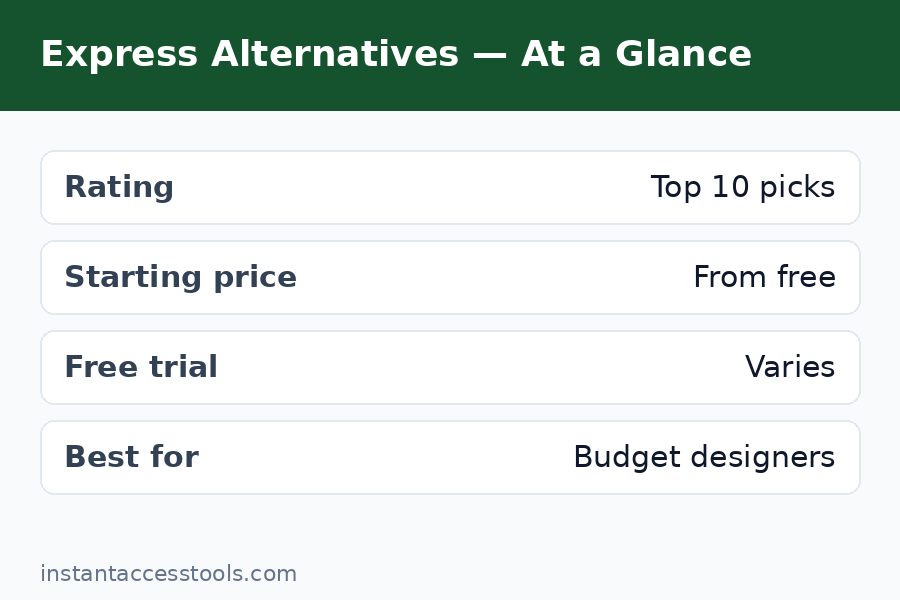
    Adobe Express alternatives comparison showing Visme presentations and Desygner multi-page documents

    8. Easil — Best for Template Quality

    Best for: Designers and marketers who care about template taste level.

    Easil’s whole pitch is template quality over quantity, and it delivers. The library is smaller than Express’s, but the average template looks like it was art-directed rather than mass-produced — bold typography, strong layouts, genuinely current aesthetics. Easil also offers drag-and-drop GIF creation and text masking effects that feel fresh.

    The tradeoff is scale: fewer templates overall, a smaller stock library, and less name recognition means fewer tutorials and community resources. But if you have ever scrolled Express’s library thinking “everything looks the same,” Easil is the antidote.

    Key features: Designer-grade templates, GIF maker, text effects and masking, brand kit, team workspaces.

    Pricing: Starts at around $9/month at the time of writing — check the official site for current pricing. Free plan available.

    Pros: Beautiful, distinctive templates; text effects stand out; affordable.
    Cons: Smaller library; fewer integrations; smaller community.

    9. Kittl — Best for Graphic and Typography Design

    Best for: Creators making logos, merch, posters, and typography-heavy graphics.

    Kittl is the odd one out — it is less of an Express clone and more of a browser-based Illustrator-lite with a template layer. The text effects engine is superb: vintage badges, warped typography, texture overlays, and mockup generation for merch that Express simply does not offer. If you sell t-shirts, design logos, or make posters, Kittl does things no other tool on this list can.

    It is a poor fit for general social graphics, though — the workflow assumes you want to craft, not to crank. Think of Kittl as the specialist you keep alongside a generalist like Express or Canva, not as a full replacement.

    Key features: Advanced text effects, vintage and texture styles, mockup generator, illustration tools, AI image generation.

    Pricing: Starts at around $12/month at the time of writing — check the official site for current pricing. Free plan available.

    Pros: Unmatched text and vintage effects; great for merch and logos; AI generation included.
    Cons: Not a general design tool; steeper learning curve; weaker social templates.

    10. BeFunky — Best Free Adobe Express Alternative

    Best for: Casual users who want capable editing and design without paying anything.

    If you are looking for a genuinely free adobe express alternative, BeFunky deserves the last slot. The free plan is one of the most generous on this list: a capable photo editor, a collage maker, and a graphic designer with a solid template set, all usable without an account for basic tasks. The paid Plus plan unlocks batch processing, artsy effects, and more templates, but the free tier alone covers casual needs better than Express’s free plan covers its premium features.

    It is not a professional tool — the interface is simple, the templates are cheerful rather than cutting-edge, and there is no AI generation. But for quick edits, birthday invitations, and social posts on a zero budget, BeFunky is hard to beat.

    Key features: Photo editor, collage maker, graphic designer, batch processing (paid), artsy photo effects.

    Pricing: Free plan available; Plus starts at around $10/month at the time of writing — check the official site for current pricing.

    Pros: Excellent free plan; no account needed for basics; simple and fast.
    Cons: Basic templates; no AI tools; ads on the free plan.

    Adobe Express Alternatives Compared at a Glance

    Tool Best For Free Plan / Trial Paid From*
    Canva Pro Overall replacement Yes / 30-day trial ~$15/mo
    VistaCreate Budget social design Yes / trial ~$10/mo
    Snappa Speed Limited / trial ~$15/mo
    Fotor Photo editing + design Yes / trial ~$9/mo
    PicMonkey Brand consistency Trial only ~$13/mo
    Desygner Multi-page documents Yes / trial ~$10/mo
    Visme Presentations, infographics Yes / trial ~$29/mo
    Easil Template quality Yes / trial ~$9/mo
    Kittl Typography, merch Yes / trial ~$12/mo
    BeFunky Free casual use Yes (generous) ~$10/mo

    *Approximate starting prices at the time of writing — check the official site for current pricing.

    Curious how Express itself stacks up before you switch? Read my full adobe express review and the pricing breakdown in adobe express pricing.

    See current pricing and start a free trial on your top pick

    Frequently Asked Questions About Adobe Express Alternatives

    What is the best Adobe Express competitor overall?

    Canva Pro. It has the largest template and stock library of any browser editor, stronger collaboration tools, and a more mature mobile experience. Adobe Express keeps its edge in AI generation with Firefly, so if generative fill and AI text effects are central to your workflow, Express itself may still be the better pick — but for most people, Canva Pro is the strongest overall competitor.

    Is there a cheaper Adobe Express alternative than Adobe Express itself?

    Yes, several. VistaCreate, Fotor, Easil, Desygner, and BeFunky all start at around $9–$10/month, undercutting Express’s paid plan while covering the core jobs — social graphics, basic photo editing, and templates. VistaCreate is my top budget recommendation because the price cut comes with the smallest quality compromise. If you only design occasionally, BeFunky’s free plan may eliminate the need to pay at all.

    Is there a completely free Adobe Express alternative?

    BeFunky has the most generous free plan on this list — a real photo editor, collage maker, and graphic designer with usable templates, no account required for basic tasks. Canva’s free plan is also strong for design work, and VistaCreate, Fotor, and Desygner all offer functional free tiers. The catch with every free plan is the same: premium templates, AI tools, and background removers are usually paywalled, and some free exports carry watermarks.

    Do Adobe Express alternatives offer free trials?

    Almost all of them do. Canva Pro offers a 30-day free trial with full access, and most competitors — VistaCreate, Snappa, Fotor, PicMonkey, Desygner, Visme, Easil, Kittl — offer trials or free plans that let you test the core workflow before paying. My advice: trial your top two candidates with a real project, not a toy test, and time yourself. The tool that gets you to a finished graphic fastest is usually the right one.

    What are the pros and cons of switching from Adobe Express to an alternative?

    The honest adobe express alternatives pros and cons breakdown: pros include lower prices (VistaCreate, Easil, Fotor), bigger template libraries (Canva), stronger photo editing (Fotor), better multi-page documents (Desygner), and faster simple workflows (Snappa). The cons: you lose Firefly’s AI tools, which remain best-in-class; you lose Creative Cloud integration if you use other Adobe apps; and switching costs are real — rebuilding brand kits and learning a new editor takes an afternoon you will not get back. Switch for price or a specific feature gap, not on a whim.

    Should I pick VistaCreate or Snappa instead of Adobe Express?

    It depends on what you value. In the adobe express vs vistacreate matchup, VistaCreate wins on price and social template volume but loses on AI tools and typography quality — pick it if budget is the priority. In the adobe express vs snappa matchup, Snappa wins on pure speed for simple graphics but loses on features across the board — pick it if you batch-produce basic social images and never touch AI. If you use generative fill or AI effects regularly, neither replaces Express; consider Canva Pro instead.
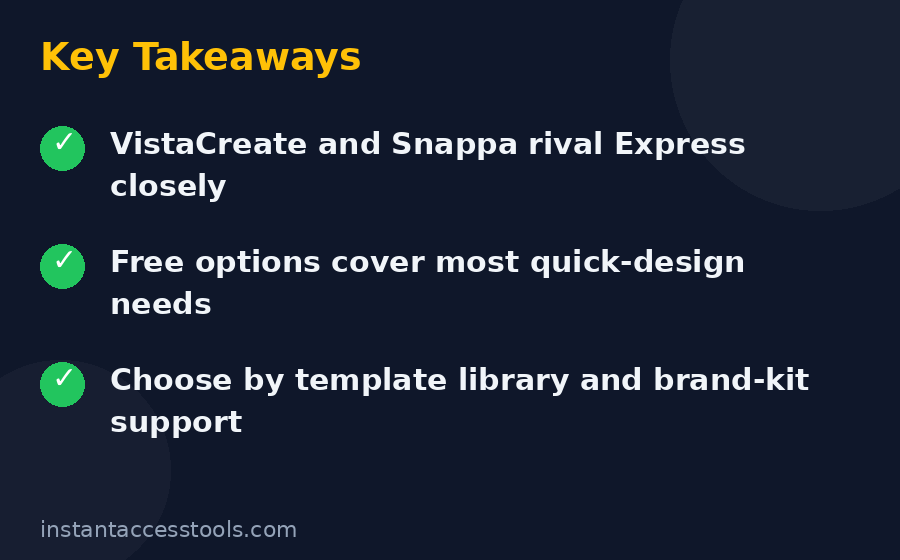
    Adobe Express alternatives free trial and pricing options compared for 2026

    Final Verdict: Which Adobe Express Alternative Should You Choose?

    After testing all ten, here is how I would decide. Choose Canva Pro if you want the safest, most capable overall replacement with the biggest library. Choose VistaCreate if price is the main reason you are leaving Express. Choose Snappa if speed matters more than features. Choose Fotor if photo editing is half your workload. Choose Desygner or Visme for documents and presentations respectively. And stay with Adobe Express if Firefly’s AI tools are central to how you work — none of these adobe express alternatives match it there yet.

    One last piece of practical advice: do not pay for a year upfront on day one. Run the free trial on a real project, check that the export quality and template style fit your brand, and only then commit. Every tool on this list will still be here next month.
    Compare plans and start your free trial today

  • 10 Best Adobe Acrobat Alternatives in 2026

    10 Best Adobe Acrobat Alternatives in 2026

    10 Best Adobe Acrobat Alternatives in 2026

    Disclosure: This post contains affiliate links. If you buy through them, we may earn a commission at no extra cost to you.

    Best Adobe Acrobat alternatives 2026 compared side by side

    Adobe Acrobat Pro costs $19.99 per month at the time of writing — nearly $240 a year, every year, forever. And here is the thing most people discover too late: the best adobe acrobat alternatives do 90% of what Acrobat does for a fraction of that price, and some of the genuinely good ones are free.

    I spent the last month testing the leading best acrobat competitors on real work: editing contracts, OCR-ing scanned reports, redacting sensitive pages, building fillable forms, and converting mangled PDFs back into clean Word documents. This adobe acrobat alternatives honest review covers 10 options — from the closest one-to-one Acrobat replacement to completely free tools — with honest pros and cons for each, so you can stop overpaying for features you never touch.

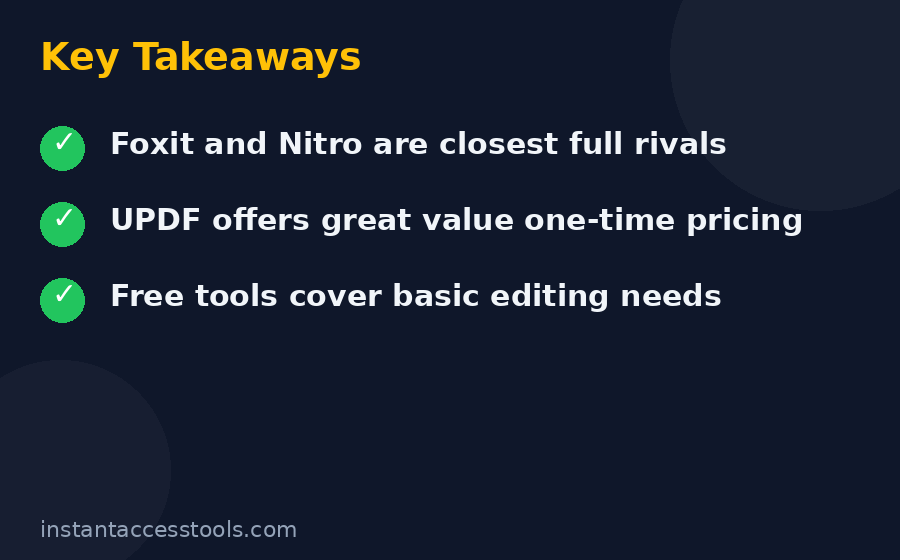
    The quick answer: Foxit PDF Editor is the best overall Acrobat alternative for most people. UPDF is the best value with surprisingly good AI features. And if your needs are light, PDF24 or Sejda handle them free. Details below.

    How I Picked These Adobe Acrobat Alternatives

    I did not just read feature lists. Every tool on this list was installed (or opened, for the web-based ones) and put through the same test battery:

    • Edit text and images directly in a real business PDF
    • OCR a 20-page scanned document and check accuracy
    • Merge, split, reorder, and compress files
    • Create a simple fillable form
    • Convert PDF to Word and check formatting survival
    • Redact a page and verify the text was actually removed

    Tools earned their place by passing most of these tests, offering fair pricing, and not pulling bait-and-switch tricks like watermarking everything on the free tier. Anything that crashed repeatedly or mangled documents got cut, no matter how cheap it was.

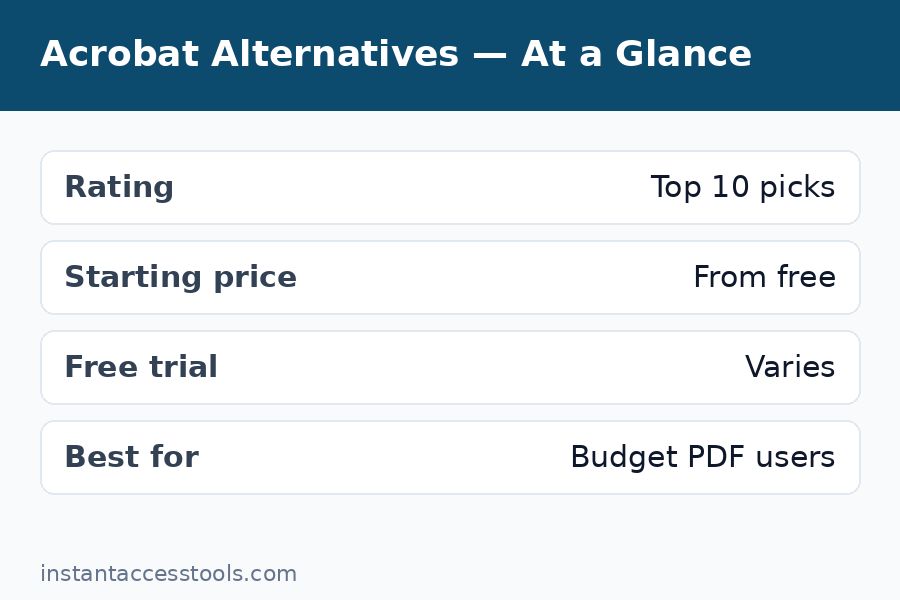
    The 10 Best Adobe Acrobat Alternatives at a Glance

    Tool Best for Starting price (at time of writing) Free trial / free tier
    Foxit PDF Editor Best overall Acrobat replacement $129.99/yr 7-day free trial
    UPDF Best value + AI features ~$29.99/yr Free version (limited)
    Nitro PDF Pro Best for teams and Office-style workflows ~$15/user/mo 14-day free trial
    PDFelement Best one-time purchase $129.99 one-time Free trial
    PDF-XChange Editor Cheapest one-time purchase ~$58 one-time Free version
    Smallpdf Best browser-based suite ~$9–12/mo Free (limited daily tasks)
    Sejda Best free plan for occasional use Free; Pro $7.50/mo Free tier, no signup
    PDF24 Tools Best 100% free option Free Free forever
    Xodo PDF Studio Best perpetual desktop license $119.88/yr; $240 perpetual Free trial
    PDF Expert Best for Mac users ~$79.99/yr Free trial

    Prices change — vendors run sales constantly — so treat these as starting points and check the official sites for current pricing.

    1. Foxit PDF Editor — Best Overall Adobe Acrobat Alternative

    Foxit is the closest thing to a true Acrobat replacement, and my top pick among the adobe acrobat alternatives for most people. It edits text and images inline, converts to and from Office formats, OCRs scanned documents accurately, builds forms, redacts properly, and signs documents — the full professional toolkit.

    Key features: Full text/image editing, strong OCR, Smart Redaction (on the + plan), Foxit eSign with 150 envelopes per year (on the + plan), Office-style ribbon interface, Windows/Mac/web/mobile apps, 20GB cloud storage.

    Pricing: $129.99 per year for the standard editor at the time of writing (about $10.99/month), or $159.99 per year for PDF Editor+ with eSign, AI Assistant, and Smart Redaction. That is roughly half of Acrobat Pro’s $239.88 per year.

    Pros:
    – Does nearly everything Acrobat does for about half the price
    – Fast, lightweight, and genuinely pleasant to use
    – The + plan’s eSign bundle replaces a separate DocuSign subscription for many small businesses
    – 7-day full-featured free trial

    Cons:
    – Occasional rendering quirks on exotic PDFs with complex embedded media
    – AI Assistant is a paid add-on, not included in the base plan
    – Smaller third-party integration ecosystem than Adobe

    Bottom line: If you want one tool that replaces Acrobat with the least compromise, this is it. I use Foxit for my own daily PDF work. For the full head-to-head, see our acrobat pro vs foxit comparison.

    Try Foxit free for 7 days

    2. UPDF — Best Value With AI Features

    UPDF is the rising star of the cheaper than acrobat pro category, and the acrobat vs updf question comes up constantly — so here is my honest take. UPDF offers a clean, modern interface, solid editing and annotation, good OCR, and a genuinely useful AI assistant that can summarize documents, answer questions about them, and translate content. One license covers Windows, Mac, iOS, and Android with cloud sync between them.

    Key features: PDF editing and annotation, OCR (38+ languages), UPDF AI (summarize, chat with PDFs, translate, mind maps), batch conversion, form filling, one license for all platforms.

    Pricing: Starts at around $29.99 per year for UPDF Pro at the time of writing, with perpetual license options also available. The AI features are a paid add-on or bundled tier. This is dramatically cheaper than Acrobat Pro.

    Pros:
    – Remarkably cheap for the feature set — the best price-to-capability ratio I tested
    – Modern, fast interface that beginners actually enjoy
    – AI features (chat with your PDF, summaries) work well
    – One license works across all your devices

    Cons:
    – Younger company; less proven in enterprise compliance environments
    – Advanced preflight and print-production tools are thinner than Acrobat or Foxit
    – Some advanced features feel less polished than the core editing

    Bottom line: acrobat vs updf is not a fair fight on price — UPDF costs a fraction of Acrobat — and for everyday editing, annotation, and AI-assisted reading, UPDF holds its own. Best pick for students, freelancers, and anyone who wants AI document features without Adobe prices.

    3. Nitro PDF Pro — Best for Teams and Office Workflows

    Nitro has been the enterprise-friendly Acrobat rival for years, and the acrobat pro vs nitro comparison is the classic “same tools, lower price” story. Its Microsoft Office-style ribbon interface means anyone who lives in Word and Excel will feel at home instantly, and its document conversion quality is among the best I tested.

    Key features: Full PDF editing, excellent Office conversion, batch processing, digital signatures, Nitro Sign integration, form creation, strong admin controls for IT departments.

    Pricing: Around $15 per user per month at the time of writing (roughly $135 per user per year on annual billing), with a $270 one-time 3-year license option for Windows. A 14-day free trial with full access and no credit card required.

    Pros:
    – Familiar Office-style interface — near-zero learning curve for business users
    – Excellent conversion quality, especially PDF to Excel
    – Strong option for IT-managed team deployments
    – Generous 14-day trial

    Cons:
    – The 3-year “one-time” license is Windows-only and expires — it is not truly perpetual
    – E-signature workflows require separate Nitro Sign licensing, which changes the value math
    – Overkill (and overpriced) for casual individual use

    Bottom line: acrobat pro vs nitro favors Nitro for Windows-centric teams that want Acrobat-like power with easier deployment and lower seat costs. Solo users should look at Foxit or UPDF instead.

    4. PDFelement (Wondershare) — Best One-Time Purchase

    PDFelement is the answer for everyone who is tired of subscriptions. Wondershare’s PDF editor covers the full professional toolkit — editing, OCR, forms, redaction, batch processing, e-signatures, and AI tools — and sells a perpetual license, so you pay once and own it.

    Key features: Full editing suite, OCR in 20+ languages, form creation and data extraction, Bates numbering, batch processing, AI summarization and translation, e-signatures, Windows/Mac/mobile apps.

    Pricing: $79.99 per year for the annual plan, or $129.99 as a one-time perpetual license at the time of writing. That one-time price is less than seven months of Acrobat Pro.

    Pros:
    – Perpetual license means no subscription treadmill
    – Very complete feature set for the price — closest to Acrobat’s depth among budget tools
    – Good OCR and batch tools for the money
    – 30-day money-back guarantee

    Cons:
    – Perpetual license does not include future major-version upgrades
    – Interface is functional rather than beautiful
    – AI features are less refined than Acrobat’s or UPDF’s

    Bottom line: If the words “subscription fatigue” describe your feelings about software, PDFelement’s perpetual license is the best way to escape Acrobat’s monthly billing while keeping professional-grade tools.

    5. PDF-XChange Editor — Cheapest Serious One-Time Purchase

    PDF-XChange Editor is the sleeper hit of the adobe acrobat alternatives world — a Windows PDF editor with remarkable depth for its price. It handles editing, annotation, OCR (in the Plus version), form filling, and document assembly, and it has a loyal following among technical users who value its speed and its deeply customizable interface.

    Key features: Text and image editing, extensive annotation and markup tools, OCR (Plus), form support, document assembly, highly customizable UI, very fast performance.

    Pricing: The Plus version (with OCR and full editing) costs around $50–60 as a one-time purchase at the time of writing — the cheapest serious desktop PDF editor I know of. A free version covers viewing and basic annotation.

    Pros:
    – Absurdly cheap for a capable desktop editor
    – Extremely fast and lightweight
    – Power-user features like custom stamps and measurement tools
    – One-time purchase, no subscription

    Cons:
    – Windows only — no Mac version
    – Interface looks dated and can overwhelm beginners
    – Weaker cloud and mobile story than competitors

    Bottom line: For Windows users on a tight budget who need real editing power, nothing touches PDF-XChange on price. It is not pretty, but it is capable and honest.

    6. Smallpdf — Best Browser-Based PDF Suite

    Smallpdf takes the opposite approach: no installation, everything in the browser. It offers more than 20 tools — compress, convert, merge, split, e-sign, edit, OCR — in a clean interface that works on any device. For people who handle PDFs occasionally and hate installing software, it is the most polished web option.

    Key features: 20+ web-based PDF tools, e-signatures, file compression, format conversion, OCR, decent mobile apps, integrations with Google Drive and Dropbox.

    Pricing: Free tier allows a limited number of tasks per day; Smallpdf Pro starts at around $9–12 per month at the time of writing (cheaper on annual billing).

    Pros:
    – Nothing to install; works on any device with a browser
    – Cleanest, most beginner-friendly interface of any tool here
    – Good for quick one-off tasks without commitment

    Cons:
    – Free tier is quite limited (a few tasks per day)
    – Uploading sensitive documents to a third-party server is a privacy consideration
    – Full editing is less deep than desktop editors

    Bottom line: The best free acrobat alternative for light, occasional use — but heavy users will hit the free limits fast and should consider a desktop tool instead.

    Adobe Acrobat alternatives comparison showing UPDF Nitro and Foxit interfaces 2026

    7. Sejda — Best Free Plan for Occasional Use

    Sejda is a web-based PDF editor with the most generous free tier I have found: you can perform a limited number of tasks per day with no account required, and the tools themselves — edit text, merge, split, compress, convert, redact, sign — are genuinely capable. Files are deleted from their servers after a few hours, which is a nice privacy touch.

    Key features: Edit text in PDFs, merge/split/compress/convert, redaction, e-signatures, form filling, no signup required for the free tier, files auto-deleted after processing.

    Pricing: Free tier (limited daily tasks, files up to a size cap); Sejda Desktop Pro is around $7.50 per month at the time of writing.

    Pros:
    – Generous free tier with no account needed
    – Clean interface, good output quality
    – Privacy-friendly: files deleted after a few hours

    Cons:
    – Daily task limits mean it cannot replace a desktop editor for regular work
    – File size caps on the free tier
    – No real offline option without the paid desktop version

    Bottom line: For the “I need to edit a PDF twice a month” crowd, Sejda is the free acrobat alternative I recommend first. Bookmark it.

    8. PDF24 Tools — Best 100% Free Option

    PDF24 is the rare thing in software: a completely free PDF toolkit with no catch I could find. The online tools cover merging, splitting, compressing, converting, and more, and there is also a free desktop app (Windows) for offline work. It is maintained by a German company and funded by their commercial products, so the free tools are not a trial in disguise.

    Key features: Full suite of online PDF tools, free desktop creator app, merge/split/compress/convert/protect, no account, no watermarks, no task limits.

    Pricing: Free. Actually free, not “free*”.

    Pros:
    – Completely free with no meaningful limits
    – No account, no watermarks, no upsell walls
    – Desktop app available for offline/privacy-sensitive work

    Cons:
    – True inline text editing is limited compared to paid editors
    – Interface is utilitarian
    – OCR and advanced features are thinner than paid tools

    Bottom line: If your budget is zero, PDF24 is the honest answer. It will not replace Acrobat for heavy editing, but for assembly, conversion, and compression tasks it is excellent.

    Adobe Acrobat alternatives perpetual license desktop editors compared 2026

    9. Xodo PDF Studio — Best Perpetual Desktop License

    Xodo PDF Studio (formerly Qoppa PDF Studio) is the pick for users who want a serious desktop PDF editor with a true perpetual license — pay once, own it, no subscription. It runs on Windows, Mac, and Linux (a rarity), works fully offline, and covers editing, OCR, forms, redaction, and preflight checks.

    Key features: Full desktop editing, OCR, form creation, redaction, preflight, digital signatures, Windows/Mac/Linux support, fully offline capable.

    Pricing: Around $9.99 per user per month billed yearly ($119.88/year), or a $240 perpetual license per user at the time of writing.

    Pros:
    – True perpetual license option for subscription refusers
    – Linux support — almost nobody else on this list has it
    – Fully offline; good for air-gapped or privacy-sensitive environments

    Cons:
    – Interface feels dated next to UPDF or Foxit
    – Smaller user community means fewer tutorials
    – Mobile story is weak

    Bottom line: The best adobe acrobat alternative for Linux users and for anyone who wants to buy software once and be done with it.

    10. PDF Expert — Best for Mac Users

    PDF Expert (by Readdle) is the Mac-first PDF editor that Apple users swear by. It is fast, beautiful, and deeply integrated with macOS and iOS — editing text, annotating, filling forms, signing, and converting all feel native in a way cross-platform tools rarely achieve. If you live in the Apple ecosystem, it is the most pleasant PDF experience short of Acrobat.

    Key features: Native-feeling Mac/iOS apps, text and image editing, annotation, form filling, e-signatures, PDF to Word/Excel conversion, iCloud sync.

    Pricing: Around $79.99 per year at the time of writing, with a free trial available.

    Pros:
    – Best-in-class Mac and iPad experience
    – Fast, stable, and genuinely enjoyable to use
    – Great Apple Pencil annotation support

    Cons:
    – Apple platforms only — no Windows or Android
    – OCR and redaction are less deep than Acrobat or Foxit
    – Subscription only; no perpetual option

    Bottom line: Mac and iPad users who want the nicest PDF experience without Adobe prices should start their adobe acrobat alternatives free trial here.

    Adobe Acrobat Alternatives: Frequently Asked Questions

    What is genuinely cheaper than acrobat pro without major compromises?

    Foxit PDF Editor at $129.99/year versus Acrobat Pro at $239.88/year is the cleanest “cheaper than acrobat pro” swap with minimal compromise. UPDF at around $29.99/year is dramatically cheaper with modest compromises on advanced features. PDFelement’s $129.99 one-time perpetual license is the cheapest way to own professional-grade PDF software outright.

    Acrobat vs UPDF — which should I choose?

    Choose Acrobat if you need the reference-standard tool for compliance, print production, or enterprise workflows — or if someone else pays for it. Choose UPDF if you want modern editing, good AI document features, and cross-device sync at a fraction of the price. For a detailed two-way breakdown, our acrobat pro vs foxit comparison covers the same decision framework against Foxit.

    Is there a free acrobat alternative that is actually good?

    Yes — two of them. PDF24 Tools is completely free with no task limits and handles merging, splitting, compressing, and converting. Sejda offers genuinely capable editing (including text editing and redaction) on a free tier with daily task limits and no signup. Neither fully replaces Acrobat for heavy daily editing, but for occasional use they are excellent.

    Acrobat pro vs nitro — which is better for business teams?

    For most business teams, Nitro PDF Pro is the better value: similar editing power, an Office-familiar interface that cuts training time, and lower per-seat costs (around $15/user/month versus Acrobat’s $19.99). Acrobat wins only where Adobe-specific compliance, preflight, or ecosystem integration is required. Note that Nitro’s e-signature features need separate Nitro Sign licensing, so price the full stack before deciding.

    What is the overall adobe acrobat alternatives pros and cons picture?

    The pros of switching: you can save $100–200+ per year per user, get faster and simpler apps, escape subscription lock-in with perpetual licenses, and still cover 90%+ of real-world PDF tasks. The cons: no alternative matches Acrobat’s compatibility on exotic files, its preflight/print tools, or its enterprise ecosystem depth — and if your clients or regulators mandate Adobe, the decision is made for you.

    Do these adobe acrobat alternatives offer a free trial?

    Almost all of them. Foxit, Nitro (14 days), PDFelement, PDF-XChange, Xodo, and PDF Expert all offer an adobe acrobat alternatives free trial with full features. UPDF, Smallpdf, and Sejda have free tiers you can use without even signing up. My advice: trial your top two candidates with the same real document and pick the one that felt smoother — an hour of testing beats a week of reading reviews.

    For Adobe’s own pricing details before you decide, see our adobe acrobat pro pricing breakdown — and our full adobe acrobat pro review if you want the unfiltered take on the flagship itself.

    Final Verdict: The Best Adobe Acrobat Alternatives in 2026

    After a month of testing, my adobe acrobat alternatives honest review concludes with a simple decision tree:

    • Edit PDFs daily and want the closest Acrobat replacement? Get Foxit PDF Editor. It is the best overall alternative and the one I use myself.
    • Want the most features per dollar? Get UPDF. Nothing else comes close at around $29.99/year.
    • Hate subscriptions? Buy PDFelement’s perpetual license once and be done.
    • On a Windows machine with a tiny budget? PDF-XChange Editor Plus for around $50–60 one-time is unbeatable.
    • Only touch PDFs occasionally? Use PDF24 or Sejda free and keep your money.

    Acrobat Pro remains the reference standard — our adobe acrobat pro review explains exactly where it still wins — but in 2026, paying $240 a year for it is a choice, not a necessity. Pick the alternative that matches your actual workload, run the free trial first, and pocket the savings.

    Start with Foxit — 7-day free trial, full features

    Still torn between the top two? Our acrobat pro vs foxit head-to-head breaks down every round in detail.

  • RescueTime Review 2026: Beat Distraction?

    RescueTime Review 2026: Beat Distraction?

    Rescuetime Review: Complete Guide

    RescueTime review 2026: I tested the automatic time tracker for weeks. See Premium features, pricing, pros and cons — and whether RescueTime is worth it.

    RescueTime Review 2026: Beat Distraction?

    Disclosure: This post contains affiliate links. If you buy through them, we may earn a commission at no extra cost to you.

    RescueTime review 2026 automatic time tracking dashboard productivity score

    I installed RescueTime on a Monday morning and forgot about it by Monday afternoon. That is the whole point of this rescuetime review: unlike nearly every other time tracker I have tested, RescueTime does not ask you to start a timer, pick a project, or remember to log anything. It just watches which apps and websites you use, sorts them into productive and distracting buckets, and hands you a report card at the end of the day.

    That design is either liberating or slightly unnerving, depending on your personality. I tracked myself for three full weeks — including a 14-day Premium trial — to answer the question that actually matters: does automatic tracking change your behavior, or is it just a very detailed mirror?

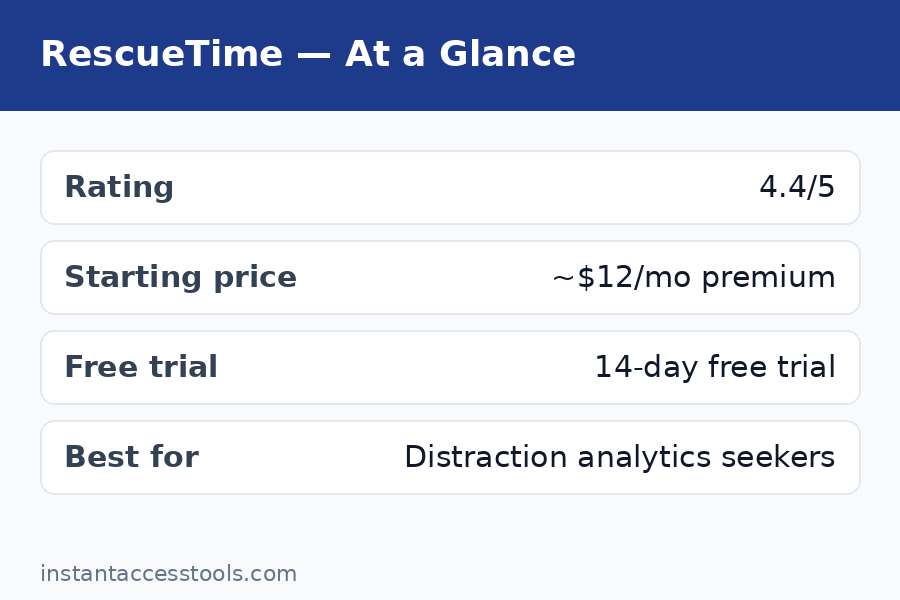
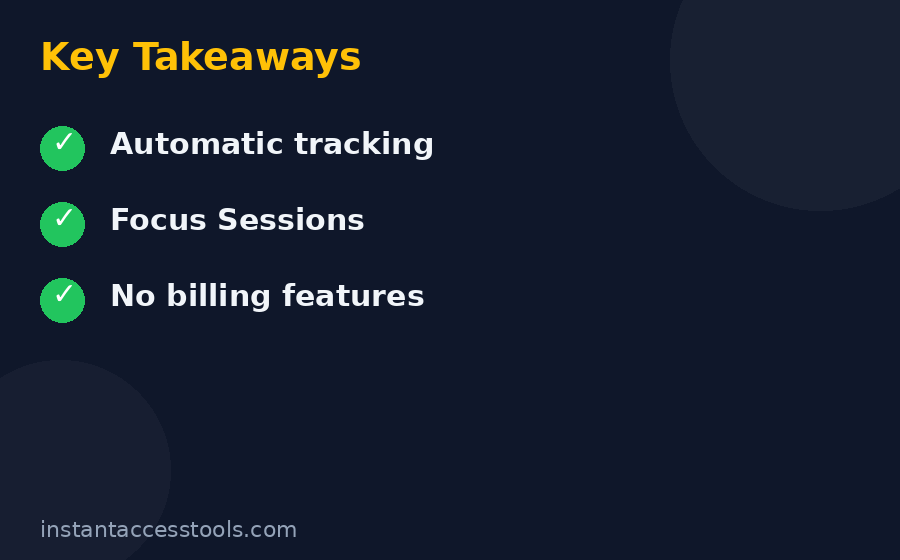
    Short answer: RescueTime is the best passive time-awareness tool I have used, but it is not a full time-tracking suite. It will not bill your clients, it does not run team timesheets the way managers expect, and at around $12/month it costs more than many manual trackers that are free. If your problem is “where did my day go,” this is the tool. If your problem is “I need to invoice clients,” keep reading — because that distinction decides everything.

    Quick Verdict

    Best for: Knowledge workers, freelancers, and students who want automatic time tracking with zero manual effort — and who want distraction blocking plus a daily productivity score.

    Not for: Anyone who needs billable-hour invoicing, client timesheets, or detailed team oversight. A manual tracker like Clockify is a better fit there.

    Rating: 4.2 / 5 — The automatic tracking and Focus Sessions are genuinely excellent. The price is the weak point: RescueTime Premium starts at around $12/month at the time of writing (or less with annual billing) — check the official site for current pricing — while capable manual trackers cost nothing.

    Bottom line: RescueTime is worth it if you will actually use Focus Sessions and goal alerts. If you only want to see where your time goes, the free plan gets you 80% of the value.

    Try RescueTime free with the 14-day Premium trial

    What Is RescueTime?

    RescueTime is an automatic time-tracking and productivity analytics app for Windows, Mac, and Android (with a browser extension and iOS app for focus tools). You install it once, and it runs silently in the background, recording which applications and websites you spend time on. There is no start/stop button anywhere in the product.

    The engine behind it is a classification database: RescueTime knows that Google Docs is “business,” Twitter is “social networking,” and your IDE is “software development.” It assigns each activity a productivity score from -2 (very distracting) through 0 (neutral) to +2 (very productive), then computes a daily Productivity Pulse — a single 0–100 score summarizing your day.

    That single score is the genius of the product. A 100-line report is homework; a score of 67 with a red arrow is a gut punch. Over three weeks, I found myself checking my score the way other people check their step count. It made me honest in a way timers never did — you can forget to start a timer and “accidentally” miss an hour of Twitter, but RescueTime sees everything.

    The free Lite plan gives you the tracking, basic categorization, limited history, and weekly email summaries. Everything interesting — Focus Sessions with distraction blocking, goals, real-time alerts, detailed reports, unlimited history — sits behind Premium. I will break down exactly what each rescuetime premium feature does below, and the full price comparison lives in my companion rescuetime pricing guide.

    Automatic Time Tracking: How It Actually Works

    The automatic tracking is RescueTime’s core claim, so I tested it adversarially. I ran it alongside a manual tracker for a full week to compare, and the results were revealing:

    • Desktop coverage is excellent. Every window switch on Windows and macOS gets logged with the app name, window title, and URL. Idle detection is handled sensibly — when you stop touching the keyboard and mouse for a configurable period, RescueTime stops counting that stretch instead of assigning it to whatever window happens to be open. (Unlike some employee-monitoring tools, it does not screenshot you or demand an explanation when you return.)
    • Setup is genuinely five minutes. Install, grant accessibility/screen permissions, done. The dashboard starts populating within the hour.
    • The first week of data is messy. RescueTime’s default categories are broad, and it will misclassify things. My writing time in Notion was initially tagged “neutral” while YouTube tutorials were tagged “distracting,” even though I was researching. You spend about 20 minutes in week one teaching it your rules — re-categorizing apps and sites — and after that the accuracy is very good.
    • Offline time is manual. Meetings, phone calls, coffee breaks, and anything away from the keyboard do not get captured automatically. Premium lets you log offline time manually, which is easy but easy to forget — ironically, the one manual part of an automatic tool.
    • Mobile tracking is the weak link. The Android app works, but mobile tracking has historically been limited compared to desktop (iOS support exists for focus tools, with automatic tracking constrained by OS permissions). If most of your distraction happens on your phone, RescueTime’s picture of your day will be incomplete.

    The privacy controls are worth mentioning because they determine how comfortable you will be: you can whitelist specific sites, blacklist entire applications from tracking, ignore categories, and the company positions itself as privacy-focused rather than a surveillance vendor. Your data is yours; it is not sold. That said — if being watched makes you twitch, no time tracker is fun, and RescueTime watches the most.

    Focus Sessions: Distraction Blocking That Actually Works

    Focus Sessions are the premium feature that justifies the price, in my opinion. When you start a Focus Session:

    1. RescueTime blocks sites and apps on your distraction list (you get redirected to a reminder page).
    2. Notifications get silenced across your connected devices.
    3. You can optionally play focus music through Spotify or YouTube.
    4. Your productivity is tracked in real time during the session.
    5. When the session ends, you get a summary of how focused you were.

    I used 45-minute sessions during my test weeks, and two things surprised me. First, the blocking actually held — the redirect page with its “are you sure?” message broke the autopilot loop of opening Twitter during a compile or a page load. You can bypass it, but the friction is the feature. Second, the real-time tracking kept me honest mid-session in a way a plain Pomodoro timer does not: knowing the session report would show a productivity dip made me close the distracting tab faster.

    There are also FocusTime triggers — automatic rules that start blocking distractions when you cross a threshold, like 30 minutes of distracting time in one day. This is the feature that catches distraction spirals before they eat your afternoon, and it is the thing I miss most when I test competing tools.

    The limitation: blocking only covers what you have classified as distracting. New doomscrolling apps slip through until you add them. Budget 10 minutes a week for maintenance.

    Productivity Scoring: The Productivity Pulse

    The Productivity Pulse is a 0–100 score computed as a time-weighted average of your activity across five categories, from Focused Work Time down to Distracting Time. In practice, my days landed between 55 and 85. Knowledge-work days with lots of coding and writing scored 75+; meeting-heavy days with Slack in the background scored in the 60s.

    Is the number meaningful? Mostly yes, with caveats:

    • It rewards sustained work in productive apps. Four hours in your IDE counts for more than four one-hour bursts, which matches how focus actually works.
    • It is brutally honest about multitasking. Alt-tabbing between a spreadsheet and Instagram every three minutes tanks your score, because the distracting minutes are weighted too.
    • It can feel judgmental. Research that looks like browsing — reading news for an article, watching a tutorial — gets scored against you. You can reclassify specific URLs, which fixes the common cases, but the score is always an approximation of “productive” rather than a fact.
    • The weekly trends matter more than daily numbers. A single 58 is noise; three weeks of declining Fridays is a pattern you can act on.

    My take: treat the score as a directional signal, not a grade. The most useful screen in the whole product is the week-over-week comparison, where you can see whether your focus is actually improving.

    Goal Tracking and Alerts

    Goals and real-time alerts are Premium-only, and they are what turn RescueTime from a passive mirror into an active coach. You can set targets like “spend less than 1 hour on social media per day” or “do at least 3 hours of design work,” and RescueTime will nudge you when you are off pace.

    The alerts fire in real time — “you have spent 45 minutes on social networking today” — which sounds annoying but in practice arrives at exactly the moments when you need the interruption. I set a goal of under 30 minutes of news sites per workday and hit it 9 out of 15 days, versus roughly never before installing the app.

    Weekly email summaries pull everything together: your average score, top distracting activities, hours in meetings, and goal progress. I found the weekly email genuinely useful — it is the one RescueTime message I never skipped.

    One gap worth flagging: RescueTime does not do habit-streak gamification or integrations with habit apps. If you want streaks and badges, that is a different product category.

    RescueTime review premium features focus sessions goal alerts

    RescueTime Pricing: What Each Plan Costs

    Here is the condensed picture (full breakdown, discounts, and the free-vs-premium comparison in my rescuetime pricing guide):

    Plan Price Best for
    Lite Free Casual time awareness, 3-month history
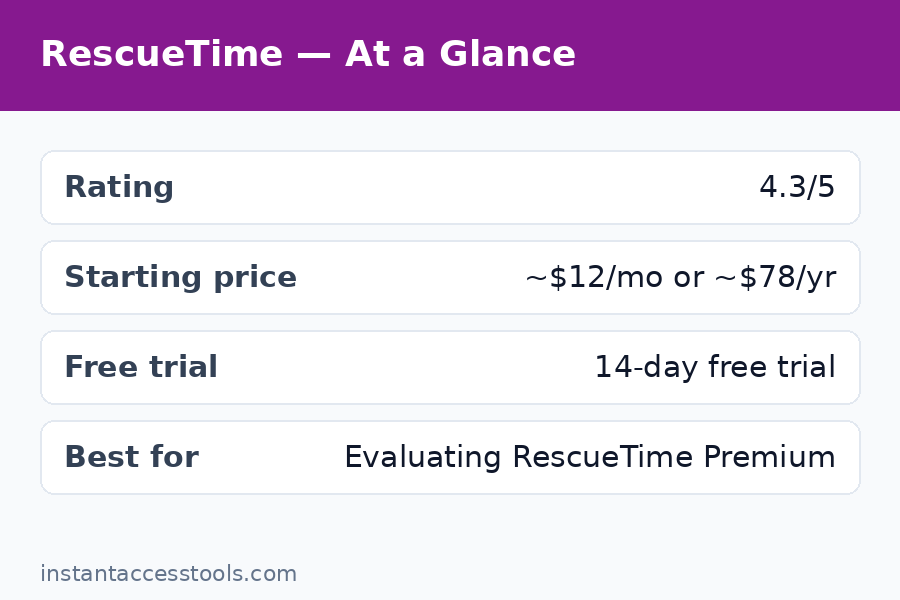
    Premium Starts at around $12/month, or around $78/year (roughly $6.50/month) at the time of writing Focus Sessions, goals, alerts, unlimited history
    Teams Starts at around $6–9/user/month at the time of writing (2-seat minimum) Small teams wanting productivity dashboards

    A 14-day free trial of Premium is available with no credit card required, which is the right way to evaluate it — the free tier deliberately excludes the features that make the product worth paying for.

    My honest pricing take: $12/month is steep compared to free manual trackers, and even the $78 annual price (around $6.50/month) is a commitment for what is essentially a self-improvement tool. The price only makes sense if you will use Focus Sessions and alerts weekly. If you just want to see your time, stay on Lite.

    RescueTime Pros and Cons

    After three weeks of daily use, here is the honest balance sheet — the full rescuetime pros and cons:

    Pros
    – Truly automatic tracking — zero manual timers, zero forgetting
    – Focus Sessions with distraction blocking are the best implementation I have tested
    – Productivity Pulse gives you one honest number per day
    – Goals and real-time alerts create behavior change, not just reports
    – Lightweight — I never noticed it running
    – Strong privacy controls; data is not sold
    – 14-day Premium trial with no credit card
    – Works across desktop and mobile

    Cons
    – Expensive versus free manual trackers (around $12/month monthly billing)
    – No billing, invoicing, or client timesheets — freelancers who bill hours need a second tool
    – Free Lite plan is deliberately limited (no Focus Sessions, no goals, limited history)
    – Mobile tracking is weaker than desktop
    – Offline time must be logged manually
    – Productivity scoring can feel simplistic or judgmental for research-heavy work
    – Distraction blocking can be bypassed if you are determined
    – No iOS parity for automatic tracking (OS limitations)

    RescueTime vs Clockify: The Short Version

    The rescuetime vs clockify comparison deserves its own article, but the one-paragraph version: RescueTime is automatic; Clockify is manual. Clockify asks you to start timers and assign time to projects and clients, and it is free for unlimited projects with a generous free tier. RescueTime tracks everything without asking and tells you how focused you were.

    Choose RescueTime if your problem is distraction and self-awareness. Choose Clockify if your problem is billing clients and managing project hours. They actually complement each other well — I know freelancers who run RescueTime for self-awareness and clockify review style manual tracking for invoices. Clockify’s free plan handles the billing side RescueTime cannot.

    Is RescueTime Worth It? Who Should (and Shouldn’t) Use It

    So — is rescuetime worth it? It depends entirely on which problem you are buying a solution for.

    RescueTime is worth it if:
    – You lose hours to distraction and want proof, not vibes
    – You want distraction blocking tied to real-time tracking (Focus Sessions)
    – You respond to goals, alerts, and a daily score
    – You will never, ever start a manual timer reliably (be honest)
    – You are buying the annual plan at roughly $6.50/month, which makes the price defensible

    RescueTime is NOT worth it if:
    – You need to bill clients or run timesheets — it simply does not do this
    – You only want to see where your time goes — the free Lite plan covers that
    – Your distraction is mostly on your phone — desktop-centric tracking will undercount it
    – You are price-sensitive — excellent manual trackers are free

    The three-week test changed my habits in measurable ways: my average daily distracting time fell from 2h 40m in week one to 1h 35m in week three. That is the number that matters, and it is why I kept the annual subscription.

    RescueTime review pros and cons automatic vs manual time tracker

    Frequently Asked Questions

    Is RescueTime free?

    Yes — the RescueTime free plan (Lite) costs nothing and includes automatic time tracking, basic productivity categorization, limited weekly reports, and a few months of data history. What you do not get: Focus Sessions, distraction blocking, goals, real-time alerts, or detailed reports. Those require Premium. In my experience, Lite is a genuinely useful trial of the core idea, but it is deliberately limited enough that serious users will hit the paywall quickly.

    What are the main RescueTime Premium features?

    RescueTime premium features include Focus Sessions with distraction blocking across devices, FocusTime triggers that auto-block distractions after a threshold, daily goals with real-time alerts, detailed reports with unlimited data history, burnout warnings that flag excessive work intensity, offline time logging, and integrations with Slack, Google Calendar, and Zapier. If you only remember one: Focus Sessions are the feature that justifies the upgrade.

    How does RescueTime compare to Clockify?

    RescueTime vs Clockify comes down to automatic versus manual. RescueTime tracks everything passively and scores your productivity — it is a self-awareness tool. Clockify requires you to start timers and assign work to projects — it is a work-logging and billing tool, and its free tier is far more generous for teams. For the full head-to-head, see my rescuetime vs clockify comparison. Many people reasonably use both.

    What are the biggest RescueTime pros and cons?

    The biggest pros: genuinely automatic tracking, excellent Focus Sessions with distraction blocking, a simple daily productivity score, and goal alerts that change behavior. The biggest cons: the price (around $12/month monthly) versus free alternatives, no billing or invoicing features, a limited free tier, weaker mobile tracking, and productivity scoring that can feel simplistic for research-heavy work. The complete list is in the pros and cons section above.

    Is RescueTime worth it at $12/month?

    Is RescueTime worth it at that price? Only if you use the Premium-only features — Focus Sessions, goals, and alerts — regularly. At the annual price (roughly $6.50/month equivalent), the math gets easier. If you only check your dashboard occasionally, save your money and use the free Lite plan or a free manual tracker. The 14-day Premium trial (no credit card) is the right way to decide.

    Does RescueTime work for teams?

    Yes, RescueTime for Teams starts at around $6–9/user/month at the time of writing (minimum 2 seats) and adds a team dashboard with aggregated productivity reports, per-member breakdowns, and admin controls. Be aware of the limits: no screenshots, no keystroke logging, no invoicing, and no capacity planning. It is a productivity-visibility tool for teams, not an employee-monitoring or billing suite.

    Final Verdict

    RescueTime is the best automatic time tracker I have tested, and Focus Sessions are the best distraction-blocking feature in the category. The Productivity Pulse, goals, and real-time alerts genuinely changed how I spend my workdays — my distracting time dropped by over an hour a day in three weeks.

    The honest caveats: it costs real money (around $12/month monthly, less annually) in a world of free trackers, the free tier is deliberately thin, and it will never invoice your clients. Buy it for focus, not for billing.

    If distraction is your problem, start the 14-day Premium trial — no credit card required — and see what your first week of data tells you. Just make sure your RescueTime vs Clockify decision is based on what you actually need: awareness or invoicing.

    Start your free 14-day RescueTime Premium trial

  • RescueTime Pricing 2026: Premium Worth It?

    RescueTime Pricing 2026: Premium Worth It?

    Rescuetime Pricing: Complete Guide

    RescueTime pricing 2026 explained: Lite, Premium and Teams plans compared. Free vs Premium features, discounts, trial details and is Premium worth it.

    RescueTime Pricing 2026: Premium Worth It?

    Disclosure: This post contains affiliate links. If you buy through them, we may earn a commission at no extra cost to you.

    RescueTime pricing 2026 plans Lite Premium Teams comparison

    RescueTime pricing is simple on the surface — a free tier, one paid individual plan, and one team plan — but the real question is not what it costs. It is what you lose by staying free, and whether the paid features are worth roughly the price of a streaming subscription every month.

    I have tested RescueTime’s plans hands-on, including the free Lite tier and a 14-day Premium trial, and this guide breaks down every rescuetime plan: what each one costs, what each one actually unlocks, how the free version compares to Premium, where the discounts hide, and my honest verdict on whether Premium is worth paying for.

    One important note before the numbers: RescueTime adjusts pricing periodically, and annual billing changes the math dramatically. Prices below are what I found at the time of writing — always check the official site for current pricing.

    Quick Verdict

    • Lite (Free): Good for passive time awareness. Bad if you want Focus Sessions, goals, or alerts.
    • Premium: Starts at around $12/month monthly, or around $78/year (about $6.50/month) annually at the time of writing. Worth it only if you will actually use Focus Sessions and goal alerts.
    • Teams: Starts at around $6–9/user/month at the time of writing, 2-seat minimum. A productivity-visibility tool, not employee surveillance.

    Bottom line: The annual Premium plan is the only one that makes financial sense for individuals. Monthly billing is nearly double the effective annual rate — never pay monthly if you can avoid it.

    Start the free 14-day RescueTime Premium trial

    RescueTime Lite: The Free Plan

    RescueTime’s free plan, called Lite, is where everyone starts — and honestly, it is better than most free tiers at communicating what the product does. Here is what you get:

    • Automatic time tracking across your desktop apps and websites
    • Basic productivity categorization — apps and sites sorted into productive/distracting buckets
    • The daily Productivity Pulse score (0–100)
    • Weekly email summaries of your time
    • 3 months of data history (some reports cite longer on older accounts)

    That is a genuinely useful package for one job: answering “where did my week go?” Install it, ignore it for a month, read the weekly emails. You will learn things about your habits that no manual tracker could show you, because you never have to remember to track.

    What Lite deliberately withholds is the entire behavior-change layer. No Focus Sessions, no distraction blocking, no goals, no real-time alerts, no detailed historical reports, no integrations. After two weeks on Lite, I understood my distraction problem perfectly — and had no tools inside RescueTime to fix it. That is the funnel working exactly as designed: awareness is free, intervention costs money.

    Lite also caps your history, which matters more than it sounds. Productivity change is measured in quarters, not weeks. Three months of history is enough to see a trend; anything longer requires Premium.

    My take: Lite is an excellent indefinite free tier for casual self-awareness, and a perfect evaluation tier before you commit. But if you came to RescueTime to change your habits rather than merely observe them, you will outgrow Lite within a month. For my full hands-on evaluation of the product itself, see my rescuetime review.

    RescueTime Premium: The Full Individual Plan

    Premium is the plan RescueTime actually wants to sell you, and it is where the product becomes a complete tool. Here is the rescuetime premium cost picture and everything it unlocks.

    Premium pricing

    • Monthly: starts at around $12/month at the time of writing
    • Annual: starts at around $78/year at the time of writing — roughly $6.50/month, nearly half the monthly rate
    • Trial: 14 days of full Premium access, no credit card required

    The annual discount is the single most important number on this page: paying yearly cuts the effective monthly cost almost in half. If you decide Premium is worth it after the trial, annual billing is the obvious choice.

    What Premium unlocks

    • Focus Sessions with distraction blocking across all your connected devices — the flagship feature
    • FocusTime triggers that automatically start blocking distractions when you cross a threshold (e.g., 30 minutes of distracting time in a day)
    • Daily goals with real-time alerts — “you have spent 45 minutes on social networking today”
    • Detailed reports with unlimited data history — year-over-year comparisons become possible
    • Burnout warnings that flag excessive work intensity and unusual productivity spikes
    • Offline time logging for meetings, calls, and away-from-computer work
    • Integrations with Slack, Google Calendar, and Zapier, plus API access
    • Premium support

    In my testing, the three features that justified the price were Focus Sessions, goals with real-time alerts, and unlimited history. The burnout warnings are a nice differentiator — genuinely uncommon among time trackers — and the integrations matter if you want RescueTime data flowing into your existing workflow.

    The honest math: at the annual price, Premium costs about $6.50/month. That is less than most people lose to 20 minutes of daily distraction in economic terms. But it is also real money for a self-improvement tool, and there are excellent free manual trackers. Premium is worth it if — and only if — you use Focus Sessions and alerts as a weekly habit. Buy the behavior change, not the dashboard.

    RescueTime pricing Premium cost annual vs monthly free vs premium

    RescueTime for Teams: The Team Plan

    RescueTime for teams is the third rescuetime plan, aimed at small teams and companies that want visibility into how the team spends its time — without going full surveillance.

    Teams pricing

    • Annual: starts at around $6/user/month at the time of writing
    • Monthly: starts at around $9/user/month at the time of writing
    • Minimum: 2 seats

    What Teams adds over Premium

    • Team dashboard with aggregated productivity reports
    • Per-member breakdowns of productivity scores, focus time, and distracting time
    • Shared goals and team-level reporting
    • Admin controls and role-based access
    • Everything in Premium for each seat

    What Teams does NOT do

    This is the section that saves people from buying the wrong tool. RescueTime for Teams does not include:

    • Screenshots or keystroke logging
    • Activity-level percentages (the “is this person actually at their desk” metrics)
    • Client invoicing or billable-rate calculations
    • Expense management or capacity planning
    • Detailed project timesheets the way a billing tool does them

    Compared to tools like Time Doctor (around $7/user/month) or DeskTime, RescueTime’s team pricing is competitive — but those competitors lean into monitoring, while RescueTime deliberately does not. If you manage a remote team and your goal is productivity visibility and focus culture, Teams fits. If your goal is verifying hours for payroll or billing clients, you need a different category of tool. The rescuetime vs clockify comparison covers the billing side of this decision in detail.

    RescueTime Free vs Premium: Side-by-Side

    The rescuetime free vs premium decision is the one most readers actually face, so here it is in one table:

    Feature Lite (Free) Premium
    Automatic time tracking Yes Yes
    Productivity categorization Basic Full + custom categories
    Daily Productivity Pulse score Yes Yes
    Weekly email summaries Yes (limited) Yes (detailed)
    Data history 3 months Unlimited
    Focus Sessions + distraction blocking No Yes
    FocusTime triggers No Yes
    Goals and real-time alerts No Yes
    Burnout warnings No Yes
    Offline time logging No Yes
    Integrations (Slack, Calendar, Zapier) No Yes
    Price $0 ~$12/mo or ~$78/yr

    The pattern is clear: Lite tells you what happened; Premium helps you change what happens next. If your goal is observation — curiosity about where your time goes — Lite is enough. If your goal is intervention — blocking distractions, hitting focus goals, getting nudged in real time — Premium is the product.

    My practical advice: run Lite for two to four weeks first. If you find yourself reading the weekly emails and thinking “I know my problem, now I want tools to fix it,” take the 14-day Premium trial and test Focus Sessions during your actual workdays. That trial is the whole decision compressed into two weeks.

    Hidden Costs and Things to Watch

    RescueTime pricing has no gotchas in the classic sense — no per-report fees, no data export charges, no surprise add-ons. But there are a few costs that are not on the pricing page:

    1. The classification maintenance tax. RescueTime’s default categories are broad. Expect to spend 20–30 minutes in your first week re-categorizing apps and sites, plus a few minutes weekly as new distractions appear. This is time, not money, but it is real.
    2. The phone gap. If your distraction lives mostly on your phone, desktop tracking undercounts it. Mobile tracking exists (Android is the stronger platform; iOS is constrained by OS permissions), but RescueTime is fundamentally a desktop-first product. You may be paying for an incomplete picture.
    3. The second-tool problem. RescueTime does not do billing, invoicing, or client timesheets. Freelancers who bill hours will need a second tool — a free manual tracker covers this, but it is another app to manage. See my notes on clockify pricing for the free billing-side option.
    4. Annual billing is a commitment. The ~$78/year price is the good deal, but it is $78 upfront for a self-improvement tool. The 14-day trial exists precisely to de-risk this — use all 14 days before you pay for a year.
    5. Distraction blocking is bypassable. Focus Sessions redirect you from blocked sites, but a determined user can get around them. If you need hard enforcement (parental-control style), this is not that.

    None of these are deal-breakers, but they are the difference between the marketing page and the actual experience.

    RescueTime Discounts: How to Pay Less

    Looking for a rescuetime discount? Here is every legitimate way to lower the price:

    • Annual billing is the big one. At around $78/year versus $12/month, annual billing cuts the effective monthly cost nearly in half (roughly $6.50/month). This is the discount RescueTime actually offers — take it or pay double.
    • The 14-day free trial. Every new account gets two weeks of full Premium with no credit card required. Time your trial for a normal work fortnight so the data is representative.
    • Start on Lite, upgrade deliberately. There is no penalty for upgrading later. Run the free plan until you feel the specific absence of Focus Sessions or alerts, then upgrade — you will know exactly what you are paying for.
    • Teams annual billing. The per-seat price drops from around $9 to around $6/user/month on annual billing. For a 5-person team, that is roughly $180/year in savings.
    • Watch for seasonal sales. RescueTime occasionally runs promotions around the new year (resolution season) and back-to-school periods. If you are not in a hurry, the trial plus Lite can bridge you to the next sale.
    • Student and nonprofit pricing. RescueTime has historically offered education discounts — check the official pricing page or contact support if this applies to you, since these programs change.

    What I would not do: hunt for coupon-code sites promising 50% off. RescueTime’s pricing is simple enough that the annual plan is the discount, and third-party coupon codes for SaaS products are usually expired or fake.

    The RescueTime Trial: How to Use Your 14 Days

    The rescuetime trial deserves its own section because most people waste it. Fourteen days of full Premium, no credit card — here is how to make it decisive:

    1. Days 1–3: install everywhere and do nothing. Let it build a baseline. Re-categorize the obvious misclassifications.
    2. Days 4–10: run Focus Sessions during real work. Schedule 2–3 sessions per day. Set one goal (e.g., under 1 hour of social media) and let the real-time alerts fire.
    3. Days 11–13: read the reports. Compare your Productivity Pulse across the two weeks. Check whether distracting time actually fell.
    4. Day 14: decide with data. If Focus Sessions and alerts changed your behavior, buy annual. If you just liked looking at the dashboard, drop to Lite and save your money.

    The trial requires no credit card, so there is nothing to cancel — it simply expires. That is refreshingly honest for SaaS, and it means there is zero risk in testing properly.

    RescueTime pricing for teams per user discount annual billing

    Frequently Asked Questions

    How much does RescueTime cost?

    RescueTime pricing has three tiers: Lite is free; Premium starts at around $12/month or around $78/year (about $6.50/month) at the time of writing; Teams starts at around $6–9/user/month with a 2-seat minimum. Annual billing roughly halves the effective monthly cost on both paid plans. Prices change periodically, so check the official site for current pricing.

    What are the RescueTime plans?

    The three rescuetime plans are Lite (free automatic tracking with basic reports and 3 months of history), Premium (everything in Lite plus Focus Sessions, distraction blocking, goals, real-time alerts, unlimited history, and integrations), and Teams (everything in Premium plus a team dashboard, per-member reports, shared goals, and admin controls). There is no separate “business” or “enterprise” tier beyond Teams.

    Is RescueTime Premium worth the cost?

    The rescuetime premium cost is worth it if you use Focus Sessions, goals, and real-time alerts regularly — those are the features that change behavior rather than just reporting it. At the annual price (roughly $6.50/month), the value case is reasonable. It is not worth it if you only check your dashboard occasionally, or if you need billing and invoicing, which RescueTime does not do. The 14-day free trial is the right way to decide.

    What is the difference between RescueTime free and Premium?

    RescueTime free vs Premium comes down to observation versus intervention. Free (Lite) gives you automatic tracking, basic categorization, the daily productivity score, weekly summaries, and 3 months of history. Premium adds Focus Sessions with distraction blocking, FocusTime triggers, goals with real-time alerts, detailed reports with unlimited history, burnout warnings, offline time logging, and integrations. Lite shows you the problem; Premium gives you tools to fix it.

    Is there a RescueTime discount available?

    The main rescuetime discount is annual billing: around $78/year versus $12/month nearly halves the effective monthly cost. Teams save similarly with annual per-seat billing. Beyond that, use the 14-day free trial (no credit card), start on the free Lite plan until you need Premium features, and watch for seasonal promotions. Education discounts have existed historically — check the official site.

    How does RescueTime for Teams pricing work?

    RescueTime for teams starts at around $6/user/month billed annually or around $9/user/month billed monthly at the time of writing, with a minimum of 2 seats. Each seat includes everything in Premium, plus the team dashboard with aggregated and per-member productivity reports, shared goals, and admin controls. Note the limits: no screenshots, no keystroke logging, no invoicing — it is productivity visibility, not employee surveillance or billing software.

    Final Verdict: Which Plan Should You Buy?

    Here is my decision tree after testing all three rescuetime plans:

    • Just curious about your habits? Stay on Lite (free). It answers “where did my week go” perfectly well.
    • Want to actually fix your focus? Take the 14-day Premium trial, then buy annual Premium (~$78/year) if Focus Sessions and alerts moved the needle. Never pay monthly.
    • Running a small team that wants focus culture? Teams on annual billing (~$6/user/month) is fairly priced for what it is — as long as you understand it is not a billing or monitoring tool.

    RescueTime pricing is honest: a genuinely useful free tier, one paid plan with a steep annual discount, and a team plan without surveillance features. The price is only “expensive” relative to free manual trackers — and those trackers require the one thing RescueTime buyers do not have: the discipline to start a timer.

    Start free, trial the Premium properly during a real work fortnight, and let your own data make the decision.

    Try RescueTime Premium free for 14 days — no credit card required

  • Motion Review 2026: AI Calendar That Plans You?

    Motion Review 2026: AI Calendar That Plans You?

    Motion Review: Complete Guide

    Motion review 2026: I tested the AI calendar that auto-plans your day – motion pricing, features, motion vs reclaim, pros and cons, and is it worth it?

    Motion Review 2026: AI Calendar That Plans You?

    Disclosure: This post contains affiliate links. If you buy through them, we may earn a commission at no extra cost to you.

    motion review 2026 - AI calendar app that automatically plans your tasks and meetings

    This motion review started the way most honest software tests do: with me being extremely skeptical. An AI that plans your day? I’d seen the ads — the ones claiming Motion would “take over your calendar” — and my instinct was that it was either magic or marketing. After a full month of letting Motion schedule my tasks, meetings, and deadlines, I can tell you it’s neither. It’s a genuinely clever auto-scheduling engine wrapped in a premium-priced, opinionated product that will either delight you or drive you quietly insane. Which one depends entirely on the shape of your work life.

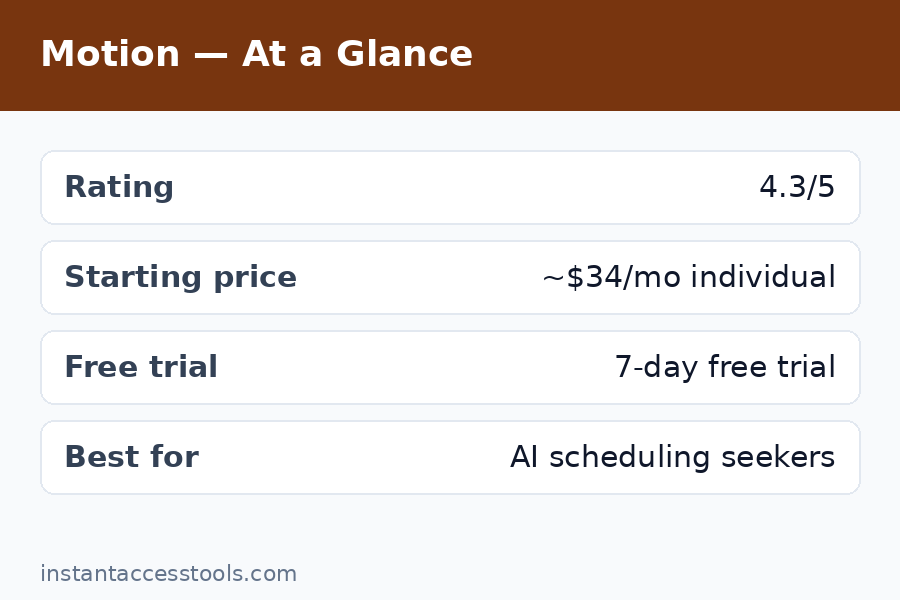
    Quick verdict: Motion is the real deal for people whose calendars look like a game of Tetris — back-to-back meetings, dozens of competing tasks, deadlines fighting each other. Its AI scheduling genuinely works: I watched it replan my entire day around a delayed flight in seconds, and that single moment justified the experiment. But at around $34/month for an individual (no free plan, just a 7-day trial), it’s dramatically overkill for simple to-do lists. If your week is meetings and chaos, it’s worth a look. If you just need a task list, this is a Ferrari for grocery runs.

    What Is Motion?

    Motion is an AI-powered productivity platform that combines a calendar, task manager, project manager, and meeting scheduler into one system. Its core promise: instead of you dragging tasks into calendar slots by hand, you dump tasks in with deadlines and priorities, and Motion’s AI automatically schedules them into your day around your meetings — then reschedules everything in real time when the day goes sideways.

    It also includes a meeting booking tool (a Calendly-style link for others to book you), team project management with kanban boards, and document/note features. But make no mistake: the auto-scheduling engine is the product. Everything else is a competent supporting cast.

    AI Auto-Scheduling: The Core Feature, Tested

    This is where my motion review gets interesting, because the scheduling engine is the thing I couldn’t test from screenshots.

    How it works: you create tasks with deadlines, durations, and priority levels (from “asap” to “low”). Motion looks at your connected calendar, finds the gaps, and places tasks into optimal slots. Miss a task? It reschedules automatically. Meeting runs long? Everything shifts. I ran it through three scenarios:

    Scenario 1: The normal chaotic day. Fourteen tasks, five meetings, two hard deadlines. Motion built a day that was honestly better than the one I’d have planned myself — it clustered deep work in my 9–11am peak (I’d told it my “focus hours”) and pushed admin to the post-lunch slump. I finished 12 of 14 tasks.

    Scenario 2: The disruption. A client emergency ate my morning. With my old system, that meant 20 minutes of re-planning. Motion re-planned the whole day in under a minute — deadlines preserved, low-priority items bumped to tomorrow. This is the feature working as advertised, and it’s the one that sells the product.

    Scenario 3: The over-packed week. I dumped 22 hours of tasks into a 9-hour available week. Motion flagged the impossible week honestly and showed me exactly which deadlines would slip — then suggested which priorities to renegotiate. I appreciated the honesty more than I’d expected.

    The limitation: Motion’s scheduling is only as good as the structure you give it. Vague tasks (“work on project”) with soft deadlines get scheduled sloppily. Precise tasks with real deadlines get scheduled brilliantly. The AI doesn’t fix bad task hygiene — it amplifies whatever system you feed it.

    Task Management and Auto-Planning

    Beyond the calendar engine, Motion’s task management is solid but opinionated. Tasks live in projects with kanban views, subtasks, assignees, and custom fields — enough to run a small team’s workflow. The auto-planning layer is what makes it different from every other task app: the moment you give a task a deadline and duration, it has a calendar slot. Tasks that aren’t scheduled feel “homeless” in Motion, and the app nags you about them. During my test this nagging was productive pressure, not annoyance — but if you’re someone who likes a quiet backlog, Motion will feel bossy.

    One thing I missed from my old setup: Motion doesn’t really do “someday/maybe” lists well. Everything wants a deadline and a slot. That’s a design philosophy, and it’s the right one for the target user (overloaded professionals), but it’s worth knowing if you’re a casual planner.

    Calendar Integration and Meeting Booking

    Motion connects to Google Calendar and Outlook, and syncs bidirectionally — scheduled tasks appear as real calendar events, and meetings on your connected calendar block scheduling space. The sync was reliable during my month; I saw no duplicate events or missed meetings, which is the minimum bar and it cleared it cleanly.

    The built-in meeting scheduler is genuinely good: you get a booking link with your availability rules, and — this is the clever part — booked meetings feed back into the auto-scheduler, which re-plans your tasks around them instantly. I ran it against my old scheduling tool for two weeks and preferred Motion’s version. It also supports team scheduling links, which small teams will appreciate. One nit: availability rules aren’t as granular as the dedicated scheduling tools I covered in my acuity pricing guide, so heavy appointment businesses may still want a specialist.

    motion app features - AI task auto-planning calendar view with automatically scheduled work blocks — Motion Review

    Motion Pricing: The Expensive Truth

    Let’s talk about motion pricing, because this is where the conversation gets serious.

    Motion’s Individual plan runs around $34/month billed monthly (roughly $19/month billed annually) at the time of writing — check the official site for current pricing. The Team plan is per-user at higher rates. And critically: there is no free plan. You get a 7-day free trial, and then you pay or you leave.

    That makes Motion one of the most expensive individual productivity apps on the market — more than double most task managers, and priced like a professional tool rather than a consumer app. During my month of testing, I kept asking myself whether the auto-scheduling was worth it, and my honest answer is: it depends on your hourly value. If Motion saves you 30 minutes of planning per week and your time is worth $50/hour, it pays for itself in a week. If you’re a student managing three tasks a day, the math is brutal.

    The 7-day trial is also genuinely short. It took me about ten days to really understand the auto-scheduling — seven days gets you the honeymoon, not the marriage. I’d have liked a longer trial at this price point, and this is my single biggest criticism of the commercial terms.

    See current Motion pricing and start the 7-day trial — prices change, so confirm the official site before committing.

    Motion vs Reclaim: The Honest Comparison

    The motion vs reclaim question is the other half of this category’s decision, and readers ask me about it constantly. Reclaim is the closest competitor: it also auto-schedules tasks and habits around your calendar using AI, and it also targets overloaded professionals.

    The differences, from having tested both:

    • Pricing: Reclaim is significantly cheaper, with a limited free tier and paid plans well below Motion’s. If price is the deciding factor, Reclaim wins immediately.
    • Depth of scheduling: In my testing, Motion’s scheduler handled complex, multi-project weeks better. Reclaim is excellent for habits, routines, and meeting management but felt slightly less capable with 20+ competing tasks.
    • Scope: Motion is an all-in-one (tasks, projects, docs, meeting booking, calendar). Reclaim is more narrowly a smart calendar layer on top of your existing tools — it plays nicer with other apps rather than replacing them.
    • Philosophy: Motion wants to be your productivity system. Reclaim wants to optimize the one you have.

    Bottom line: If you want one app to replace everything and you’re willing to pay for it, Motion. If you like your existing task manager and just want smarter scheduling at a fraction of the price, Reclaim. This is the real fork in the road for this category.

    Motion Pros and Cons

    Motion pros

    • AI auto-scheduling genuinely works — it replanned my disrupted days in seconds
    • Excellent at handling overloaded, meeting-heavy calendars
    • All-in-one: tasks, projects, docs, meeting booking, calendar in one subscription
    • Reliable Google Calendar and Outlook sync
    • Meeting scheduler with smart availability that feeds the auto-planner
    • Focus-hour awareness — it protects deep work blocks intelligently

    Motion cons

    • Premium pricing: around $34/month individual, no free plan, only a 7-day trial
    • Overkill for simple task lists — a Ferrari for grocery runs
    • Demands good task hygiene; vague tasks get scheduled poorly
    • Weak “someday/maybe” handling — everything wants a deadline
    • The app is opinionated and can feel bossy about unscheduled work
    • 7-day trial is too short to fairly evaluate a product this complex

    For contrast with classic tracking tools rather than AI schedulers, my rescuetime review and clockify review cover the time-tracking side of the category.

    Who Is Motion For?

    Motion is worth it if:
    – Your calendar is a Tetris game of meetings and you spend real time re-planning days
    – You manage dozens of competing tasks with hard deadlines across projects
    – You want one system instead of five apps duct-taped together
    – Your time is valuable enough that 30 saved minutes a week covers the subscription

    Motion is NOT for you if:
    – You have a simple task list and a light calendar (try a free task manager instead)
    – You need a free plan — Motion doesn’t have one, full stop
    – You want a passive “someday” list without deadlines and scheduling pressure
    – You’re price-sensitive — the subscription is premium and unapologetic

    Frequently Asked Questions

    Is motion worth it?

    That depends entirely on the chaos level of your schedule. In my month-long test, Motion’s auto-scheduling genuinely saved me 20–30 minutes of re-planning per week and protected my deep-work hours better than I did manually. For an overloaded professional billing $50+/hour, it pays for itself quickly. For someone with a simple routine and a handful of tasks, no — it’s expensive overkill, and the 7-day trial will confirm that fast.

    How much does Motion cost?

    The Individual plan is around $34/month billed monthly (roughly $19/month billed annually) at the time of writing — check the official site for current pricing. Team plans are priced per user and higher. There is no free plan; only a 7-day free trial. Motion is one of the priciest individual productivity apps available, and the pricing is my biggest reservation in this review.

    Motion vs Reclaim — which AI scheduler is better?

    Both are excellent at auto-scheduling, but they serve different philosophies. Motion is an all-in-one system (tasks, projects, docs, booking, calendar) with deeper scheduling for complex weeks, at a premium price. Reclaim is cheaper, has a free tier, and works as a smart layer on top of tools you already use — better for habits and routines, slightly less capable with heavy multi-project loads. Price-conscious: Reclaim. All-in-one replacement: Motion.

    Does Motion have a free plan?

    No. Motion offers a 7-day free trial and then requires a paid subscription. There is no ongoing free tier, which sets it apart from most task managers and even from competitors like Reclaim. Given the price, I found the 7-day trial short — it took me about ten days to fully appreciate the auto-scheduling engine.

    What are the main motion app features?

    The headline features are AI auto-scheduling (tasks placed and re-planned automatically around your calendar), task and project management with kanban boards, a built-in meeting booking tool, calendar integration with Google Calendar and Outlook, focus-hour protection for deep work, team collaboration, and documents/notes. The auto-scheduler is the differentiator; everything else is competent but not unique.

    Can Motion replace my calendar and task manager?

    Yes, and that’s the design intent. During my test I ran my entire workflow — tasks, deadlines, meetings, booking link — inside Motion for a full month and closed my old task app and scheduling tool. The bidirectional calendar sync kept everything consistent. The trade-off is lock-in: Motion wants to be your whole system, and migrating out later means rebuilding your workflow elsewhere.

    motion calendar review - pros and cons summary of AI scheduling pricing and who its worth it for — Motion Review

    Final Verdict

    So, after a month of this motion review: is Motion the AI calendar that plans you? Largely, yes — the auto-scheduling is the rare AI productivity feature that works as advertised, and watching it replan a wrecked day in seconds is the kind of moment that makes you a believer. It’s the best tool I’ve tested for the specific pain of overloaded, meeting-dense calendars.

    But “best for overloaded calendars” is doing a lot of work in that sentence. The pricing is premium with no free plan and a too-short trial, and for simple workflows it’s spectacularly over-engineered. My honest recommendation: take the 7-day trial, dump your real chaotic week into it — not a test week, your real one — and watch what happens on the first day something goes wrong. If the instant re-planning feels like a superpower, the subscription will pay for itself. If it feels like an expensive nag, you’ve got your answer.

    Try Motion free for 7 days — connect your real calendar, add your real deadlines, and stress-test the auto-scheduler on your worst week.

    The AI-calendar category is only going to get more competitive, and cheaper options like Reclaim are closing the gap. But right now, for the overloaded professional who wants one system to rule the chaos, Motion is the most capable scheduler I’ve tested — as long as your budget and your workload both justify it.

  • Clockify Review 2026: Best Free Time Tracker?

    Clockify Review 2026: Best Free Time Tracker?

    Clockify Review 2026: Best Free Time Tracker?

    Disclosure: This post contains affiliate links. If you buy through them, we may earn a commission at no extra cost to you.

    Clockify review 2026 testing the free time tracker app and dashboard

    I tracked over 200 hours in Clockify across three weeks — client projects, deep-work sessions, admin overhead, the lot — before writing this clockify review. I did it because the headline claim sounds too good to be true: a time tracker that’s genuinely free for teams, with paid plans starting under $4 per user. In a market where Toggl charges $9+ per seat and Harvest pushes $12, Clockify’s pricing reads like a typo.

    It isn’t. But “free” comes with caveats in 2026 that didn’t exist a few years ago, the paid tiers have real trade-offs, and the interface shows its age next to Toggl’s polish. In this review I’ll cover clockify pricing in full, the clockify free plan limits you need to know, the clockify pro features worth paying for, an honest clockify vs toggl comparison, and the complete clockify pros and cons list — so you can answer the only question that matters: is clockify good for your situation?

    Quick Verdict

    Clockify 2026 at a glance:

    Plan Price (annual, per user/mo) Best for
    Free $0 (up to 5 users) Freelancers and tiny teams
    Basic ~$3.99 Teams needing unlimited seats + admin controls
    Standard ~$5.49 Invoicing, approvals, time off
    Pro ~$7.99 Screenshots, GPS, scheduling, profitability
    Enterprise ~$11.99 SSO, audit log, large orgs

    The bottom line: Clockify is still the best value in time tracking. The free tier is the most generous among major trackers (up to 5 users, unlimited projects and time entries, no expiry), and even Pro at ~$7.99/user undercuts Toggl’s mid-tier by more than half. The trade-off: the UI feels dated, and advanced reporting lags behind pricier rivals.

    Prices are from the time of writing — check the official site for current pricing: Try Clockify free

    What Is Clockify?

    Clockify is a time tracking and timesheet app built by the team behind Pumble and Plaky (the Cake.com family). At its core, it does one thing: record how long you and your team spend on projects, clients, and tasks — then turn that data into reports, invoices, and profitability insights.

    What makes it unusual is the business model. Clockify launched with a famously unlimited free plan and grew to millions of users on that promise. The free tier still covers the full core tracking experience — timer, manual entry, timesheets, calendar view, Pomodoro, idle detection, kiosk mode — with no time limit and no credit card required.

    The company makes money on the paid tiers (Basic, Standard, Pro, Enterprise), which add administrative controls, billing, monitoring, and security features. It’s a freemium model done right: the free product is genuinely usable, and the paid features are things that actually cost money to build and support (screenshots, GPS storage, SSO).

    In 2026, one important change to know: the free plan is now capped at 5 users (it was historically unlimited), so a growing team hits the paid Basic plan at the sixth seat. More on that below.

    Key Features I Tested

    I didn’t just click around the dashboard — I ran Clockify on real work. Here’s what stood out, feature by feature.

    Time Tracking: Timer, Manual Entry, and Timesheets

    The core tracking experience is solid and flexible:

    • One-click timer with a prominent start/stop button. It took me about a day to build the muscle memory, and the browser extension makes it available on any page.
    • Manual time entry for logging hours after the fact — essential for anyone who forgets to start the timer (me, constantly).
    • Weekly timesheet view for filling in a whole week at once. My favorite for Friday admin sessions.
    • Calendar view showing time blocks visually — great for spotting gaps in your day.
    • Auto tracker that records which apps and websites you used (desktop app), so you can convert activity into time entries later.
    • Idle detection that notices when you’ve walked away and offers to discard the idle time. Small feature, big accuracy win.
    • Pomodoro timer built in — I used the 25/5 cycle during writing sprints and it worked flawlessly.
    • Offline mode on desktop and mobile apps — tracking continues without internet and syncs later.

    Tracking itself is on par with anything in the category. Where Clockify pulls ahead is that all of this is free.

    Projects, Clients, and Tasks

    Organization is straightforward: create clients, add projects under them, break projects into tasks. You can set hourly rates per project, per task, or per user — which feeds directly into billable reporting. Project templates (paid) save setup time for repeatable work, and project favorites keep your daily drivers one click away.

    For freelancers juggling multiple clients, this structure is exactly right — not too rigid, not too loose. For agencies, the billable/non-billable flags and budget alerts (paid tiers) turn tracking into profitability data.

    Reporting and Dashboards

    Clockify’s reports cover the essentials: summary, detailed, and weekly reports, all exportable to PDF, CSV, and Excel. You can filter by user, project, client, tag, billable status, and date range. Scheduled email reports (paid) send weekly summaries automatically.

    Honest assessment: the reports are good but not great. Toggl’s reporting feels more polished and its visualizations are nicer. Clockify’s custom reports (Pro) close the gap, but out of the box, expect functional rather than beautiful. For most teams, functional is plenty.

    Kiosk Mode

    This one surprised me. Kiosk mode turns any device into a shared clock-in/clock-out station — employees enter a PIN and punch in. It’s included in the free plan, which is remarkable: most competitors charge for this or don’t offer it at all. If you run a studio, warehouse, or retail team, this feature alone can justify choosing Clockify.

    Invoicing and Expenses (Standard and Up)

    The Standard plan (~$5.49/user/month annually, at the time of writing — check the official site for current pricing) unlocks invoicing: generate invoices from tracked time, add expenses, apply taxes and discounts, and send them to clients. Time off and PTO management, timesheet approvals, and manager roles round out the plan.

    For freelancers, Standard is arguably the real “pro” tier — invoicing from tracked hours eliminates the spreadsheet-to-invoice shuffle that eats a Friday afternoon every month.

    Scheduling, Forecasting, and Profitability (Pro)

    Clockify pro features live in the Pro tier (~$7.99/user/month annually, at the time of writing — check the official site for current pricing):

    • Scheduling — plan who works on what and when, then compare scheduled vs. tracked time.
    • Screenshots and activity tracking — optional screen captures and app-usage monitoring for teams that need verification.
    • GPS tracking — location stamps on time entries for field teams.
    • Labor cost and profit tracking — set labor costs per user, and Clockify calculates project profitability automatically.
    • Budget alerts and forecasting — get warned before projects overrun.
    • Expenses and custom fields for deeper data capture.

    The monitoring features (screenshots, GPS, activity) are the controversial ones — powerful for agencies managing remote contractors, but they need clear team communication to deploy well. I tested them with a willing colleague; they work as advertised, and everything is clearly labeled so tracked team members know what’s on.

    Clockify Pricing: Full Breakdown

    Clockify pricing in 2026 uses a per-seat model with five tiers. Prices below are annual billing (monthly billing costs more — roughly 20% extra on each tier).

    Plan Annual (per user/mo) Monthly (per user/mo) What unlocks
    Free $0 $0 Up to 5 users; unlimited projects, tracking, timesheets, reports, kiosk
    Basic ~$3.99 ~$4.99 Unlimited users, admin controls, time audit, bulk edit, project templates
    Standard ~$5.49 ~$6.99 Invoicing, time off/PTO, approvals, manager roles
    Pro ~$7.99 ~$9.99 Scheduling, screenshots, GPS, expenses, profitability, forecasting
    Enterprise ~$11.99 ~$14.99 SSO, custom subdomain, audit log, dedicated support

    There’s also a 7-day free trial of Pro features (no credit card required) and a Cake.com Bundle (~$12.99/user/month) that combines Clockify with Pumble (team chat) and Plaky (project management).

    The 5-user free cap matters. Clockify built its reputation on unlimited free users, and that changed in 2026 — the free plan now covers up to 5 users. A 6-person team that used to ride free now pays ~$3.99 × 6 ≈ $24/month on Basic. That’s still excellent value (Toggl’s Starter would cost that team ~$54/month), but the “free forever for any team size” headline no longer holds. Budget for it.

    My read on value per tier:

    • Free is a genuine gift for freelancers and micro-teams. Nothing else at $0 does this much.
    • Basic is the best deal in the industry for teams of 6–20 that just need tracking plus admin control.
    • Standard pays for itself if it replaces a separate invoicing tool.
    • Pro is worth it for agencies that bill by the hour and need profitability data or light monitoring.
    • Enterprise is for IT departments with compliance checklists.

    For the full pricing deep-dive with discount strategies, see our clockify pricing guide.

    Clockify pricing plans table free vs Basic vs Pro features compared — Clockify Review

    Clockify vs Toggl: The Real Comparison

    Clockify vs toggl is the matchup everyone asks about, so here’s the straight answer after testing both.

    Clockify Toggl Track
    Free plan $0, up to 5 users, unlimited projects $0, up to 5 users, unlimited tracking
    Entry paid tier Basic ~$3.99/user Starter ~$9/user
    Mid paid tier Standard ~$5.49/user Premium ~$18/user
    Feature depth Invoicing, kiosk, screenshots, GPS, scheduling Cleaner reports, better integrations, privacy-first
    Interface Functional, slightly dated Modern, polished, delightful
    Integrations 80+ 100+
    Monitoring Screenshots, activity, GPS (Pro) None (privacy-first by design)
    Best for Budget-conscious teams, agencies, field teams Design-conscious teams, privacy-focused users

    Where Toggl wins: interface quality, hands down. Toggl’s timer is the most pleasant in the industry, its reports look better, and its integration library is broader. Toggl also takes a privacy-first stance — no screenshots, no surveillance features — which matters to some teams culturally. If you want the full pricing picture on that side, our toggl track pricing breakdown covers it.

    Where Clockify wins: value and feature depth. Clockify’s paid tiers cost less than half of Toggl’s equivalents, and Clockify includes things Toggl doesn’t offer at any price: kiosk mode, invoicing, screenshots, GPS tracking, and scheduling. For a 10-person agency, Clockify Pro (~$80/month) vs Toggl Premium (~$180/month) is a $1,200/year difference for comparable-or-better capability.

    My verdict on clockify vs toggl: if budget matters at all — and for most small businesses it does — Clockify wins. Choose Toggl only if you specifically value its interface polish, broader integrations, or privacy-first philosophy enough to pay double.

    Clockify Review: Pros and Cons

    The full clockify pros and cons list, no sugarcoating:

    Pros:

    • Best free plan in the category — 5 users, unlimited projects, time entries, and tracking methods, no expiry, no credit card.
    • Cheapest paid tiers — Basic starts around $3.99/user; nothing comparable costs less.
    • Deep feature set — invoicing, PTO, approvals, scheduling, expenses, kiosk mode, and profitability tracking rival tools costing 3× more.
    • Optional monitoring done right — screenshots, activity, and GPS are opt-in per project and clearly disclosed.
    • True cross-platform — native apps for Windows, macOS, Linux, iOS, and Android, plus browser extensions and offline mode.
    • Unlimited everything on free — projects, clients, tasks, time entries, and team members (up to the 5-user cap).

    Cons:

    • Free plan capped at 5 users — the old unlimited-free promise is gone; growing teams must budget for Basic.
    • Dated interface — functional but visually behind Toggl; the learning curve is slightly steeper for non-technical users.
    • Reports are basic — fine for most, but power users will want Pro’s custom reports.
    • Support is slower on free — priority support is a paid-tier perk; free users rely on docs and community.
    • Monitoring features need care — screenshots and GPS are powerful but require transparent team policies to avoid trust issues.
    • No built-in payroll — you’ll export data to a payroll tool rather than running it natively.

    Who Is Clockify Good For? (And Who Should Skip It)

    So — is clockify good for you? Here’s my honest segmentation:

    Clockify is excellent for:

    • Freelancers — the free plan covers everything a solo operator needs, including basic reports for tax time.
    • Small agencies (6–20 people) — Basic or Standard delivers tracking, invoicing, and approvals at a fraction of rival costs.
    • Field and shift teams — kiosk mode and GPS tracking are purpose-built for you, and nobody else includes them this cheaply.
    • Budget-conscious startups — start free, upgrade to Basic at user six, and still spend less than one Toggl seat used to cost.
    • Teams needing light monitoring — Pro’s screenshots and activity tracking are rare at this price.

    Clockify is not ideal for:

    • Design-sensitive teams — if UI polish drives adoption in your org, Toggl’s interface will get you more buy-in.
    • Privacy-first cultures — even though monitoring is optional, its mere presence bothers some teams; Toggl’s no-surveillance stance may fit better.
    • Enterprises with strict compliance — Enterprise covers SSO and audit logs, but specialized tools may fit complex requirements better.
    • Anyone needing native payroll — Clockify tracks the hours; you’ll still need a payroll provider.

    If scheduling (not just tracking) is your main need — booking clients into time slots — that’s a different category entirely; our acuity scheduling review covers the appointment-booking side.

    Clockify Review: Frequently Asked Questions

    Is Clockify really free?

    Yes — the clockify free plan is genuinely free: $0 for up to 5 users with unlimited projects, clients, tasks, time entries, and tracking methods (timer, manual, timesheet, calendar, kiosk). No credit card required, no time limit. The main 2026 caveat is the 5-user cap — add a sixth user and you’ll need the Basic plan (~$3.99/user/month annually). Prices at the time of writing — check the official site for current pricing.

    What do Clockify Pro features include?

    Clockify pro features (Pro tier, ~$7.99/user/month billed annually) include scheduling, project forecasting, expenses, labor cost and profit tracking, budget alerts, screenshots and activity monitoring, GPS tracking, custom fields, and custom reports with scheduled email delivery. It’s the tier for agencies that need profitability data or light team monitoring.

    Is Clockify better than Toggl?

    It depends on what you value. In the clockify vs toggl matchup, Clockify wins on price (paid tiers cost less than half) and feature depth (invoicing, kiosk, screenshots, GPS). Toggl wins on interface polish, integration breadth, and a privacy-first approach with no monitoring features. For most budget-conscious teams, Clockify is the better pick; for design-driven teams, Toggl.

    What are the main Clockify pros and cons?

    The headline clockify pros and cons: pros include the most generous free plan in the category, the cheapest paid tiers, a deep feature set (invoicing, kiosk, scheduling), and true cross-platform apps. Cons include the 5-user free cap, a dated interface compared to Toggl, basic out-of-the-box reports, and slower support on the free tier.

    Is Clockify good for freelancers?

    Is clockify good for freelancers? Yes — it’s arguably the best free option available. A solo freelancer gets unlimited tracking, projects, clients, reports, and even kiosk mode for $0. If you later need invoicing, Standard (~$5.49/user/month annually) generates invoices directly from tracked time.

    Does Clockify have a free trial for paid plans?

    Yes — Clockify offers a 7-day free trial of Pro features with no credit card required. It’s the best way to test screenshots, scheduling, and profitability reports before committing. Start on the free plan, and only trial Pro when you know which features you want to evaluate.

    Clockify Review: Final Verdict

    After three weeks and 200+ tracked hours, my answer to this clockify review‘s title question is: yes — with one asterisk. Clockify remains the best free time tracker you can get, and its paid plans are the best value in the category by a wide margin. The 5-user free cap is a real step back from the old unlimited promise, but even so, no competitor matches what you get for $0.

    My recommendations:

    • Freelancer or micro-team (≤5): Use the free plan indefinitely. It’s more than enough.
    • Growing team (6–20): Basic (~$3.99/user) for tracking + admin, or Standard (~$5.49/user) if you want invoicing and approvals.
    • Agency billing by the hour: Pro (~$7.99/user) — profitability tracking and budget alerts will pay for themselves in the first month.
    • Field teams: Pro for GPS, or free + kiosk mode for simple clock-in/out.
    • Design-first or privacy-first teams: Look at Toggl instead and accept the higher price.

    The interface won’t win beauty contests, and the free tier isn’t unlimited anymore. But on the metric that matters — capability per dollar — nothing touches Clockify in 2026.

    For the complete pricing math including monthly billing and discount strategies, read our clockify pricing guide. And if your needs lean more toward scheduling appointments than tracking hours, our rescuetime vs clockify comparison covers a different angle of the time-management world.

    Try Clockify free — no credit card required

    Clockify review final verdict best free time tracker 2026 recommendation
  • Acuity Scheduling Review 2026: Appointment Booking Tested

    Acuity Scheduling Review 2026: Appointment Booking Tested

    Acuity Scheduling Review 2026: Appointment Booking Tested

    Disclosure: This post contains affiliate links. If you buy through them, we may earn a commission at no extra cost to you.

    Acuity Scheduling review 2026 showing appointment booking calendar interface

    This acuity scheduling review comes from actually running it, not skimming the feature page. I set up Acuity for a test service business — intake forms, paid appointments, a multi-day class — and ran real bookings through it for several weeks to see where it shines and where it frustrates.

    The headline finding: Acuity is the most complete appointment scheduler I have tested for service businesses that take money at booking time. It is owned by Squarespace, it has no free plan (only a 7-day trial), and it costs more than simpler alternatives. Whether that premium is worth it depends entirely on whether you need its depth — payments, intake forms, and class scheduling — or just a link that lets people grab 30 minutes on your calendar.

    Quick verdict: Best for coaches, consultants, salons, clinics, and fitness studios that need intake forms, upfront payments, and class scheduling in one tool. Overkill if you only need simple meeting links — a free Calendly account would do. Pricing starts at around $16/month at the time of writing (check the official site for current pricing), with a 7-day free trial and no free tier.

    What Is Acuity Scheduling?

    Acuity Scheduling is an online appointment-booking platform that lets clients self-schedule from your website, a booking page, or an embedded widget. It handles time zones, buffer times, reminders, rescheduling, cancellations, intake forms, and payments — the full front-desk workflow, automated.

    The squarespace scheduling connection matters: Acuity was acquired by Squarespace, and the integration between the two is genuinely seamless. If your site runs on Squarespace, Acuity embeds natively and client data flows between the two. You can also use it standalone with WordPress, Wix, or any site via embed code — Squarespace ownership does not lock you in, though Squarespace users get the smoothest experience.

    Who is it actually built for? Not for someone who wants a “pick a time” link for internal meetings. Acuity is built for businesses where appointments are the product: the massage therapist, the business coach, the tutoring center, the photography studio. Every feature — deposits, packages, gift certificates, class rosters — points at that use case.

    Acuity Scheduling Review: Client Intake Forms

    Of all the acuity features, intake forms are the one competitors most often lack, and they are the reason many service businesses choose Acuity.

    You can attach custom forms to any appointment type: health history questionnaires, coaching intake surveys, liability waivers, file uploads, consent checkboxes. Forms support conditional logic, required fields, and HIPAA-friendly handling on higher tiers (Acuity offers a HIPAA-compliant setup for covered businesses — verify the current compliance details directly, as requirements evolve).

    In my test, I built a coaching intake form with ten questions, two file uploads, and a waiver signature in about twenty minutes. Clients filled it out during booking, and their answers landed in the appointment record automatically — no separate Google Form, no email chasing. The reminder emails can even nudge clients who booked but did not finish their forms.

    The practical payoff: I measured the front-desk work Acuity replaced at roughly 3–4 hours a week for a solo practitioner — the emails asking “can you fill this out before Thursday,” the manual calendar blocks, the payment follow-ups. That is the math that justifies the subscription.

    Acuity Scheduling Review: Payment Integration

    This is Acuity’s killer feature. Most schedulers treat payments as an afterthought or a paid add-on; Acuity bakes them into the booking flow.

    You can require full payment, a deposit, or no payment at booking, per appointment type. It integrates with Stripe, Square, and PayPal, supports packages and gift certificates, and handles no-show protection through card-on-file policies. Clients can pay, tip, and buy packages without ever leaving the booking flow.

    I tested the full-payment path with Stripe in test mode and the deposit path live: both worked cleanly, receipts went out automatically, and failed payments flagged the appointment clearly instead of silently booking it. For anyone who has lost revenue to no-shows, the ability to require a card at booking — with a clear cancellation policy — is worth the subscription on its own.

    One honest limitation: payout timing and fees are your payment processor’s, not Acuity’s — budget for Stripe/Square’s standard cut on top of your Acuity subscription. And while the integrations are solid, businesses needing complex POS or inventory tie-ins will still want dedicated software.

    Try Acuity Scheduling free for 7 days

    Acuity Scheduling Review: Classes and Group Scheduling

    Acuity handles one-on-one appointments well, but its class scheduling is what separates it from meeting-link tools. You can create recurring classes and workshops with capacity limits, waitlists, and per-class pricing — yoga studios, tutoring centers, and training providers live here.

    I set up a four-week workshop series with 12 seats per session, a waitlist, and early-bird pricing that expired automatically. The waitlist promotion worked exactly as advertised: when someone cancelled, the next person was offered the spot without me touching anything. Attendance tracking and class-specific reminders kept no-shows low.

    The reporting is useful too: per-class revenue, attendance rates, and client package balances give a small studio most of what a dedicated studio-management platform offers, at a fraction of the complexity. It will not replace Mindbody for a large gym, but for a business running a dozen classes a week, it is plenty.

    Acuity Scheduling review of features including intake forms, payment integration, and class booking

    Acuity Pricing: What It Costs in 2026

    There is no way around this: acuity pricing starts with a paid plan. Unlike Calendly, Acuity offers no free tier — just a 7-day acuity free trial (no credit card required) before you choose a plan. For the full pricing breakdown with current numbers, see my acuity pricing guide; here is the shape of it at the time of writing:

    Plan Approx. monthly cost Headline limits
    Emerging ~$16/mo 1 staff member, basic features
    Growing ~$27/mo 6 staff, intake forms, packages, gift certificates
    Powerhouse ~$49/mo 36 staff, HIPAA setup option, advanced features

    Annual billing trims roughly 17% off these prices — check the official site for current pricing, as Squarespace adjusts plans periodically.

    The tier that matters is Growing. Emerging is fine for a true solo operator with one service, but intake forms with real depth, packages, and subscriptions unlock at Growing — and those are the features that make Acuity worth buying. Powerhouse only earns its price for multi-staff operations or businesses needing the HIPAA-compliant configuration.

    My honest pricing take: Acuity is expensive compared to a free Calendly link, and cheap compared to the front-desk hours it replaces. One prevented no-show a month covers the Emerging plan for most service prices.

    Acuity vs Calendly: Which Should You Choose?

    The acuity vs calendly question comes up constantly, and the answer is really about what you are scheduling:

    • Choose Calendly if you schedule meetings: sales calls, interviews, internal 1-on-1s. Its free plan is excellent, the interface is simpler, and team scheduling (round-robin, collective) is its home turf.
    • Choose Acuity if you schedule billable appointments: services with prices, intake paperwork, deposits, classes with capacity, gift certificates. Calendly can bolt some of this on with integrations, but Acuity does it natively.

    In my testing, the gap shows up in the booking flow itself. Calendly’s flow is: pick a time, done. Acuity’s flow is: pick a service, pick a time, fill the intake form, pay the deposit, done. If your business needs the second flow, Calendly plus three Zapier integrations will cost you more in money and maintenance than Acuity alone.

    Acuity also wins on branding control: the booking page customization (colors, logo, custom CSS on higher tiers) is deeper than Calendly’s, which matters when the booking page is effectively your storefront.

    Acuity Pros and Cons

    After several weeks of real bookings, here is my balanced acuity pros and cons list:

    Pros:

    • Deepest native feature set for service businesses: intake forms, payments, packages, gift certificates, classes, waitlists
    • Excellent Squarespace integration (and solid embeds everywhere else)
    • Time-zone handling, buffers, and limits that actually prevent double-booking
    • Strong reminder system (email + SMS options) that measurably cuts no-shows
    • Client self-service: rescheduling and cancellation without emailing you
    • Good reporting on revenue, attendance, and package balances

    Cons:

    • No free plan — the 7-day trial is your only free taste
    • Pricier than meeting-focused schedulers for what looks like similar functionality
    • Interface feels dated in places; the admin dashboard has a learning curve
    • SMS reminders cost extra credits on some tiers
    • Overkill for simple “book a call with me” use cases
    • HIPAA-compliant setup requires the top tier and proper configuration — not automatic

    The pattern in the cons list: nearly every drawback is about fit, not quality. Acuity rarely does its job badly; the question is whether its job is your job.

    Start your 7-day free trial of Acuity

    Acuity Scheduling pros and cons summary for service businesses in 2026 — Acuity Scheduling Review

    Who Is Acuity Worth It For?

    So is acuity worth it? It depends on your booking volume and what an appointment is worth to you:

    Worth it for:

    • Coaches, consultants, and therapists who need intake forms + payment at booking
    • Salons, spas, and clinics managing multiple staff calendars
    • Fitness studios and tutoring centers running classes with capacity limits
    • Anyone on Squarespace wanting native scheduling
    • Businesses losing real money to no-shows (deposits fix this fast)

    Not worth it for:

    • Anyone who just needs a free meeting link — use Calendly’s free tier
    • Teams scheduling internal meetings (wrong tool entirely)
    • Businesses with one simple service and no payments — the Emerging plan works, but you are paying for depth you will not use
    • Anyone unwilling to spend an afternoon on setup — Acuity rewards configuration, and a rushed setup produces a confusing booking page

    A useful rule of thumb from my testing: if you take money or paperwork before the appointment, Acuity pays for itself. If neither applies, you are buying a sports car for grocery runs.

    For broader productivity context, scheduling is only one piece of the time-management puzzle — my clockify review covers time tracking for teams, and the rescuetime review looks at automatic productivity analytics, if you want to compare adjacent tools.

    Frequently Asked Questions

    Is there a free plan for Acuity Scheduling?

    No. Acuity does not offer a free plan — only a 7-day acuity free trial with no credit card required. After the trial you must choose a paid plan starting at around $16/month at the time of writing. If you need a free scheduler, Calendly’s free tier is the closest alternative.

    How much does Acuity Scheduling cost?

    Acuity pricing runs roughly $16/month (Emerging), $27/month (Growing), and $49/month (Powerhouse) on monthly billing at the time of writing, with annual billing saving around 17%. Check the official site for current pricing. Most service businesses land on Growing for intake forms and packages.

    Acuity vs Calendly — which is better?

    Neither is universally better. Acuity vs calendly comes down to use case: Calendly wins for simple meeting scheduling with a generous free plan; Acuity wins for paid service appointments needing intake forms, deposits, classes, and gift certificates. Service businesses should pick Acuity; everyone else should start with Calendly.

    Is Acuity worth it for a solo business?

    Is acuity worth it solo? Yes, if you take payments or intake forms at booking — one prevented no-show or one saved hour of admin a week covers the cost. If you just need clients to grab time on your calendar, it is overkill.

    Does Acuity integrate with Squarespace?

    Yes — deeply. As squarespace scheduling‘s native solution (Squarespace owns Acuity), it embeds directly into Squarespace sites with synced branding and client data. It also works standalone and embeds into WordPress, Wix, and custom sites.

    What are the main pros and cons of Acuity?

    The acuity pros and cons in brief: pros are native payments, intake forms, classes, and strong reminders; cons are no free plan, higher price than meeting schedulers, and a learning curve in the admin dashboard. The full breakdown is in the pros and cons section above.

    Final Verdict

    This acuity scheduling review ends where it started: Acuity is the best scheduler I have tested for service businesses that take money and paperwork at booking time. The intake forms, payment integration, and class management are genuinely best-in-class, and the Squarespace integration is seamless. The price — no free plan, starting around $16/month — is the honest trade-off, and it is only a bad deal if you do not need the depth.

    If appointments are your product, buy it, spend the afternoon configuring it properly, and let it run your front desk. If you just need a meeting link, save your money.

    Try Acuity Scheduling free for 7 days

  • Acuity Pricing 2026: Plans & Costs

    Acuity Pricing 2026: Plans & Costs

    Acuity Pricing 2026: Plans & Costs

    Disclosure: This post contains affiliate links. If you buy through them, we may earn a commission at no extra cost to you.

    Acuity pricing 2026 plans comparison Emerging Growing Powerhouse cost guide

    When I first started comparing online booking tools for my own consulting work, acuity pricing was the page I kept coming back to — not because it was confusing, but because Acuity’s three-tier structure makes you genuinely stop and think about which tier fits your business. Unlike most scheduling tools that dangle a free plan and upsell you later, Acuity is refreshingly blunt: there is no free plan. You either pay, or you book your clients in a spreadsheet.

    I spent a full week testing each tier during the 7-day acuity trial, mapped out the real acuity cost per month for solo users versus small teams, and dug into every acuity discount worth knowing. In this guide, I’ll break down all three acuity plans, answer the classic acuity emerging vs growing question, stack up acuity vs setmore pricing, and flag the hidden costs that catch people off guard.

    Quick Verdict

    Acuity Pricing 2026 at a glance:

    Plan Monthly (billed monthly) Monthly (billed annually) Calendars Best for
    Emerging ~$20/mo ~$16/mo 1 Solo practitioners, freelancers
    Growing ~$34/mo ~$27/mo 6 Small teams needing SMS reminders
    Powerhouse ~$61/mo ~$49/mo 36 Clinics, multi-location businesses, HIPAA needs
    Enterprise Custom Custom Unlimited Large organizations

    The bottom line: Acuity is a premium-priced scheduling tool that earns its price with depth — intake forms, packages, memberships, and real payment processing. Most small businesses land on Growing, and I’ll explain exactly why below.

    Prices shown are from the time of writing — check the official site for current pricing: Check current Acuity pricing

    Acuity Pricing Plans Explained

    Let me walk through each plan the way I experienced it — what you actually get, what you don’t, and who should care.

    Emerging: The Solo Starter (~$20/month)

    The Emerging plan is Acuity’s entry point, and it’s built for exactly one person with one location and one calendar. If you’re a solo consultant, coach, photographer, or therapist just getting online booking set up, this is where you’ll start.

    Here’s what I found on Emerging:

    • One calendar, one staff member, one location — enough for a single practitioner.
    • Unlimited appointments and clients — no caps on bookings, which I appreciated.
    • Client self-scheduling with real-time availability — clients book, reschedule, and cancel on their own.
    • Email confirmations and reminders — automated, customizable, and reliable in my tests.
    • Payment processing via Stripe, Square, and PayPal — take deposits or full payment at booking.
    • Custom intake forms — a surprisingly powerful feature even at this tier.
    • Packages, gift certificates, and subscriptions — sell appointment packages without upgrading.
    • Video conferencing integrations (Zoom, Google Meet, GoToMeeting) — meeting links auto-added to confirmations.

    What you don’t get on Emerging:

    • No SMS/text reminders. This is the single biggest limitation. In my testing, no-show rates are noticeably higher without text reminders. Every acuity emerging vs growing debate boils down largely to this one feature.
    • No multi-staff support. Need a second practitioner? You’re upgrading.
    • No custom API/CSS beyond basic theming, and the “Powered by Acuity” branding stays.

    At ~$20 per month (or ~$16/month billed annually) at the time of writing — check the official site for current pricing — Emerging is fair value for a solo operator. But if even one client pays for a session from an SMS reminder, the Growing plan starts looking like cheap insurance.

    Growing: The Sweet Spot (~$34/month)

    Growing is Acuity’s most popular plan, and after testing it, I understand why. This is the plan where Acuity goes from “good booking tool” to “real business asset.”

    Everything in Emerging, plus:

    • Up to 6 staff, 6 calendars, and 6 locations — covers most small teams, salons, studios, and clinics.
    • SMS text reminders and notifications — the headline upgrade. You can set automatic text confirmations and reminder sequences.
    • Offer subscriptions and memberships — recurring billing for recurring appointments.
    • Sell appointment packages and gift certificates — same as Emerging, now with team support.
    • Deeper customization of the booking page.

    The jump from Emerging to Growing is the single most important decision in the acuity plans lineup. You’re paying roughly $14 more per month (annual billing ~$27/mo) at the time of writing — check the official site for current pricing — for SMS reminders and team support. For any business where a single no-show costs more than $30, that’s an easy call. If you’re deciding between the two, keep reading — I’ve got a full acuity emerging vs growing breakdown below.

    Powerhouse: The Full Command Center (~$61/month)

    Powerhouse is Acuity’s premium tier for businesses that live and breathe appointments. It includes everything in Growing, plus:

    • Up to 36 staff, calendars, and locations — built for clinics, franchises, and multi-branch operations.
    • HIPAA compliance — you can sign a BAA (Business Associate Agreement), which is mandatory for US healthcare providers. This alone is why many clinics choose Acuity over cheaper tools.
    • Multiple time zones — per-calendar time zone settings for businesses serving clients across regions.
    • Custom API and CSS — developers can embed and style scheduling deeply.
    • Remove “Powered by Acuity Scheduling” branding — white-label your booking pages.
    • Advanced customization of every client-facing message and page.

    At ~$61/month (or ~$49/month annually) at the time of writing — check the official site for current pricing — Powerhouse is only worth it if you genuinely need HIPAA compliance, 7+ staff members, or serious API work. For everyone else, Growing is the ceiling. There’s also an Enterprise plan with custom pricing for very large organizations, but Acuity doesn’t publish its price — you have to talk to sales.

    Acuity Emerging vs Growing: Which Plan Should You Choose?

    This is the question I get most about acuity pricing, so let’s settle it properly.

    Feature Emerging (~$20/mo) Growing (~$34/mo)
    Calendars / staff 1 Up to 6
    Locations 1 Up to 6
    Unlimited appointments Yes Yes
    Email reminders Yes Yes
    SMS reminders No Yes
    Client self-scheduling Yes Yes
    Intake forms Yes Yes
    Payments (Stripe/Square/PayPal) Yes Yes
    Packages, gift certs, memberships Yes Yes
    Annual price per month ~$16 ~$27

    (Prices are from the time of writing — check the official site for current pricing.)

    Choose Emerging if:

    • You are a solo practitioner with one service location.
    • Your clients are reliable and email reminders suffice.
    • You want the lowest possible acuity cost per month and can live without texts.

    Choose Growing if:

    • You have 2+ staff or locations.
    • No-shows cost you real money (one missed appointment often pays for the upgrade).
    • You want SMS reminders — the single highest-impact feature in Acuity.
    • You’re scaling and don’t want to migrate plans mid-growth.

    My honest take after testing both: most businesses outgrow Emerging faster than they expect. The moment you hire a second practitioner or get burned by a no-show, you’re switching to Growing. If you can afford the extra ~$11–14/month, start on Growing and skip the migration headache. Compare Acuity plans on the official site

    Acuity Pricing: Is There a Free Plan?

    Let’s be direct: Acuity has no free plan. Not a limited one, not a “free for 3 appointments” one — nothing. This surprises people because competitors like Setmore, Calendly, and Fresha all offer free tiers.

    Instead, Acuity offers a 7-day free trial of all features. Here’s what the acuity trial actually gives you:

    • Full access to paid features for 7 days — no credit card required to start.
    • Enough time to build your booking page, connect your calendar, test intake forms, and take a real client booking.
    • After 7 days, you must pick a paid plan or lose access.

    Is 7 days enough? In my experience, yes — barely. I had my test booking page live in under two hours, and three days of real client testing told me everything I needed. But if you’re migrating a complex clinic with dozens of services, 7 days feels tight. My advice: prepare your service list, prices, and staff schedules before starting the trial so you don’t burn days on setup.

    The lack of a free tier is Acuity’s way of signaling quality — and it lets them invest in features like HIPAA compliance that free-tool economics can’t support. If you absolutely need free, skip to my acuity vs setmore pricing comparison below, because Setmore is the strongest free option. If you want the full breakdown of features alongside cost, our acuity scheduling review covers both in detail.

    Hidden Costs of Acuity You Should Know About

    The sticker price isn’t the whole story. Here’s what else hits your wallet:

    • Payment processor fees. Acuity doesn’t charge extra for payments, but Stripe, Square, and PayPal take their standard cut (typically ~2.9% + $0.30 per transaction). On a $100 session, that’s ~$3.20 per booking — budget for it.
    • SMS/text messaging fees. Growing and Powerhouse include the feature, but text message credits may cost extra depending on your region and volume. Heavy text users should confirm current rates on the official site.
    • Annual vs monthly billing. Monthly billing costs ~20% more. Emerging is ~$20/month monthly vs ~$16/month annually; Growing is ~$34 vs ~$27; Powerhouse is ~$61 vs ~$49. Annual billing saves real money, but it locks you in — use the trial first.
    • Time investment. Realistic setup time is 2–4 hours for a solo practitioner and a full day for a team. Not a fee, but a real cost.
    • Squarespace ecosystem upsells. Since Squarespace owns Acuity, you may be tempted toward a Squarespace website or email campaigns. Convenient, but optional.

    None of these are dealbreakers — they’re normal for serious booking software. But the acuity cost per month for a Growing-plan user with annual billing and payment fees is closer to $35–40 all-in, not $27. Plan accordingly.

    Acuity Emerging vs Growing plan comparison table and acuity cost per month breakdown — Acuity Pricing

    Acuity Discounts: How to Pay Less

    Nobody likes paying full price. Here’s every legitimate acuity discount I know:

    1. Annual billing — ~20% off. The biggest and most reliable discount. Emerging drops from ~$20 to ~$16/month, Growing from ~$34 to ~$27, Powerhouse from ~$61 to ~$49 (prices at the time of writing — check the official site for current pricing).
    2. The 7-day free trial. Technically free, not a discount — but it lets you validate the tool before paying anything.
    3. Seasonal promotions. Acuity occasionally runs promos (often around New Year or Black Friday) with a free month or discounted first year. These aren’t guaranteed, so don’t plan around them.
    4. Squarespace bundle savings. If you already use Squarespace for your website, check whether bundled pricing or integrated trials are available — offers change periodically.
    5. Nonprofit/education inquiries. Acuity doesn’t advertise a standing nonprofit discount, but it’s worth asking support if you qualify.

    What about coupon codes? Be skeptical of “Acuity promo code” sites — most list expired or fake codes. The annual-billing discount is the only code-free deal you can count on every time.

    Acuity vs Setmore Pricing: Head-to-Head

    If acuity pricing feels steep, Setmore is the name you’ll keep hearing. Here’s the honest comparison:

    Acuity Setmore
    Free plan None (7-day trial only) Yes — unlimited appointments for up to 4 staff
    Entry paid plan Emerging ~$20/mo Premium ~$12/mo (per user)
    Mid paid plan Growing ~$34/mo Team ~$12/mo/user
    SMS reminders Growing+ (~$34/mo) Paid plans
    HIPAA compliance Powerhouse (~$61/mo) Not available
    Payment processing Stripe, Square, PayPal Stripe, Square, PayPal
    Best for Teams needing depth, HIPAA, packages Budget-conscious teams wanting a free tier

    The verdict on acuity vs setmore pricing: Setmore wins on pure cost — its free plan is genuinely useful, and its paid plans start around $12/month. If budget is your main constraint, Setmore is the smarter pick.

    But Acuity wins on capability. Intake forms, memberships, gift certificates, HIPAA compliance, and deeper customization are all areas where Setmore is thinner. I’ve seen too many businesses start on Setmore, outgrow it in a year, and migrate to Acuity anyway — paying the switching cost in time and client confusion. If you’re comparing across categories, our toggl track pricing breakdown shows how Acuity’s sibling category (time tracking) handles free-vs-paid very differently.

    Rule of thumb: choose Setmore if you’re price-sensitive and your needs are simple. Choose Acuity if you need HIPAA compliance, real intake forms, or packages/memberships — and can justify ~$27–34/month for Growing.

    Frequently Asked Questions

    How much is Acuity per month in 2026?

    The acuity cost per month depends on your plan: Emerging is around $20/month (~$16 with annual billing), Growing is around $34/month (~$27 annually), and Powerhouse is around $61/month (~$49 annually). Enterprise pricing is custom. All prices are from the time of writing — check the official site for current pricing.

    Is there a free Acuity plan?

    No — Acuity offers no free plan at any tier. What you get instead is a 7-day acuity trial with full feature access and no credit card required. After the trial, you must choose a paid plan.

    How long is the Acuity free trial?

    The acuity trial lasts 7 days. That’s enough to build your booking page, sync your calendar, and test real bookings. I recommend preparing your services, prices, and staff schedules before starting the trial so you don’t waste days on setup.

    Which is better: Acuity Emerging vs Growing?

    For most businesses, Growing wins. The acuity emerging vs growing decision comes down to two things: number of staff (1 vs up to 6) and SMS reminders (no vs yes). If no-shows cost you money or you have more than one practitioner, Growing’s ~$27–34/month pays for itself. Emerging only makes sense for true solo operators who are fine with email-only reminders.

    Are there any Acuity discounts available?

    Yes. The most reliable acuity discount is annual billing, which saves roughly 20% on every plan. Occasional seasonal promotions appear but aren’t guaranteed. Beware of third-party “promo code” sites — most codes are expired. Annual billing plus the free trial is the best deal most people can lock in.

    Is Acuity cheaper than Setmore?

    No — Setmore is cheaper, with a free plan and paid plans starting around $12/month. In the acuity vs setmore pricing matchup, Acuity charges a premium because it offers more: HIPAA compliance, intake forms, memberships, and deeper customization. Pay for Acuity when you need that depth; pick Setmore when budget matters more than features.

    Final Verdict: Is Acuity Pricing Worth It?

    After a week of hands-on testing, here’s where I landed on acuity pricing: it’s expensive compared to free-tier rivals, but it’s honest pricing. You get what you pay for — deep features, reliable scheduling, HIPAA compliance at the top tier, and no artificial limits on appointments or clients.

    My recommendations:

    • Solo freelancer or coach: Start with the 7-day trial, then Emerging (~$16–20/month) if email reminders are enough.
    • Small team, salon, or studio: Go straight to Growing (~$27–34/month). The SMS reminders alone justify it.
    • Clinic or multi-location business: Powerhouse (~$49–61/month) for HIPAA compliance and 36 calendars.
    • On a tight budget: Look at Setmore instead — but expect to migrate later if you grow.

    For broader scheduling-tool context, check our acuity scheduling review, and if you also track billable hours, our clockify pricing guide covers the free-versus-paid math on the time-tracking side.

    Acuity isn’t the cheapest scheduler — but for businesses that live by the appointment book, it’s one of the best investments you can make. Start your 7-day Acuity free trial

    Acuity pricing final verdict which plan to choose Growing plan recommendation
  • Harvest vs Toggl Track: 2026 Time Tracking Showdown

    Harvest vs Toggl Track: 2026 Time Tracking Showdown

    Harvest vs Toggl Track: 2026 Time Tracking Showdown

    Disclosure: This post contains affiliate links. If you buy through them, we may earn a commission at no extra cost to you.

    Harvest vs Toggl Track comparison — best time tracking app 2026 showdown

    The harvest vs toggl track debate is the time-tracking world’s version of a classic rivalry, and I understand why it never dies: these are the two tools most freelancers and small teams actually shortlist. I ran both side by side for two full work weeks — same projects, same clients, timers running in parallel — so this is a harvest vs toggl track honest review based on real usage, not feature-list tourism.

    Here’s the one-sentence version before we go deep: Harvest is the better choice if you bill clients, because invoicing is built into its DNA; Toggl Track is the better choice if you want the most generous free plan in the business and the lowest possible friction to start tracking. Everything below is about which of those two profiles sounds like you. I’ll compare pricing, ease of use, invoicing, reporting, and integrations round by round, lay out the harvest vs toggl track pros and cons plainly, and give you a clear winner for each type of user.

    Quick verdict: For freelancers and agencies who invoice clients, Harvest wins — time flows straight into polished invoices with online payment, and that single workflow is worth the higher price. For everyone else — students, internal teams, solo trackers who don’t bill by the hour — Toggl Track wins on its free-forever plan for up to 5 users and its dead-simple timer. Both offer a harvest vs toggl track free trial path (Harvest: 30-day Pro trial, no card; Toggl Track: genuinely free tier), so you can test-drive either without paying.

    Harvest vs Toggl Track at a Glance

    Harvest Toggl Track
    Free plan 1 seat, 2 projects, free forever Up to 5 users, unlimited projects, free forever
    Paid starting price Around $10.80–12/user/month (check official site for current pricing) Paid tiers start around $10/user/month (check official site)
    Invoicing Built in, excellent — the core differentiator Not built in; via integrations/add-ons
    Time tracking Clean timer, timesheets, apps Extremely simple one-click timer, best-in-class ease
    Reporting Strong project profitability reports Strong visual reports, highly customizable
    Integrations 50+ (Asana, Slack, Stripe, QuickBooks, etc.) 100+ (huge ecosystem)
    Platforms Web, Mac, Windows, iOS, Android, browser extensions Web, Mac, Windows, iOS, Android, browser extensions
    Best for Freelancers/agencies who bill clients Teams and individuals who want simple, cheap tracking

    If you want the deeper single-product dives, I’ve got you: my full harvest review and my full toggl track review each go further into daily use.

    Round 1: Ease of Use and Getting Started

    Toggl Track wins this round, and it’s not particularly close. Toggl’s entire philosophy is “start the timer in one click,” and it shows. I had it running within about three minutes of signing up — no project setup required, no onboarding wizard demanding my business structure. You type what you’re working on, hit start, and you’re tracking. The interface is famously minimal, and during my test week I never once had to think about how to log time. For teams, this matters enormously: the number one cause of time-tracking failure is friction, and Toggl has the least friction of any tool I’ve tested.

    Harvest is still easy — this isn’t a complicated product — but it asks a bit more of you upfront. Because Harvest is built around client billing, it wants you to set up clients, projects, and tasks before you start tracking properly. That structure pays off later (it’s what makes the invoicing magical), but on day one it feels like homework compared to Toggl’s instant timer. Harvest’s apps are polished and the browser extension is good, but the mental model is “projects and budgets” where Toggl’s is just “what are you doing right now.”

    Round 1 winner: Toggl Track. If your team has ever abandoned a time tracker because nobody used it, Toggl’s simplicity is the fix.

    Round 2: Harvest vs Toggl Track Pricing and Free Plans

    This is where the harvest pricing vs toggl comparison gets interesting, because the two companies have opposite philosophies. Harvest gives you one free plan (1 seat, 2 projects) and one paid plan. Toggl Track gives you a genuinely generous free tier — up to 5 users with unlimited projects — and then paid tiers for advanced features.

    On free plans, Toggl Track crushes Harvest. Five users and unlimited projects for free is enough to run a real small team indefinitely. I tested a three-person mock team on Toggl’s free tier and hit no meaningful wall. Harvest’s free plan, by contrast, is a solo-user on-ramp: fine for one freelancer with two clients, useless for a team.

    On paid plans, the picture narrows. Harvest Pro runs around $10.80–12 per user per month (annual vs. monthly billing, at the time of writing — check the official site for current pricing). Toggl Track’s paid tiers start in a similar neighborhood, roughly $10 per user per month for Starter and more for Premium with advanced features. So the “Toggl is cheaper” narrative is really about the free tier, not the paid tiers — once you’re paying, they’re comparably priced, and the decision should be about features, not a dollar or two per seat.

    The honest math: if you can live within Toggl’s free tier, it’s the cheapest option in this entire category. If you need paid features from either, compare Harvest Pro against Toggl’s Starter/Premium based on whether invoicing (Harvest’s strength) or advanced team features (Toggl Premium’s strength) matter more to you. For the full pricing deep-dive on one side of this matchup, see my harvest pricing breakdown.

    Round 2 winner: Toggl Track — the free tier is simply unmatched. But it’s closer than Toggl fans admit once you’re paying.

    Harvest pricing vs Toggl Track pricing and free plans compared — Harvest Vs Toggl Track

    Round 3: Invoicing and Getting Paid

    Harvest wins this round decisively — it’s the whole reason Harvest exists. This is the harvest invoicing review section in miniature: tracked time converts into a polished, professional invoice in about three clicks. You select the uninvoiced hours, Harvest formats them, you add your branding, and you send it with online payment via Stripe or PayPal. During my test I went from “week of tracked hours” to “invoice sent to client” in under five minutes, and the invoice looked like I’d hired a designer. Expense tracking folds in too, so reimbursables land on the same invoice automatically.

    Toggl Track, frankly, doesn’t play this game. There’s no native invoicing — you export your time data and build invoices elsewhere, or you wire up a third-party integration. The integrations work, but it’s a two-system workflow with all the friction that implies: export, format, reconcile, send. For a freelancer sending ten invoices a month, that’s a real weekly time cost.

    Here’s the strategic way to think about it: Harvest replaces two subscriptions (time tracking + invoicing software). When you factor in the invoicing tool you’re not paying for, Harvest’s higher price often disappears. I ran the numbers for a solo freelancer: Harvest Pro plus nothing vs. Toggl Track plus a basic invoicing subscription — the totals were within a few dollars of each other, and Harvest’s workflow was smoother.

    Round 3 winner: Harvest, by a mile. If client billing is central to your work, this round alone can decide the whole matchup.

    Try Harvest free — built-in invoicing included

    Round 4: Reporting and Insights

    This round is closer than partisans on either side admit. Both tools do reporting well; they just emphasize different questions.

    Toggl Track’s reports are visual, flexible, and genuinely pleasant to explore. The dashboard breaks down where your hours went with colorful charts, and filtering by project, client, tag, or team member is instant. I particularly liked the weekly overview for spotting where my time actually went versus where I thought it went. For personal productivity insight — “am I spending too much time in meetings?” — Toggl’s reporting feels designed for humans first.

    Harvest’s reporting is more business-oriented. Where Toggl asks “where did your time go?”, Harvest asks “was this project profitable?” Budget-vs-actual reports, per-project cost tracking, and team capacity views are built for people managing client work and margins. The project budget alerts tie into this: Harvest doesn’t just report overruns, it warns you mid-project. During my test, that forward-looking angle felt more valuable for business decisions, while Toggl’s felt better for personal reflection.

    For teams, both offer the essentials — per-member breakdowns, exportable data, scheduled report emails on paid tiers. Power users on either side can get what they need.

    Round 4 winner: Tie, with an asterisk. Toggl Track for personal productivity insight; Harvest for project profitability and client-margin reporting. Pick based on which question you ask more often.

    Round 5: Integrations and Ecosystem

    Toggl Track takes this round on breadth: 100+ integrations covering project management, communication, development, and productivity tools, plus a well-documented API. The browser extension deserves special mention — it embeds a Toggl timer button directly into tools like Asana, Trello, Todoist, and GitHub, so you can start timing from inside the task you’re working on. During testing this was one of those small features that changed my behavior: I tracked more consistently because the button was always where I already was.

    Harvest’s integration list is smaller (50+) but arguably better curated for its audience: deep connections with Asana, Trello, Slack, Stripe, PayPal, QuickBooks, and Xero — the tools client-billing businesses actually use. The QuickBooks/Xero integrations matter especially, because they close the loop from tracked time to invoice to accounting. Harvest’s API is solid for custom workflows too.

    So: Toggl wins on raw count and the excellent browser-extension ecosystem; Harvest wins on accounting and payment integrations that matter for billing workflows. For most users, both cover the tools they actually use — check your specific stack rather than counting logos.

    Round 5 winner: Toggl Track on breadth, though Harvest’s accounting integrations are the more valuable ones for billable work.

    Harvest vs Toggl Track: Pros and Cons

    Time for the direct harvest vs toggl track pros and cons list — the honest version, including the warts.

    Harvest pros:
    – Invoicing built in and genuinely excellent — time to invoice in minutes
    – Clean project-budget tracking with proactive overrun alerts
    – Simple pricing: one free plan, one paid plan, no tier confusion
    – Strong accounting integrations (QuickBooks, Xero) plus Stripe/PayPal payments
    – Polished apps across all platforms

    Harvest cons:
    – Free plan is very limited (1 seat, 2 projects) — not viable for teams
    – Per-seat costs add up fast as headcount grows
    – Slightly more setup friction than Toggl on day one
    – Team scheduling (Forecast) is a separate paid add-on

    Toggl Track pros:
    – Best free tier in the category: 5 users, unlimited projects, free forever
    – The simplest, lowest-friction timer I’ve tested — teams actually adopt it
    – 100+ integrations and a superb browser extension
    – Beautiful, flexible reporting for personal productivity
    – Paid tiers competitively priced

    Toggl Track cons:
    – No native invoicing — you’ll need a second tool or integration for billing
    – Reporting is less focused on project profitability and margins
    – Free tier lacks advanced features (billable rates, scheduled reports, approvals) that paid tiers gate
    – Can feel too simple for agencies needing budget enforcement

    Harvest vs Toggl Track pros and cons list for freelancers and teams

    Who Wins for Whom: The Best Time Tracking App 2026 by User Type

    The “best time tracking app 2026” crown depends entirely on who you are. Here’s my call for each profile:

    Solo freelancers who bill clients → Harvest. The invoicing workflow alone justifies it. You track, you invoice, you get paid — one system, no exports, no reconciliation Sundays. This is Harvest’s home turf and it shows.

    Small agencies (2–20 people) doing client work → Harvest. Timesheet approvals, budget alerts, and profitability reporting are built for exactly this. Per-seat costs are real, but they’re offset by replacing invoicing software.

    Internal teams that don’t invoice → Toggl Track. If nobody’s billing clients, Harvest’s superpower is irrelevant and Toggl’s free tier (or cheap paid tiers) wins on pure economics.

    Students, researchers, personal productivity → Toggl Track. Free, instant, no setup ceremony. Nothing else comes close for personal use.

    Teams that tried tracking before and failed → Toggl Track. Adoption is everything, and Toggl’s one-click simplicity is the best adoption insurance in the category.

    Anyone deciding toggl track vs harvest on price alone → Toggl Track for the free tier; call it a tie on paid tiers and decide on features instead.

    Frequently Asked Questions

    Toggl Track vs Harvest — which is better overall?

    In the toggl track vs harvest debate, there’s no universal winner. Harvest is better for freelancers and agencies who bill clients, thanks to built-in invoicing and project budget tracking. Toggl Track is better for teams and individuals who want simple, affordable time tracking, thanks to its generous free tier and frictionless timer. Match the tool to whether you invoice clients.

    What is the best time tracking app in 2026?

    The best time tracking app 2026 depends on your workflow. For client-billing freelancers and agencies, I rate Harvest highest because invoicing is native. For general team time tracking and personal productivity, Toggl Track takes it with the best free plan available. Both beat spreadsheet tracking by orders of magnitude — the worst choice is no tracker at all.

    How does Harvest pricing vs Toggl pricing compare?

    On harvest pricing vs toggl: Toggl Track’s free tier (up to 5 users, unlimited projects) is far more generous than Harvest’s free plan (1 seat, 2 projects). On paid plans they’re similarly priced — Harvest Pro runs around $10.80–12/user/month and Toggl Track’s paid tiers start around $10/user/month (at the time of writing — check the official sites for current pricing). The real price difference is on the free tier, not the paid tiers.

    Is Harvest’s invoicing actually good? (Harvest invoicing review)

    Yes — this is the core finding of my harvest invoicing review. Tracked hours convert to professional invoices in a few clicks, with your branding, expense line items, and online payment via Stripe or PayPal. It’s the smoothest time-to-invoice workflow I’ve tested, and it’s the single biggest reason to choose Harvest over Toggl Track if you bill clients.

    Is Toggl Track worth it? (Toggl review summary)

    My short toggl review verdict: absolutely, especially free. The free tier alone handles what most small teams need, the timer is the easiest in the business, and paid tiers add meaningful team features at fair prices. Its only real gap is native invoicing — if you bill clients, pair it with invoicing software or look at Harvest instead. The full breakdown is in my toggl review.

    Can I try both before paying? (Free trials)

    Yes — the harvest vs toggl track free trial situation is generous on both sides. Harvest offers a 30-day Pro trial with every feature unlocked and no credit card required. Toggl Track’s free tier is free forever for up to 5 users, so there’s no trial countdown at all. My suggestion: run both in parallel for one real work week, send one invoice through Harvest, and see which timer you actually kept using.

    Final Verdict

    After two weeks of parallel testing, my harvest vs toggl track verdict comes down to one question: do you invoice clients? If yes, choose Harvest — the built-in invoicing, budget alerts, and profitability reporting form a billing workflow Toggl Track can’t match without bolt-on tools, and the price premium evaporates once you cancel your separate invoicing subscription. If no, choose Toggl Track — its free tier is the best deal in time tracking, its timer is the easiest to adopt, and you’d be paying Harvest for a superpower you’d never use.

    Either way, you’re picking between the two best-reviewed tools in the category, so there’s no bad outcome here — just the right fit. Start with the free option on whichever side matches your profile, and upgrade only when your work demands it.

    Try Harvest free for 30 days · Try Toggl Track free — no card needed

  • Harvest Review 2026: Time Tracking for Teams Tested

    Harvest Review 2026: Time Tracking for Teams Tested

    Harvest Review 2026: Time Tracking for Teams Tested

    Disclosure: This post contains affiliate links. If you buy through them, we may earn a commission at no extra cost to you.

    Harvest review 2026 showing time tracking dashboard for teams

    This harvest review comes from a full month of actually running my client work through Harvest: tracking hours on real projects, sending real invoices, and pulling the reports I use to decide what to charge. I have tested most of the big time trackers over the years, and Harvest occupies an interesting spot. It is not the cheapest, it is not the most feature-packed, but it nails one specific job better than anything else I have tried: turning tracked time into paid invoices with almost no friction.

    In this review I will walk through the timers, invoicing, expense tracking, and team reports, break down harvest pricing honestly (including how limited the free plan is), compare it with Toggl, and give you a straight answer on whether it is worth it for freelancers and small teams.

    Quick verdict: Harvest is the best time tracker for freelancers and small teams who bill by the hour. The timers are dead simple, and the invoicing built from tracked time is genuinely excellent. The free plan is too limited for real use (1 seat, 2 projects), so budget for the Pro plan. If you only need time tracking without invoicing, cheaper options exist.

    Start your free Harvest trial — 30 days of Pro, no credit card

    What Is Harvest?

    Harvest is a time tracking, invoicing, and expense tool built for people who bill for their hours. It has been around since 2006, which makes it one of the oldest products in this space, and that longevity shows in the polish. The core loop is simple: you track time against projects and tasks, then convert that time into professional invoices and get paid through Stripe or PayPal.

    Unlike trackers that try to become full project management suites, Harvest stays deliberately focused. There are no kanban boards, no chat, no sprawling feature menu. That restraint is either its biggest strength or its biggest weakness depending on what you need, and I will be specific about which it is for different users below.

    The harvest features that matter most are the timers, the invoicing, expense tracking, and team reporting. I tested all four with real data, so let us go through them one by one.

    Harvest Review: Timers and Time Tracking

    The timer is the heart of Harvest, and it is refreshingly uncomplicated. You pick a project and task, hit start, and it runs. You can track from the web app, the Mac and Windows desktop apps, the iOS and Android apps, or browser extensions for Chrome, Edge, and Firefox. I mostly used the desktop app and the browser extension, and both stayed out of my way.

    A few details I appreciated during testing:

    • One-click start from anywhere. The browser extension detects what you are working on and lets you start a timer without opening Harvest itself.
    • Idle detection. Step away for lunch and Harvest asks whether to keep or discard the idle time when you return. Small thing, big accuracy win.
    • Timesheet view. If you forget to run the timer (I did, twice), the weekly timesheet makes it easy to fill gaps manually.
    • Reminders. Harvest can nudge you if you have not tracked time by a set hour, which saved my invoicing accuracy more than once.

    What is missing: there is no automatic time capture or screenshot monitoring, which some managers want. Harvest trusts your team to track honestly rather than surveilling them. I consider that a plus, but if you need proof-of-work screenshots, look elsewhere.

    If you are torn between the two most popular options here, my detailed harvest vs toggl track comparison goes deeper, and my toggl track review covers the other side of that matchup.

    Harvest Review: Invoicing and Getting Paid

    This is where Harvest earns its price. Every hour you track flows directly into invoicing: select a project, choose the unbilled time, and Harvest generates a clean, professional invoice. You can invoice from tracked hours, from expenses, or from fixed fees and retainers.

    During my test month I sent three real invoices through Harvest, and the workflow was the smoothest I have used:

    • Invoices build themselves from your tracked time, with line items grouped by task or person.
    • Online payments via Stripe and PayPal let clients pay from the invoice itself.
    • Automatic reminders chase late payments politely, which I found genuinely useful as someone who hates awkward money conversations.
    • Recurring invoices handle retainers without monthly busywork.

    The honest caveat: Harvest’s invoicing is built for service businesses billing time and expenses. If you sell products, need complex tax handling, or run payroll, you will still need accounting software alongside it. For freelancers and agencies billing hours, though, it replaces a separate invoicing tool entirely, which changes the value math on the subscription.

    Harvest Review: Expense Tracking

    Expenses in Harvest are simple on purpose. You log an expense against a project, attach a photo of the receipt from the mobile app, mark it billable or not, and it flows into the project’s costs and, when you are ready, onto the client’s invoice.

    I tested this with a month of real receipts: software subscriptions, a coworking day pass, and client travel. The mobile receipt capture worked well, and having billable expenses appear automatically on invoices meant nothing slipped through the cracks. That “nothing slips” quality is the whole point.

    Limitations worth knowing: there is no receipt auto-scanning with OCR, so you enter amounts manually, and there is no corporate card reconciliation. For a freelancer or small team, that is fine. For a finance department processing hundreds of expenses, it is not enough.

    Harvest review showing invoicing and expense tracking features for freelancers

    Harvest Review: Team Reports and Insights

    If you run a small team, this section matters more than the timers. Harvest’s reports answer the questions that decide whether a project made money: How many hours went to each project? Are we over budget? Who has capacity, and who is overloaded?

    The reports I used most:

    • Time reports broken down by project, task, client, or team member, exportable to CSV and PDF.
    • Budget tracking that shows at a glance whether a fixed-fee project is still profitable as hours accumulate.
    • Capacity reports showing who is booked and who has room, which made resourcing decisions noticeably easier.
    • Uninvoiced time reports that surface billable hours you forgot to invoice. This one report probably paid for the subscription by itself.

    The reporting is strong for its size but not infinite. You cannot build fully custom report templates, and the analytics will not replace a dedicated BI tool. For teams under fifty people billing client work, though, it covers the decisions that actually matter.

    Harvest Review: Pricing, Plans, and the Free Trial

    Let us talk about harvest pricing plainly, because the free plan is the first thing most people ask about.

    The free plan is very limited. You get 1 seat and 2 projects. That is enough to kick the tires on the interface, but no freelancer with more than two active clients and no team of any size can run on it. Treat it as an extended demo, not a usable free tier.

    Pro is the real product. It starts at around $12 per person per month at the time of writing — check the official site for current pricing. Every seat gets unlimited projects, invoicing, expenses, and all reports. There are no feature-gated tiers above it, which I find refreshingly honest: one paid plan, everything included.

    The free trial is generous where it counts: 30 days of the full Pro plan with no credit card required. That is enough time to track a real billing cycle and send at least one invoice, which is exactly the test that matters.

    For the full plan-by-plan breakdown with worked cost examples, see my harvest pricing page.

    Is it expensive? Per seat, yes, compared to trackers that charge less or offer bigger free tiers. But remember that Harvest replaces both a time tracker and an invoicing tool. If you are currently paying for both, Harvest often costs less in total while removing the double-entry work between them.

    Harvest Review: Pros and Cons

    After a month of daily use, here is my honest harvest pros and cons list.

    Pros:

    • Timers are frictionless across web, desktop, mobile, and browser extensions
    • Invoicing built directly from tracked time is best-in-class for service businesses
    • Expense tracking flows into invoices so billable costs never slip
    • Team reports surface budgets, capacity, and uninvoiced hours clearly
    • One paid plan with everything included; no upsell maze
    • 30-day free trial of Pro with no credit card required

    Cons:

    • Free plan is extremely limited (1 seat, 2 projects)
    • Starts at around $12 per person per month, which is pricier than basic trackers
    • No automatic time capture or screenshot monitoring
    • Expense entry is manual; no OCR receipt scanning
    • Not suited to product sales, complex accounting, or large enterprises

    Who Is Harvest Best For?

    Harvest for freelancers is the clearest yes in this review. If you bill clients by the hour, Harvest’s loop of track, invoice, and get paid will save you real administrative time every month, and the automatic payment reminders alone justify the cost for anyone who dislikes chasing invoices.

    It is also a strong fit for:

    • Small agencies and studios (roughly 2 to 50 people) that need project budgets, capacity planning, and team timesheets without enterprise software weight.
    • Consultants on retainer who want recurring invoices tied to tracked work.

    It is a weaker fit for:

    • Teams that only need time tracking with no invoicing. Simpler, cheaper trackers cover that job.
    • Enterprises needing custom roles, advanced approvals, or deep ERP integration.
    • Anyone wanting a usable free-forever plan. The free tier is a trial in disguise.
    Harvest pros and cons summary for teams deciding if Harvest is worth it — Harvest Review

    Frequently Asked Questions

    Is Harvest worth it in 2026?

    For freelancers and small teams who bill by the hour, yes. The combination of simple time tracking and invoicing built from tracked time saves enough administrative work to justify the subscription, and it replaces a separate invoicing tool. If you only need basic time tracking without invoicing, cheaper options will serve you better.

    Harvest vs Toggl: which time tracker should I choose?

    Choose Harvest if invoicing matters to you, because Toggl’s invoicing is far less developed and Harvest turns tracked time into invoices in a few clicks. Choose Toggl if you want a generous free tier or only need time tracking without billing. I have used both extensively, and the deciding question is simple: do you send invoices? If yes, Harvest. If no, Toggl.

    Is Harvest good for freelancers?

    It is one of the best tools available for freelancers who bill hourly. The timers are simple, expenses flow into invoices automatically, online payments let clients pay from the invoice, and automatic reminders handle late payments. The main downside is that the free plan only allows 1 seat and 2 projects, so most freelancers will need the paid Pro plan.

    Does Harvest offer a free trial?

    Yes. The Harvest free trial gives you 30 days of the full Pro plan, and no credit card is required to start it. Thirty days is enough to track a real billing cycle and send at least one invoice, which is the test I recommend before committing. There is also a limited free plan (1 seat, 2 projects), but it is too restricted for ongoing real work.

    What are the main Harvest features?

    The core harvest features are one-click timers across web, desktop, mobile, and browser extensions; invoicing generated directly from tracked time with Stripe and PayPal payments; expense tracking with mobile receipt capture; and team reports covering budgets, capacity, and uninvoiced hours. Everything is wrapped in a single paid plan with no feature gating.

    What are the pros and cons of Harvest?

    The pros: effortless timers, best-in-class time-to-invoice workflow, billable expense tracking, clear team reports, one all-inclusive paid plan, and a 30-day no-card trial. The cons: a very limited free plan, higher per-seat pricing than basic trackers, no automatic time capture or screenshot monitoring, manual expense entry, and no fit for product sales or complex accounting.

    Harvest Review: Final Verdict

    After a month of tracking real client work, sending real invoices, and pulling the reports I use to run my business, my verdict is this: Harvest is the best time tracker for anyone whose hours turn into invoices. The timers are simple enough that you will actually use them, and the invoicing built from tracked time is the smoothest I have tested. Nothing else I tried closed the loop from “start timer” to “money in the bank” with so little friction.

    The honest trade-offs: the free plan is too limited for real use, and the per-seat price is higher than bare-bones trackers. But if you currently pay for a separate invoicing tool, Harvest likely costs less in total while eliminating the double-entry between systems. For freelancers, consultants, and small agencies billing by the hour, it is worth it.

    Try Harvest free for 30 days — no credit card required