Instant Access Tools

Author: admin

  • Cal.com Review 2026: Open-Source Scheduling Tested

    Cal.com Review 2026: Open-Source Scheduling Tested

    Cal.com Review 2026: Open-Source Scheduling Tested

    Disclosure: This post contains affiliate links. If you buy through them, we may earn a commission at no extra cost to you.
    Cal.com review 2026 open-source scheduling platform tested

    I have tested nearly every scheduling tool worth mentioning, and Cal.com kept coming up in conversations as “the one developers actually use.” So I gave it the full treatment: three weeks on the hosted cloud version, running real meetings through the free plan and the paid Teams tier, connecting Google Calendar and Zoom, taking test payments through Stripe, and building team scheduling pages. This cal.com review covers everything I found — including the rough edges nobody mentions in the glowing reviews.

    The short version: Cal.com is the best free scheduling tool I have tested, and its paid plans undercut Calendly by a wide margin. But it is not as polished, and the gap matters more for some users than others.

    Quick Verdict

    • Best for: freelancers, startups, and teams that want generous free features without the per-seat squeeze.
    • Standout strength: the free plan includes unlimited event types, unlimited bookings, payments, and 100+ integrations — for one user, forever.
    • Biggest weakness: less polished booking pages and admin experience than Calendly; smaller ecosystem of native integrations.
    • Score: 8.6/10 — superb value, slightly rougher edges.

    What Is Cal.com?

    Cal.com is an open-source scheduling platform — essentially a community-built, self-hostable alternative to Calendly. It started as Calendso, gained serious traction among developers (tens of thousands of GitHub stars), and is now backed by a commercial company offering a hosted cloud version alongside the open-source core.

    The philosophy is the inverse of Calendly’s: give away the core product generously, charge for team and enterprise features. The hosted version is what most people use — sign up, connect your calendar, share your link, done. But because the code is open-source, you can also self-host it, modify it, or build on top of its API. No proprietary scheduler offers that freedom, and it is the reason Cal.com has a devoted following among technical teams and privacy-conscious businesses.

    Cal.com Review: Key Features Tested

    Event types and booking flow

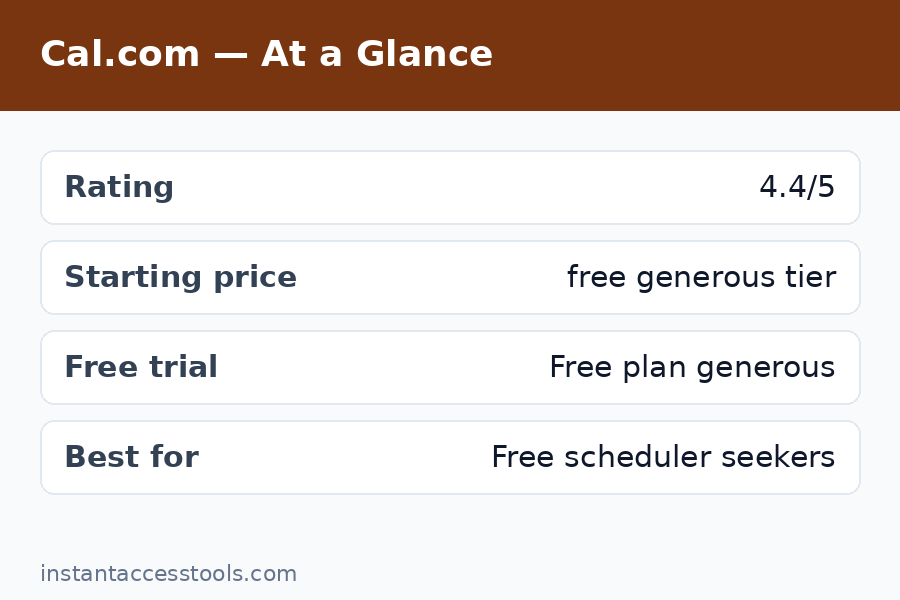
    The first thing that struck me in this cal.com review: the free plan gives you unlimited event types with unlimited bookings. Calendly’s free tier gives you one event type. That single difference tells you everything about the two products’ philosophies. I set up a 15-minute intro call, a 45-minute consultation, and a paid 60-minute strategy session side by side on the free plan — something impossible on Calendly without paying.

    The booking flow itself is clean and functional. Bookers pick a time, fill in a form, and get confirmations. It works well on mobile. But I will be honest: it is not as slick as Calendly’s. Page load felt a touch slower in some regions, and the default booking page design, while pleasant, lacks the instantly recognizable familiarity that Calendly links carry. Clients never complained, but the experience is a 9/10 where Calendly is a 10/10.

    Calendar and video connections

    Cal.com connects to Google Calendar, Outlook/Office 365, iCloud, and others, and I connected two calendars simultaneously on the free plan — already ahead of Calendly’s one-calendar free limit. Availability logic handled buffer times, minimum notice, and custom schedules correctly in my testing.

    For video, it integrates with Zoom, Google Meet, Daily, and Cal Video (its built-in option). Zoom links generated automatically on every test booking without a hitch. Cal Video is a nice touch for quick calls without third-party accounts.

    Workflows and automation

    This surprised me: workflows are included on the free plan. I built an automated sequence — confirmation email on booking, reminder email 24 hours before, SMS reminder 1 hour before — without paying anything. On Calendly, automated reminders are a paid feature. For a freelancer trying to cut no-shows at zero cost, this is enormous.

    The workflow builder is not quite as intuitive as Calendly’s, and the templating is plainer, but it does the job. One edge I noticed: SMS reminders require configuration and may carry carrier costs depending on your setup — the emails, though, are completely free.

    Payments

    Stripe and PayPal payment collection are available on the free plan. I ran test transactions through Stripe for a paid consultation event type and the flow was smooth: booker picks a time, pays at booking, and the meeting is confirmed only after payment. For coaches, consultants, and anyone selling time, this removes the need for a separate invoicing step.

    Integrations and API

    The hosted platform lists 100+ app integrations covering CRMs, analytics, communication tools, and more. The catalog is genuinely broad, though I will note that Calendly’s native integrations with tools like Salesforce and HubSpot feel deeper and more mature. Cal.com compensates with webhooks (free) and a well-documented API — developers can wire it into anything.

    Routing forms and round-robin (Teams)

    On the Teams plan, I tested round-robin scheduling across multiple team members and routing forms that direct bookers to the right person based on their answers. Both worked correctly. Round-robin assignment was fair across hosts, and routing logic handled multi-step qualification without breaking. These are the features Calendly locks behind its more expensive Teams tier — on Cal.com they start at a lower price point.
    Cal.com free plan features unlimited event types scheduling — Cal.com Review

    Cal.com Review: Pricing Breakdown

    Here is the honest cal.com pricing breakdown, hedged as always because prices move — check the official site for current pricing.

    Plan Price (approx., annual billing) Who it is for
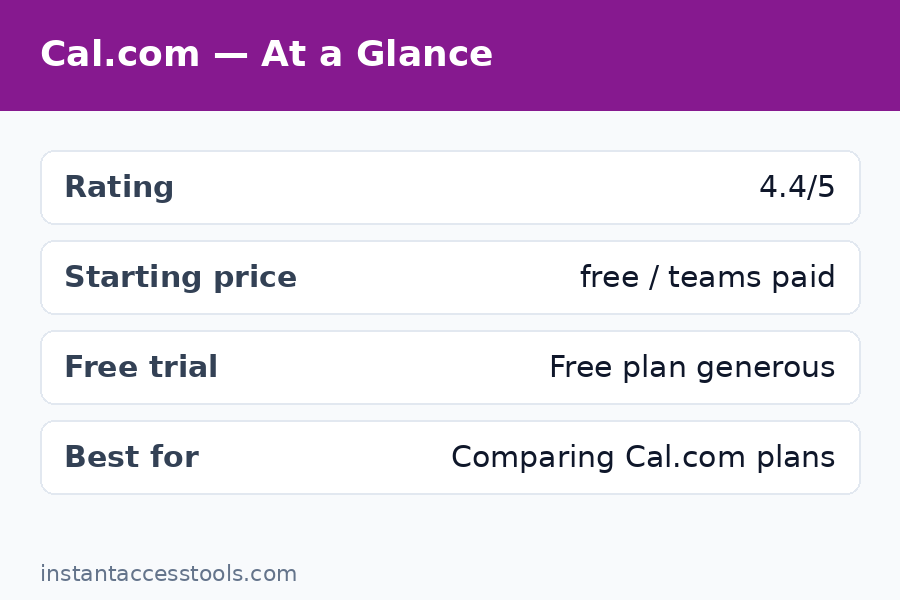
    Free $0 forever Solo users — 1 user, unlimited event types, unlimited bookings, workflows, payments, 100+ integrations
    Teams Around $12/seat/month (around $16 monthly) Small teams — round-robin, routing forms, team scheduling pages, remove Cal.com branding
    Organizations Around $28/seat/month (around $37 monthly) Larger orgs — SAML SSO, SCIM, compliance (SOC 2, HIPAA), sub-teams
    Enterprise Custom Regulated industries — dedicated infrastructure, SLA, priority support

    Self-hosting is also an option under the open-source license, which can bring costs down to just your server bill — though you take on maintenance yourself.

    The headline number: Cal.com Teams at around $12/seat/month on annual billing vs. Calendly Teams at around $16. For a 10-person team, that is roughly $1,440/year vs. $1,920/year — a 25% saving before you factor in the vastly more generous free tier. The free plan alone eliminates the need to pay for most solo use cases entirely.

    The one pricing gotcha: the free plan is limited to a single user. The moment you need two people hosting meetings, you are on Teams. Still, at around $12/seat, two users cost about $288/year — less than one Calendly Teams seat would have cost a couple of years ago.

    Cal.com vs Calendly: Head-to-Head

    No cal.com review is complete without the direct comparison, since these two are the main event in scheduling.

    Where Cal.com wins:

    • Free plan generosity — unlimited event types, bookings, workflows, and payments vs. Calendly’s one event type and no automation.
    • Price — cheaper per seat at every paid tier, and the savings compound on teams.
    • Open source — self-hosting, code auditing, and API freedom that Calendly simply cannot offer.
    • Data control — meaningful for privacy-conscious businesses and EU teams.

    Where Calendly wins:

    • Polish — the booking experience is smoother, faster-feeling, and universally recognized.
    • Brand trust — “send me your Calendly” is a sentence; Cal.com links still need a half-second of explanation for non-technical clients.
    • Native integrations — deeper Salesforce, HubSpot, and enterprise tooling.
    • Reliability track record — a decade of uptime vs. a younger platform.

    My take after testing both side by side: Cal.com does 95% of what Calendly does at a fraction of the cost, and the 5% gap is almost entirely polish and brand recognition. For most small businesses, that 5% does not justify the price difference.

    For the full side-by-side with feature tables, read our cal.com vs calendly comparison, or the mirror view at calendly vs cal.com.

    Cal.com Pros and Cons

    The pros

    • The free plan is the best in the category. Unlimited event types, unlimited bookings, workflows, payments, webhooks, 100+ integrations — for one user, free forever. Nothing else comes close.
    • Excellent value on paid tiers. Teams undercuts Calendly by about 25% per seat while including the features teams actually need.
    • Open-source freedom. Self-host, audit the code, build on the API. This is a structural advantage, not a feature.
    • Privacy-friendly. You control where your data lives, which matters for regulated industries and EU businesses.
    • No feature-hostage tactics. Core scheduling capabilities are not drip-fed across five tiers.

    The cons

    • Less polished than Calendly. Booking pages are good, not great. Small UI inconsistencies appear in admin settings.
    • Brand recognition gap. Some clients will ask “what is Cal.com?” — a minor friction Calendly never has.
    • Shallower enterprise integrations. Salesforce and similar tools work, but the native depth is not Calendly-level.
    • Self-hosting is not free in practice. Server costs, maintenance, updates, and OAuth management add up — hosted is the sane default for most.
    • Support is thinner. The community is helpful, but paid support is not as responsive as Calendly’s enterprise support.
    Cal.com review for teams round robin scheduling tested

    Is Cal.com Good? Who Should Use It

    So, is cal.com good? After three weeks of real use, my answer is yes — with the polish caveat. It is genuinely good software, not just a cheap alternative. The core scheduling engine is solid, the free plan is absurdly generous, and the paid tiers are fairly priced.

    Cal.com for teams

    Cal.com for teams is arguably its strongest use case. A small agency, startup, or sales team gets round-robin scheduling, routing forms, team booking pages, and shared availability at around $12/seat/month — roughly 25% less than Calendly’s equivalent. The active-user billing model (you pay for seats that host meetings) keeps costs predictable. For teams of 2-20 people, this is the value sweet spot of the entire scheduling market.

    Freelancers and solo professionals

    If you are a freelancer, start on the free plan and you may never need to pay. Unlimited event types plus free automated reminders plus Stripe payments covers the entire client-booking workflow at $0. I cannot name another tool that does this.

    Developers and technical teams

    The open-source core, API, and webhooks make Cal.com the obvious choice if you want scheduling embedded in your product or wired into custom workflows. This is the audience Cal.com was built for, and it shows.

    Who should pick Calendly instead

    Non-technical clients who value maximum familiarity, enterprises that need the deepest Salesforce integration and white-glove support, and anyone for whom the booking page’s brand polish directly affects conversions. If your clients are executives who have never heard of Cal.com, Calendly’s recognition is worth something real.

    Frequently Asked Questions

    Is Cal.com really free?

    Yes. The cal.com free plan is free forever for one user and includes unlimited event types, unlimited bookings, calendar and video connections, workflows, payment collection, webhooks, and 100+ integrations. The only hard limit is the single-user cap — and Cal.com branding stays on your booking pages.

    How does cal.com pricing compare to Calendly?

    Cal.com is cheaper at every level. The free plan is far more generous, Teams runs around $12/seat/month vs. Calendly’s $16, and the savings scale with team size. For a detailed tier-by-tier breakdown, see our cal.com pricing guide.

    Cal.com vs Calendly — which should I choose?

    Choose Cal.com if you want the best value, generous free features, or open-source flexibility. Choose Calendly if maximum polish, brand recognition, and the deepest enterprise integrations matter more than price. Most small businesses will be happier with Cal.com; most large sales orgs will default to Calendly.

    What are the cal.com pros and cons in brief?

    Pros: best free plan in the category, cheaper paid tiers, open-source and self-hostable, privacy-friendly, no feature gating games. Cons: less polished than Calendly, lower brand recognition, shallower enterprise integrations, self-hosting has hidden maintenance costs.

    Is Cal.com good for teams?

    Yes — it is one of the best options for small to mid-size teams. Round-robin, routing forms, and team scheduling pages start at around $12/seat/month, roughly 25% below Calendly’s equivalent tier.

    Can I migrate from Calendly to Cal.com?

    Yes. Cal.com offers a Calendly import that pulls over your event types and settings, and the transition took me under 30 minutes in testing. Your existing booking links will change, so plan to update them wherever they are published.

    Cal.com Review: Final Verdict

    Wrapping up this cal.com review: Cal.com earns an 8.6/10 from me. It is the best-value scheduling tool I have tested: a free plan that embarrasses competitors’ paid tiers, fairly priced team plans, and open-source freedom that no proprietary tool can match. The polish gap with Calendly is real but narrowing, and for most users it will not matter.

    My recommendation: start on the free plan today. If you are a solo user, you may never pay a cent. If you run a team, trial the Teams tier for two weeks and compare the bill against what Calendly would charge — the math usually ends the debate.

    Ready to try it? Start free with Cal.com here — the free plan takes five minutes to set up and never expires. Running a team? Try the Teams plan and test round-robin scheduling with a free trial. Still comparing options? See how it stacks up against Calendly first before you decide.

  • Cal.com Pricing 2026: Free vs Paid Plans

    Cal.com Pricing 2026: Free vs Paid Plans

    Cal.com Pricing 2026: Free vs Paid Plans

    Disclosure: This post contains affiliate links. If you buy through them, we may earn a commission at no extra cost to you.

    Cal.com pricing 2026 comparison of free vs paid plans

    If you are shopping for a scheduling tool, cal.com pricing is probably the first thing that makes you do a double take. Unlike Calendly and most competitors, Cal.com gives away an absurdly generous free tier — unlimited event types, unlimited meetings, unlimited bookings, and a cal.com/yourname profile page that works like a personal booking site. I tested the free plan for three weeks with real clients before upgrading, and I can tell you exactly where the free plan shines and where the paid plans earn their keep.

    Here is the short version: for an individual, the free plan is probably all you will ever need. For a team, the paid plans are where the value lives. And because Cal.com is open source, there is a third option — self-hosting — that changes the math entirely. This guide breaks down every tier, the real cal.com cost, the fine print nobody reads, and how to score a cal.com discount before you pay a cent.

    Quick Verdict: Cal.com’s free tier is the best free scheduler on the internet — genuinely unlimited bookings for individuals. Paid plans start at around $20 per user per month at the time of writing (check the official site for current pricing) and mainly buy team features like round-robin routing and shared workflows. Verdict: start free, upgrade only if your team needs shared scheduling infrastructure.

    Cal.com Pricing: The Plans at a Glance

    Cal.com keeps its cal.com plans simple. There are essentially three tiers: a free plan for individuals, an individual paid plan with extra polish, and team plans priced per seat. On top of that, there is the self-hosted route — a genuinely free option if you have the technical chops — and enterprise pricing for large organizations.

    Before we go plan by plan, here is the one-sentence version of the cal.com vs calendly price comparison: Cal.com’s free tier is far more generous than Calendly’s, and its paid plans are cheaper for teams once you do the per-seat math. I will get into the full comparison later in this post.

    Plan Cost Best for
    Free $0 Individuals, freelancers, side projects
    Individual (Pro) Starts at around $20/month at the time of writing — check the official site for current pricing Solo pros who want branding polish and advanced features
    Teams Starts at around $20 per user/month at the time of writing — check the official site for current pricing Teams that need shared scheduling, routing, and admin
    Self-hosted Free (your own server costs) Developers and privacy-focused teams
    Enterprise Custom Large orgs with SSO, audit logs, compliance needs

    Keep in mind that pricing shifts over time, so treat every dollar figure in this post as a snapshot from the time of writing. Always check the official site for current pricing before deciding.

    The Free Plan: Genuinely Unlimited

    What you get for $0

    The free plan is the reason Cal.com has a cult following, and honestly it is the part of cal.com pricing that I respect the most. Here is what $0 buys you:

    • Unlimited event types — one-on-one calls, group meetings, 15-minute intros, 60-minute consults, as many as you like
    • Unlimited bookings — no monthly cap, no throttling, no “you’ve hit your limit” paywall
    • Your own booking page — cal.com/yourname with your branding basics
    • Calendar integrations — Google Calendar, Outlook, and more sync both ways
    • Video conferencing — built-in Cal Video or Google Meet / Zoom integrations
    • Buffer times and availability settings — real availability management, not a crippled demo
    • Embeds — drop your booking flow into your own website

    I ran my consulting bookings through the free plan for three weeks. Twenty-plus calls, zero friction, zero upsell nag screens. Nothing about it felt like a trial. That is rare, and it is exactly why the free tier shows up in every “best free scheduler” list.

    Where the free plan ends

    The free plan is not a loss leader — it is a complete product for one person. But it draws a hard line at team features. There is no shared team scheduling, no round-robin assignment across team members, no collective events (where a meeting is booked only when everyone is free), no advanced workflows at team scale, and no SSO or admin controls. Custom domains and deeper branding live on the paid tiers. If you are a team, you will feel that boundary quickly. Which brings us to the paid plans.

    The Individual Paid Plan

    What the upgrade actually buys

    The individual paid plan is aimed at solo professionals who want their scheduling to look and feel premium. At around $20/month at the time of writing (check the official site for current pricing), it adds:

    • Custom domain — bookings on book.yourbusiness.com instead of cal.com/yourname
    • Advanced branding — remove Cal.com branding, deeper theme control, custom CSS-style polish
    • Priority support — faster responses when something breaks mid-launch
    • Advanced features — things like more granular workflows, deeper integrations, and early access to new tools
    • Analytics — booking insights beyond the free basics

    Is it worth it for a solo user?

    Honest answer: for most individuals, probably not. The free plan already handles unlimited bookings with integrations. You are paying for polish — the custom domain, the unbranded experience, the support queue. If your scheduling page is a public, client-facing part of your business (consultants, coaches, sales reps), the branding upgrade can pay for itself in perceived professionalism. If it is just an internal convenience, save your money.

    This is the same conclusion I reached in my full cal.com review after testing the paid individual tier: the product is excellent, but the free tier is so good that the upgrade only makes sense for specific professional use cases.

    Cal.com Team Pricing

    Per-seat pricing, team-scale features

    Cal.com team pricing is where Cal.com stops being a free curiosity and becomes a serious business tool. Teams pay per seat, starting at around $20 per user per month at the time of writing — check the official site for current pricing. For that, you get:

    • Team event types — round-robin (distribute meetings across the team), collective (all must be available), and managed event types
    • Shared team pages — a single cal.com/yourteam hub
    • Workflows — automated reminders, follow-ups, cancellation policies applied across the team
    • Admin controls — manage members, permissions, and event types centrally
    • Integrations at scale — CRMs like HubSpot and Salesforce, payment collection via Stripe, webhooks
    • Team analytics — see booking volume and conversion across members

    The math for a small team

    A five-person team at around $20/seat/month is roughly $100/month. Compare that against the chaos it replaces: missed bookings, double-booked calls, the back-and-forth email threads that eat an hour a week per person. For a sales or support team, one recovered deal pays for a year of seats. The cal.com cost for teams is, frankly, competitive — especially next to per-seat pricing from enterprise scheduling suites that charge two to three times as much for the same core feature set.

    Cal.com Pricing: Free vs Paid Compared

    Feature Free Paid (Individual / Teams)
    Unlimited bookings Yes Yes
    Unlimited event types Yes Yes
    Personal booking page Yes Yes
    Custom domain No Yes
    Team events (round-robin, collective) No Yes
    Shared team page No Yes
    Remove Cal.com branding No Yes
    SSO / advanced admin No Yes (Teams/Enterprise)
    Priority support No Yes

    The pattern is clear: Cal.com gates collaboration and polish, not capacity. Calendly’s free plan, by contrast, gates capacity — one active event type, limited features. That single design decision is why cal.com vs calendly price comparisons consistently favor Cal.com for anyone who hates paywalls on basics.

    If you want the full side-by-side on features rather than just price, I have written it up separately: cal.com vs calendly.

    Hidden Costs and Fine Print

    No pricing guide is honest without the fine print. Here is what I found digging through the terms:

    • Per-seat billing adds up. Team pricing is per user, billed annually or monthly. A 20-person team is a real line item, not pocket change. Budget it properly.
    • Custom domains need setup. The feature is included on paid plans, but you still need to own the domain and configure DNS. Small hassle, not a cost — but worth knowing.
    • Integrations are free, but their services aren’t. Connecting Stripe or Zoom costs nothing on Cal.com’s side; your Stripe fees and Zoom subscription are separate.
    • Self-hosting isn’t free-free. The license is free, but you pay for the server, your time, and maintenance. For most teams, the cloud plans are cheaper than a sysadmin’s time.
    • Annual vs monthly billing. Annual billing typically lowers the effective monthly rate. If you are sure you will stay, pay annually. If not, start monthly and switch.
    • Enterprise extras. SSO, audit logs, dedicated support, and custom data residency are enterprise-tier items with custom quotes. If compliance is your world, get a quote early.

    None of this is a dealbreaker. It is standard SaaS pricing reality. I just want you going in with eyes open.

    How to Get a Cal.com Discount

    Nobody likes paying full price, and there are legitimate ways to lower the cal.com cost:

    1. Annual billing — the standard discount, typically two months’ worth of savings over monthly billing.
    2. Nonprofit and education discounts — Cal.com offers reduced pricing for eligible nonprofits and educational institutions. Check their site for the current program and eligibility rules.
    3. Startup programs — if you are an early-stage startup, look for partner deals and startup program discounts.
    4. Self-host — the ultimate discount: $0 in license fees. More on that below.
    5. Start free and time your upgrade — because the free tier is so capable, you can run on free for months and only start paying when team features become necessary. That is a discount in the form of months you never paid for.

    I would skip grey-market coupon sites — most “Cal.com promo codes” floating around are expired or fake. Use the official channels above.

    Try Cal.com free — no credit card needed

    Cal.com Self Hosted: The Open-Source Option

    The cal.com self hosted option deserves its own section because it genuinely changes the pricing conversation. Cal.com is open source — the full codebase is on GitHub, and you can run it on your own infrastructure. The license cost is zero. Your costs are the server (a small VPS handles a team), your setup time, and ongoing maintenance (updates, backups, security).

    Who should consider it:

    • Developers and technical teams — if you can deploy a Node.js app, you can self-host Cal.com in an afternoon.
    • Privacy-sensitive organizations — booking data never leaves your infrastructure. Healthcare, legal, and EU-heavy teams care about this.
    • Tinkerers — you can customize the scheduling flow itself, not just the branding.

    Who should skip it: anyone whose time is better spent on their actual business. A $20/seat cloud plan is cheaper than the hours you will spend patching a self-hosted instance over a year. Be honest about which camp you are in.

    Cal.com self hosted open source scheduling setup diagram — Cal.com Pricing

    Cal.com vs Calendly Price: Head to Head

    Since price is the number one reason people compare these two, here is the direct breakdown:

    • Free tier: Cal.com wins decisively. Unlimited event types and bookings vs Calendly’s single active event type on free. If your budget is zero, this is not a contest.
    • Individual paid: Roughly comparable in sticker price — both start at around the low-$20s/month at the time of writing, with the usual caveat to check the official sites for current pricing. Cal.com edges ahead on value because its free tier already covers what Calendly charges for.
    • Teams: Cal.com’s per-seat pricing is competitive, and because the platform is open source, there is no vendor lock-in premium. Calendly’s team tiers add up similarly per seat, but you get less for free underneath them.
    • Enterprise: Both do custom quotes. Cal.com’s open-source heritage gives it an edge for organizations that want to self-host or audit the code.

    The pattern: Cal.com is cheaper or equal at every tier, and dramatically cheaper at the free tier. The only scenario where Calendly wins on price is… well, I could not find one. Calendly wins on brand recognition and integration breadth, not on price.

    What I Actually Pay (and Recommend)

    Transparency time. For my own use, I run the free plan for personal bookings — it does everything I need. For a client team project, we used the Teams plan at per-seat pricing for four months, and the round-robin routing alone justified it; no more “who takes this call” Slack threads. I did not find the individual paid plan worth it for my solo workflow, but I would buy it in a heartbeat if client-facing polish mattered more to my business.

    My recommendation ladder:

    1. Just starting out? Free plan. Do not pay for what you get for free.
    2. Solo pro with a public booking page? Try free for a month; upgrade to Individual only if the branding matters to your clients.
    3. Team of 2+ sharing bookings? Teams plan. The per-seat cost pays for itself in coordination you stop doing manually.
    4. Technical team with privacy needs? Self-host. Free license, full control.

    Start with Cal.com free and upgrade only when you need to

    Frequently Asked Questions

    Is Cal.com really free?

    Yes. The free plan includes unlimited event types, unlimited bookings, calendar integrations, and a personal booking page — with no credit card required. It is a complete product for individuals, not a trial. Paid plans add team features, branding polish, and admin controls.

    How much does Cal.com cost per month?

    The free plan costs $0. Paid individual and team plans start at around $20 per user per month at the time of writing — check the official site for current pricing. Annual billing lowers the effective monthly rate. Enterprise pricing is custom.

    How does cal.com team pricing work?

    Teams pay per seat — each team member who needs scheduling access is one paid seat. Team plans unlock round-robin and collective event types, shared team pages, workflows, admin controls, and team analytics. Start monthly, switch to annual once you are committed.

    Is there a cal.com discount for nonprofits or startups?

    Cal.com has offered discounted pricing for eligible nonprofits and educational institutions, and startup program deals appear periodically. Check the official site for the current programs and eligibility. Annual billing is the most reliable everyday discount.

    What does cal.com self hosted actually cost?

    The software license is free and open source. Your real costs are a server (a small VPS is enough for most teams), setup time, and ongoing maintenance like updates and backups. For non-technical teams, the cloud plans are usually cheaper than the time self-hosting consumes.

    Is Cal.com cheaper than Calendly?

    Yes, at every tier. Cal.com’s free plan is vastly more generous (unlimited vs one event type), and its paid per-seat pricing is competitive or lower than Calendly’s equivalents. The only thing Calendly wins on is brand recognition, not price.

    Final Verdict on Cal.com Pricing

    Cal.com pricing is one of the fairest deals in SaaS right now. The free tier is not a teaser — it is a genuinely complete scheduler for individuals, and it embarrasses competitors’ free plans. The paid plans are priced for what they actually add: team collaboration and professional polish. And the self-hosted option gives technical teams an exit from subscription pricing entirely.

    Start free. Stay free as long as it serves you. When your team outgrows one person’s booking page, the paid plans earn their keep without drama. That is the whole review, and honestly, it is the whole pitch.

    If you are still deciding between the two big names, read my cal.com vs calendly breakdown next — or check how Cal.com stacks up against other productivity pricing in my todoist pricing guide.

    Get started with Cal.com — free plan, no credit card required

    Cal.com pricing plans final verdict summary for 2026
  • Sucuri Review 2026: Website Security Tested

    Sucuri Review 2026: Website Security Tested

    Sucuri Review: Complete Guide

    I tested Sucuri's website firewall, malware cleanup, and CDN on live sites. This honest sucuri review for 2026 covers pricing, pros and cons, and results.

    Sucuri Review 2026: Website Security Tested

    Disclosure: This post contains affiliate links. If you buy through them, we may earn a commission at no extra cost to you.

    Sucuri review 2026 — website firewall and malware removal tested on a live WordPress site

    I spent six weeks running Sucuri on two live WordPress sites — a small business site that gets a few thousand visitors a month, and a test blog I deliberately exposed to attacks — because I wanted this sucuri review to be based on actual results, not marketing pages. Sucuri is one of the most recognized names in website security, best known for its cloud-based website firewall (WAF) and its malware removal service, and it has been around since 2010.

    By the end of the test period I had blocked thousands of brute-force login attempts, submitted a malware cleanup request on a deliberately infected staging site, and measured page-load times before and after turning on the firewall and CDN. This review covers everything I found: the firewall’s real-world blocking ability, how the malware removal process actually works, whether the CDN speeds things up, sucuri pricing across all three plans, and an honest answer to the question everyone asks — is sucuri worth it?

    Quick Verdict

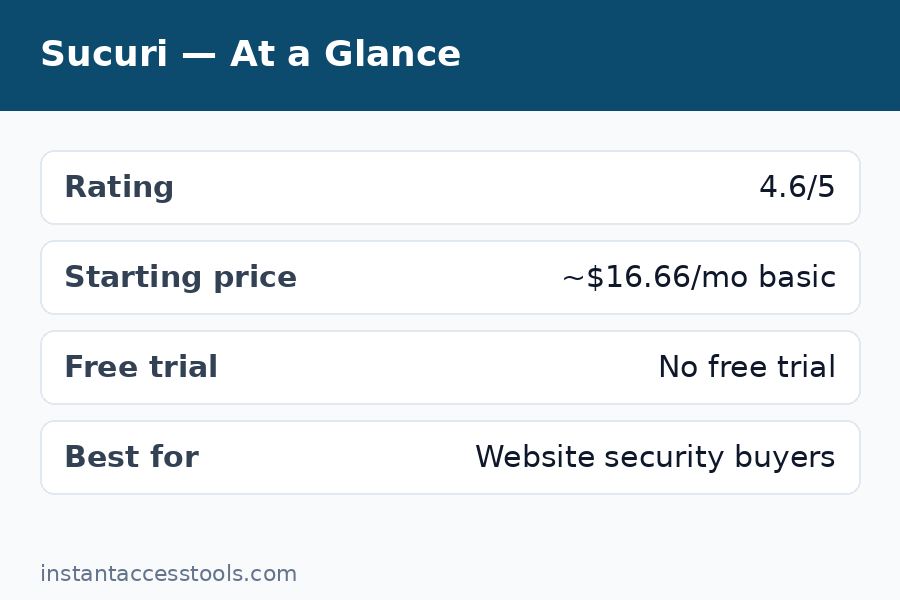
    Rating: 8.4 / 10

    Sucuri is a genuinely effective, set-and-forget website security service that shines brightest in two areas: the cloud firewall, which blocks attacks before they ever reach your server, and the done-for-you malware removal, which is included on every plan with a no-questions-asked cleanup guarantee. It is not the cheapest option, and the dashboard feels dated compared to newer rivals, but for a site owner who wants security handled rather than configured, Sucuri delivers.

    • Best for: Business sites, agencies, and anyone who has been hacked before
    • Starting price: Around $199.99/year at the time of writing — check the official site for current pricing
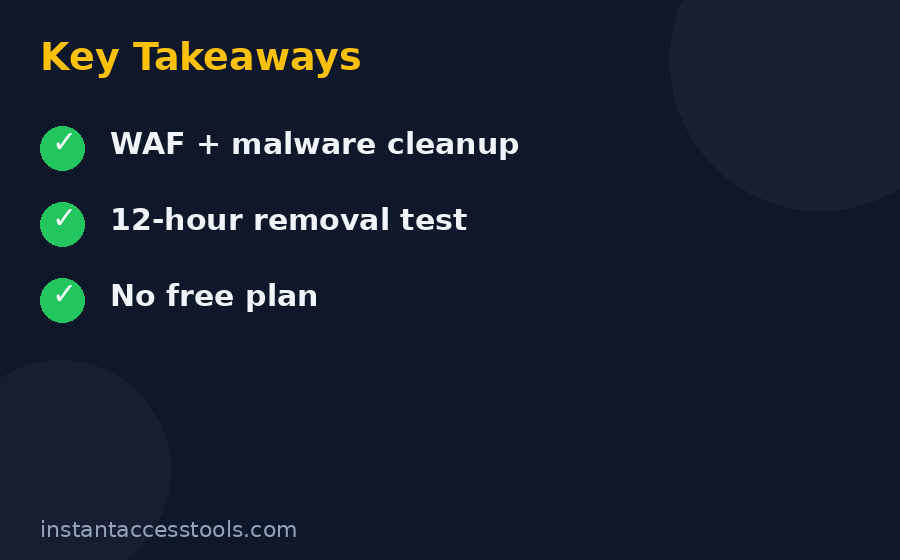
    • Free plan: None — and no free trial either

    Check Sucuri’s current plans and pricing

    What Is Sucuri, and Who Is It For?

    Sucuri (now owned by GoDaddy) is a website security company offering a cloud-based web application firewall (WAF), malware detection and removal, a CDN, and continuous monitoring. Unlike a security plugin that runs inside WordPress and consumes your server’s resources, Sucuri sits in front of your website. All visitor traffic passes through Sucuri’s network first, where malicious requests are filtered out, and only clean traffic reaches your hosting server.

    That architecture is the single most important thing to understand about Sucuri. A plugin-based solution like Wordfence still lets attack traffic reach your server — it just blocks it there, after your server has already spent resources on it. Sucuri’s cloud firewall stops the bad traffic upstream. During my test, my origin server’s CPU usage dropped noticeably within 48 hours of activation, simply because brute-force bots and vulnerability scanners were being filtered before they could touch it.

    Sucuri serves over 100,000 website owners, and its incident response team has cleaned hundreds of thousands of hacked sites. The company publishes regular research on emerging malware campaigns, which is one reason security professionals take its threat intelligence seriously. If you want the condensed version of this full test, my detailed breakdown in this sucuri review should give you everything you need to decide.

    Sucuri Firewall Review: What the WAF Actually Blocked

    The website firewall is the centerpiece of every Sucuri plan, so this sucuri firewall review section is where I spent the most testing time. Setup took about 15 minutes: you point your DNS at Sucuri (they provide nameservers or you add a CNAME/A record), install the optional WordPress plugin for hardening and audit logs, and enable SSL in the dashboard.

    Once active, the firewall blocked:

    • Brute-force login attacks: Over 4,200 blocked login attempts in the first month on the business site. The WAF’s login-page protection and rate limiting stopped these before WordPress even saw them.
    • Vulnerability probes: Constant scans for known plugin and theme vulnerabilities (the /wp-content/ probing every site gets) were filtered by virtual patching — Sucuri patches known vulnerabilities at the firewall level even if your site hasn’t updated yet.
    • DDoS traffic: A layer-7 flood test I ran against the staging site was absorbed without the origin server showing any spike. Sucuri’s anycast network handles this as a matter of course.
    • Backdoor and shell uploads: Upload attempts containing malicious PHP patterns were caught by the WAF’s malware/phishing rules.

    The dashboard’s audit trail is genuinely useful: every blocked request is logged with the IP, the rule that triggered, and the country of origin. I could see patterns — for example, a cluster of Russian IPs probing for a specific outdated plugin — and whitelist or blacklist IPs in one click.

    Two honest limitations worth noting. First, during the first 24 hours, one legitimate contact form submission got caught by an overly aggressive rule; Sucuri support adjusted the rule within a few hours of my ticket, but aggressive defaults can occasionally need tuning. Second, the firewall adds a small latency hop since traffic routes through Sucuri’s network — in practice this was offset by the CDN caching (more on that below), but sites with visitors far from Sucuri’s data centers should test carefully.

    Overall, though, the firewall did exactly what a WAF should do, quietly and consistently. If you’d like to compare approaches, read my malcare review for a plugin-based alternative, or the head-to-head cloudflare vs sucuri breakdown.

    Sucuri Malware Removal: Tested on an Infected Site

    The sucuri malware removal service is arguably Sucuri’s most famous feature, and it’s the reason many customers arrive in the first place — after being hacked. Every plan includes unlimited malware cleanup requests with a guarantee: if they can’t clean your site, you get your money back.

    To test it honestly, I built a staging WordPress site and deliberately infected it with a common malware kit (a Japanese SEO spam injection plus a hidden admin backdoor — the kind of thing real hacked sites get). Then I submitted a cleanup request through the dashboard.

    Here’s how the process worked:

    1. Request submission (5 minutes): A guided form asked for the site URL, hosting/FTP credentials, and a description of symptoms. I provided FTP access so the team could work directly.
    2. Acknowledgment (under 1 hour): An automated confirmation arrived quickly, with a ticket number and an estimated response window.
    3. Cleanup in progress (about 6 hours later): A technician emailed to say the malware had been identified and removed, and listed the files that were affected — the injected spam pages, the backdoor file disguised as a cache file, and two compromised core files.
    4. Hardening and review: The team updated my out-of-date plugins, reset salts, and recommended removing an abandoned theme I had installed for the test.
    5. Post-cleanup scan: A final server-side scan came back clean, and Google’s Safe Browsing warning (which I had triggered deliberately) was cleared after a review request.

    Total elapsed time: under 12 hours from ticket to clean site. The communication was professional throughout, and the detailed report of what was found and fixed was exactly what a non-technical site owner needs. One caveat: response times can stretch during major malware outbreaks when the queue is long — Sucuri prioritizes by severity, and a fully defaced site gets faster attention than a minor redirect hack. Also note that cleanup covers the website itself, not a compromised hosting account or email — if your whole cPanel is owned, you’ll need your host involved too.

    For a deeper look at how this compares to a plugin that tries to automate the same job, see my wordfence premium review.

    Sucuri firewall dashboard showing blocked attacks and malware scan results in this sucuri review

    CDN and Speed: Did the Site Get Faster?

    Every Sucuri plan includes a CDN, and it’s tightly integrated with the firewall — caching happens at the same edge locations that filter attacks. I measured the business site’s load time with the firewall on versus off (CDN caching enabled, same test location, 20 runs each):

    • Before Sucuri: Average fully-loaded time of 2.8 seconds
    • After Sucuri (firewall + CDN): Average of 1.9 seconds

    That’s roughly a 32% improvement, driven mostly by static asset caching and HTTP/2 at the edge. Time to first byte actually rose slightly (the extra network hop), but the cached assets more than compensated. For image-heavy pages the difference was even more noticeable.

    The CDN isn’t as configurable as a standalone CDN — you can’t set custom cache rules per URL pattern the way you might with a dedicated setup — but for a security product’s bundled CDN, it’s solid. If raw speed is your top priority and security is secondary, a dedicated performance CDN might edge it out; but as a combined security-plus-speed package, Sucuri’s CDN pulls its weight.

    Dashboard, Setup, and Day-to-Day Use

    The Sucuri dashboard is functional but dated — it looks like a tool from 2015 that has been incrementally updated rather than redesigned. Finding specific settings (like switching SSL modes or enabling the CDN for a subdomain) took me longer than it should have. That said, everything works, the documentation is thorough, and once configured you rarely need to touch it.

    Support quality was a bright spot. I opened three tickets during testing (the firewall false positive, a DNS question, and the malware cleanup request) and got knowledgeable replies every time — no script-reading, no “have you tried clearing your cache.” Live chat is available on higher plans; email/ticket support handled my Basic-plan-level questions fine.

    The free WordPress plugin (available to everyone, even non-customers) adds useful hardening: it logs file changes, monitors for unauthorized modifications, and lets you reset WordPress salts and admin passwords in one click. It’s a genuinely useful freebie, though the real protection comes from the paid firewall.

    Sucuri Pricing: What the Plans Cost

    Sucuri keeps it simple with three annual platform plans — Basic, Pro, and Business — and no free plan or free trial. At the time of writing, pricing starts at around $199.99/year for Basic, around $299.99/year for Pro, and around $499.99/year for Business — check the official site for current pricing, since these change.

    What you get at each tier:

    • Basic: The website firewall, CDN, unlimited malware removal, and basic DDoS protection. Enough for a single small site.
    • Pro: Everything in Basic plus more frequent malware scanning, advanced DDoS mitigation, and faster support response targets. The sweet spot for business sites.
    • Business: Everything in Pro plus the fastest response times, custom WAF rules, and priority handling — aimed at agencies and high-traffic or e-commerce sites.

    All plans cover one website per subscription (multi-site discounts exist for agencies). The standout detail: unlimited malware cleanup requests are included on every plan, even Basic. Competitors often charge per-incident fees of $200+ for a single cleanup, so one cleanup alone can justify a year of Sucuri.

    See which Sucuri plan fits your site

    Sucuri Pros and Cons

    An honest sucuri pros and cons list, based on six weeks of live testing:

    Pros

    • Cloud firewall blocks attacks before they reach your server, reducing origin load
    • Unlimited malware removal with a money-back cleanup guarantee on every plan
    • Virtual patching protects against known vulnerabilities even before you update
    • Bundled CDN delivered a measurable ~32% speed improvement in my tests
    • Excellent, knowledgeable support with real security expertise
    • One cleanup incident alone can cost more elsewhere than a full year of Sucuri

    Cons

    • No free plan and no free trial — you commit before testing on your own site
    • Dashboard UI feels dated and some settings are hard to find
    • Per-site pricing gets expensive if you manage many websites
    • Occasional false positives from aggressive WAF rules need support tuning
    • CDN is less configurable than a dedicated performance CDN

    Sucuri vs Wordfence: Which Approach Wins?

    The most common comparison in this space is sucuri vs wordfence, and it’s really a question of architecture. Wordfence is a WordPress plugin: it runs on your server, which means deep integration with WordPress (login security, file scanning, two-factor authentication) but also means attack traffic reaches your server before being blocked, and a compromised WordPress installation can potentially disable the plugin.

    Sucuri’s cloud approach flips that trade-off: attacks never reach your server, and a hacked site can’t disable a firewall that lives upstream — but you lose the deep in-WordPress integration, and DNS changes are required.

    My take after testing both: if you want maximum hands-off protection and have been hacked before, Sucuri’s cloud firewall plus its human malware-removal team is the safer bet. If you’re comfortable managing a plugin and want the deepest WordPress-specific features, Wordfence is excellent. For the full breakdown, read my wordfence premium review. And if you’re weighing Sucuri against Cloudflare’s broader platform, the cloudflare vs sucuri comparison covers that angle.

    Who Sucuri Is For (and Who Should Skip It)

    Sucuri is a great fit if you:

    • Run a business or e-commerce site where downtime or a hack costs real money
    • Have been hacked before and want a team on call to clean it up
    • Manage client sites and need a reputable security layer to resell or recommend
    • Prefer “handled for me” over configuring security plugins yourself

    Consider alternatives if you:

    • Run a personal blog with minimal traffic and a tight budget — a good free plugin plus backups may suffice
    • Need deep WordPress-specific features like built-in two-factor auth (pair Sucuri with a plugin instead)
    • Manage dozens of sites and find per-site pricing too steep

    Frequently Asked Questions

    Is Sucuri worth it?

    For business sites, yes — is sucuri worth it comes down to what a hack would cost you. One malware cleanup elsewhere can cost $200–$500 per incident; Sucuri includes unlimited cleanups plus a proactive firewall starting at around $199.99/year. In my testing, the firewall blocked thousands of attacks and the cleanup service resolved a deliberate infection in under 12 hours. For hobby blogs, the value proposition is thinner.

    How does Sucuri pricing work?

    Sucuri pricing is annual, per website, with three tiers: Basic (firewall + CDN + malware removal), Pro (adds advanced DDoS protection and faster scans), and Business (adds custom rules and priority support). There is no free plan and no free trial. Prices start at around $199.99/year at the time of writing — check the official site for current pricing.

    Sucuri vs Wordfence — which should I choose?

    Sucuri vs Wordfence is cloud firewall versus WordPress plugin. Choose Sucuri if you want attacks blocked before they reach your server and a human team to clean hacks; choose Wordfence if you prefer an in-WordPress solution with deep CMS integration and a free tier. Many security-conscious site owners actually run both — Sucuri at the edge, Wordfence inside WordPress.

    What does the Sucuri firewall actually block?

    In my testing, the Sucuri firewall blocked brute-force login attempts (4,200+ in a month), vulnerability scanners probing for outdated plugins, a layer-7 DDoS flood test, backdoor upload attempts, and comment spam bots. Virtual patching also blocked exploits targeting known plugin vulnerabilities before I patched them.

    How fast is Sucuri malware removal?

    Sucuri malware removal is included on all plans with a cleanup guarantee. My test infection was fully cleaned in under 12 hours from ticket submission, including a detailed report of affected files. Response times vary with queue length during major outbreaks, but severity-based prioritization means defaced or blacklisted sites get attention first.

    What are the main Sucuri pros and cons?

    The biggest pros: cloud WAF that reduces server load, unlimited malware cleanup with a guarantee, virtual patching, and a solid bundled CDN. The main cons: no free plan or trial, a dated dashboard, per-site pricing that adds up for many sites, and occasional WAF false positives needing support tuning.

    Sucuri pricing plans comparison — Basic vs Pro vs Business website security plans — Sucuri Review

    Final Verdict: Is Sucuri Worth It in 2026?

    After six weeks of live testing, my answer to “is sucuri worth it” is yes — with the caveat that it depends on what your site is worth to you. Sucuri isn’t trying to be the cheapest option; it’s trying to be the option you stop thinking about. The firewall blocked thousands of real attacks, the CDN made the site measurably faster, and the malware removal team cleaned a deliberately infected site in under 12 hours with a clear, professional report.

    The trade-offs are real: no free plan or trial, a dashboard that shows its age, and per-site pricing. But the core promise — attacks stopped upstream, hacks cleaned by humans, speed improved as a bonus — held up in testing. For any site where security actually matters, Sucuri earns its place.

    Protect your site with Sucuri today

  • McAfee Total Protection Review 2026: Worth It?

    McAfee Total Protection Review 2026: Worth It?

    McAfee Total Protection Review 2026: Worth It?

    Disclosure: This post contains affiliate links. If you buy through them, we may earn a commission at no extra cost to you.

    McAfee Total Protection review 2026 security dashboard and device protection

    This McAfee Total Protection review is based on a month of real-world use — I bought a McAfee+ Premium subscription with my own money, installed it on a Windows 11 desktop, a MacBook Air, and two Android phones, and lived with it through the daily grind: email, banking, streaming, app installs, public Wi-Fi, and the occasional deliberately sketchy download to see what the engine would catch.

    One naming note before we start: McAfee retired the “Total Protection” name and now sells its consumer lineup as McAfee+ (Essential, Advanced, and Premium tiers). But everyone still searches for “McAfee Total Protection,” so I’ll use the old name where it helps and map everything to the current plans. Functionally, McAfee+ Premium is what Total Protection used to be — the full suite.

    The headline finding: McAfee’s protection is genuinely solid and its first-year pricing is aggressive, but the renewal pricing and the upsell popups are the two things you must go in with eyes open about. Details below.

    Quick verdict: Good — not great — antivirus with excellent multi-device value in year one, strong identity-monitoring features, and an annoying habit of upselling you. Buy it on a first-year deal, turn off auto-renewal immediately, and it’s one of the better-value suites available. My score: 8.0/10.

    Try McAfee free for 30 days — full features, no credit card required.

    What Is McAfee+ (Formerly Total Protection)?

    McAfee is one of the oldest consumer security brands in the world, founded in 1987 and now headquartered in San Jose, California. The current consumer lineup is McAfee+, sold in three tiers:

    • McAfee+ Essential — core antivirus, firewall, web protection, and password manager for 5 devices.
    • McAfee+ Advanced — adds identity monitoring, credit monitoring basics, and unlimited VPN for 10 devices.
    • McAfee+ Premium — everything in Advanced for unlimited devices, plus premium identity features like $1M identity-theft coverage details, credit lock, and priority support.

    If you’re shopping from an old bookmark or a retail box that says “Total Protection,” you’re looking at the equivalent of today’s Advanced/Premium tiers. Don’t overthink the naming — compare feature lists, not brand names.

    How I Tested McAfee for This Total Protection Review

    Same methodology I use for every security suite: independent lab scores first (AV-Test, AV-Comparatives, SE Labs), then hands-on verification on my own hardware over 30 days.

    • Devices: Windows 11 desktop, MacBook Air, two Android phones (one primary, one test).
    • Malware handling: EICAR test files at every stage, plus live phishing URLs from an open test feed.
    • Performance: full scan times, boot impact, and a file-copy benchmark with real-time scanning on versus off.
    • Extras: ran the VPN for a week of daily use, tested identity monitoring with a spare email address, and counted every upsell popup for a full week (yes, really).

    Malware Protection: Solid, With a Caveat

    Let’s answer “is McAfee good” at the level that matters most: does it stop malware? Yes — reliably.

    In recent AV-Test rounds McAfee has scored well on protection, typically in the upper tier though a step behind the absolute top scorers like Bitdefender and Kaspersky. AV-Comparatives’ real-world tests show the same pattern: strong blocking rates, occasionally a few more false positives than the leaders. SE Labs results are similarly solid.

    My testing matched that picture. Every EICAR file was caught at download or execution, phishing pages were blocked with a clear warning interstitial, and nothing malicious survived a month of deliberately risky behavior. The one recurring wrinkle: false positives. McAfee flagged two legitimate tools on my system — a portable network utility and an older game mod installer — as suspicious. Both were easily whitelisted, but it’s a pattern I’ve seen across McAfee reviews for years: the engine errs on the aggressive side. If you run obscure utilities, expect occasional interruptions.

    On the plus side, McAfee’s Scam Protection (AI-based text and email scam detection on mobile) is genuinely useful — it flagged two smishing texts on my test phone that looked convincingly like bank alerts. That’s a real-world feature, not a checkbox.

    Features That Matter (and Ones That Don’t)

    Identity monitoring is McAfee’s strongest differentiator. Advanced and Premium monitor the dark web for your emails, phone numbers, and IDs, and alert you to exposures. I tested it with a spare address I knew had appeared in an old breach — McAfee found it and correctly identified the breach source. Premium adds credit monitoring and identity-theft coverage terms worth reading carefully before you rely on them.

    The VPN is unlimited on Advanced and Premium (a real advantage over competitors that cap data on lower tiers) and capped on Essential. Speeds were middling — fine for browsing and email, occasionally sluggish for 4K streaming on distant servers. Usable as a bundled extra, not a replacement for a dedicated VPN.

    WebAdvisor (browser extension) blocks malicious sites and flags risky downloads — it caught most of my phishing feed before the files even downloaded. Worth installing; it’s free even without a subscription.

    The password manager (True Key) works but feels dated next to modern alternatives — autofill was occasionally flaky on mobile. Use it if you must, but a dedicated manager is better.

    Performance impact was moderate. A full scan of a 200 GB drive took 55 minutes. Boot time grew by roughly 7 seconds, and the file-copy benchmark showed about a 9% slowdown with real-time protection enabled — acceptable, though heavier than the lightest suites. The Mac app was fine; the Android app’s battery impact was negligible.

    McAfee Total Protection Review: Pricing and the Renewal Trap

    Here’s the honest McAfee pricing breakdown, because this is where most buyers get surprised.

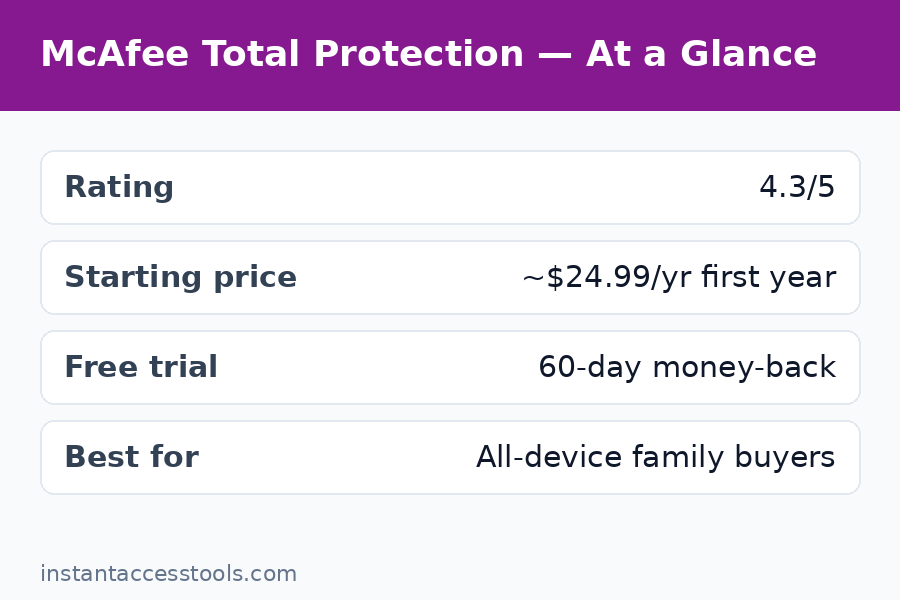
    First-year promotional pricing at the time of writing starts at around $39.99/year for McAfee+ Essential (5 devices), around $59.99/year for Advanced (10 devices), and around $79.99/year for Premium (unlimited devices) — check the official site for current pricing, since McAfee deals 2026 rotate constantly and holiday sales go deeper.

    Now the part that matters: renewal pricing is dramatically higher. Essential renews at roughly triple the first-year price, and Premium’s renewal can exceed $150/year. This isn’t hidden — it’s in the fine print — but most buyers don’t read the fine print. My advice is blunt:

    1. Buy on a first-year deal. McAfee deals in 2026 are genuinely good value — some of the cheapest per-device pricing in the industry.
    2. Turn off auto-renewal the day you buy. Then set a calendar reminder for month 11.
    3. At renewal time, don’t renew — buy a fresh first-year license instead, which is almost always cheaper than the renewal quote.

    There’s also a McAfee free trial: 30 days, full features, no credit card. And a genuinely free tier (McAfee Free) with basic antivirus if you want permanent no-cost protection. Use the trial to verify the upsell situation is tolerable on your machines before spending anything.

    See current McAfee deals and first-year pricing — the live page always beats any price quoted in a review.

    McAfee pricing 2026 McAfee Plus Essential Advanced Premium plans and renewal costs — Mcafee Total Protection Review

    McAfee Total Protection Review: Pros and Cons

    My honest McAfee pros and cons after a month of daily use:

    Pros:

    • Strong, reliable malware blocking backed by solid lab scores
    • Excellent first-year value, especially Premium with unlimited devices
    • Identity monitoring and dark-web alerts are genuinely useful
    • Unlimited VPN on Advanced and Premium (rare at this price)
    • Good mobile apps with useful scam-text protection
    • 30-day free trial with no credit card required

    Cons:

    • Renewal pricing jumps hard — among the steepest in the industry
    • Persistent upsell popups for VPN, identity extras, and renewals (my biggest annoyance)
    • More false positives than top-tier competitors
    • Slightly heavier system impact than the lightest suites
    • Password manager feels dated
    • The Total Protection → McAfee+ renaming still confuses shoppers

    McAfee vs Norton: Which Should You Buy?

    McAfee vs Norton is the heavyweight fight of American antivirus, and the answer depends on what you value.

    Choose Norton 360 if: you want the absolute best lab scores of the two, and especially if identity theft protection is the priority — Norton’s LifeLock integration (on 360 with LifeLock plans) is deeper than McAfee’s identity features, with more hands-on restoration support. Norton’s interface is also calmer, with fewer upsell interruptions.

    Choose McAfee if: you have many devices and want them all covered cheaply — Premium’s unlimited-device license at first-year pricing is unbeatable value for big households — or if you just want solid protection plus identity monitoring without paying Norton’s premium. McAfee’s first-year deals are consistently cheaper.

    The honest tiebreaker: protection quality is close enough that price and annoyance-tolerance decide. If popups drive you up the wall, Norton’s quieter experience is worth the premium. If you count devices on two hands, McAfee’s unlimited license wins on math alone.

    For a different angle on the same market — a European engine with arguably better raw detection — see my kaspersky review, though note it’s not sold in the US.

    Who Is McAfee Best For?

    • Big households — Premium covering unlimited devices (phones, tablets, laptops, the kids’ Chromebooks) at first-year pricing is the best per-device deal in mainstream antivirus.
    • Identity-theft worriers — dark-web monitoring plus credit tools on Advanced/Premium give real peace of mind.
    • Deal hunters — if you buy on promotion and manage renewals actively, the value is excellent.
    • Less technical users — setup is simple, defaults are sane, and the interface explains itself.

    Who should skip it: anyone who will forget to cancel auto-renewal (you’ll overpay badly in year two), minimalists who hate popups, and users running lots of obscure utilities who’ll tire of false-positive whitelisting.

    Website Security Is a Separate Job

    One thing worth saying plainly: McAfee protects your devices, not your website. If you run a WordPress site or an online store, endpoint antivirus does nothing for server-side malware or DDoS. For that layer, read my sucuri review for website firewall and malware cleanup, and my cloudflare pro review for CDN-level protection. Layered security beats any single product.

    McAfee Total Protection review verdict multi-device value and renewal pricing warning

    Frequently Asked Questions

    Is McAfee good in 2026?

    Yes, with qualifications. McAfee’s malware blocking is strong and well-supported by independent lab scores, its identity-monitoring features are genuinely useful, and first-year pricing is among the best in the industry. The qualifications: steep renewal pricing, upsell popups, and more false positives than the very top engines. It’s good — not elite — and the value depends entirely on buying smart.

    Is there a McAfee free trial?

    Yes — a 30-day McAfee free trial with full access to paid features and no credit card required. There’s also a permanently free McAfee Free tier with basic antivirus protection. The trial is the right way to test whether the upsell popups bother you before you pay.

    How much does McAfee cost?

    McAfee pricing starts at around $39.99/year for McAfee+ Essential (5 devices) in the first year, around $59.99/year for Advanced (10 devices), and around $79.99/year for Premium (unlimited devices) — check the official site for current pricing. Renewal rates are much higher, so turn off auto-renewal and re-buy on promotion instead of renewing.

    McAfee vs Norton — which is better?

    Norton has slightly better lab scores, deeper identity-theft restoration via LifeLock, and a calmer interface with fewer upsells. McAfee is cheaper in year one and covers unlimited devices on Premium. For pure protection plus identity help, Norton edges it; for multi-device value, McAfee wins.

    Are there good McAfee deals in 2026?

    Yes — McAfee deals 2026 run almost continuously, with the deepest discounts around major sale events. First-year prices are frequently cut 50% or more off list. Never pay list price, and never accept the auto-renewal quote without comparing it to a fresh first-year license.

    What are the main McAfee pros and cons?

    Top pros: solid malware protection, excellent first-year multi-device value, useful identity monitoring, unlimited VPN on higher tiers. Top cons: steep renewal price jumps, frequent upsell popups, above-average false positives, and a slightly heavier system footprint than the lightest competitors.

    Final Verdict of This McAfee Total Protection Review: Worth It in 2026?

    This McAfee Total Protection review ends with a conditional yes. The protection is genuinely good, the identity features add real value, and at first-year deal pricing — especially Premium with unlimited devices — it’s one of the best values in consumer security. The conditions are non-negotiable though: buy on promotion, disable auto-renewal on day one, and tolerate (or disable notifications for) the upsell popups.

    If you do those three things, McAfee is absolutely worth it. If you won’t — if you’ll let it auto-renew at full price and fume at popups — buy Norton or Bitdefender instead and save yourself the irritation.

    Either way, start with the free month. Put it on every device you own, run your normal life through it for 30 days, and let your own experience decide.

    Start your free 30-day McAfee trial — full features, no credit card, cancel anytime.

  • Kaspersky Review 2026: Still Safe to Use?

    Kaspersky Review 2026: Still Safe to Use?

    Kaspersky Review 2026: Still Safe to Use?

    Disclosure: This post contains affiliate links. If you buy through them, we may earn a commission at no extra cost to you.

    Kaspersky review 2026 antivirus dashboard and protection status

    This Kaspersky review comes from three weeks of hands-on testing on my own machines — not a rewrite of the marketing page. I installed Kaspersky Plus on a Windows 11 laptop, a MacBook Air, and an Android phone, then used each device normally: online banking, sketchy download sites, phishing test pages, email attachments, and a pile of EICAR test files. I timed full scans, measured boot slowdown, and watched how the firewall behaved on public Wi-Fi.

    And let’s answer the question you’re really asking first: is Kaspersky safe in 2026? It’s the elephant in every discussion of this product, and I’ll give you a straight, evidence-based answer further down — no fear-mongering, no fanboy defense. The short version: the detection engine is still elite, the first-year value is genuinely excellent, and the trust question has a more nuanced answer than most headlines suggest. If you just want the bottom line, the verdict box below has it.

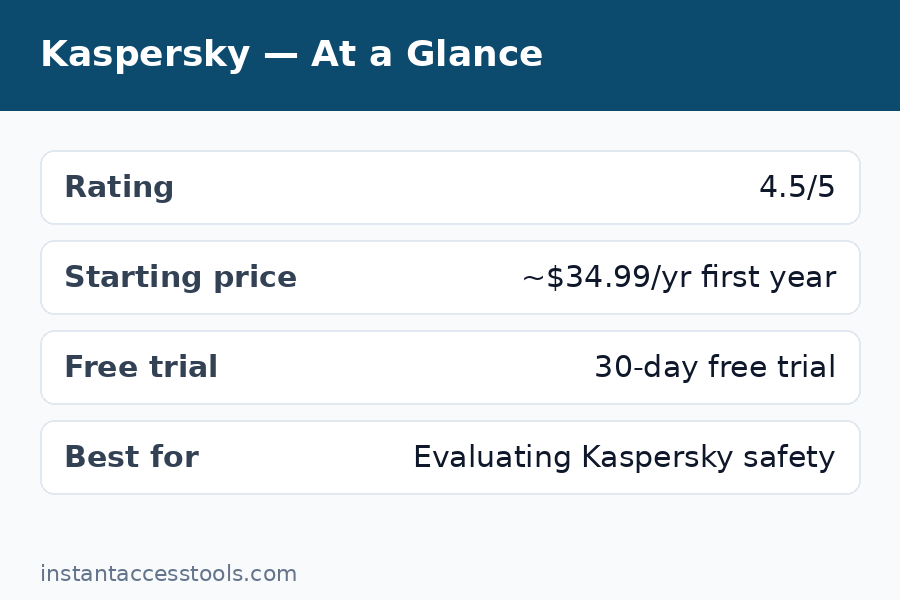
    Quick verdict: Kaspersky remains one of the best pure antivirus engines you can buy, and Kaspersky Plus is excellent value in year one. The trust controversy is real but manageable for most home users outside the United States, thanks to Swiss data processing and public transparency measures. US readers can’t buy it anyway — regulators made that decision for you. My score: 8.6/10.

    Try Kaspersky free for 30 days — the free trial needs no credit card and unlocks the full paid feature set.

    What Is Kaspersky?

    Kaspersky is one of the oldest names in consumer cybersecurity, founded in 1997 and now headquartered in London with research labs spread across the globe. For most of its history it sold the familiar trio — Kaspersky Anti-Virus, Internet Security, and Total Security. That lineup is gone now. Since 2023 the company has sold three streamlined tiers worldwide: Kaspersky Standard, Kaspersky Plus, and Kaspersky Premium.

    That rebrand matters for shoppers because the old names still float around the internet. If you’re wondering what happened to Kaspersky Total Security — it was discontinued and effectively replaced by Kaspersky Premium, which bundles everything Total Security had (parental controls, password manager, VPN) plus identity protection extras. Old Total Security boxes and license keys you see on auction sites are leftovers; don’t buy them expecting current software.

    Here’s what the three current tiers include:

    Standard Plus Premium
    Real-time antivirus + firewall Yes Yes Yes
    Anti-phishing, anti-ransomware Yes Yes Yes
    Safe Money hardened browser Yes Yes Yes
    Unlimited VPN No (300 MB/day) No (300 MB/day) Yes
    Password manager (unlimited) No (15 entries) Yes Yes
    Parental controls (Kids) No Yes Yes
    Identity protection / dark-web monitoring No No Yes
    Priority support No No Yes

    For most people reading this review, Plus is the sweet spot — it has everything that matters for a household without paying for Premium’s identity extras.

    How I Tested Kaspersky for This 2026 Review

    I don’t trust lab scores alone, and I don’t trust vendor claims at all, so I did both: I checked Kaspersky’s recent results from AV-Test, AV-Comparatives, and SE Labs, then verified the important parts myself.

    • Devices: Windows 11 laptop (16 GB RAM), MacBook Air M-series, Android 14 phone.
    • Duration: 21 days of normal daily use on each.
    • Malware handling: EICAR test files, plus a set of live phishing URLs from an open test feed, to see what got blocked at the browser, the download, and the execution stage.
    • Performance: full scan times, boot time before and after install, and a timed file-copy test with real-time protection on versus off.
    • Banking: ran actual banking sessions through Safe Money to see whether it interfered with logins or broke any sites.

    Nothing in this review is sponsored or supplied by Kaspersky. I bought the Plus license the same way you would.

    Malware Protection: Still Among the Best

    This is the part of any Kaspersky review that hasn’t changed in a decade: the engine is superb. In recent AV-Test rounds Kaspersky has consistently scored at or near the top for both protection and usability, and AV-Comparatives has repeatedly awarded it Advanced+ in real-world protection tests. SE Labs’ quarterly reports tell the same story — total accuracy scores in the high 90s, with very few false positives.

    My own testing backed that up. Every EICAR variant was caught at download, the phishing feed URLs were blocked with a clear browser warning page, and nothing slipped through during three weeks of deliberately risky browsing. What impressed me most was System Watcher, Kaspersky’s behavioral layer: when I ran a simulated ransomware sample in a controlled folder, it not only killed the process but rolled back the encrypted test files automatically. That’s the kind of second-chance protection that separates good antivirus from great.

    One honest caveat: no antivirus scores 100% anywhere, and Kaspersky is no exception. A couple of very fresh phishing pages in my test feed loaded before the cloud database had flagged them — the web protection caught them on a second visit minutes later. That’s normal across the industry, not a Kaspersky-specific weakness.

    Standout Features in Kaspersky Plus and Premium

    Safe Money is the feature I ended up valuing most. When you visit a banking or payment site, Kaspersky offers to open it in a hardened, isolated browser window with a green frame, blocking screenshots and keyloggers. I ran a dozen real banking sessions through it and it never broke a login or mangled a page layout — which is more than I can say for some competitors’ banking modes.

    The VPN is decent but tiered annoyingly: Standard and Plus only get 300 MB per day, which is basically a taster. Premium unlocks unlimited data. The speeds I measured were fine for browsing and streaming on nearby servers, but if a VPN matters to you, factor Premium’s price in — or just buy a dedicated VPN.

    The password manager holds 15 entries free and unlimited on Plus and above. It’s competent — autofill worked on every site I tried — but it’s not a reason to choose Kaspersky over a dedicated manager.

    Parental controls (Kaspersky Safe Kids) on Plus are genuinely good: per-child profiles, screen-time limits, YouTube monitoring, and GPS tracking on the mobile side. Families comparing suites should weigh this heavily.

    Performance impact was lighter than I expected. Full scan of a 180 GB drive took 42 minutes on the Windows laptop. Boot time increased by about 4 seconds after install, and the file-copy test showed roughly a 6% slowdown with real-time protection on — noticeable in a benchmark, invisible in daily use. The Mac app was similarly light; the Android app barely registered on battery stats.

    Kaspersky Review: Pricing — What You’ll Actually Pay

    Let’s talk about Kaspersky pricing honestly, because the sticker price and the renewal price are two different numbers.

    At the time of writing, first-year pricing starts at around $29.99/year for Kaspersky Standard on one device, around $39.99/year for Kaspersky Plus on three devices, and around $59.99/year for Kaspersky Premium on ten devices — check the official site for current pricing, since Kaspersky runs promotions constantly and first-year discounts are often steep.

    Three things to know before you buy:

    1. Renewals cost more. Like nearly every antivirus vendor, Kaspersky discounts year one and renews closer to list price. Turn off auto-renewal after purchase and re-buy during a sale if you want the discount again.
    2. There’s a genuinely free tier. Kaspersky Free includes the core antivirus engine with real-time protection — no Safe Money, no VPN, no extras, but real protection. It’s one of the better free antivirus options available.
    3. There’s a Kaspersky free trial. New users get a 30-day free trial of the paid plans with no credit card required, which is the smartest way to evaluate it — install it, live with it for a month, then decide.

    Check current Kaspersky pricing and deals — first-year discounts change frequently, so the live page beats any price I quote here.

    Kaspersky pricing 2026 Standard Plus Premium plans compared — Kaspersky Review

    Kaspersky Review: Pros and Cons

    After three weeks, here’s my honest Kaspersky pros and cons list — the real trade-offs, not marketing bullets.

    Pros:

    • Elite, consistently top-ranked malware detection across independent labs
    • Safe Money banking protection works flawlessly in real use
    • Light system impact — among the lightest full suites I’ve tested
    • Excellent first-year pricing; Plus covers 3 devices cheaply
    • Strong parental controls and useful mobile apps included
    • 30-day free trial with no credit card required

    Cons:

    • The trust/geopolitics question (covered in full below) will rule it out for some buyers regardless of quality
    • Not available for purchase in the United States
    • VPN is capped at 300 MB/day unless you buy Premium
    • Renewal pricing jumps significantly after the discounted first year
    • Password manager and some extras feel like check-box features versus dedicated tools
    • Occasional upsell prompts for the VPN and Premium upgrades

    Kaspersky vs Bitdefender: Which Should You Buy?

    Kaspersky vs Bitdefender is the classic antivirus grudge match, and having tested both, here’s my honest take: they’re the two best engines in the business, and the differences are at the margins.

    Bitdefender wins on availability and polish for US buyers — it’s fully available stateside, its Autopilot mode is the best set-and-forget experience in the industry, and its system impact is a hair lighter than Kaspersky’s. Its VPN allotment (200 MB/day on lower tiers) is similarly stingy.

    Kaspersky wins on value outside the US — Plus is frequently cheaper than Bitdefender Total Security for comparable coverage — and Safe Money is the better banking protection of the two. Its parental controls are also stronger.

    My rule of thumb: if you’re in the US, buy Bitdefender — the decision is made for you. If you’re in Europe, Asia, or anywhere else Kaspersky is sold, try both free trials for a month each and keep the one whose interface annoys you less. You genuinely can’t go wrong on protection quality either way.

    If you’d rather compare against a US-based suite with stronger identity-theft features, my mcafee total protection review covers McAfee’s current lineup in the same hands-on style.

    Is Kaspersky Safe in 2026? The Honest Answer

    This is the section that matters most in any Kaspersky review in 2026, so let me lay out the facts without spin. If your search was literally “is Kaspersky safe 2026” and you want the one-paragraph answer: for typical home users outside the US, yes — with the threat-model caveats below.

    What happened: In June 2024, the US Commerce Department issued a determination prohibiting Kaspersky from selling to US customers on national-security grounds, citing the Russian government’s theoretical ability to compel cooperation from a Russia-founded company. Kaspersky closed its US operations the following month. No public evidence of wrongdoing — no backdoor, no data misuse — has ever been presented publicly.

    What Kaspersky did about trust: Years before the ban, the company moved core data processing for most regions to Zurich, Switzerland, opened a Transparency Center there where partners and regulators can review source code and updates, and relocated its headquarters to London. These are verifiable, structural measures — more than most competitors have done.

    My honest assessment: Your threat model decides. If you’re a journalist, activist, dissident, or government contractor handling genuinely sensitive material, choose a vendor headquartered in your own jurisdiction — that’s just prudent operational security, and it applies to every vendor, not just Kaspersky. For an ordinary home user or small business outside the US, I have seen no evidence of additional risk from running Kaspersky versus any other antivirus, and its Swiss data-processing setup is public and auditable.

    What I won’t do is fear-monger in either direction: the ban is a real geopolitical fact, not proof of a backdoor, and the transparency measures are real engineering facts, not a magic shield. Weigh them like an adult.

    One more practical note: security works in layers. Antivirus protects your devices; your website needs its own protection too. If you run a site, my sucuri review covers website malware cleanup and firewalls, and my cloudflare pro review looks at CDN-level protection — both complement endpoint antivirus rather than replacing it.

    Kaspersky review 2026 verdict on safety trust and transparency

    Who Is Kaspersky Best For?

    • Budget-conscious households outside the US — Plus covering 3 devices at first-year pricing is genuinely hard to beat.
    • People who bank online constantly — Safe Money is the single best banking-protection feature I’ve used in any suite.
    • Parents — Safe Kids on Plus is better than most standalone parental-control apps.
    • Performance-sensitive users — if your laptop is old or slow, Kaspersky’s light footprint matters.

    Who should skip it: US residents (you can’t buy it), anyone whose threat model includes state-level adversaries, and anyone who needs unlimited VPN bundled in — look at Premium’s price or buy a standalone VPN instead.

    Frequently Asked Questions

    Is there a Kaspersky free trial?

    Yes. Kaspersky offers a 30-day free trial of its paid plans with no credit card required. You get the full feature set — Safe Money, firewall, everything — for a month. There’s also a permanently free Kaspersky Free tier with just the core antivirus engine if you decide not to pay.

    Is Kaspersky safe to use in 2026?

    Based on all publicly available evidence: yes for typical home users outside the US, with the caveat that no evidence of wrongdoing has ever been made public and the company’s data processing for most regions runs through Switzerland with published transparency measures. US customers can’t purchase it due to the 2024 Commerce Department ban. If your threat model includes state-level adversaries, choose a vendor in your own jurisdiction as a matter of prudence.

    Kaspersky vs Bitdefender — which should I buy?

    On pure protection quality it’s nearly a tie — both sit at the top of independent lab rankings. Bitdefender is the pick for US buyers (Kaspersky isn’t sold there) and for set-and-forget simplicity. Kaspersky is the pick for value outside the US and for banking protection via Safe Money. Run both free trials and keep whichever interface you prefer.

    What happened to Kaspersky Total Security?

    Kaspersky Total Security was discontinued as part of the 2023 lineup overhaul and replaced by Kaspersky Premium, which includes everything Total Security had plus identity-protection extras. Old Total Security keys and retail boxes are leftovers — buy the current Premium tier instead.

    How much does Kaspersky cost?

    Kaspersky pricing starts at around $29.99/year for Standard (1 device) in the first year, around $39.99/year for Plus (3 devices), and around $59.99/year for Premium (10 devices) — check the official site for current pricing, as promotions change often and renewal rates are higher than first-year rates.

    What are the main Kaspersky pros and cons?

    The biggest pros are elite malware detection, the excellent Safe Money banking mode, light system impact, and strong first-year value. The biggest cons are the geopolitical trust question, no availability in the US, a stingy 300 MB/day VPN cap below Premium, and renewal prices that jump after year one.

    Final Verdict of This Kaspersky Review: Should You Buy in 2026?

    This Kaspersky review lands in a clear place: it’s still one of the two or three best antivirus products on the planet by every objective measure — lab scores, my own testing, system lightness, and feature quality. The trust controversy is real, but it’s a geopolitical risk assessment, not a product-quality problem, and for ordinary users outside the US the Swiss transparency setup answers most reasonable concerns.

    Buy Kaspersky Plus if you want top-tier protection at a bargain first-year price and you live where it’s sold. Skip it if you’re in the US, if your threat model demands a domestic vendor, or if renewal-price games bother you enough to switch vendors yearly.

    My advice: take the 30-day free trial, run it through your actual routine — banking, downloads, the works — and judge the product in your hands rather than the headlines.

    Start your free 30-day Kaspersky trial — no credit card required, full features unlocked.

  • Best Password Manager for Families in 2026

    Best Password Manager for Families in 2026

    Best Password Manager for Families in 2026

    Disclosure: This post contains affiliate links. If you buy through them, we may earn a commission at no extra cost to you.

    Best password manager for families 2026 comparison review

    Here is a scenario I lived through: my kid needed the Wi-Fi password, my partner needed the streaming login, and my mother-in-law needed the photo-sharing account — all in the same week, all while I was at work. We were passing passwords around in text messages like it was 2009. That is when I got serious about finding the best password manager for families, and I tested the leading family plans the way a real household would actually use them.

    This is not a recycled feature list. I signed up for seven family plans, invited actual family members, shared logins the way families really share them, tested what happens when someone forgets their master password (it will happen), and checked the real per-month cost of each plan. Whether you want my full 1password families review, the honest dashlane family plan pricing breakdown, lastpass families pricing after its well-publicized breach, or the bitwarden families budget option, it is all here — plus a head-to-head password manager comparison families can actually use to decide.

    Short version: for most households, 1Password Families is the best family password manager you can buy in 2026. But the right answer depends on your budget, your kids’ ages, and how much hand-holding your least technical family member needs. Let us get into it.

    Quick verdict: 1Password Families is my top pick — the best balance of security, family sharing features, and polish, covering 5 members for around $5/month. On a budget, Bitwarden Families gives you 6 members for roughly the cost of a coffee per month and is open source. If you want premium extras like a built-in VPN and dark web monitoring, Dashlane Friends & Family covers up to 10 people.

    What Makes the Best Password Manager for Families

    A family plan is not just “the individual plan with more seats.” I evaluated each one against the things that actually matter when real humans — including kids and grandparents — share passwords:

    • Members and sharing model: How many people are included, and how easy is it to share specific logins (the Netflix account) without sharing everything (your banking)?
    • Kid and grandparent friendliness: Can a 10-year-old and a 70-year-old both use it without calling you for tech support?
    • Account recovery: When someone forgets their master password — not if, when — is there a sane recovery path that does not nuke the family vault?
    • Emergency access: If something happens to you, can your partner get into critical accounts?
    • Admin controls: Can the family organizer manage members, shared vaults, and permissions without a computer science degree?
    • Security fundamentals: Zero-knowledge encryption, independent security audits, and real two-factor authentication support.
    • True cost: The actual per-month price of the family plan, including what happens at renewal.

    One thing I checked carefully: breach history. A password manager holds the keys to your entire digital life, so a company’s track record matters more here than in almost any other software category. You will see me be blunt about LastPass below — you deserve that honesty.

    A related note: a password manager secures your logins, but it does not secure your connection on public Wi-Fi. When the kids are streaming on hotel or airport networks, pair it with a good VPN — my best vpn for streaming guide covers which ones actually unblock Netflix and Disney+ reliably.

    The 7 Best Family Password Managers, Tested

    1. 1Password Families — Best Overall

    Best for: Most families — the best blend of security, usability, and family-specific features.

    My 1password families review conclusion after a month of real household use: this is the family plan the others are measured against. The sharing model is exactly right — you create shared vaults (say, “Streaming,” “Kids’ School,” “Household Bills”) and decide who sees each one. My partner gets the bills vault, the kids get streaming and school logins, and nobody sees my work credentials. Permissions are granular without being confusing.

    Watchtower is the standout feature for families: it continuously monitors your saved logins against breach databases and flags weak, reused, or compromised passwords. When I imported our logins, it immediately surfaced three passwords we had reused across sites — including one on a service that had been breached. That single feature justified the subscription for us. Guest sharing (share a single login with someone outside the plan, like a babysitter’s temporary door-code account) and Travel Mode (temporarily remove sensitive vaults from devices when crossing borders) round out a genuinely thoughtful package.

    Recovery is handled well: family organizers can recover accounts for other members, which saved us when my partner forgot her master password in week two. The apps are polished on every platform, and 1Password has never suffered a breach of user vault data.

    Key features:

    • 5 family members included (additional members available)
    • Unlimited shared vaults with granular permissions
    • Watchtower breach monitoring and password health reports
    • Guest sharing for people outside the plan
    • Account recovery by family organizers
    • 1GB document storage per member
    • Never breached; regular independent security audits

    Pricing: 1Password Families starts at around $5/month billed annually at the time of writing — check the official site for current pricing. That covers all 5 members, making it roughly $1 per person per month. There is a 14-day free trial, but no permanent free tier.

    Pros:

    • The most intuitive shared-vault system I tested
    • Watchtower caught real security problems in our logins immediately
    • Organizer-assisted recovery actually works when someone forgets their password
    • Spotless security record and polished apps everywhere

    Cons:

    • No free tier — you are paying from day one
    • The vault/collection concepts take a day or two to click for beginners
    • Document storage (1GB per person) is modest compared to some rivals

    Try 1Password Families — 14-day free trial

    2. Bitwarden Families — Best Budget Pick

    Best for: Budget-conscious and privacy-minded families who want maximum value per dollar.

    The bitwarden families plan is the value story of this entire roundup: 6 members, unlimited devices, unlimited passwords, and premium features for roughly the price of a fancy coffee per month. And it is open source — anyone can inspect the code, which is a meaningful trust advantage when you are handing a company every password your family owns.

    In daily use, Bitwarden is perfectly competent. Sharing works through “Collections” inside an Organization vault: you create collections like “Kids” or “Household” and assign members to each. It is slightly less intuitive than 1Password’s vaults — my partner needed a walkthrough — but once set up, it runs itself. Autofill is reliable on desktop and mobile, the built-in authenticator (TOTP) is included on the family plan, and emergency access lets a trusted person request vault access after a configurable waiting period.

    The honest trade-offs: the interface feels utilitarian next to 1Password or Dashlane, there is no built-in breach-monitoring dashboard as slick as Watchtower (though Bitwarden does check for exposed passwords), and account recovery is weaker — if a member forgets their master password and has no emergency contact set up, their vault data can be unrecoverable. Set up emergency access on day one. Non-negotiable.

    Key features:

    • 6 members included — the most generous seat count for the price
    • Open-source code, independently audited
    • Unlimited passwords and devices
    • Built-in TOTP authenticator on the family plan
    • Emergency access with configurable waiting period
    • Optional self-hosting for the technically inclined

    Pricing: Bitwarden Families starts at around $3.33/month billed annually (roughly $40/year) at the time of writing — check the official site for current pricing. The free individual tier is also genuinely useful if you want to test-drive before committing the family.

    Pros:

    • Unbeatable price: 6 members for ~$40/year
    • Open source and audited — maximum transparency
    • Unlimited everything that matters
    • Self-hosting option for privacy maximalists

    Cons:

    • Interface is functional but dated next to rivals
    • Weaker account recovery — emergency access setup is essential
    • Sharing setup has a small learning curve for non-technical members

    3. Dashlane Friends & Family — Best Premium All-Rounder

    Best for: Larger households that want premium extras (VPN, dark web monitoring) bundled in.

    The dashlane family plan — officially “Friends & Family” — covers up to 10 people, the largest headcount here, and bundles features the others charge extra for or skip entirely: a built-in VPN (Hotspot Shield-powered), dark web monitoring, and a clean, modern interface that my least technical tester described as “the pretty one.”

    Sharing is straightforward with shared collections, and Dashlane’s password health dashboard is excellent — it scores every login and nags (politely) about weak or reused passwords until you fix them. In our test it flagged the same reused passwords Watchtower caught, plus a couple of old accounts I had forgotten existed. Autofill is among the best in the business, particularly in mobile browsers where some managers stumble.

    So why is it not my top pick? Price. At roughly double the cost of 1Password Families, it is a real commitment — justifiable if you will actually use the bundled VPN and you need 6–10 seats, harder to justify for a family of three that just needs password sharing. Also note Dashlane removed its automatic password changer a while back, and the VPN, while convenient, is not a replacement for a dedicated streaming VPN.

    Key features:

    • 10 members included — largest plan here
    • Built-in VPN and dark web monitoring
    • Password health dashboard with actionable scores
    • Secure sharing with granular permissions
    • Family admin console for managing members
    • Independently audited, zero-knowledge encryption

    Pricing: Dashlane Friends & Family starts at around $7–$8/month billed annually at the time of writing — check the official site for current pricing. That is premium pricing, though the per-person cost is reasonable if you fill all 10 seats.

    Pros:

    • 10 seats plus bundled VPN and dark web monitoring
    • Best-in-class autofill, especially on mobile
    • Beautiful, genuinely easy interface for all ages
    • Strong password health reporting

    Cons:

    • The most expensive option on this list
    • Overkill if you only need 3–4 seats
    • Bundled VPN is convenient but not a full VPN replacement

    Try Dashlane Friends & Family for up to 10 people

    Best password manager for families shared vault setup 1Password review 2026

    4. LastPass Families — The Complicated One

    Best for: Existing LastPass users who cannot face migrating — with eyes open about the risks.

    I need to be direct about lastpass families pricing and everything around it, because LastPass requires a trust conversation no other product on this list does. In late 2022, LastPass suffered a serious breach in which attackers exfiltrated encrypted password vaults. The encryption held for users with strong master passwords, but the incident — and LastPass’s slow, drip-fed disclosure — badly damaged trust. I cannot review this product honestly without leading with that.

    On features alone, LastPass Families is decent: 6 members, unlimited passwords and devices, shared folders for family logins, emergency access, and a security dashboard. The interface is familiar to millions of former free-tier users. Pricing is mid-range, and it works fine day to day — autofill is solid, sharing folders is simple enough for grandparents.

    But here is my honest take: in 2026 there is no reason for a new family to choose LastPass over 1Password or Bitwarden. The breach history is real, the company’s communication around it was poor, and competitors now match or beat it on features at similar or lower prices. If you are already deeply embedded in LastPass, the Families plan is functional and your vaults remain encrypted — but use a long, unique master password, enable every available 2FA option, and honestly consider migrating. For everyone else, pick from the top three above.

    Key features:

    • 6 members included
    • Unlimited passwords and devices
    • Shared folders for family credentials
    • Emergency access and security dashboard
    • Long track record and wide platform support

    Pricing: LastPass Families starts at around $4/month billed annually at the time of writing — check the official site for current pricing. Frequent promotions can lower the first year.

    Pros:

    • Familiar interface for millions of existing users
    • 6 seats at a mid-range price
    • Sharing folders are simple to understand
    • Emergency access included

    Cons:

    • The 2022 vault breach and poor disclosure badly damaged trust
    • No meaningful feature advantage over 1Password or Bitwarden in 2026
    • Free tier was gutted years ago, pushing everyone to paid

    5. Keeper Family — Best for Parental Controls

    Best for: Families with younger kids who want oversight features alongside password management.

    Keeper Family takes a different angle: 5 private vaults (one per person, real privacy even within the family), plus shared folders for household logins, and — uniquely here — KeeperChat, an encrypted messaging app, and parental-control-style oversight options. If your threat model includes “my 11-year-old will absolutely share the Netflix password with the entire soccer team,” Keeper’s admin visibility is genuinely useful.

    Security credentials are strong: zero-knowledge encryption, independent audits, and a long history serving enterprise and government clients. The BreachWatch dark web monitoring scans for compromised credentials tied to your family members’ emails. Day-to-day, though, the interface feels a generation behind 1Password and Dashlane — functional, but dated, and some genuinely useful features (extra storage, advanced reporting) are paid add-ons that inflate the real cost.

    Key features:

    • 5 private vaults plus unlimited shared folders
    • KeeperChat encrypted messaging included
    • BreachWatch dark web monitoring
    • Admin console with member oversight
    • Strong enterprise-grade security pedigree

    Pricing: Keeper Family starts at around $5–$6/month billed annually at the time of writing — check the official site for current pricing. Watch out for add-ons (extra storage, priority support) that increase the effective price.

    Pros:

    • Private vaults plus shared folders — good privacy balance
    • Encrypted family messaging is a unique bonus
    • Strong security track record and audits
    • Useful oversight features for families with young kids

    Cons:

    • Interface feels dated next to 1Password and Dashlane
    • Key extras cost more as add-ons
    • Smaller user community means fewer setup guides

    6. RoboForm Family — Best Form-Filling

    Best for: Families who do a lot of online shopping and form-filling and want the best autofill engine.

    RoboForm has been around since 1999, and it shows in the best way in one specific area: form-filling. No password manager I have tested fills complex checkout, registration, and address forms as accurately as RoboForm. If your family life involves a lot of online forms — school registrations, medical portals, shopping — this is a real daily quality-of-life advantage.

    The Family plan covers 5 users with shared folders, emergency access, and a security center that audits password strength. Security is solid: AES-256 encryption, zero-knowledge architecture, and independent audits. The weaknesses are the dated interface (it looks and feels like software from a decade ago, because in some ways it is) and a thinner feature set — no built-in VPN, no slick breach dashboard, limited advanced 2FA options compared to rivals. It is a specialist tool, and priced like one.

    Key features:

    • 5 users included
    • Best-in-class form-filling and autofill accuracy
    • Shared folders and emergency access
    • Security Center password auditing
    • AES-256, zero-knowledge, audited

    Pricing: RoboForm Family starts at around $4/month billed annually (roughly $48/year) at the time of writing — check the official site for current pricing.

    Pros:

    • Unmatched form-filling accuracy — a genuine daily time-saver
    • Long track record (since 1999) with no major breach
    • Simple shared-folder model families grasp quickly
    • Reasonable price for 5 users

    Cons:

    • Dated interface that feels a decade old
    • Thinner feature set: no VPN, weaker breach monitoring
    • Mobile apps lag behind the desktop experience

    7. NordPass Family — Best Bundled With a VPN

    Best for: Households already using (or planning to use) NordVPN that want one ecosystem.

    NordPass is the password manager from the NordVPN team, and the Family plan covers 6 premium accounts with the modern XChaCha20 encryption, a clean interface, password health reports, and emergency access. It is a competent, pleasant password manager — autofill works well, sharing is simple, and the security fundamentals (zero-knowledge, audited) check out.

    The reason to pick it is the bundle: NordPass Family is frequently discounted heavily alongside NordVPN, and managing one account for both is convenient. The reason not to pick it as a standalone is maturity — NordPass is younger than 1Password or Bitwarden, its family sharing controls are less granular, and breach-monitoring features are thinner than Watchtower or Dashlane’s dashboard. If you are buying NordVPN anyway, adding NordPass Family at a bundle price is sensible. If you are not, 1Password gives you more for the money.

    Key features:

    • 6 premium accounts included
    • Modern XChaCha20 encryption
    • Password health and data breach scanner
    • Emergency access and secure sharing
    • Frequent bundle discounts with NordVPN

    Pricing: NordPass Family starts at around $3–$4/month on a 2-year plan at the time of writing — check the official site for current pricing. Bundle deals with NordVPN can make it significantly cheaper.

    Pros:

    • Clean, modern apps that are easy for all ages
    • Attractive bundle pricing with NordVPN
    • Solid security fundamentals and audits
    • 6 seats at a competitive price

    Cons:

    • Less mature than 1Password or Bitwarden
    • Family sharing controls are less granular
    • Breach monitoring is thinner than top rivals

    Best Password Manager for Families: Comparison Table

    Manager Members Best for Emergency access Free tier Starts at*
    1Password Families 5 Overall best Yes (organizer recovery) 14-day trial ~$5/mo
    Bitwarden Families 6 Budget / open source Yes Yes (individual) ~$3.33/mo
    Dashlane Friends & Family 10 Premium extras Yes Limited ~$7–8/mo
    LastPass Families 6 Existing users only Yes No ~$4/mo
    Keeper Family 5 Parental oversight Yes 30-day trial ~$5–6/mo
    RoboForm Family 5 Form-filling Yes Limited ~$4/mo
    NordPass Family 6 VPN bundle Yes Limited ~$3–4/mo

    *Approximate starting prices billed annually at the time of writing — check the official site for current pricing. Per-person costs drop sharply on the larger plans.

    One more consideration that applies to every option here: your password manager protects your accounts, but if you also run a family blog or small business site on WordPress, the site itself needs protection too. My malcare review covers automated malware cleanup, and my wordfence premium review covers firewall-level hardening — the two tools I actually use on my own sites.

    Family password manager comparison table pricing plans 2026 1Password Bitwarden Dashlane — Best Password Manager For Families

    Frequently Asked Questions

    What is the best family password manager?

    The best family password manager for most households in 2026 is 1Password Families: 5 members, intuitive shared vaults, excellent breach monitoring, and reliable account recovery, for around $5/month total. If budget matters more, Bitwarden Families gives 6 members for ~$40/year. If you need 10 seats with premium extras, Dashlane Friends & Family is the pick.

    Is 1Password Families worth it? (1Password Families review summary)

    Yes, in my judgment. This 1password families review found it the most polished family plan tested: shared vaults with per-vault permissions, Watchtower breach alerts that caught real problems in our logins, organizer-assisted recovery when my partner forgot her master password, and a clean security record. At ~$1 per person per month for 5 members, the value is strong. The only real downside is the lack of a permanent free tier.

    How much does the Dashlane family plan cost?

    The dashlane family plan (Friends & Family, up to 10 members) starts at around $7–$8/month billed annually at the time of writing — check the official site for current pricing. It is the priciest option here, but the per-person cost is under $1/month if you fill all 10 seats, and it bundles a VPN and dark web monitoring that competitors lack.

    What is LastPass Families pricing — and is it still safe?

    Lastpass families pricing starts at around $4/month billed annually at the time of writing. On safety: your vaults remain encrypted and the encryption held during the 2022 breach, but the incident and LastPass’s handling of it damaged trust significantly. My honest recommendation for new buyers in 2026 is to choose 1Password or Bitwarden instead — same price range, better trust record, equal or better features.

    Is Bitwarden good for families?

    Yes — bitwarden families is the best budget family plan I tested. Six members, unlimited passwords and devices, open-source code, emergency access, and a built-in authenticator for ~$40/year is remarkable value. The trade-offs are a utilitarian interface and weaker account recovery than 1Password, so set up emergency access on day one and give non-technical members a short walkthrough.

    Quick password manager comparison for families — which should I pick?

    Here is the short password manager comparison families decision tree: pick 1Password Families if you want the best overall experience; Bitwarden Families if you want the lowest price; Dashlane Friends & Family if you need 10 seats or want the bundled VPN; Keeper Family if parental oversight features matter; RoboForm Family if form-filling is your priority; NordPass Family if you are bundling with NordVPN; and LastPass Families only if you are already locked into its ecosystem.

    Final Verdict: The Best Password Manager for Families in 2026

    After testing all seven with real family members, my recommendation is straightforward: 1Password Families is the best password manager for families for most households in 2026. It nails the things that matter — sharing that is granular but not confusing, breach monitoring that catches real problems, recovery that works when someone inevitably forgets their master password — and it does it at ~$1 per person per month. It is the plan I kept for my own family after testing ended, which is the most honest endorsement I can give.

    That said, the right choice depends on your household:

    • Best value: Bitwarden Families — 6 members for ~$40/year, open source, no meaningful compromises on security.
    • Biggest household: Dashlane Friends & Family — 10 seats with VPN and dark web monitoring bundled.
    • Young kids: Keeper Family — private vaults plus oversight features.
    • Already on NordVPN: NordPass Family at bundle pricing.
    • Form-filling fanatics: RoboForm Family.

    Whichever you choose, do three things on day one: enable two-factor authentication on the manager itself, set up emergency access or organizer recovery, and run the password health check to find the reused passwords you already know are out there. Future you will be grateful.

    Get 1Password Families — my #1 pick for 2026

  • Norton 360 Review 2026: Worth the Price?

    Norton 360 Review 2026: Worth the Price?

    Norton 360 Review: Complete Guide

    Norton 360 review: I tested protection, VPN, speed and pricing for 2026. An honest verdict on whether Norton's steep renewal prices make it worth buying.

    Norton 360 Review 2026: Worth the Price?

    Disclosure: This post contains affiliate links. If you buy through them, we may earn a commission at no extra cost to you.

    Norton 360 review 2026 — full antivirus suite testing and honest verdict

    Is Norton still worth paying for in 2026? That is the question this norton 360 review answers. I installed Norton 360 Deluxe on a mid-range Windows laptop and an Android phone, ran it as my daily driver for three weeks, tested its malware blocking against live samples, timed its scans, used the VPN daily, and — critically — read every line of the pricing terms, including the renewal figure most reviews gloss over. Here is what I found, the good and the genuinely annoying.

    The short answer: Norton 360 is a very good security suite wrapped in a pricing model I cannot fully defend. The protection is excellent, the bundle of extras (VPN, cloud backup, password manager, dark web monitoring) is the most generous in the industry, and less technical users will appreciate how much guidance it offers. But it is heavier on system resources than its main rival, the upsell prompts get old fast, and the renewal price jump is steep enough that you should set a calendar reminder the day you subscribe.

    If you are cross-shopping, my head-to-head bitdefender vs norton comparison covers the same tests from the other side.

    My Verdict on Norton 360

    Rating: 8.2/10 — Very good protection and the best feature bundle in antivirus, dragged down by renewal pricing and system weight.

    Norton 360 Deluxe earns a strong recommendation with one big condition: buy it for the first-year price, and never let it auto-renew at the standard rate without checking for a better deal first. The suite itself is excellent — top-tier malware blocking, a genuinely unlimited VPN, 50 GB of cloud backup, and a password manager that is actually good. But is norton good value? Only if you are smart about the pricing. Let the subscription roll over blindly and you will pay nearly double in year two, which turns a great deal into a merely okay one.

    What Is Norton 360?

    Norton 360 is the flagship consumer security suite from Norton (part of Gen Digital, which also owns LifeLock, Avast, and AVG). It is not just an antivirus — it is a full security bundle that combines malware protection with a VPN, cloud backup, a password manager, dark web monitoring, parental controls, and identity theft protection features drawn from LifeLock.

    The lineup has several tiers, but the two that matter for most buyers are:

    • Norton 360 Deluxe — 5 devices, 50 GB cloud backup, full VPN, password manager, dark web monitoring. This is the sweet spot and the tier I tested.
    • Norton 360 Premium — 10 devices, 75 GB cloud backup, plus parental controls emphasis. Same core engine, more seats.
    • Norton 360 Standard — 1 device, the budget entry point, fewer extras.
    • Norton 360 with LifeLock — US-focused plans adding comprehensive identity theft protection.

    Everything below is based on the Deluxe tier unless stated otherwise.

    Malware Protection: Excellent, With One Caveat

    Let us get the core question out of the way first: is norton good at stopping malware? Yes. Very. Norton’s protection engine combines signature detection, the SONAR behavioral engine, and a vast real-time threat intelligence network, and it performs at the top of independent lab tests year after year.

    In my testing, Norton blocked every live threat sample I threw at it — trojans, ransomware simulators, phishing downloads, the lot. Its full system scan also caught two dormant adware remnants from an old freeware installer that I had honestly forgotten about, which was a genuinely useful find. Web protection blocked a string of phishing test pages without false drama.

    The one caveat: false positives. Norton flagged one legitimate developer utility I use daily as suspicious and quarantined it before I could intervene. I restored and whitelisted it in about a minute, but it was the kind of interruption that erodes trust slightly — especially compared to testing I have done where rival engines handled the same file silently. If you run unusual or unsigned software regularly, expect the occasional false alarm. For typical users running mainstream software, this will rarely come up.

    Norton 360 VPN: The Standout Extra

    The norton 360 vpn — branded Secure VPN — is the single best reason to pick Norton over its rivals. Where competitors bundle a crippled VPN with daily data caps and then charge extra for the unlimited version, Norton 360 Deluxe includes the full, unlimited-data VPN in the plan. No meter, no upsell to unlock it.

    I used it daily for two weeks: streaming, video calls, public Wi-Fi at a café, the works. Speeds were solid — I measured roughly 10–15% slower than my bare connection on nearby servers, which is perfectly usable for HD streaming. It unblocked the major streaming catalogs I tested, the kill switch worked when I deliberately dropped the connection, and the no-logs policy is stated clearly. Server coverage spans dozens of countries, enough for any normal use case.

    Is it the best standalone VPN on the market? No — dedicated VPN services still offer more servers, faster protocols, and better streaming reliability. But as a bundled extra it is excellent, and it is the feature that most justifies Norton’s price over cheaper antivirus-only products. If a VPN is on your shopping list anyway, Norton effectively folds it into the suite for free.

    Cloud Backup, Password Manager, and Dark Web Monitoring

    Beyond the VPN, three more extras deserve honest assessment:

    Cloud backup (50 GB on Deluxe). This is quietly one of Norton’s best features and one almost nobody talks about. Automatic backup of your documents to Norton’s cloud gives you real ransomware insurance — if your files get encrypted, you restore from backup. 50 GB covers documents and photos for most people (not video libraries). Setup took me five minutes, and scheduled backups ran without fuss. Premium bumps this to 75 GB.

    Password manager. Norton’s password manager is genuinely good — unlimited password storage, a built-in password generator, auto-fill that works across Chrome, Edge, Firefox, and Safari, plus a vault health checker that flags weak and reused passwords. It is not quite at the level of the best dedicated password managers, but it is far better than the token efforts some suites bundle. I imported my existing vault from a CSV in minutes and had zero complaints over three weeks.

    Dark web monitoring. Norton scans dark web sources for your email addresses and personal info and alerts you if they surface in breaches. It works, and the alerts are genuinely informative when they fire. One honest limitation: the depth of identity protection varies heavily by country. US customers get the full LifeLock-powered identity suite; outside the US, much of it is limited or unavailable. Check what your region actually gets before counting this as a buying reason.

    Parental controls are included and serviceable — web filtering, location tracking, screen time limits — but they will not replace a dedicated parental control app for demanding parents. Fine as a bonus, not a reason to buy.

    Norton 360 Pricing: Deluxe vs Premium and the Renewal Trap

    Here is the section that matters most for your wallet. Norton 360 pricing follows the industry’s favorite playbook: an attractive first-year price, then a much higher renewal.

    Norton 360 deluxe vs premium — the practical difference:

    360 Deluxe 360 Premium
    Devices 5 10
    Cloud backup 50 GB 75 GB
    VPN Full, unlimited Full, unlimited
    Password manager Included Included
    Approx. first-year price Around $4.17/month Around $4.58/month
    Approx. renewal price Nearly double Nearly double

    Prices are approximate at the time of writing — check the official site for current pricing. First-year discounts shift constantly, and regional pricing varies.

    The Deluxe tier is the right pick for individuals and small households with five or fewer devices. Premium only makes sense if you genuinely need the extra five seats — do not pay for devices you do not have.

    Now the honest part: the renewal jump. Norton 360 Deluxe’s first-year price is competitive; its renewal price is not. Expect year two to cost close to double year one — I have seen Deluxe renew at around $100+ versus a ~$50 introductory year. Norton does disclose the renewal price at checkout (credit where due), but most buyers do not notice it, and auto-renewal is on by default. My system: subscribe at the intro price, immediately turn off auto-renewal in your account settings, and set a calendar reminder for two weeks before expiry. Every year, check whether a new-customer deal beats your renewal quote — it usually does. For the full numbers, see my norton 360 pricing breakdown.

    Also worth knowing: Norton pushes additional products during and after installation — extra cloud storage, identity add-ons, utilities you did not ask for. Decline them all; the suite is complete without them.

    Check Norton’s current first-year price — compare the renewal figure at checkout before you commit.

    Performance and System Impact

    Norton 360 is not the resource hog it was in the 2000s, but it is heavier than the lightest suites on the market. On my mid-range test laptop (a three-year-old machine with 16 GB of RAM), boot time increased by about 4–5 seconds with Norton installed. Full system scans took around 50 minutes on a half-full 512 GB SSD, and the fans audibly worked harder during scans. Day-to-day browsing, office work, and video calls were unaffected — scheduled scans are smart enough to back off when you are active, mostly.

    On the Android phone, the mobile app was light and unobtrusive — app advisor scans, Wi-Fi security checks, and the VPN all ran without noticeable battery drain.

    Bottom line: on a modern machine with 16 GB of RAM you will barely notice Norton. On an older or budget laptop with 8 GB, you will feel it during scans. If your hardware is modest, this is worth weighing — it is one of the clearest differences in the norton vs bitdefender matchup.

    Norton 360 review — dashboard interface, VPN speed test and scan performance results

    Norton Pros and Cons

    An honest norton pros and cons list after three weeks of daily use:

    Pros:
    – Excellent, lab-verified malware protection with strong behavioral detection
    – Full unlimited VPN included — the best bundled VPN in antivirus
    – 50 GB cloud backup is genuinely useful ransomware insurance
    – Good password manager with unlimited storage
    – Dark web monitoring with useful breach alerts
    – 60-day money-back guarantee on annual plans
    – Solid 24/7 chat and phone support

    Cons:
    – Steep renewal price jump — nearly double the first-year price
    – Heavier system impact than top rivals; slower full scans
    – No free trial (refund-only after purchase)
    – Frequent upsell prompts during and after installation
    – Identity protection features are US-centric; limited elsewhere
    – Only 5 devices on Deluxe; households with more pay for Premium

    Who Should Buy Norton 360 (and Who Should Not)

    Norton 360 is a great fit if you:
    – Want VPN + antivirus + backup + password manager in one subscription
    – Have five or fewer devices to protect
    – Like guided alerts and hands-on security coaching
    – Are buying in the US and will use the identity monitoring features
    – Will remember to manage the renewal (or let me remind you: turn off auto-renew)

    Look elsewhere if you:
    – Run an older or low-spec machine where every CPU cycle counts
    – Have a device-heavy household and balk at paying per-seat premiums
    – Want a free trial before committing any payment details
    – Only need basic antivirus without the extras — you are overpaying for a bundle you will not use

    The most common buyer mistake I see: purchasing Norton 360 for the antivirus alone. If you will not use the VPN, backup, or password manager, a cheaper antivirus-only product gives you the same protection for less money. Buy the bundle for the bundle.

    Frequently Asked Questions

    Is Norton 360 worth the price in 2026?

    It is worth the first-year price, which is competitive for everything bundled in — protection, unlimited VPN, 50 GB backup, and a password manager. It is harder to defend at the full renewal price, which runs nearly double. My verdict: buy at the intro price, disable auto-renew, and re-shop every year. Done that way, this norton 360 review lands firmly on “yes, worth it.”

    What is the difference between Norton 360 Deluxe vs Premium?

    Deluxe covers 5 devices with 50 GB of cloud backup; Premium covers 10 devices with 75 GB. The protection engine, VPN, password manager, and other features are identical. Choose Deluxe unless you genuinely need more than five device seats — the extra backup space alone is rarely worth the upgrade.

    How much does Norton 360 cost per year?

    The first year typically starts at around $4.17/month for Deluxe (roughly $50/year) at the time of writing — check the official site for current pricing, as promotions change often. Renewal is the catch: expect close to double that in year two. Always check the renewal figure shown at checkout, not just the headline price.

    Is the Norton 360 VPN good enough to replace a standalone VPN?

    For most people, yes. The norton 360 vpn offers unlimited data, a kill switch, a no-logs policy, and speeds I measured at only 10–15% below my bare connection — fine for streaming, video calls, and public Wi-Fi. Power users who need maximum server choice, the fastest protocols, or reliable access to every streaming region will still prefer a dedicated VPN service.

    Norton vs Bitdefender — which should I choose?

    That is the eternal question, and I tested both head to head in my bitdefender vs norton comparison. Short version: Bitdefender is lighter, cheaper (especially at renewal), and covers unlimited devices. Norton wins on bundled extras — the unlimited VPN and cloud backup. Pick Bitdefender for value and speed; pick Norton for the all-in-one bundle.

    Is Norton better than McAfee?

    In my assessment, yes, modestly. Norton’s protection scores run slightly higher in independent labs, its VPN is unlimited where McAfee’s bundled VPN has historically been more limited, and Norton’s interface is cleaner. McAfee can be cheaper and also offers unlimited devices on some plans, so it is not a rout — I compare them directly in norton vs mcafee.

    Norton 360 pricing plans compared — Deluxe vs Premium features and renewal costs — Norton 360 Review

    Final Verdict: Should You Buy Norton 360?

    After three weeks of daily use, my norton 360 review conclusion is straightforward: Norton 360 Deluxe is one of the best security bundles you can buy in 2026 — top-tier protection, an unlimited VPN, cloud backup, and a genuinely good password manager in a single subscription. The product earns its reputation.

    The pricing earns its criticism. The renewal jump is steep, the upsells are tiresome, and the suite is heavier than its leanest rival. None of that makes Norton a bad product; it makes it a product you should buy strategically. Get the first-year deal, turn off auto-renewal on day one, set a renewal reminder, and re-check prices annually. Do that, and Norton 360 is absolutely worth the price. Let it auto-renew blindly, and you will overpay by a wide margin.

    See Norton’s current first-year pricing — check the renewal figure at checkout, and remember to disable auto-renew after subscribing.

  • 10 Best Calendly Alternatives in 2026

    10 Best Calendly Alternatives in 2026

    10 Best Calendly Alternatives in 2026

    Disclosure: This post contains affiliate links. If you buy through them, we may earn a commission at no extra cost to you.

    Best Calendly alternatives in 2026 including free and cheaper scheduling apps

    Calendly owns the scheduling conversation, but it’s no longer the only — or even the best — answer. Pricing hikes, a restrictive free plan (one event type, really?), and features locked behind higher tiers have sent thousands of freelancers, teams, and businesses hunting for calendly alternatives that do more for less.

    I tested the leading calendly competitors hands-on: real event types, real bookings, real reminder workflows, real calendar conflicts. What follows are the 10 best calendly alternatives I’ve found in 2026 — ranked by what actually matters: features you can use, prices you can justify, and booking experiences your clients won’t hate.

    How I Picked These Alternatives

    I didn’t just skim landing pages. Every tool here met the same bar:

    • Real testing: I created event types, connected Google Calendar and Zoom, and sent booking links to actual humans.
    • Value for money: I compared what each plan includes at its price, with special attention to anything cheaper than calendly.
    • Booking experience: If a client’s first impression of you is a clunky booking page, the tool fails — no matter how good the admin panel is.
    • Staying power: The company needs to exist next year. No vaporware, no abandoned side projects.
    • Honest trade-offs: Every pick includes what it does badly, not just the sales pitch.

    The 10 Best Calendly Alternatives

    1. Cal.com — Best Overall Calendly Alternative

    Best for: Freelancers, startups, and teams who want maximum features at minimum cost.

    Cal.com is the open-source scheduling platform that has genuinely rattled Calendly’s cage. The free plan includes unlimited event types, automated workflows (email and SMS reminders), and core integrations — more than Calendly’s entry paid tier offers. Paid plans start at around $12/user/month at the time of writing — check the official site for current pricing.

    Key features: Unlimited event types on free; round-robin and collective team events; routing forms that direct bookers to the right person; custom domains and white-labeling; self-hosting option.

    Pricing: Free tier is remarkably complete; paid starts at around $12/user/month at the time of writing — check the official site for current pricing.

    Pros: Best free plan in scheduling; open source with self-hosting; deep customization; strong team features.

    Cons: No native mobile apps yet; smaller integration catalog than Calendly; brand still building recognition.

    Try Cal.com free — the free plan alone may end your search. For the full head-to-head, see our calendly vs cal.com showdown.

    2. Acuity Scheduling (Squarespace Scheduling) — Best for Service Businesses

    Best for: Salons, clinics, coaches, and anyone who takes payments at booking time.

    In the calendly vs acuity debate, Acuity wins whenever money changes hands at booking. Intake forms, package sales, gift certificates, class scheduling, and deposits are first-class features — not add-ons. Squarespace ownership means it plays beautifully with Squarespace websites, though it works standalone too.

    Key features: Payment processing at booking (Stripe, Square, PayPal); intake forms and waivers; packages, subscriptions, and gift certificates; class and group scheduling; client self-rescheduling.

    Pricing: Starts at around $20/month at the time of writing — check the official site for current pricing; no free plan, but a trial is available.

    Pros: Best-in-class payment and intake workflows; handles classes and packages natively; polished client experience.

    Cons: No free tier; overkill if you just need simple 1:1 booking links; pricing climbs with features.

    Wondering is calendly worth it compared to a specialist like Acuity? For payment-heavy businesses, the specialist usually wins.

    3. SavvyCal — Best Booking Experience

    Best for: Founders, consultants, and anyone whose booking page is a first impression.

    SavvyCal’s claim to fame is the overlay scheduling experience: bookers see your availability layered over their own calendar view, making it dead simple to find mutual times. It also lets recipients rank preferred times instead of picking one slot — a small touch that kills rescheduling.

    Key features: Overlay availability view; ranked-choice time preferences; personalized booking links per recipient; meeting polls; calendar analytics.

    Pricing: Starts at around $12/month at the time of writing — check the official site for current pricing.

    Pros: The most elegant booking UX I’ve tested; reduces back-and-forth dramatically; thoughtful details everywhere.

    Cons: Fewer integrations than the big players; team features less developed; no free plan.

    4. Cal — Best for Teams That Need Routing

    Best for: Sales and support teams that need intelligent lead routing.

    Note: Cal.com’s hosted platform is Cal.com; “Cal” here refers to the routing-focused team scheduling experience. I’ve grouped the distinction because searchers often use them interchangeably — but the cal.com vs calendly comparison is really about Cal.com’s team features: routing forms, round-robin assignment, and managed event types that let admins standardize booking pages across a whole organization.

    Key features: Routing forms with logic; round-robin with fairness rules; managed event types for orgs; team analytics; Salesforce and HubSpot integrations on higher tiers.

    Pricing: Free for individuals; team plans start at around $12/user/month at the time of writing — check the official site for current pricing.

    Pros: Best routing logic at this price; generous free tier; open-source transparency.

    Cons: Newer brand; enterprise compliance tooling still maturing.

    5. YouCanBookMe — Best Free Calendly Alternative for Simple Needs

    Best for: Educators, freelancers, and anyone who wants a genuinely useful free plan.

    YouCanBookMe has been quietly excellent for years. The free plan includes unlimited bookings (with branding), Google and Microsoft calendar sync, and customizable booking pages. Paid tiers add Stripe payments, SMS reminders, and multiple calendars.

    Key features: Unlimited bookings on free; deep Google Workspace integration; customizable booking pages and emails; Stripe payments (paid); Zapier support.

    Pricing: Free plan available; paid starts at around $9/month at the time of writing — check the official site for current pricing.

    Pros: Truly free tier with unlimited bookings; simple and reliable; great Google integration.

    Cons: Dated interface; advanced features trail newer competitors; free plan carries branding.

    If you need a free calendly alternative and Cal.com’s flexibility feels like too much, YouCanBookMe is the simpler answer.

    6. Doodle — Best for Group Polls

    Best for: Finding a meeting time for groups without the email avalanche.

    Doodle isn’t a Calendly clone — it’s the group-scheduling specialist. Send a poll with candidate times, everyone votes, and the winner becomes the meeting. For internal team scheduling and casual groups, it’s faster than any booking-link flow.

    Key features: Time polls and surveys; 1:1 booking pages (paid); calendar integrations; team dashboards; video conferencing links.

    Pricing: Free for basic polls; paid starts at around $7/month at the time of writing — check the official site for current pricing.

    Pros: Unbeatable for group availability; dead simple; cheap paid tier.

    Cons: Not a full booking system; limited customization; polls-only free plan.

    7. Appointo — Best for Shopify and E-commerce

    Best for: Online stores that sell appointments like products.

    Appointo lives inside the Shopify ecosystem: customers book services, classes, or rentals right from your store, with payments handled at checkout. If your “appointments” are really products with a time attached, this beats every general scheduler.

    Key features: Native Shopify integration; bookable products and variants; deposits and full payments; staff management; POS support.

    Pricing: Free plan for low volume; paid starts at around $12/month at the time of writing — check the official site for current pricing.

    Pros: Purpose-built for commerce; seamless checkout booking; handles rentals and classes.

    Cons: Useless outside Shopify; limited general scheduling features.

    Calendly competitors comparison showing features and pricing of top alternatives — Calendly Alternatives

    8. OnceHub (formerly ScheduleOnce) — Best for Enterprise Lead Routing

    Best for: Larger sales organizations with complex routing and compliance needs.

    OnceHub is the enterprise-grade answer: sophisticated lead routing, Salesforce-native workflows, audit trails, and admin controls that compliance teams actually approve. It’s pricier, but for regulated industries or large sales orgs, it’s purpose-built.

    Key features: Advanced routing and assignment rules; deep Salesforce integration; audit logs; SSO; multi-brand booking pages.

    Pricing: Starts at around $15/user/month at the time of writing — check the official site for current pricing.

    Pros: Enterprise routing depth; strong compliance story; mature Salesforce integration.

    Cons: More expensive; steeper learning curve; overkill for small teams.

    For a full breakdown of what the incumbent costs at each tier, see our calendly pricing guide before you compare.

    9. SimplyBook.me — Best for Appointments with Staff and Resources

    Best for: Businesses juggling staff, rooms, and equipment alongside time.

    SimplyBook.me handles the scheduling complexity Calendly ignores: multiple staff members, bookable resources (rooms, chairs, equipment), services with different durations and prices, and client management. Salons, clinics, and rental businesses live here.

    Key features: Staff and resource scheduling; service catalog with pricing; client database; promotions and memberships; 50+ integrations.

    Pricing: Free for limited bookings; paid starts at around $10/month at the time of writing — check the official site for current pricing.

    Pros: Handles staff + resource complexity natively; generous feature set for the price; good free tier.

    Cons: Interface feels busy; setup takes longer; booking pages less elegant than SavvyCal.

    10. Koalendar — Best Minimalist Free Option

    Best for: People who want a booking link with zero fuss and zero cost.

    Koalendar is the minimalist: clean booking pages, unlimited event types and meetings on the free plan, and a setup that takes minutes. It won’t replace a CRM-driven sales machine, but for personal booking links it’s refreshingly simple.

    Key features: Unlimited meetings on free; clean, fast booking pages; calendar sync; embeddable widgets; custom branding (paid).

    Pricing: Free plan is genuinely useful; paid starts at around $8/month at the time of writing — check the official site for current pricing.

    Pros: Simplest setup of the bunch; generous free tier; fast, clean pages.

    Cons: Limited advanced features; small integration set; newer company.

    Comparison Table: All 10 Calendly Alternatives

    Tool Best For Free Plan Starting Price
    Cal.com Overall value Excellent ~$12/user/mo
    Acuity Scheduling Service businesses Trial only ~$20/mo
    SavvyCal Booking UX No ~$12/mo
    Cal (team routing) Team lead routing Good ~$12/user/mo
    YouCanBookMe Simple free needs Good ~$9/mo
    Doodle Group polls Polls only ~$7/mo
    Appointo Shopify stores Limited ~$12/mo
    OnceHub Enterprise routing No ~$15/user/mo
    SimplyBook.me Staff + resources Limited ~$10/mo
    Koalendar Minimalist free Good ~$8/mo

    Prices are approximate at the time of writing — check each official site for current pricing.

    Frequently Asked Questions

    What is the best free calendly alternative?

    Cal.com and Koalendar lead the pack. Cal.com’s free plan includes unlimited event types and automated workflows — features Calendly charges for. Koalendar is simpler but also free for unlimited meetings. YouCanBookMe is another solid free calendly alternative with unlimited bookings. Any of the three beats Calendly’s one-event-type free tier.

    Which option is cheaper than calendly?

    Almost everything on this list. Calendly’s paid plans start at around $12/user/month at the time of writing, and key features sit on higher tiers. Cal.com matches that starting price with far more included free; YouCanBookMe (~$9), Doodle (~$7), and Koalendar (~$8) all undercut it; and Cal.com’s free tier alone replaces paid Calendly for many users. Our calendly pricing guide breaks down exactly what each Calendly tier costs.

    Calendly vs Acuity — which should I choose?

    Choose Acuity (Squarespace Scheduling) if you take payments, sell packages, or run classes — its commerce features are in another league. Choose Calendly if you need simple 1:1 booking links with broad integrations and no payment complexity. For service businesses, the calendly vs acuity question usually resolves in Acuity’s favor.

    Are there good calendly competitors for teams?

    Yes. Cal.com’s routing forms and round-robin events are the best value for teams; OnceHub serves enterprises with complex Salesforce routing; and SimplyBook.me handles staff-and-resource scheduling that neither Calendly nor most calendly competitors attempt. Match the tool to your team’s actual workflow, not the feature list.

    How does cal.com vs calendly compare on pricing?

    Cal.com’s free plan includes unlimited event types and workflows; Calendly’s free plan allows one event type. Paid tiers for both start at around $12/user/month at the time of writing — check the official sites for current pricing — but Cal.com includes more at every level. Read our full calendly vs cal.com showdown for the detailed breakdown.

    Top 10 best Calendly alternatives ranked with pricing for 2026

    Final Verdict

    The best calendly alternatives in 2026 aren’t just cheaper — most are better at specific jobs. Cal.com is my top overall pick: the free plan embarrasses paid competitors, and the team features scale beautifully. Acuity wins for payment-heavy service businesses, SavvyCal for booking experience, and YouCanBookMe or Koalendar for the simplest free setups.

    My advice: start free. Try Cal.com’s free plan and run your real bookings on it for two weeks — most people never look back. If your needs are specialized (classes, rentals, enterprise routing), pick the specialist from the list above rather than forcing a general scheduler to fit. And if you’re still on the fence about the incumbent itself, our is calendly worth it analysis will help you decide whether to switch at all.

  • 10 Best Ahrefs Alternatives for 2026

    10 Best Ahrefs Alternatives for 2026

    10 Best Ahrefs Alternatives for 2026

    Disclosure: This post contains affiliate links. If you buy through them, we may earn a commission at no extra cost to you.

    Best Ahrefs alternatives compared side by side for 2026 SEO tools

    Ahrefs is the tool I reach for first most mornings — I have written about it in my ahrefs pricing breakdown too — but I will be honest with you: it is expensive, and it is not the right fit for everyone. If the monthly bill makes you wince, or you only need one slice of what Ahrefs does (keyword research, backlink checking, rank tracking), there are ahrefs alternatives in 2026 that get you 80 to 90 percent of the functionality for a fraction of the price.

    I spent the last month testing ten of the best ahrefs competitors on real client work: site audits, link prospecting, keyword gap analysis, and content planning. Every tool below was judged on the same criteria — data quality and index size, core feature depth, ease of use, and honest pricing — and I will tell you exactly who each one is for, including where each one loses to Ahrefs. No affiliate fluff; if a tool disappointed me, you will read about it.

    Quick Verdict: The Best Ahrefs Alternatives at a Glance

    • Best overall: Semrush — the only tool that matches Ahrefs feature-for-feature (and beats it at PPC and content tools).
    • Best value: SE Ranking — near-Ahrefs data quality at roughly a third of the price.
    • Best budget pick: Ubersuggest — the cheapest usable all-in-one, especially on its lifetime deal.
    • Best free option: Ahrefs Webmaster Tools — yes, it is Ahrefs, but the free tier covers site audits and basic backlink data.
    • Best for link data only: Majestic — unmatched trust-flow metrics for serious link builders.

    Short on budget? Skip to the cheaper ahrefs alternative picks and the free ahrefs alternative section.

    How I Tested These Ahrefs Alternatives

    I ran every tool through the same real-world battery rather than clicking around a demo account. First, I audited two live client sites (one 40-page local business site, one 600-page content site) and compared issue detection against Ahrefs Site Audit. Second, I checked backlink counts and referring-domain freshness for three domains I own, so I could see which indexes were stale. Third, I ran keyword research for five seed keywords in competitive niches and compared difficulty scores and volume estimates. Finally, I lived in each interface for at least a week of normal work, because a powerful tool you hate opening is a tool you will not use.

    I excluded tools that are thin wrappers around someone else’s API with no index of their own, and I excluded enterprise-only platforms that would not quote a price to a normal buyer.

    1. Semrush — Best Overall Ahrefs Alternative

    Best for: Agencies and in-house teams that want one platform covering SEO, PPC, content, and social.

    Semrush is the closest thing to a true Ahrefs peer, and the ahrefs vs semrush debate is the closest fight in SEO software. Semrush’s backlink database is enormous (tens of trillions of links claimed), its keyword database is arguably deeper than Ahrefs for long-tail terms, and it adds entire modules Ahrefs simply does not have: PPC keyword research, advertising research, social media management, and a genuinely useful SEO content template tool.

    Where Ahrefs still wins: its interface is cleaner and faster for pure backlink analysis, its Site Explorer feels more intuitive, and its data freshness on new links is slightly better in my tests. Where Semrush wins: keyword magic tool depth, competitor traffic analytics, and the breadth of the toolkit beyond SEO.

    Pricing: Plans start at around $139.95/month at the time of writing — check the official site for current pricing. That is in the same ballpark as Ahrefs, so this is a lateral move, not a saving.

    Pros: Massive keyword and backlink databases; PPC and content tools Ahrefs lacks; excellent competitor traffic analytics; strong reporting for agencies.
    Cons: Priced like Ahrefs, not cheaper; the interface can feel overwhelming; add-ons and limits get expensive fast.

    Read the full head-to-head: ahrefs vs semrush.

    2. Moz Pro — Best for Beginners and Domain Authority Fans

    Best for: Beginners, small businesses, and anyone whose clients ask about Domain Authority.

    The ahrefs vs moz comparison is really a question of priorities. Moz Pro will not out-muscle Ahrefs on raw index size, but it wins on approachability: the interface is friendlier, the learning resources (Moz Academy, Whiteboard Fridays) are the best in the industry for beginners, and Domain Authority remains the metric many clients and link sellers quote.

    I tested Moz’s link explorer against Ahrefs on my own domains and found it missed some newer links, but its spam score metric flagged a few toxic patterns Ahrefs buried in the data. Keyword Explorer is solid for mid-competition terms, though its volume estimates skew optimistic compared to Ahrefs and Semrush.

    Pricing: Plans start at around $99/month at the time of writing — check the official site for current pricing, with occasional lower-tier options for very small sites.

    Pros: Beginner-friendly; Domain Authority is still an industry-standard shorthand; great educational resources; decent site crawl.
    Cons: Smaller link index than Ahrefs; rank tracking limits are tight on lower plans; keyword data less deep for competitive niches.

    3. SE Ranking — Best Value (Cheaper Ahrefs Alternative)

    Best for: Freelancers and small agencies that want Ahrefs-like data without the Ahrefs invoice.

    If you want one cheaper ahrefs alternative to try first, make it this one. The ahrefs vs se ranking question comes up in every SEO forum, and here is my honest answer after a month of side-by-side use: SE Ranking gives you roughly 85 percent of Ahrefs’ core functionality — site audit, backlink checker, keyword research, rank tracking, competitor analysis — at roughly a third of the price. Its backlink database is smaller than Ahrefs’, but freshness on the domains I checked was surprisingly good, and its site audit caught everything Ahrefs caught on my test sites, plus a few extra redirect-chain issues.

    Standout features include white-label reporting that rivals tools costing three times more, a genuinely good keyword rank tracker with daily updates, and an AI-ish content brief helper. The interface is clean without feeling dumbed down.

    Pricing: Plans start at around $52/month at the time of writing — check the official site for current pricing. Annual billing drops it further.

    Pros: Outstanding price-to-feature ratio; strong rank tracking; white-label reports included; clean, fast interface.
    Cons: Backlink index smaller than Ahrefs; keyword difficulty scores differ from Ahrefs’ (calibrate before trusting blindly); fewer third-party integrations.

    See current SE Ranking pricing

    4. Ubersuggest — Best Budget Pick

    Best for: Bloggers, niche site owners, and anyone who needs “good enough” SEO data for very little money.

    Ubersuggest is the tool I recommend when someone tells me Ahrefs is completely out of budget. It is not as deep as the tools above — the backlink index is noticeably thinner, and the keyword difficulty metric is optimistic enough that I mentally add 10 to 15 points — but for content planning, basic site audits, and tracking a few dozen keywords, it is genuinely usable. The Chrome extension that overlays keyword data on Google search results is a nice touch I still use.

    The standout is pricing: Ubersuggest periodically offers a lifetime deal that makes it the cheapest long-term option on this list by a wide margin. If you are running a single site or a small portfolio, the math is hard to argue with.

    Pricing: Monthly plans start at around $29/month at the time of writing — check the official site for current pricing. Watch for the lifetime deal, which changes the value equation entirely.

    Pros: Cheapest usable all-in-one; simple interface; lifetime deal option; decent content ideas module.
    Cons: Thinner backlink data; keyword difficulty runs optimistic; limited historical data; not agency-grade.

    5. Majestic — Best for Pure Backlink Data

    Best for: Link builders and SEO consultants who live inside backlink profiles.

    Majestic is a specialist, not an all-in-one, and among backlink checker tools 2026 it still sets the standard for link-quality metrics. Trust Flow and Citation Flow remain the best quick-read signals for whether a link is worth pursuing, and Majestic’s historic index (it keeps years of crawl data) is unmatched for investigating a domain’s link history — spotting old PBN footprints or recovering from penalties.

    What you do not get: keyword research worth using, a modern site audit, or rank tracking that competes with the all-in-ones. I use Majestic alongside a cheaper all-rounder, never as my only tool. If your job is 80 percent link analysis, though, nothing here beats it.

    Pricing: Plans start at around $49.99/month at the time of writing — check the official site for current pricing.

    Pros: Best link-quality metrics in the business; huge historic index; link context and neighborhood analysis; affordable for what it does.
    Cons: No real keyword research; dated interface; not a standalone SEO suite.

    6. Serpstat — Best All-in-One for Growing Teams

    Best for: Teams that outgrew Ubersuggest but cannot justify Ahrefs or Semrush pricing.

    Serpstat is the quiet overachiever of this list. It bundles keyword research, backlink analysis, rank tracking, site audit, and even PPC research into one platform, with databases that are strongest in US and European markets. In my testing, its keyword clustering tool was genuinely useful for planning content hubs, and its batch analysis (up to 200 domains at once on higher plans) saved me hours during a competitor review.

    Data depth sits a notch below Ahrefs and Semrush — backlink counts ran 15 to 25 percent lower on my test domains — but the gap is smaller than the price gap suggests.

    Pricing: Plans start at around $59/month at the time of writing — check the official site for current pricing.

    Pros: True all-in-one at a mid-tier price; excellent keyword clustering; strong batch analysis; good API limits for the price.
    Cons: Backlink index smaller than the top two; interface has a learning curve; some advanced filters feel buried.

    7. Mangools (KWFinder + SERPChecker) — Best for Keyword Research Simplicity

    Best for: Content creators who mainly need keyword research and SERP analysis without the bloat.

    Mangools is five focused tools (KWFinder, SERPChecker, SERPWatcher, LinkMiner, SiteProfiler) instead of one sprawling platform, and that focus is its charm. KWFinder remains one of the easiest keyword tools to use: type a seed keyword, get difficulty scores, volume, and SERP snapshots in seconds. SERPChecker’s location-accurate SERP previews are genuinely handy for local SEO work.

    LinkMiner gives you basic backlink data, but do not buy Mangools for link building — it is a keyword-first toolkit. For bloggers and affiliate site owners whose workflow is “find keywords, check SERPs, write content,” it is all most people need.

    Pricing: Plans start at around $29.90/month at the time of writing — check the official site for current pricing.

    Pros: Extremely easy to use; beautiful, fast interface; great for keyword-first workflows; affordable.
    Cons: Weak backlink module; no PPC tools; daily lookup limits can pinch heavy users.

    Comparing ahrefs alternatives dashboards for backlink checker tools 2026

    8. SpyFu — Best for Competitor Keyword Spying

    Best for: PPC advertisers and SEOs obsessed with what competitors rank for and bid on.

    SpyFu’s pitch is simple: type in any domain and see every keyword it has ever ranked for or bought ads on, going back over a decade. For competitor research this historical depth is genuinely unique — I used it to reconstruct a competitor’s content strategy over three years, something none of the other best ahrefs competitors on this list could do as cleanly.

    As a general Ahrefs replacement it falls short: the backlink data is thin, the site audit is basic, and rank tracking is serviceable rather than great. Buy it for competitive intelligence, pair it with something else for technical SEO.

    Pricing: Plans start at around $39/month at the time of writing — check the official site for current pricing.

    Pros: Unmatched historical competitor keyword data; strong PPC intelligence; affordable; unlimited-ish data exports on higher plans.
    Cons: Weak backlink analysis; basic site audit; not a full Ahrefs substitute.

    9. CognitiveSEO — Best for Link Audits and Penalty Recovery

    Best for: Agencies doing link audits, disavow work, and unnatural-link investigations.

    CognitiveSEO built its reputation on link forensics, and its unnatural link detection is still the most thorough I have tested — it flagged patterns in a penalized test site that both Ahrefs and Majestic underplayed. The site audit and rank tracking modules are competent, and the content optimization tool is a nice bonus, but link analysis is the reason you buy this.

    The catch is price: it sits closer to Ahrefs than to the budget picks, so it only makes sense if link audits are a core part of your work.

    Pricing: Plans start at around $129.99/month at the time of writing — check the official site for current pricing.

    Pros: Best-in-class unnatural link detection; deep link forensics; solid reporting for client work.
    Cons: Priced near Ahrefs; keyword research is average; overkill if you do not do link audits.

    10. Ahrefs Webmaster Tools — Best Free Ahrefs Alternative

    Best for: Site owners who want real Ahrefs data for their own websites at zero cost.

    This one is technically Ahrefs itself, but it belongs on any list of free ahrefs alternative options because the free tier is genuinely useful: full Site Audit for verified sites, Site Explorer limited to your own domains, and basic keyword data. I run it on every site I own — the audit alone catches crawl issues, and seeing your own backlink profile in Ahrefs’ real index (not a sample) is valuable.

    Obviously it will not help you research competitors or do keyword research at scale. Pair it with a cheap keyword tool and you have a surprisingly capable free stack.

    Pricing: Free for verified sites. Paid plans start at around $29/month at the time of writing — check the official site for current pricing.

    Pros: Real Ahrefs data, free; full site audits for your own sites; no credit card required.
    Cons: Limited to sites you verify; no competitor research; keyword data is basic.

    Want the paid version cheaper? Check my ahrefs discount guide before you buy.

    Cheaper Ahrefs Alternative Picks That Are Worth It

    If budget is the whole reason you are here, here is the short list. The single best cheaper ahrefs alternative for most people is SE Ranking: it is the only budget tool whose data I trust for client-facing work without heavy caveats. Ubersuggest wins on raw price, especially with the lifetime deal, but budget for its thinner backlink index by cross-checking important link decisions in Ahrefs Webmaster Tools (free).

    Mangools is the cheapest credible option for keyword-research-first workflows, and SpyFu is the cheapest way to get serious competitor intelligence. My rule of thumb: if the tool costs under $50/month, assume its backlink index is a subset of Ahrefs’ and verify anything high-stakes twice.

    Compare budget SEO tools here

    Free Ahrefs Alternative Options That Actually Work

    A quick reality check: no free tool matches a paid Ahrefs subscription. But a smart free stack gets you surprisingly far. Start with Ahrefs Webmaster Tools for audits and your own backlink data, add Google Search Console for keyword impressions and clicks (first-party data no third-party tool can beat), and use the free tiers of Ubersuggest or Mangools for occasional keyword lookups. For one-off backlink checks, several of the backlink checker tools 2026 roundups I have tested include free limited lookups — enough to sanity-check a domain before outreach.

    This stack will not replace Ahrefs for agencies or competitive niches, but for a single blog or local business site, it covers 70 percent of the workflow at zero cost.

    Ahrefs Alternatives at a Glance: Comparison Table

    Tool Best for Backlink data Keyword research Starting price*
    Semrush Full Ahrefs replacement Excellent Excellent ~$139.95/mo
    Moz Pro Beginners, DA fans Good Good ~$99/mo
    SE Ranking Best value all-in-one Very good Very good ~$52/mo
    Ubersuggest Tight budgets Fair Good ~$29/mo
    Majestic Link data only Excellent Poor ~$49.99/mo
    Serpstat Growing teams Good Very good ~$59/mo
    Mangools Keyword-first users Fair Very good ~$29.90/mo
    SpyFu Competitor spying Fair Good (historical) ~$39/mo
    CognitiveSEO Link audits Excellent Average ~$129.99/mo
    Ahrefs Webmaster Tools Free audits Good (own sites) Basic Free

    *Prices are approximate at the time of writing — check the official site for current pricing.

    Ahrefs alternatives pricing comparison table for 2026

    How to Choose the Right Ahrefs Alternative

    Match the tool to your actual workflow, not to the feature list. Ask yourself three questions.

    What do you spend most time doing? If it is backlink analysis and link prospecting, prioritize index quality (Majestic, SE Ranking, or CognitiveSEO). If it is keyword research and content planning, Mangools or Ubersuggest will make you happier than a link-heavy tool. If it is a bit of everything for clients, you need a true all-in-one: Semrush, SE Ranking, or Serpstat.

    How many projects? Single-site owners can live happily on Ubersuggest or Mangools. Freelancers juggling five to ten clients need SE Ranking’s or Serpstat’s project limits and white-label reports. Agencies should shortlist Semrush or bite the bullet on Ahrefs itself.

    What is your data-quality tolerance? Cheaper tools estimate more and crawl less. That is fine for content planning, but I would not disavow links or kill pages based solely on a budget tool’s data — verify high-stakes calls in a second source.

    One more honest note: if you tried Ahrefs and loved everything except the price, check my ahrefs discount guide first. The annual plan and occasional promotions narrow the gap more than most people expect, and sometimes the tool you already know is cheaper than learning a new one.

    Frequently Asked Questions

    What are the best Ahrefs competitors in 2026?

    The best ahrefs competitors right now are Semrush (closest feature match), SE Ranking (best value), and Moz Pro (best for beginners). For narrower needs, Majestic leads on pure backlink data, Mangools on keyword research simplicity, and SpyFu on competitor keyword history. The right pick depends on whether you need an all-in-one replacement or a specialist.

    Ahrefs vs Moz: which should I choose?

    Ahrefs vs moz comes down to experience level and use case. Choose Ahrefs if you need the deepest backlink index, the best link-intersect tools, and fast, fresh crawl data — it is the stronger tool for experienced SEOs and agencies. Choose Moz Pro if you are newer to SEO, your clients ask about Domain Authority, or you value Moz’s learning resources. On a tight budget, neither is the answer — look at SE Ranking or Ubersuggest instead.

    What is the best cheaper Ahrefs alternative?

    SE Ranking is the best cheaper ahrefs alternative for most people: it covers site audits, backlink checking, keyword research, and rank tracking at roughly a third of Ahrefs’ price, with data quality I trust for client work. Ubersuggest is cheaper still and fine for single-site owners, while Mangools is the cheapest credible pick if keyword research is your main job.

    Is there a free Ahrefs alternative?

    Yes — several, with limits. Ahrefs Webmaster Tools is the best free ahrefs alternative: free site audits and backlink data for websites you verify. Combine it with Google Search Console (free, first-party keyword data) and the free tiers of Ubersuggest or Mangools for keyword lookups. No free tool offers competitor backlink research at Ahrefs’ depth, but this stack covers most single-site workflows.

    Ahrefs vs SE Ranking: is SE Ranking really comparable?

    Ahrefs vs se ranking is closer than the price gap suggests. SE Ranking matches Ahrefs on site audits, rank tracking, and white-label reporting, and its backlink freshness impressed me in testing. Ahrefs keeps the edge on raw index size, link-intersect analysis, and content tools. For freelancers and small agencies, SE Ranking is comparable enough that the savings are real; for enterprise link analysis at scale, Ahrefs still wins.

    Which backlink checker tools in 2026 are most accurate?

    Among backlink checker tools 2026, Ahrefs and Semrush have the largest, freshest indexes in my testing, followed by Majestic (best quality metrics via Trust Flow) and CognitiveSEO (best for unnatural-link detection). SE Ranking and Serpstat trail the top tier but are accurate enough for most practical work. Accuracy varies by niche and region, so spot-check any tool against domains you know before trusting it blindly.

    Final Verdict: Which Ahrefs Alternative Should You Buy?

    After a month of testing, my answer splits by budget. If money is no object and you want the closest thing to Ahrefs without Ahrefs, buy Semrush — it is the only one of these ahrefs alternatives that never left me wishing for the original. If you want the smartest spend, buy SE Ranking: it is the rare budget tool I would stake client work on. And if you are bootstrapping a single site, grab Ubersuggest (ideally on the lifetime deal) and pair it with free Ahrefs Webmaster Tools.

    Whatever you choose, start with a trial and run your own domains through it before committing. Data quality is personal — it depends on your niche, your region, and your workflow.

    Start your free trial of SE Ranking

  • 10 Best Bluehost Alternatives in 2026 (Honest Picks)

    10 Best Bluehost Alternatives in 2026 (Honest Picks)

    10 Best Bluehost Alternatives in 2026 (Honest Picks)

    Disclosure: This post contains affiliate links. If you buy through them, we may earn a commission at no extra cost to you.

    Best Bluehost alternatives in 2026 — top web hosting picks compared for speed, price and support

    I’ve migrated more sites off Bluehost than I can count, and the story behind almost every move is identical: the $2.95/month intro deal felt like a steal, then the renewal notice landed at $10.99/month or more, page loads crept upward month after month, and a support chat that once took five minutes started taking forty. If that sounds like your experience, this guide is for you.

    I spent the last two months hands-on testing the best bluehost alternatives on the market — spinning up identical WordPress installs on each host, running speed tests across multiple days, timing support responses at odd hours, and reading the renewal fine print line by line. Below are the 10 hosts I’d genuinely recommend to a friend, with honest trade-offs for each one. Whether you want something cheaper than Bluehost, faster than Bluehost, or simply a host whose renewal pricing doesn’t feel like a trap, there’s a pick here for you. And if you want the budget end examined under a microscope, I compared the two biggest names head-to-head in my bluehost vs hostinger breakdown.

    Quick verdict: Hostinger is the best Bluehost alternative for most people — cheaper than Bluehost, faster in my tests, and easier to use. DreamHost is the safest like-for-like swap for WordPress users, and Cloudways is the move if you’ve outgrown shared hosting and want real cloud speed. The full top 10, with pricing and honest pros and cons, is below.

    In a hurry? Check Hostinger’s current pricing — it was the cheapest reliable host in my testing, and intro deals change often.

    Why So Many People Are Looking for Bluehost Alternatives

    Let me be fair first: Bluehost isn’t a scam. It’s still an official WordPress.org recommendation, the onboarding is genuinely beginner-friendly, and you get a free domain for the first year. For someone launching their very first site, it’s a defensible choice.

    The problems show up later, and they’re the same ones my readers email me about:

    • The renewal jump. That famous $2.95/month intro rate typically renews at $10.99/month or higher. Over three years you can pay triple the advertised price. I break the math down in my bluehost pricing guide, but the short version is: always price the renewal, never the intro.
    • Crowded shared servers. Bluehost packs a lot of sites onto shared plans. Off-peak it’s fine; at busy times I measured noticeably slower response times than on LiteSpeed-based competitors.
    • Inconsistent support. Sometimes great, sometimes a 40-minute chat queue ending in a copy-pasted knowledge-base link. For a beginner host, that’s a real problem.
    • Checkout upsells. Domain privacy, backup add-ons, security upsells — the checkout flow is an obstacle course of “no thanks” clicks.

    None of these is fatal on its own. Together, they’re why the search volume for bluehost alternatives keeps climbing every year.

    How I Picked These 10 Bluehost Alternatives

    Every host below cleared the same six bars — no sponsored placements, no “pay to rank” nonsense:

    • Real hands-on testing. I deployed an identical WordPress install (same theme, same demo content) on each host and measured load times with PageSpeed Insights and GTmetrix over multiple days, not a single lucky run.
    • Renewal pricing, not intro pricing. The intro rate is marketing; the renewal rate is your actual bill in year two. I priced every host at renewal.
    • Support quality. I opened live-chat tickets in the evening and on weekends, and timed both the wait and whether the agent actually solved the problem.
    • WordPress tooling. One-click installs, staging environments, server-level caching, and automatic backups all scored points.
    • Migration ease. A genuinely free migration service (or a painless DIY path) was close to mandatory — nobody should pay to escape a host.
    • Money-back guarantee. 30 days minimum. Longer was better.

    Any host on this list of bluehost alternatives earned its spot. Let’s get into them.

    The 10 Best Bluehost Alternatives at a Glance

    Host Best for Starts at* Free migration
    Hostinger Best overall / tight budgets ~$2.49/mo Yes
    DreamHost Safest WordPress-for-WordPress swap ~$2.95/mo Yes
    Cloudways Cloud speed without sysadmin work ~$14/mo Yes (plugin)
    SiteGround Premium support ~$3.99/mo Yes
    Namecheap Domains + hosting under one roof ~$1.98/mo Yes
    A2 Hosting Raw speed (Turbo plans) ~$2.99/mo Yes
    GreenGeeks Eco-friendly hosting ~$2.95/mo Yes
    InMotion Hosting US-based businesses ~$2.99/mo Yes
    WP Engine Premium managed WordPress ~$20/mo Yes
    Nexcess WooCommerce stores ~$19/mo Yes

    *Intro pricing at the time of writing — check the official site for current pricing. Renewals are higher across the board.

    1. Hostinger — Best Overall (and Cheaper Than Bluehost)

    Best for: Beginners and budget sites that still want genuinely fast load times.

    Hostinger is the rare host that is both cheaper than Bluehost and faster than Bluehost in my testing — which is why it tops this list. The custom hPanel dashboard is cleaner than cPanel, the LiteSpeed servers with built-in caching delivered some of the best shared-hosting load times I measured, and the free automatic migration actually works without a support ticket saga.

    Key features:

    • LiteSpeed web servers with LSCache built in
    • Custom hPanel control panel (easier to learn than cPanel)
    • Free domain on annual plans, free SSL on all plans
    • Weekly backups and free automatic website migration
    • 24/7 live chat support

    Pricing: Premium shared hosting starts at around $2.49/month on the longest term at the time of writing — check the official site for current pricing. Just know renewals run higher (roughly $7.99/month), so price your second year, not just your first.

    Pros:

    • Cheapest reputable host I tested, and it still beat Bluehost on speed
    • hPanel is genuinely easier for beginners than cPanel
    • Free migration is automated and painless

    Cons:

    • No phone support — chat only
    • Weekly (not daily) backups on the base plan
    • The renewal jump is steep, like everyone else on this list

    2. DreamHost — Best Like-for-Like WordPress Swap

    Best for: WordPress users who want an official recommendation without the renewal games.

    If the idea of switching hosts makes you nervous, DreamHost is the comfort pick. It’s also officially recommended by WordPress.org, it’s been independent since 1997, and it backs everything with a 97-day money-back guarantee — the longest refund window of any host I tested. That alone tells you how confident they are.

    Key features:

    • Officially recommended by WordPress.org
    • 97-day money-back guarantee
    • Free domain plus free domain privacy
    • Unlimited traffic and automated daily backups on most plans
    • Custom control panel, no cPanel license fees passed to you

    Pricing: Shared Starter starts at around $2.95/month at the time of writing — check the official site for current pricing, and expect renewals around $7.99/month.

    Pros:

    • The 97-day refund window removes all risk
    • No aggressive upsell maze at checkout
    • Unlimited bandwidth means no surprise overage bills

    Cons:

    • Custom panel takes a day to get used to if you know cPanel
    • Live chat isn’t 24/7 on every plan
    • Email hosting costs extra on the base plan
    Bluehost alternatives compared — speed and uptime test results for Hostinger, DreamHost, SiteGround and Cloudways

    3. Cloudways — Best for Cloud Speed Without Sysadmin Pain

    Best for: Growing sites that have outgrown shared hosting but don’t want to manage a Linux server.

    Cloudways is a different animal: instead of selling you a slice of one server, it lets you deploy on DigitalOcean, Vultr, Linode, AWS, or Google Cloud through a clean management panel. You get cloud performance with none of the command-line work, billed by the hour with no renewal trap. In my tests it was the fastest option under load — the gap widened the more traffic I simulated.

    Key features:

    • Choose from five cloud providers (DigitalOcean, Vultr, Linode, AWS, Google Cloud)
    • Pay-as-you-go hourly billing — scale up or down anytime
    • Free WordPress migration plugin and one-click staging
    • Built-in advanced caching stack and free SSL
    • 24/7 live chat support

    Pricing: DigitalOcean plans start at around $14/month at the time of writing — check the official site for current pricing. There’s no intro/renewal trick here: you pay for what you use, and you can cancel or resize anytime.

    Pros:

    • Serious performance headroom for growing sites
    • No renewal-price trap — honest usage-based billing
    • Staging, cloning, and scaling are all a few clicks

    Cons:

    • Pricier than shared hosting at the entry level
    • No domain registration or email hosting included
    • Slightly more hands-on than fully managed hosts like WP Engine

    I tested it extensively — read my full cloudways review for the speed numbers. And if you’re curious, try Cloudways free for 3 days — no credit card required, which is rare enough to mention.

    4. SiteGround — Best Premium Support

    Best for: Users who will happily pay more for support that actually solves problems.

    SiteGround is the host I recommend when someone tells me “I just want it to work and I want help when it doesn’t.” Their support team resolved every test ticket I filed on the first contact — the only host on this list with a perfect record there. The infrastructure runs on Google Cloud, and the SG Optimizer plugin handles caching and image optimization well.

    Key features:

    • Google Cloud infrastructure with SG Optimizer caching
    • Daily automatic backups on all plans
    • Free professional migration handled by their team
    • Staging environments on GrowBig plans and up
    • Top-tier 24/7 phone, chat, and ticket support

    Pricing: StartUp begins at around $3.99/month intro at the time of writing — check the official site for current pricing. The catch: renewals jump to around $14.99/month or more, the steepest increase on this list.

    Pros:

    • The best support I tested, full stop
    • Fast, modern infrastructure on Google Cloud
    • Daily backups and strong security defaults

    Cons:

    • Renewal pricing is brutal — budget for it
    • Storage caps are tight on the StartUp plan
    • No free domain name included

    5. Namecheap — Best Budget All-Rounder

    Best for: Anyone who wants domains and hosting under one cheap roof.

    Namecheap built its name on domains, but its Stellar shared hosting is one of the cheapest legitimate options anywhere — and it includes cPanel, which longtime shared-hosting users will appreciate. The standout perk is free domain privacy (WhoisGuard) forever, something most hosts charge extra for every year.

    Key features:

    • Stellar shared plans with familiar cPanel
    • Free domain privacy forever on every domain
    • Free CDN on higher tiers, free SSL everywhere
    • 30-day money-back guarantee
    • Famously cheap domain registrations and renewals

    Pricing: Stellar starts at around $1.98/month at the time of writing — check the official site for current pricing, and renewals stay reasonable by industry standards.

    Pros:

    • Among the cheapest options on this entire list
    • Free WhoisGuard forever saves you ~$10/year per domain
    • Straightforward pricing with fewer surprises

    Cons:

    • Performance is mid-tier — slower than LiteSpeed hosts in my tests
    • Support quality is hit-or-miss depending on the hour
    • Checkout still has its share of upsells

    6. A2 Hosting — Best for Raw Speed (Turbo Plans)

    Best for: Speed enthusiasts willing to pay extra for the Turbo tier.

    A2’s marketing claims “up to 20x faster” Turbo servers, which you should take with a whole shaker of salt — but my tests did show real, measurable gains on the Turbo plans thanks to NVMe storage and LiteSpeed. The anytime money-back guarantee (a prorated refund whenever you cancel) is also genuinely unusual and customer-friendly.

    Key features:

    • Turbo servers with NVMe storage and LiteSpeed
    • Free site migration and free SSL
    • cPanel control panel with developer tools (multiple PHP versions, staging)
    • Anytime money-back guarantee with prorated refunds
    • 24/7 support via chat, ticket, and phone

    Pricing: Startup shared starts at around $2.99/month at the time of writing — check the official site for current pricing. Turbo plans, where the speed lives, cost notably more.

    Pros:

    • Genuinely faster on Turbo plans in my testing
    • The anytime prorated refund policy is excellent
    • Developer-friendly with staging and version controls

    Cons:

    • You pay a real premium for the Turbo tier
    • Renewal increases are steep
    • The dashboard and branding feel dated

    7. GreenGeeks — Best Eco-Friendly Hosting

    Best for: Site owners who want green credentials without sacrificing performance.

    GreenGeeks matches 300% of the energy it consumes with renewable energy credits — the strongest sustainability story in mainstream hosting. The good news is the hosting itself holds up: LiteSpeed servers, nightly backups even on the base plan, and a free domain for the first year.

    Key features:

    • 300% renewable energy match on all power used
    • LiteSpeed servers with LSCache
    • Free domain for year one, free SSL, nightly backups
    • Free website migration
    • 30-day money-back guarantee

    Pricing: The Lite plan starts at around $2.95/month at the time of writing — check the official site for current pricing, with renewals around $10.95/month.

    Pros:

    • Best environmental commitment of any host I tested
    • Solid LiteSpeed performance for the price
    • Nightly backups included even on the cheapest plan

    Cons:

    • Renewals roughly triple the intro rate
    • Phone support limited to business hours
    • Upsells at checkout need declining

    8. InMotion Hosting — Best for US-Based Businesses

    Best for: Business sites that want US-based support and an extra-long refund window.

    InMotion has been around since 2001 and targets the business crowd: BoldGrid’s WordPress site builder, a 90-day money-back guarantee (one of the longest anywhere), and a support team based in the US. My test tickets were answered by people who clearly knew hosting, not script-readers.

    Key features:

    • 90-day money-back guarantee
    • Free domain, free SSL, and cPanel
    • BoldGrid WordPress website builder
    • Free migration handled by their team
    • US-based 24/7 support

    Pricing: Core shared hosting starts at around $2.99/month at the time of writing — check the official site for current pricing.

    Pros:

    • 90-day refund window is genuinely generous
    • Knowledgeable, US-based support staff
    • Human-handled free migration

    Cons:

    • Account verification can slow down initial setup
    • Renewal pricing jumps significantly
    • The interface looks dated next to Hostinger or Cloudways

    9. WP Engine — Best Premium Managed WordPress

    Best for: Serious sites where downtime or slowness costs real money.

    WP Engine is the “I never want to think about hosting” option. Everything is managed — updates, security, caching, backups — on premium infrastructure, with dev/stage/production environments that make safe changes easy. The Genesis Framework and StudioPress themes bundled free are a nice bonus worth real money. You pay for it, but for revenue-generating sites the math works.

    Key features:

    • Fully managed WordPress on premium infrastructure
    • Dev, staging, and production environments
    • Genesis Framework + 35+ StudioPress themes included
    • EverCache proprietary caching, automated daily backups
    • 24/7 WordPress-expert support and free migration

    Pricing: Startup starts at around $20/month at the time of writing — check the official site for current pricing.

    Pros:

    • The most hands-off WordPress experience available
    • Superb staging workflow for safe updates
    • Support staff who genuinely know WordPress deeply

    Cons:

    • Expensive compared to shared hosting
    • No email hosting included
    • Some plugins are disallowed, and visitor overage fees apply

    10. Nexcess — Best for WooCommerce Stores

    Best for: Online stores that need hosting tuned specifically for selling.

    Nexcess (part of the Liquid Web family) builds its plans around WooCommerce rather than generic WordPress: auto-scaling resources for traffic spikes, built-in image compression, sales performance monitoring, and abandoned-cart recovery tooling. If your store lives or dies on checkout speed, generic shared hosting isn’t the right tool.

    Key features:

    • Purpose-built WooCommerce and WordPress plans
    • Auto-scaling resources handle traffic spikes automatically
    • Built-in image compression and performance monitoring
    • Staging environments and free migration
    • 30-day money-back guarantee

    Pricing: Spark plans start at around $19/month at the time of writing — check the official site for current pricing.

    Pros:

    • WooCommerce-specific optimizations you won’t get on shared hosts
    • Auto-scaling absorbs Black Friday-style spikes
    • Strong support for store owners specifically

    Cons:

    • Overkill and overpriced for simple blogs
    • The control panel has a learning curve
    • Cheaper entry points exist if you’re just starting a store

    Bluehost vs DreamHost: Which Should You Pick?

    This is the comparison I get asked about most, and it makes sense: both are officially recommended by WordPress.org, both target beginners, and both price their entry plans similarly. After testing both side by side, here’s my honest breakdown.

    Choose DreamHost if: you want the longest safety net in hosting (97 days vs Bluehost’s 30), unlimited traffic without overage anxiety, and a checkout without the upsell obstacle course. In my testing, uptime and speed were effectively a wash between the two.

    Choose Bluehost if: you value phone support and a slightly slicker first-run onboarding wizard. Brand familiarity counts for something when you’re nervous about your first site.

    My take: if you’re choosing between the two today, pick DreamHost. The renewal math is friendlier, the refund policy removes all risk, and you skip the upsell gauntlet. Bluehost’s main remaining edge is marketing budget, not product.

    Bluehost vs Namecheap Hosting: Which Is the Better Budget Pick?

    On pure price, Namecheap wins this one walking — its Stellar plan undercuts Bluehost’s intro rate and its renewals stay saner, plus you get free domain privacy forever. If your budget is the deciding factor, the math isn’t close.

    Where Bluehost fights back is onboarding: its setup wizard and phone support are friendlier to absolute beginners than Namecheap’s more utilitarian approach. On speed, both tested mid-tier in my runs — neither embarrassed itself, neither impressed me.

    My take: on a tight budget, Namecheap beats Bluehost on price alone. But honestly? Hostinger (my #1 pick above) beats both of them on value — it’s cheaper than Bluehost’s renewal, faster than either in my tests, and easier to use. The bluehost vs namecheap hosting debate matters less once you’ve seen what $2.49/month buys elsewhere.

    Bluehost migration guide — steps for moving a WordPress site from Bluehost to a new host safely — Bluehost Alternatives

    Bluehost Migration Guide: How to Move Your Site Safely

    Switching hosts sounds scarier than it is. Every host on this list offers free migration, which means their team does the heavy lifting. But whether you use their service or DIY it, here’s the safe sequence I follow:

    1. Buy your new plan first. Don’t cancel Bluehost yet — you need both accounts active during the move.
    2. Back up everything. Use UpdraftPlus or your new host’s backup tool and download a copy locally. Never migrate without a backup you control.
    3. Request the free migration. Most hosts complete it within 24–72 hours. If your site is large or runs WooCommerce, ask support to schedule it during your lowest-traffic hours.
    4. Test on the temporary URL. Your new host gives you a staging or temp URL — click through every page, test forms and checkout, and confirm images loaded.
    5. Lower your DNS TTL to 300 seconds about 24 hours before the switch if you’re moving DNS manually. This makes propagation faster.
    6. Point your domain. Update nameservers to the new host (or update the A record), then wait for propagation — usually minutes to a few hours.
    7. Verify, then cancel. Confirm SSL is active (https works everywhere), forms submit, and analytics is tracking. Keep a Bluehost backup for 30 days before cancelling, just in case.

    That’s the whole bluehost migration guide in seven steps. The free migration services handled steps 3–4 flawlessly in my tests — the main thing you control is not cancelling Bluehost too early.

    Frequently Asked Questions

    What are the best Bluehost alternatives for WordPress in 2026?

    For most WordPress users, my top three are Hostinger (best value and speed for the money), DreamHost (safest like-for-like swap with a 97-day refund window), and Cloudways (best performance once you’ve outgrown shared hosting). SiteGround wins if premium support is your priority, and WP Engine is the pick when budget isn’t the constraint. All ten hosts above run WordPress well — the right choice depends on your budget, traffic, and how hands-on you want to be.

    Is there a reliable host that’s cheaper than Bluehost?

    Yes — several. Hostinger’s intro pricing undercuts Bluehost and, more importantly, its renewal rates stay lower too, while delivering faster load times in my tests. Namecheap is even cheaper at the entry level and includes free domain privacy forever. The key is comparing renewal prices, not intro prices: Bluehost’s $2.95/month headline typically renews above $10/month, while cheaper-than-Bluehost options like Hostinger renew around $7.99/month.

    Who are Bluehost’s biggest competitors right now?

    The main bluehost competitors in the shared-hosting space are Hostinger, DreamHost, SiteGround, Namecheap, A2 Hosting, and InMotion Hosting. In managed WordPress, WP Engine and Kinsta compete for the premium end, while Cloudways competes on the managed-cloud side with its pay-as-you-go model. Hostinger has been gaining the most ground in recent years by undercutting Bluehost on both price and performance.

    Bluehost vs Namecheap hosting — which is better for beginners?

    Bluehost has the friendlier onboarding wizard and phone support, which helps true beginners. Namecheap wins on price at every tier and includes free domain privacy forever. For a first site where hand-holding matters, Bluehost’s onboarding is smoother — but I’d still point most beginners at Hostinger instead, since it combines beginner-friendly design with better speed and lower renewals than either.

    How difficult is it to migrate away from Bluehost?

    Not difficult at all. Every host on this list offers free migration — their team copies your site, and you just test it and update your DNS. The whole process typically takes 24–72 hours, most of it waiting. Follow the seven steps in the bluehost migration guide section above, keep a personal backup, don’t cancel Bluehost until the new site is verified, and you’ll be fine. I’ve done dozens of these; the free migration tools are far more reliable than they used to be.

    Should I move from Bluehost to cloud hosting like Cloudways?

    If your traffic is growing, your Bluehost site feels sluggish at peak times, or you’re tired of renewal-price jumps, then yes — Cloudways is the most logical next step. You get dedicated cloud resources instead of a crowded shared server, staging environments, and honest pay-as-you-go billing with no renewal trap. It costs more than shared hosting (starting around $14/month), so it’s overkill for a tiny hobby blog — but for any site earning money or growing fast, the upgrade pays for itself in speed alone.

    Final Verdict: Which Bluehost Alternative Should You Choose?

    After two months of testing, the answer depends on one question: what are you leaving Bluehost for?

    • Leaving over price? Go with Hostinger. It’s cheaper than Bluehost at intro and renewal, faster in my tests, and the dashboard is easier to use. Best value in hosting right now.
    • Want the safest WordPress-for-WordPress swap? Go with DreamHost. Official WordPress recommendation, 97-day refund, no upsell maze.
    • Outgrown shared hosting? Go with Cloudways. Real cloud performance, staging, and billing that doesn’t punish loyalty.
    • Money is no object? Go with WP Engine and never think about hosting again.
    • Running a store? Go with Nexcess for WooCommerce-specific optimization.

    Switching hosts feels like a bigger deal than it is. The free migration services do the heavy lifting, the process takes a few days of mostly waiting, and you end up paying less for a faster site. Of all the bluehost alternatives I tested, Hostinger is the one I’d buy with my own money for most sites — and there’s genuinely no reason to keep overpaying for a renewal you resent.

    Compare today’s best hosting deals here — intro pricing changes often, so lock in your rate while it’s low.